How to use and create form templates
Start a form from one of the built-in templates, edit the copy as your own, and share a form you built as a template for your team or for everyone.
A template is a finished form you copy instead of building. Tinyform ships with a gallery of them, sorted by category, and any published form of your own can be shared as one. Pick a template, press Use this template, and the copy is yours to change.
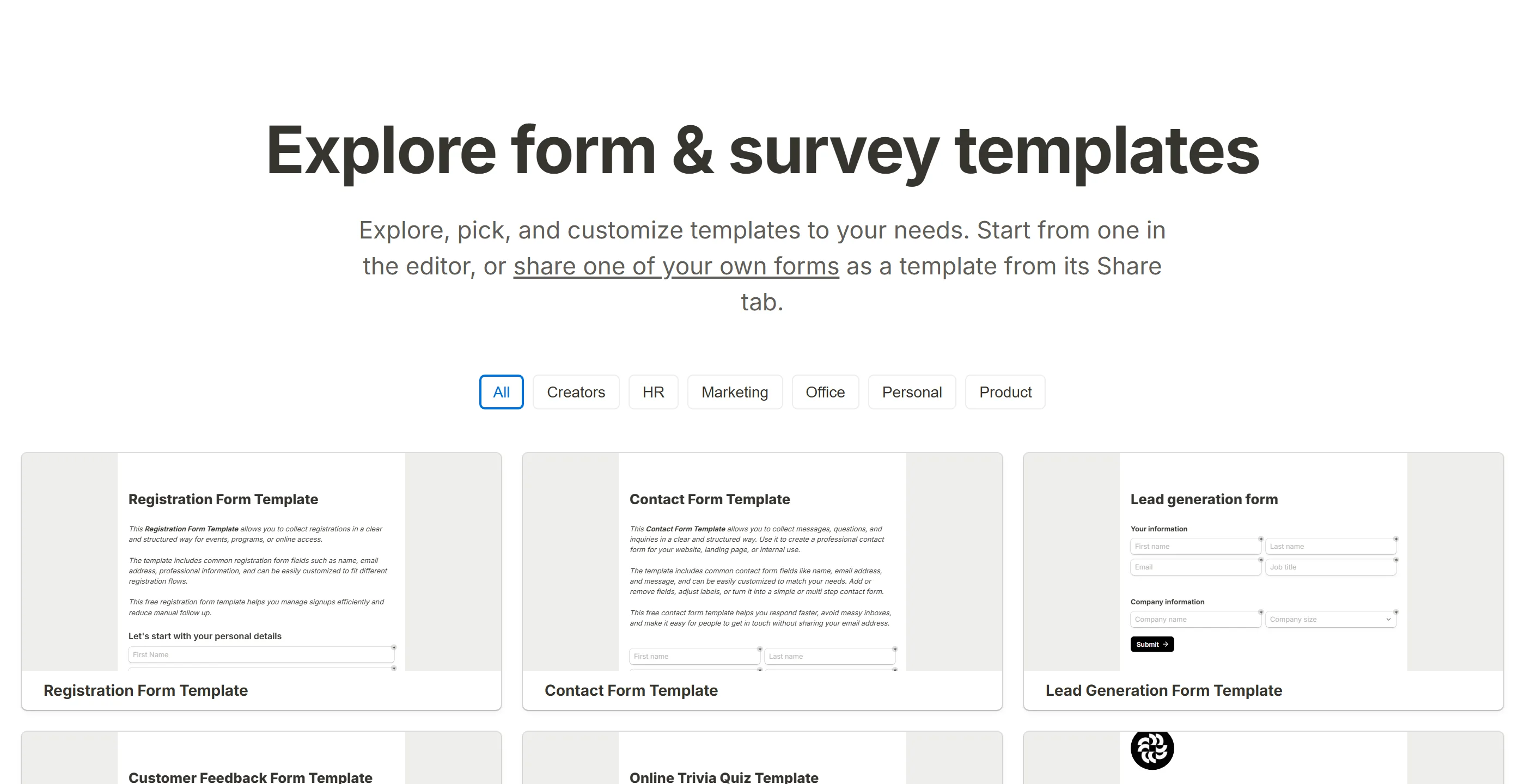
How to use form templates
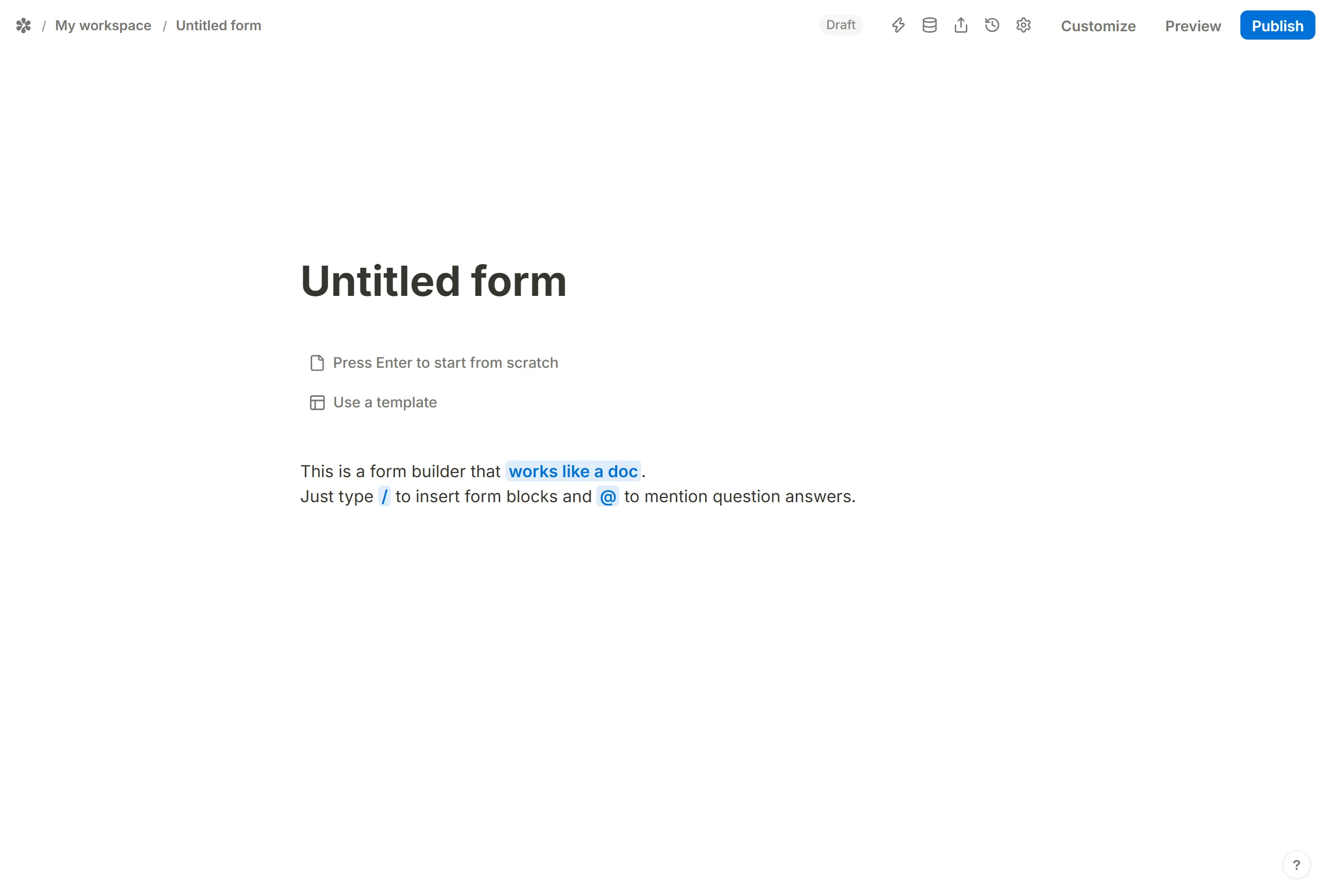
A new form opens empty and offers two doors on its canvas: press Enter to start from scratch, or Use a template to go to the gallery. The gallery is also at /templates any time, signed in or not.
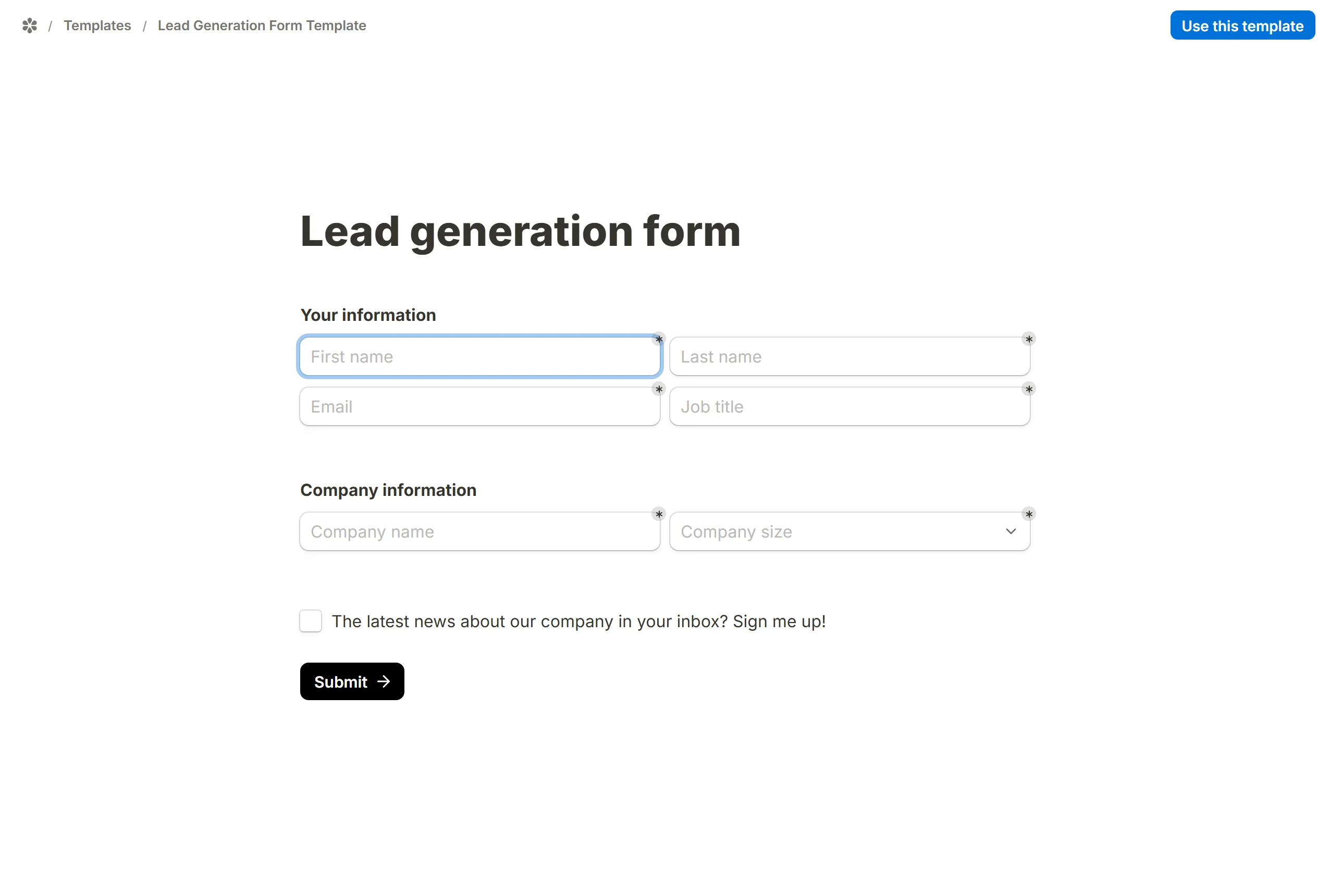
The category pills across the top narrow the grid: Creators, Product, Marketing, HR, Office and Personal. Open a card to see the whole form at /templates/<slug>, drawn by the real renderer so what you preview is what you get, and press Use this template. That is the one step that asks you to sign in if you are not; the copy lands in your active workspace and opens in the editor.
Below the built-in cards sits a second list: forms other people here have shared as templates. They filter by the same categories and open at /templates/from/<formId>.
Customize any template
The copy is an ordinary form. Rename it, add and remove questions, change the theme; nothing you do reaches the template it came from, and the template's own settings that describe its author rather than its design (a password, notification addresses, a close date, a submission limit, its link-preview card and its branding) are not carried over. What you keep is the questions, the pages, the logic and the look. The form sits in your workspace beside every other form you own.
Create your own template
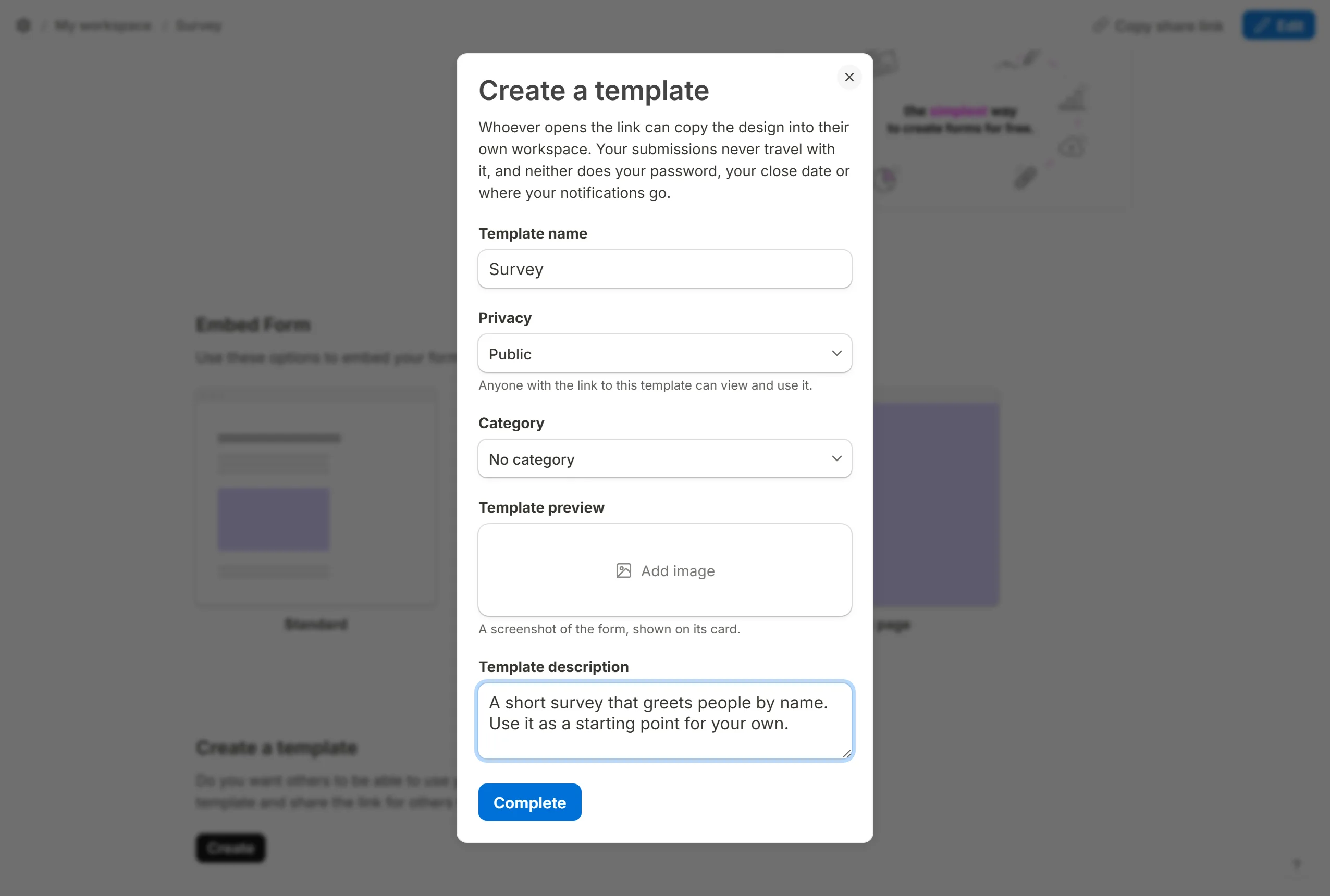
A form you keep rebuilding is a template waiting to be shared. Publish it, open the Share tab and scroll to Create a template.
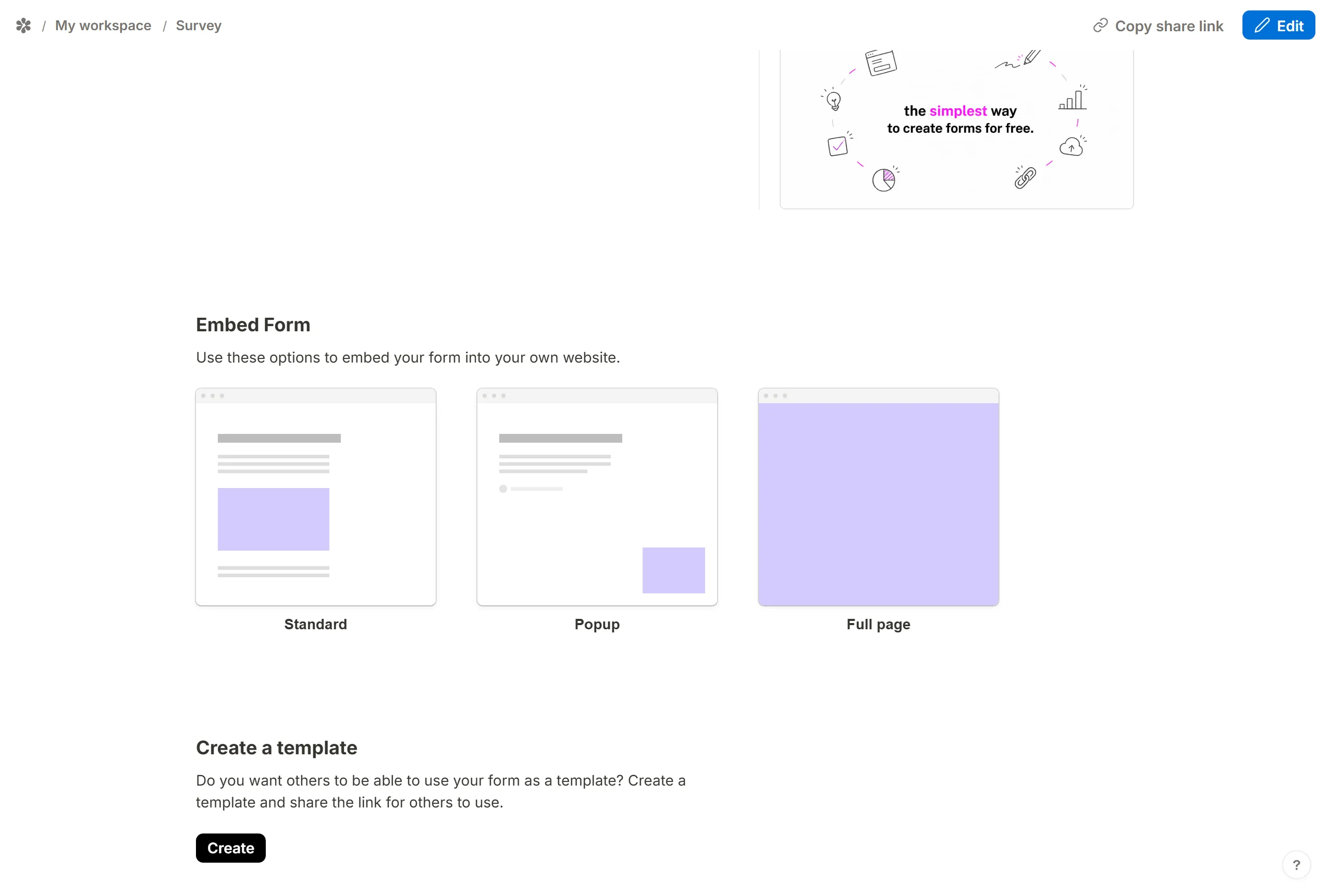
Name it
Give the template a name people will recognise in a list.Choose Privacy
Public: anyone with the link can view the template and use it, and it is listed in the gallery. Private: the template stays out of the gallery, and its link opens only for members of the form's workspace.Pick a category
One of Creators, Product, Marketing, HR, Office or Personal, or no category.Add a preview and a description
A screenshot of the form is shown on its card; the description sits under the name.Complete
The Share tab shows aSharedbadge, and the same block becomesEdit templatefor later changes.
Sharing is a switch on the form: turn it off and the template disappears from the gallery, while its details stay saved for the next time you turn it on. A form that is unpublished or closed is not offered as a template either. A password on the form does not stop it being a template, since a template hands out the design, not the right to submit.