Form version history
Browse every published version and autosave of a form, preview any of them, rename them, and restore one without touching the live page.
Tinyform keeps a copy of your form as you edit it and every time you publish. Version history is where you see those copies, preview any of them full-size, and restore one, which is the way out of a wrong edit, a deleted page, or a redesign you regret, without rebuilding anything by hand.
How it works
When a version is created
Two kinds of entry appear in the list:
- A published version every time you press
Publish. It is the document respondents were answering at that point, and each submission records which one it was made against. - An autosave as you edit. The editor saves the draft on its own, and each save is a snapshot; a save less than a minute after the previous autosave replaces it, so the trail is about one snapshot per minute of work rather than one per keystroke. A save that changes nothing adds nothing.
Both are frozen once written. Nothing edits a snapshot afterwards, except its label.
What is stored
The whole form as it was: every block and its text, the question settings, the logic and calculations, the theme and layout, and the form's settings.
What is not stored
Submissions, webhooks and connected domains are not part of a version. Restoring an older version changes none of them.
How long versions are kept
Versions and autosaves are kept for as long as the form exists. Nothing removes them on a schedule.
Restore a previous version
Open the editor
Go to/forms/<id>/edit.Open Version history
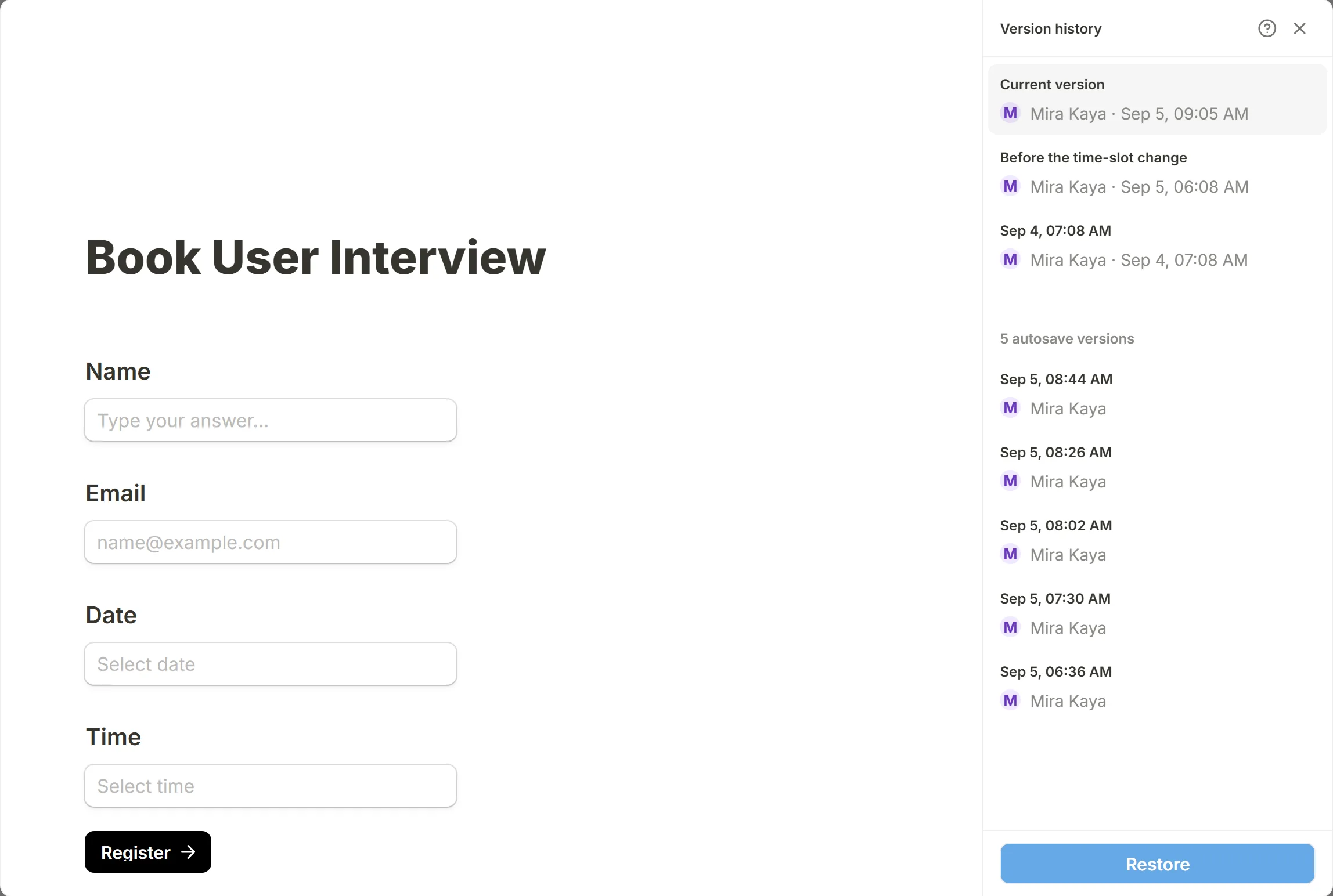
PressVersion historyin the editor's topbar. The dialog draws the selected snapshot on the left, rendered exactly as a respondent would see it, and the list on the right.Pick a version
The list starts withCurrent version, the draft as it is now, then every published version, then the autosaves under a count. Each row shows its label or its time, and who saved it.Restore
PressRestore. The snapshot is copied over your draft and the editor reloads with it. The button is disabled whileCurrent versionis selected, since there is nothing to restore it to.
Name a version
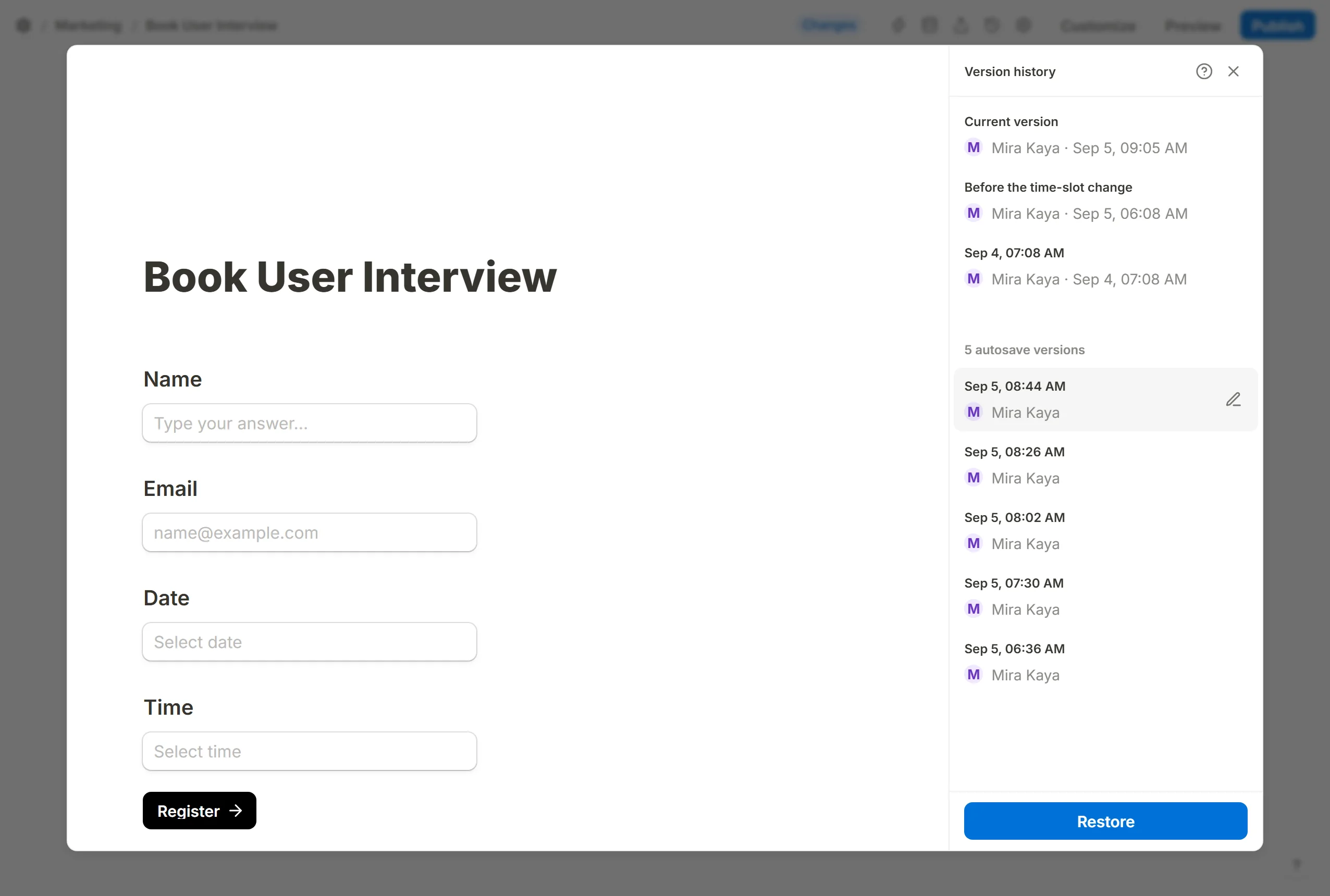
Hover a row and press the pen, or click its title, to give the snapshot a label such as "Before the pricing questions". Enter saves, Escape cancels, and a label can be up to 120 characters; clearing it puts the time back. A label changes nothing about the frozen document.
Discard unpublished changes
The Changes chip beside the save status in the editor is the shortcut for the most common restore: press it to discard the draft's edits and go back to the latest published version. It is the same as restoring that version from the dialog, and it does not unpublish the form.