Invite team members
Invite colleagues into your workspaces, see who is in your organization, remove people, hand over ownership, and accept an invitation you received.
Members are how a team shares forms without sharing a login. You invite people into one or more workspaces; everyone in a workspace can open, edit and publish its forms and read their submissions. Behind every workspace sits an organization, which is the set of people who can be invited at all and which has one owner.
There is no limit on members and nothing about them is metered. Tinyform counts forms, submissions and emails; it does not count people.
Invite team members
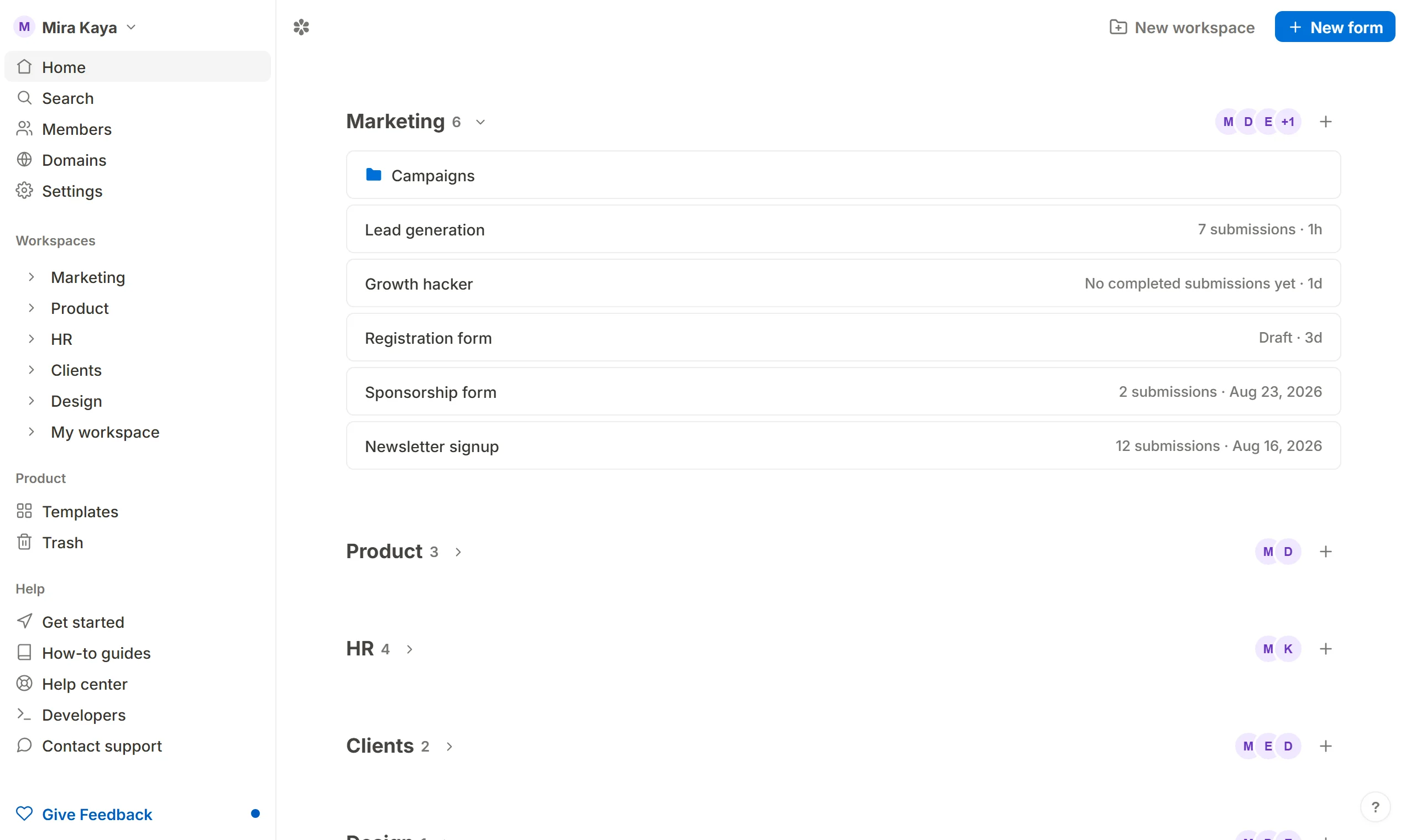
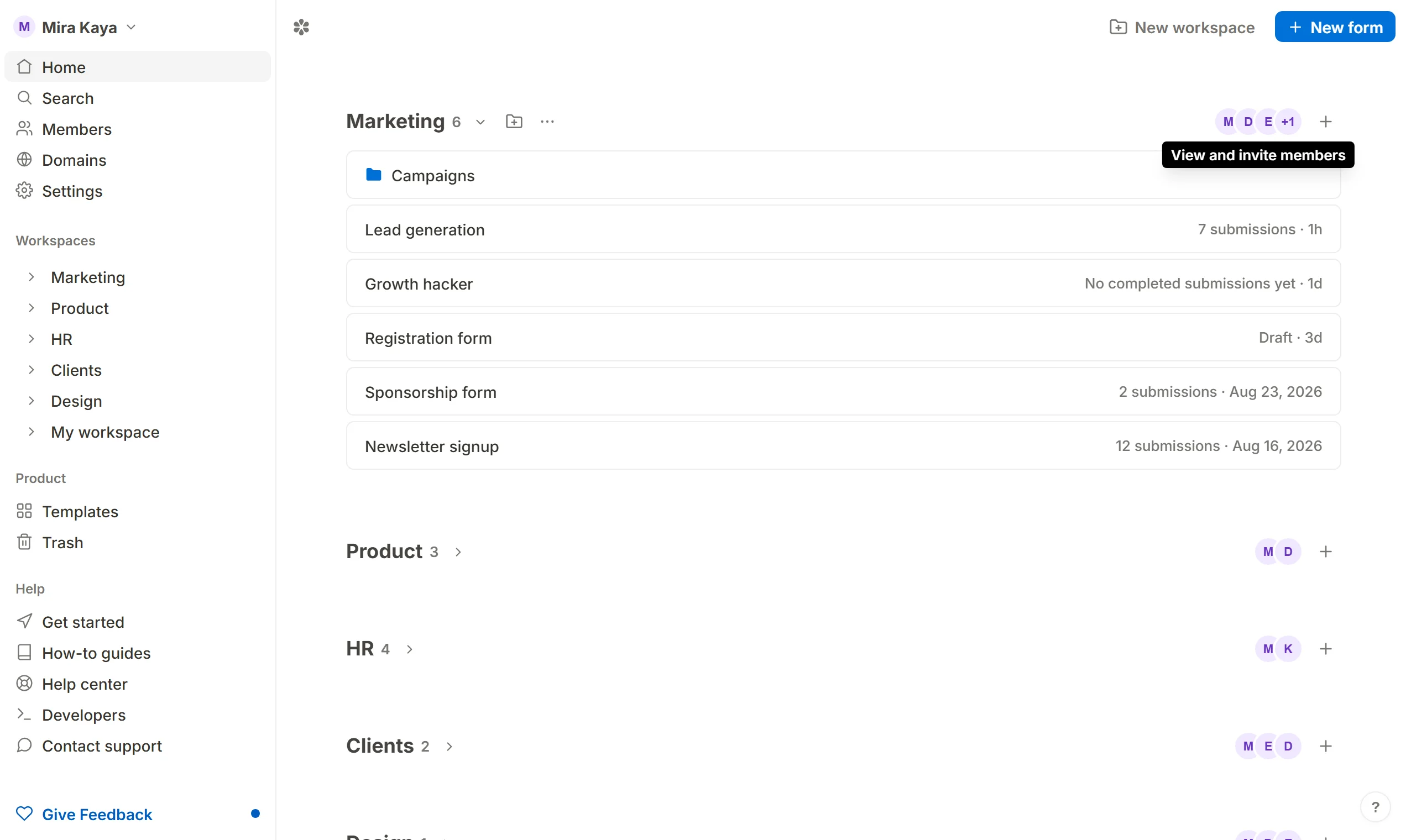
Members is a dialog rather than a page. Open it from Members in the sidebar, from the menu on your account chip, from the avatars beside any workspace's name on the dashboard, or from a workspace's … menu.
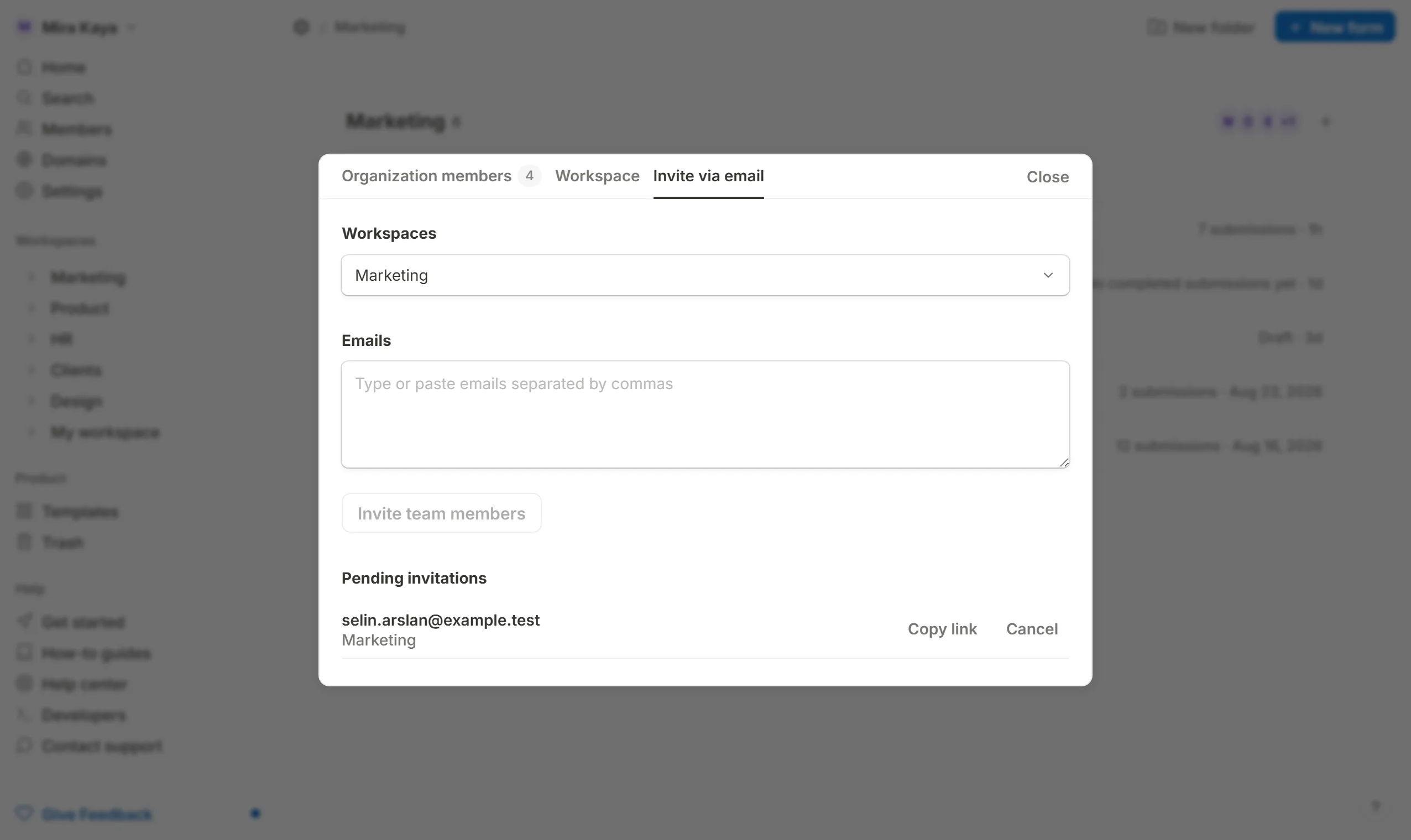
Invitations are per workspace. Open the Invite via email tab and, under Choose workspaces, tick the workspaces the person should join. Any member can invite into a workspace they are in.
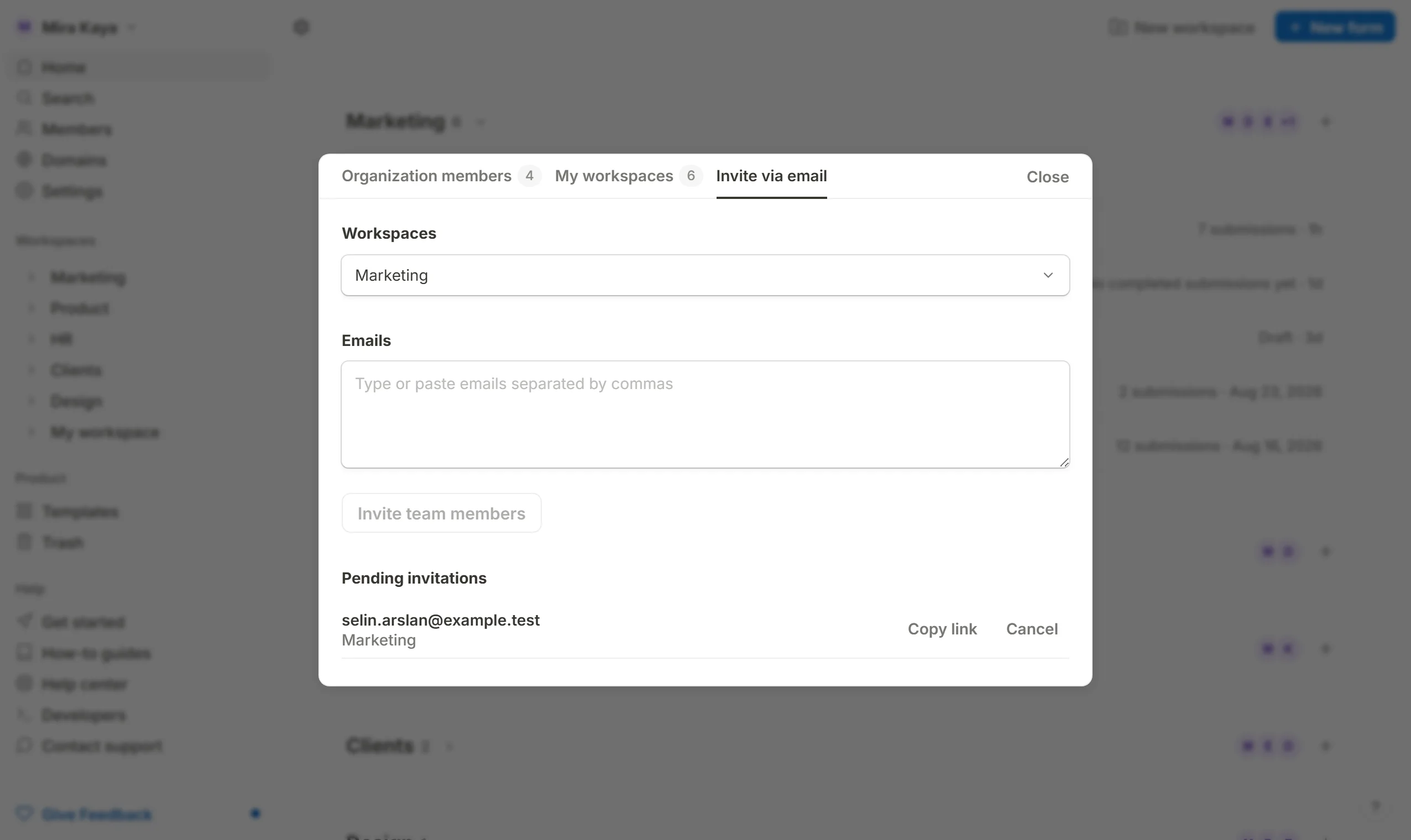
Type or paste one or more addresses, separated by commas.
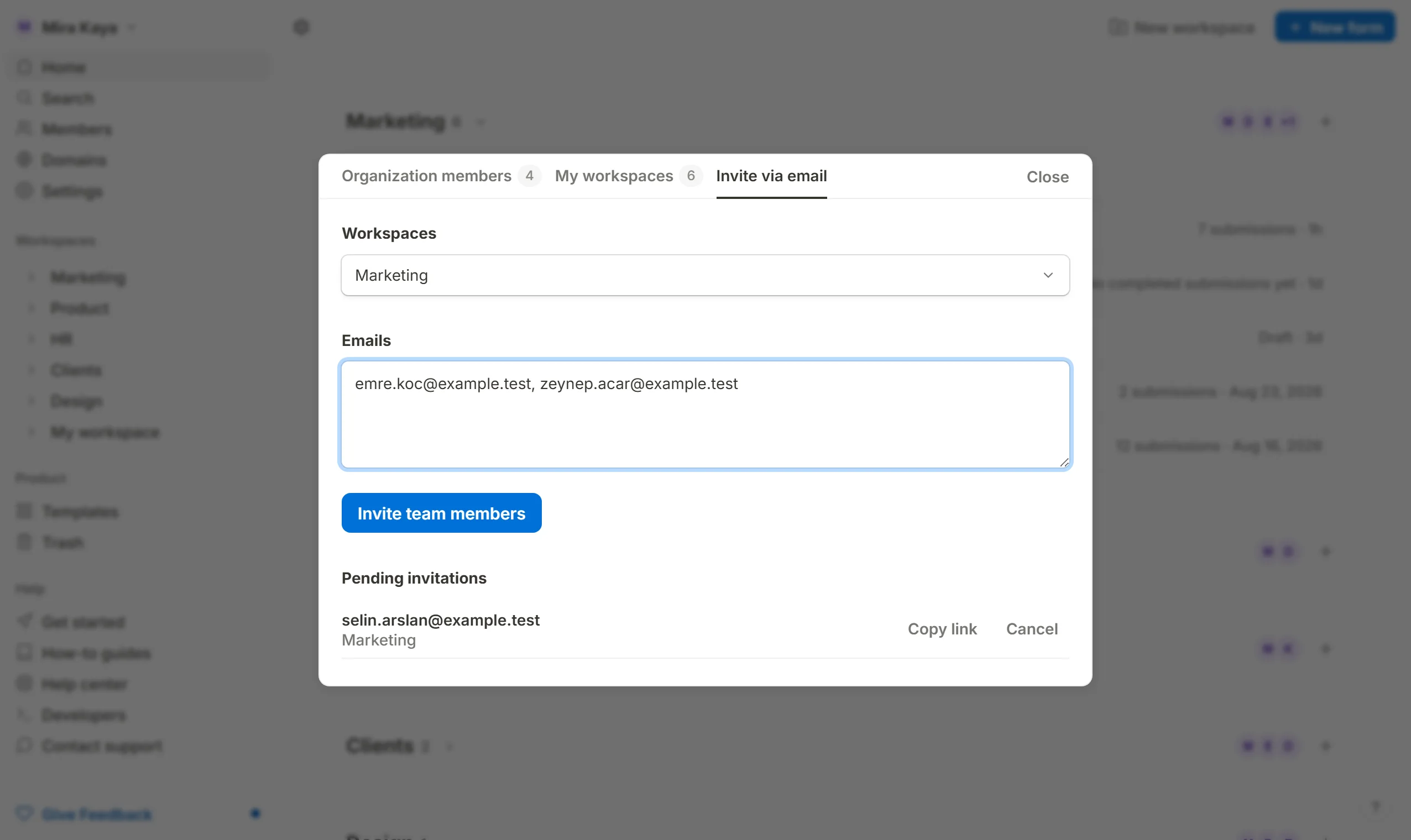
Press Invite team members. What happens next depends on the address:
- Someone already in your organization is added to the chosen workspaces immediately. No email is sent, and the workspace appears on their dashboard on their next load.
- Anyone else receives an invitation email with a link. The invitation is valid for a week, and inviting the same address again before then adds workspaces to the pending invitation rather than creating a second one.
Pending invitations are listed under the invite form, each with a Copy link button. That matters where no mail server is set: the invitation still exists, and you can send the link yourself.
Manage access
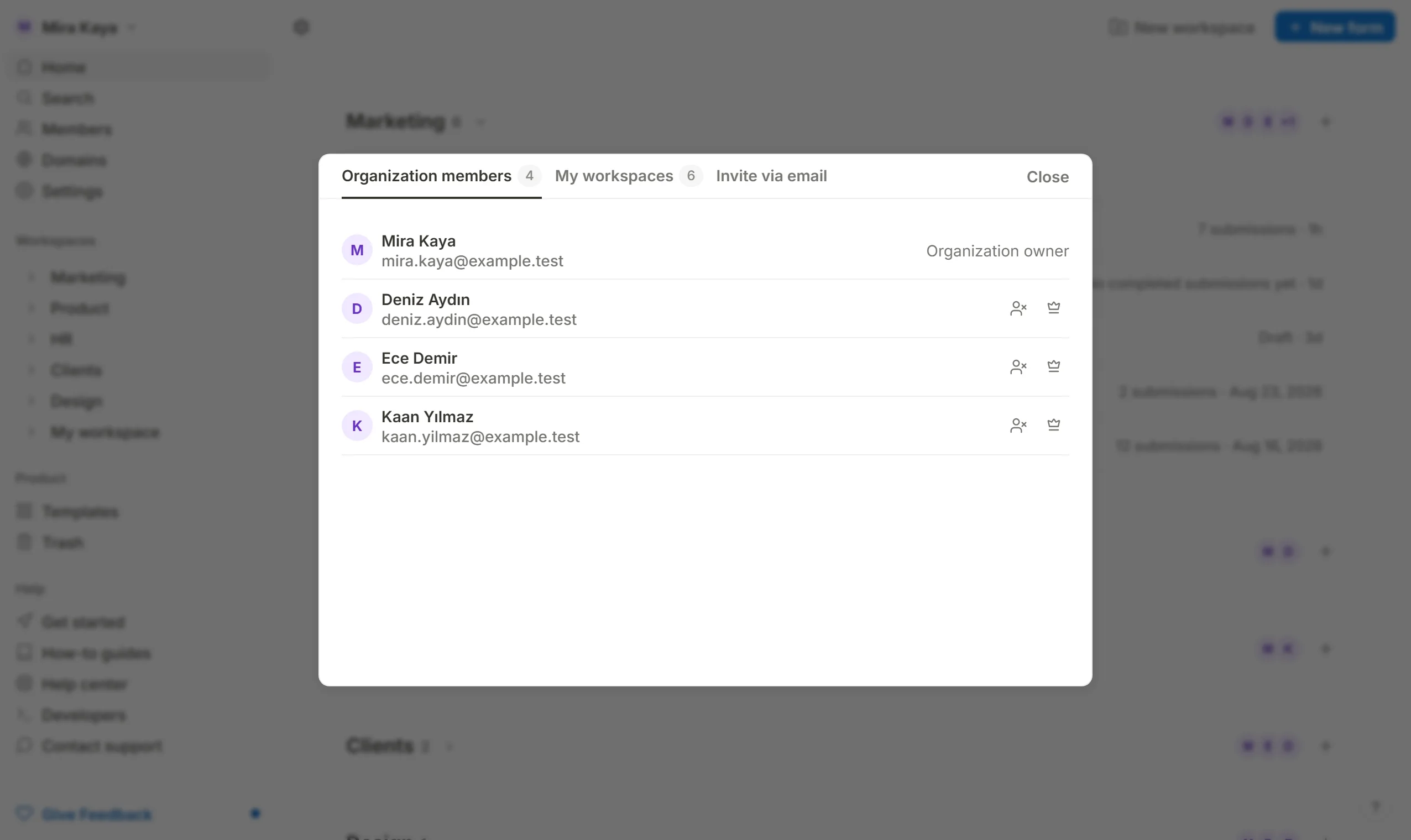
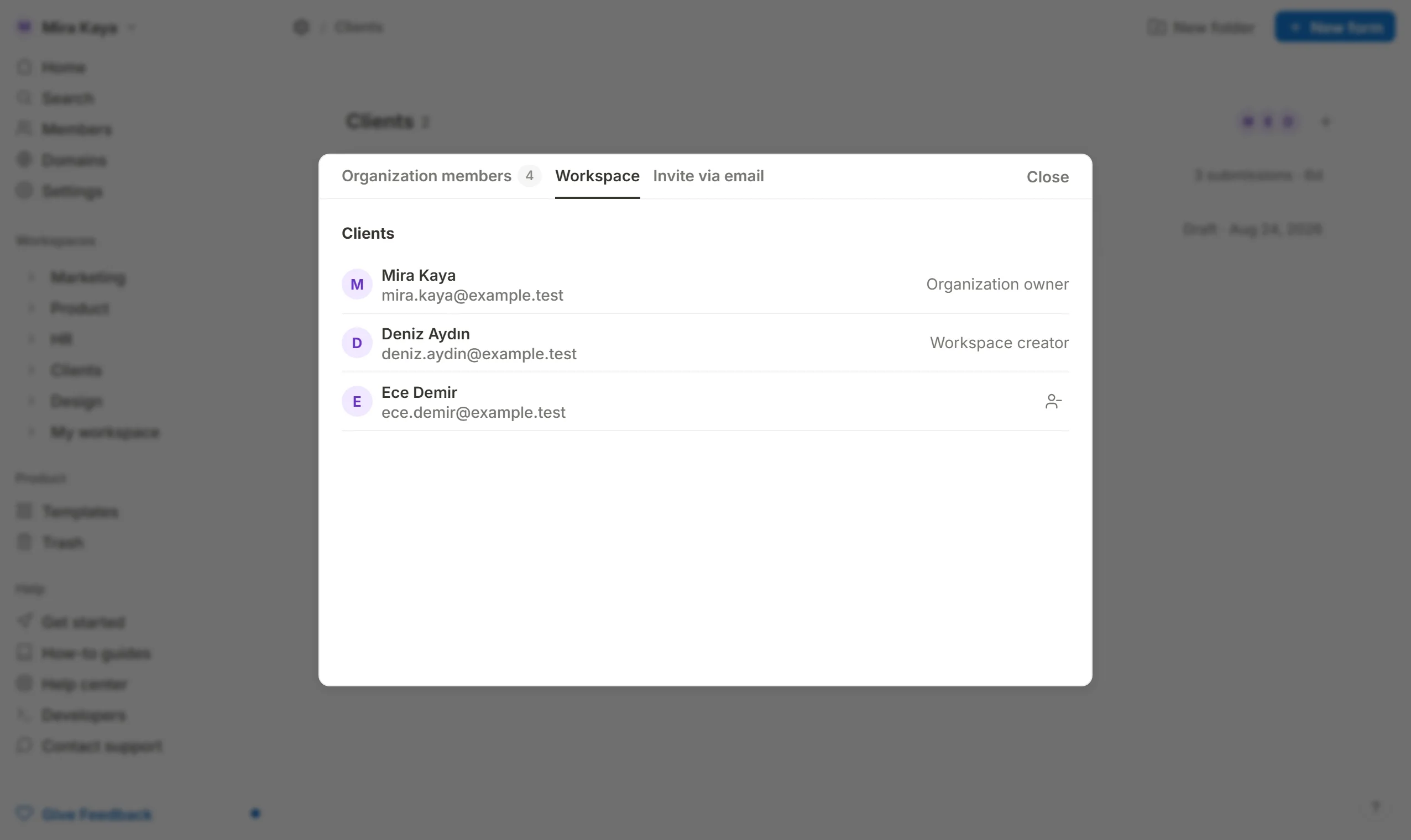
The Organization members tab lists everyone in the organization; the Workspace tab (or My workspaces, when the dialog was opened without a workspace in context) lists the members of each workspace you are in. Everyone in an organization can see who else is in it, but a form is visible only to the members of its workspace.
Members are equal. There is no read-only role; anyone in a workspace can create, edit, publish and delete its forms, and see its submissions.
Organization members
Any member can create new workspaces and invite people into the workspaces they belong to. A workspace somebody else created is invisible to you until you are invited into it.
Removing somebody from a workspace is done from the Workspace tab with the Remove from workspace icon on their row. Two people may do it: the organization's owner, and the person who created that workspace, whose row is labelled Workspace creator.
The dashboard shows a workspace's members as a stack of avatars beside its name. Press the stack to open the dialog on that workspace.
Organization owner
The owner's row is labelled Organization owner, and two actions exist for the owner alone, drawn on every other member's row in the Organization members tab:
Remove from organization, which takes the person out of every workspace at once.Transfer ownership, which makes that person the owner and the current owner an ordinary member.
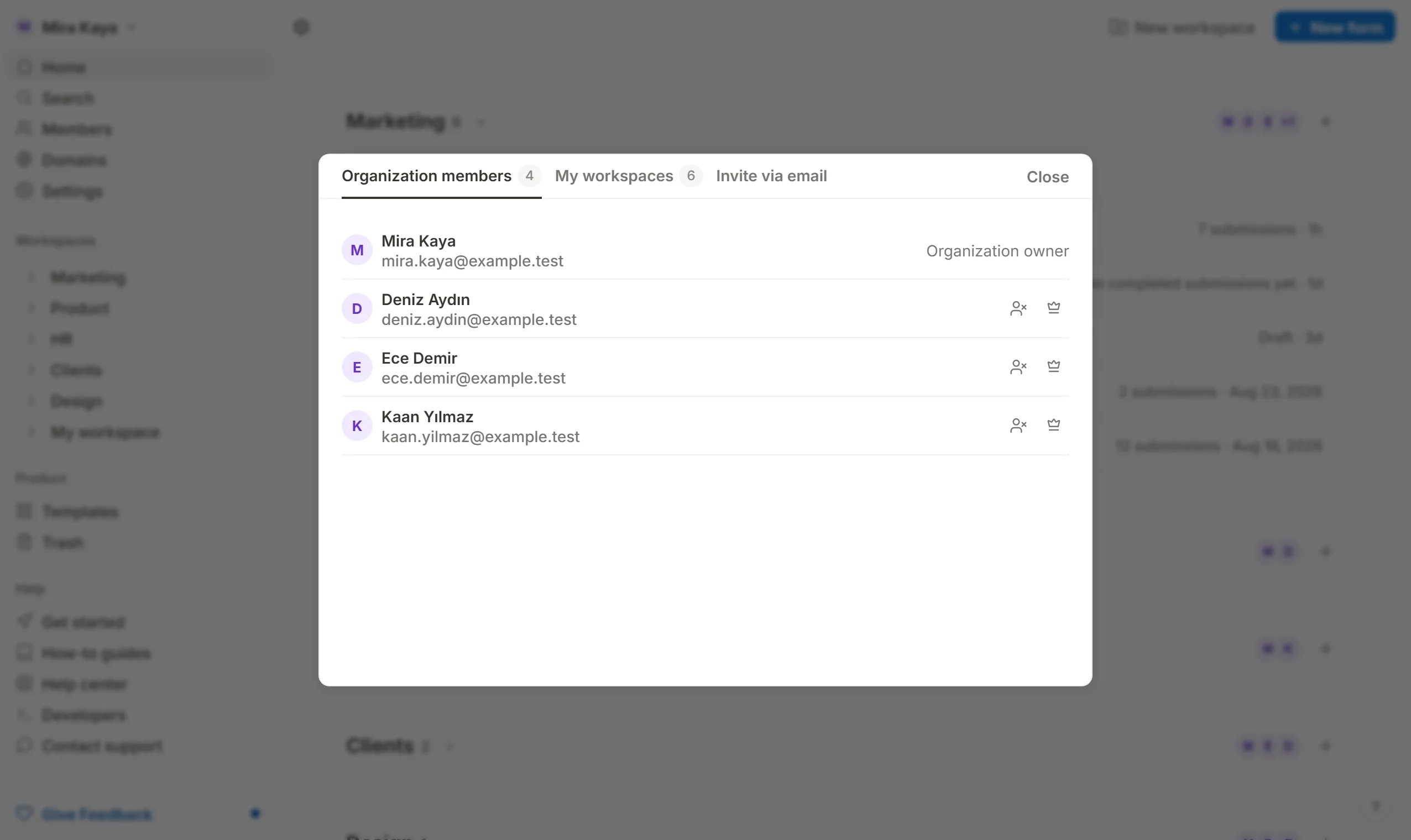
Both ask for confirmation first, as does every other removal in this dialog.
Accepting an invitation
An invitation reaches you two ways: the email's link opens /accept-invite, which names the organization and the workspaces you are being invited to and asks you to sign in or sign up if you have not; and any invitation waiting on your address is also shown as a card on your dashboard with Accept and Decline. Accepting joins you to the organization and puts the chosen workspaces on your dashboard.
Your own workspaces are not touched. Joining somebody else's organization adds their workspaces beside yours; it does not move your forms anywhere.
Leaving an organization
Leave organization is on your own row in the Organization members tab. You lose access to all of that organization's workspaces at once. The owner cannot leave: hand ownership to somebody else first (the dialog says "Transfer ownership to someone else before leaving."). If an account is deleted, an organization it was alone in is deleted with it; otherwise, if the account was the owner, ownership passes to the longest-standing remaining member.
Moving forms between organizations
Move forms on a form's row moves it between workspaces and folders of the same organization only. To hand a form to another organization, share it as a template and use the template from an account in the other organization. Submissions do not travel with it; export them as a CSV from the Submissions tab.