Add popup forms to Notion with Super
Put a popup form on a Notion site built with Super: pick a trigger, copy the snippet, and link the text that opens it.
A Notion page on its own has nowhere to paste a script, so a popup form cannot be added to it directly. A site built from Notion with Super can: Super lets you add HTML to the head or body of every page, and that is all the popup widget needs. This guide walks through the whole thing, from the form to the linked text that opens it.
You will need an account on each of these.
The form builder Tinyform, where the form is written. Any form you have published can be shown as a popup.

Notion Where the page itself is written.

Super Turns a Notion page into a website you can add code to.
1. Set up your site in Super
Super builds a website out of a Notion page and gives you a dashboard for it. Follow Super's own instructions to connect a page and publish the site. Once the site exists you have somewhere to paste the widget.
2. Create and publish a form
Build the form at /forms/<id>/edit, from a blank page or from one of the templates, and press Publish. A popup is a framed render of the published form, so a form that is still a draft has nothing to show.
Then open the Share tab, choose Embed Form, and set the embed type to Popup.
3. Choose the popup settings
The rail on the left holds the settings and the pane on the right previews the result on a mock page. The Open control decides what makes the popup appear. For this guide we want it to open when a visitor clicks a piece of highlighted text, so it stays on On button click, which is the default.
The other four triggers open the popup on their own:
On page loadAfter elapsed time, with a delay in seconds (3 by default)On exit intent, when the pointer leaves the top of the window (never on a touch device)After scrolling, once a share of the page has been scrolled (50% by default)
Below the trigger you can set the Position (the bottom right corner, or the centre of the page), the Width (376px by default), a Dark overlay for the corner layout, and an Emoji bubble with an animation to draw the eye. Hide on submit is on by default, so the panel closes once the visitor has sent their answers.
4. Copy the embed code
Press Get the code. The pane switches from the preview to the snippet, and the copy button in its corner puts the whole thing on your clipboard.
5. Add the code to your Super site
In the Super dashboard open the Code page and paste the snippet into the Head or the Body tab. Save, and let Super republish the site.
If you picked any trigger other than On button click, you are done: the popup opens on its own the next time somebody visits.
If you kept On button click, the snippet has two more parts under the script tag: a button and a link, each carrying the same settings. On a Notion page you cannot add a button, but you can link text, so it is the link you want. Go back to the embed dialog and copy the link's href value by hand. It starts with a hash and looks like #tinyform-open= followed by your form's id and its settings.
In Notion, select the words that should open the popup and choose Add link.
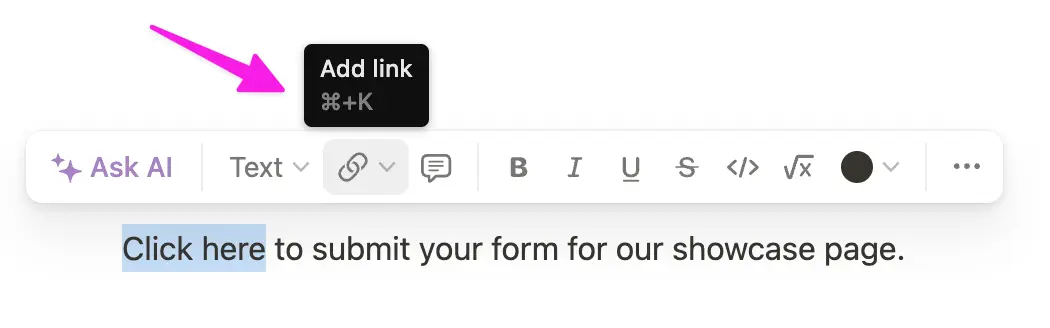
Notion only accepts a full address, so type your own site's address first and paste the hash straight after it, with no space in between: https://your-site.com/#tinyform-open=.... The widget reads everything after the hash and cancels the navigation, so the page stays where it is and the popup opens.
That is the whole setup. Clicking the linked text now opens the form in a panel, and each fill lands in the form's Submissions tab.