Embed anything
Put a video, an audio player, a map, a calendar, a PDF or any other web page inside a form with the four embed blocks.
A form can carry more than questions. Tinyform has four blocks for outside content, grouped under Embed blocks in the insert menu: Image, Video, Audio and Embed anything. The first three know how to turn a share link from the popular services into a working player; the fourth frames any address you give it.
Insert an embed
Open a form in the editor, press + or type / on an empty line, and pick the block:
/videofor a video/audiofor audio/imagefor an image/embedfor anything else
Paste the content's URL into the block that appears and confirm. The Video block asks you to Paste the video link, the Audio block to Paste the audio link, and Embed anything opens an Embed link panel. A string that is not an http or https address is refused with Enter a valid URL.
Resize an embed
Drag the edges of the block to change its size. The handles are labelled Resize width, Resize height and Resize width and height, and Reset size puts the block back to its default. The width is kept as a share of the form's column, so it stays in proportion on a phone.
Two embeds can sit side by side: drag one next to the other to make columns.
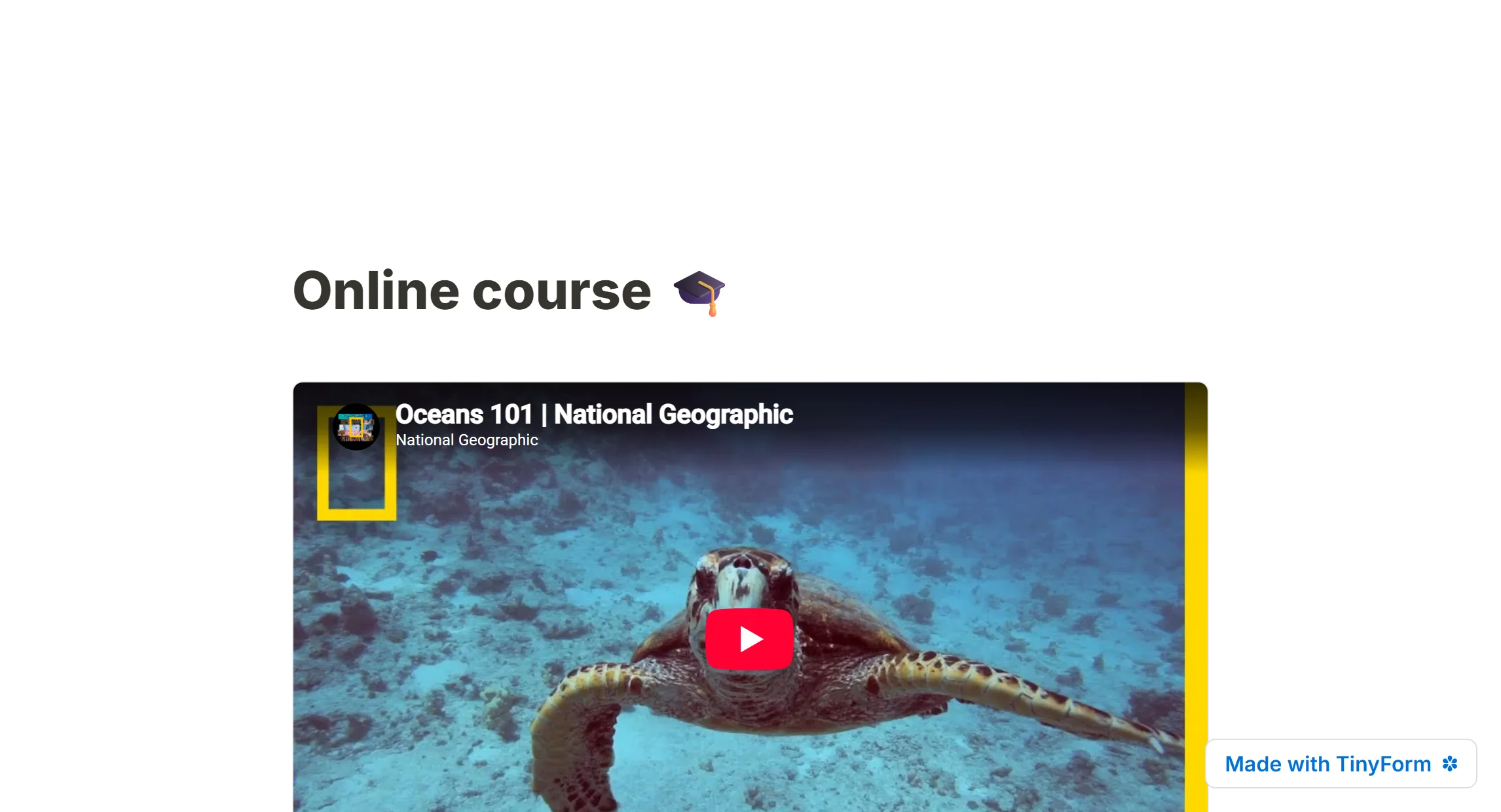
Embed a video

The Video block works with YouTube, Vimeo, Loom, MP4s and more. A share link from YouTube, Vimeo or Loom is rewritten into the service's player address for you, so paste the link you would send a friend. Anything else is treated as a file the browser plays itself, which is what a publicly hosted MP4 should be.
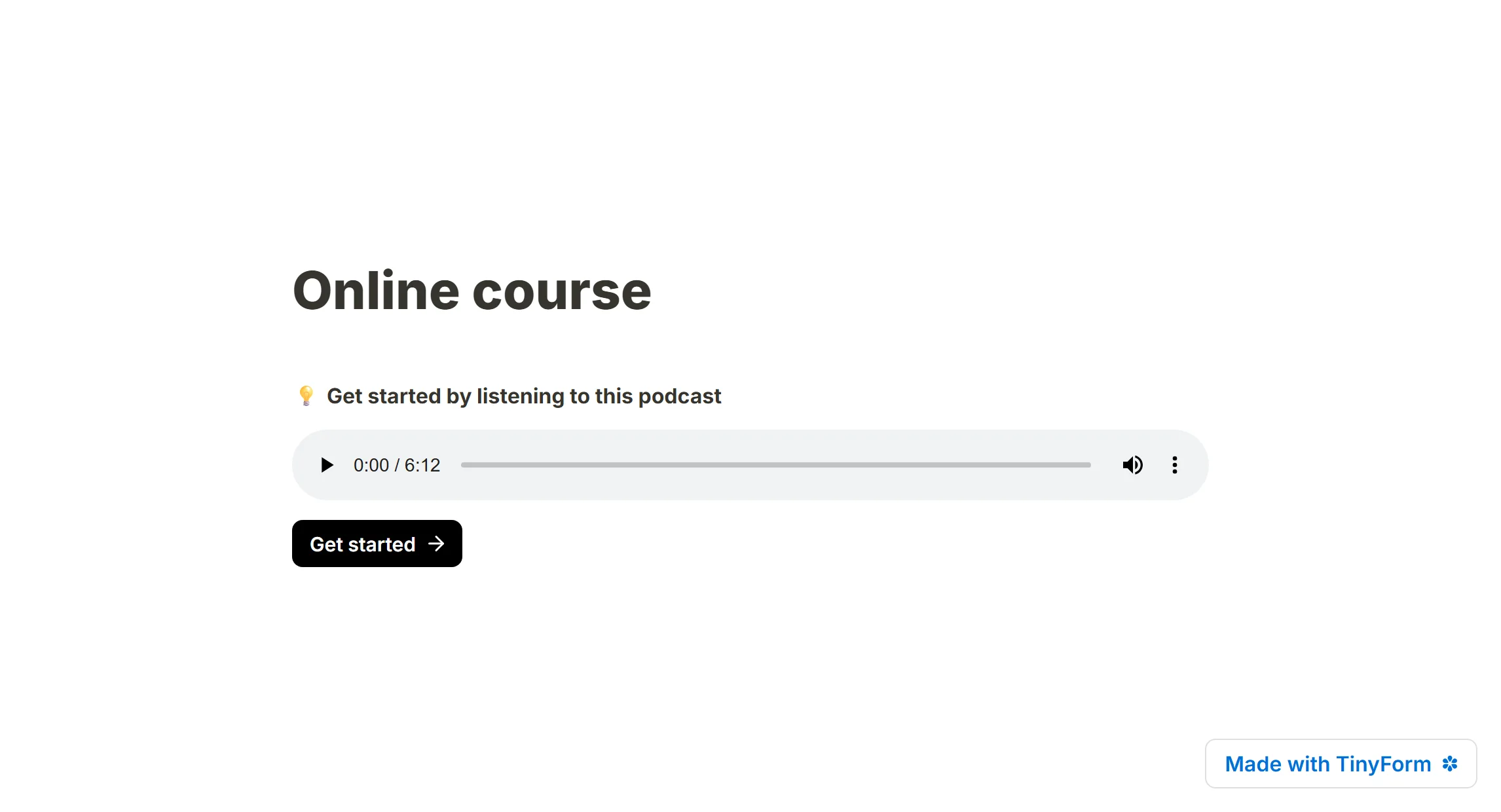
Embed audio
The Audio block works with SoundCloud, Spotify, MP3s and more. A Spotify or SoundCloud link becomes that service's own player; any other address is played as an audio file, so a hosted MP3 with a public link works as it is.
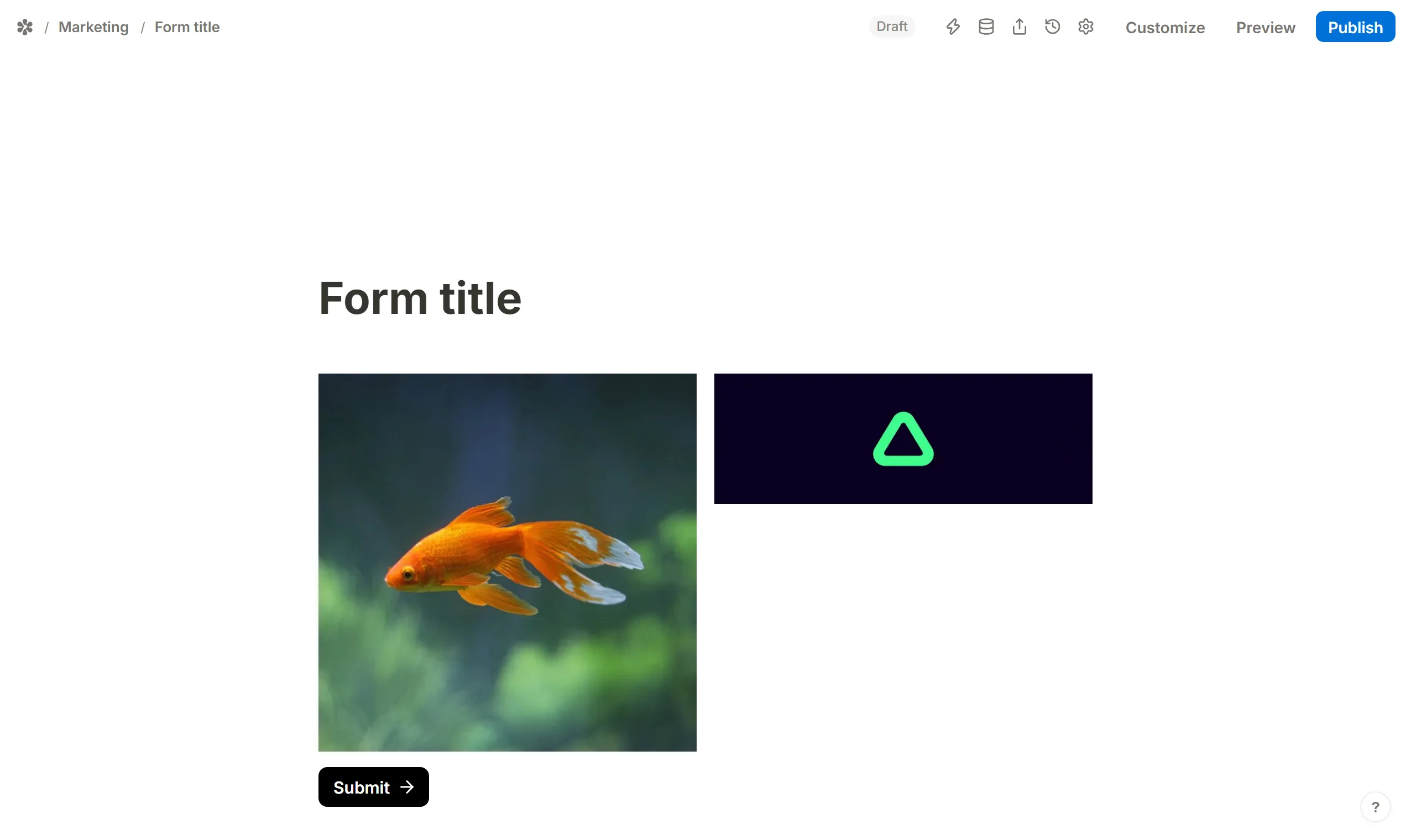
Embed an image
The Image block takes a picture three ways: upload a file, paste an Image link, or search Pexels where the site offers it. Once the image is in, its dialog offers a caption, alt text for screen readers, and an Image link so a click on the picture opens a page.
Embed any other content
Embed anything works with links of PDFs, Calendly, Google Maps, Tweets, public Figma files and more. It frames whatever address you give it, so anything that allows itself to be shown inside another page works here.
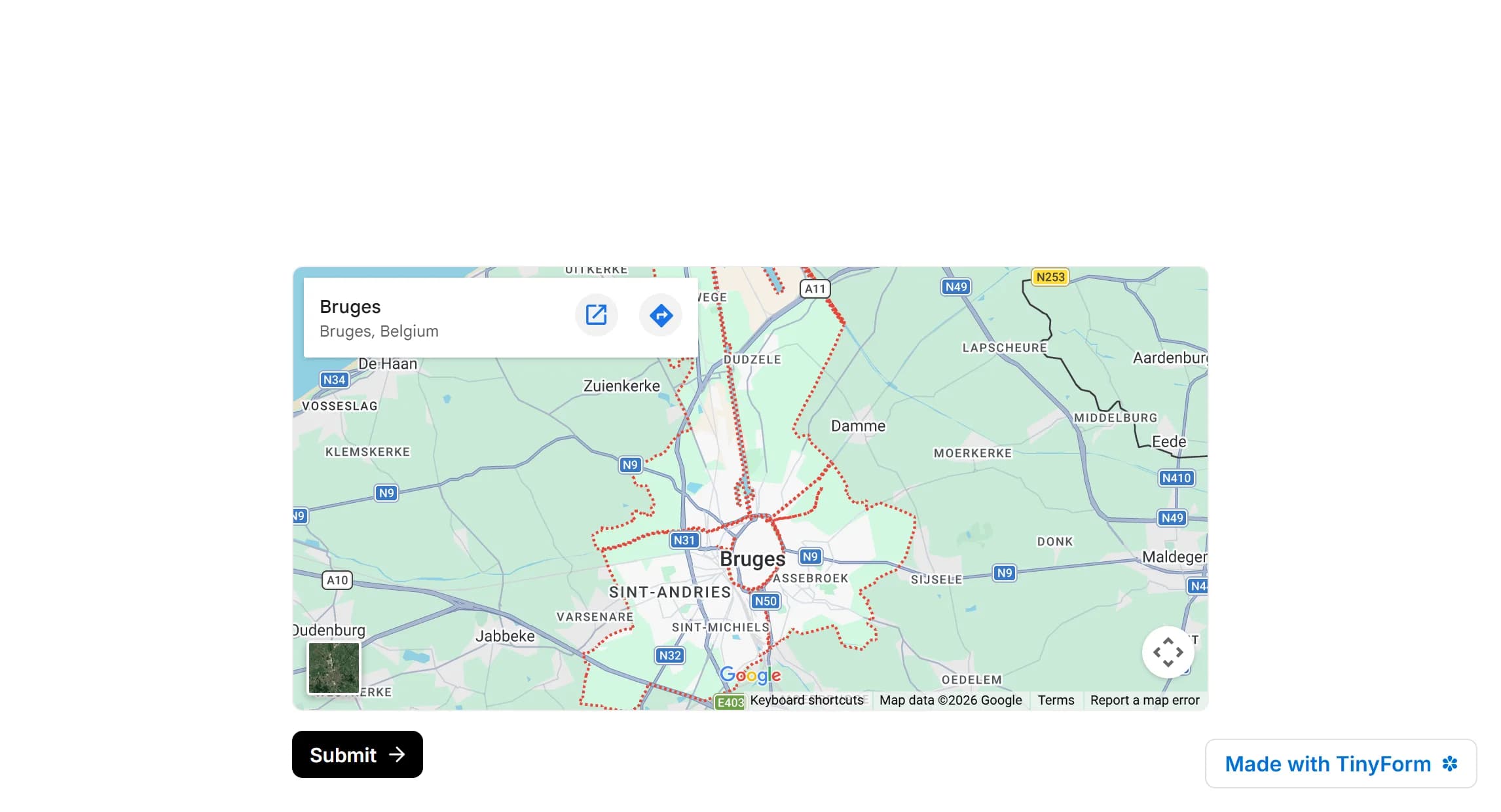
Some things people embed:
- Maps (Google Maps)
- Booking calendars (Calendly, Cal.com)
- Code (a GitHub Gist, CodePen, JSFiddle)
- GIFs (Giphy)
- Posts on X
- Figma files shared publicly
- PDFs hosted online
Embed a Google Map
Find the place
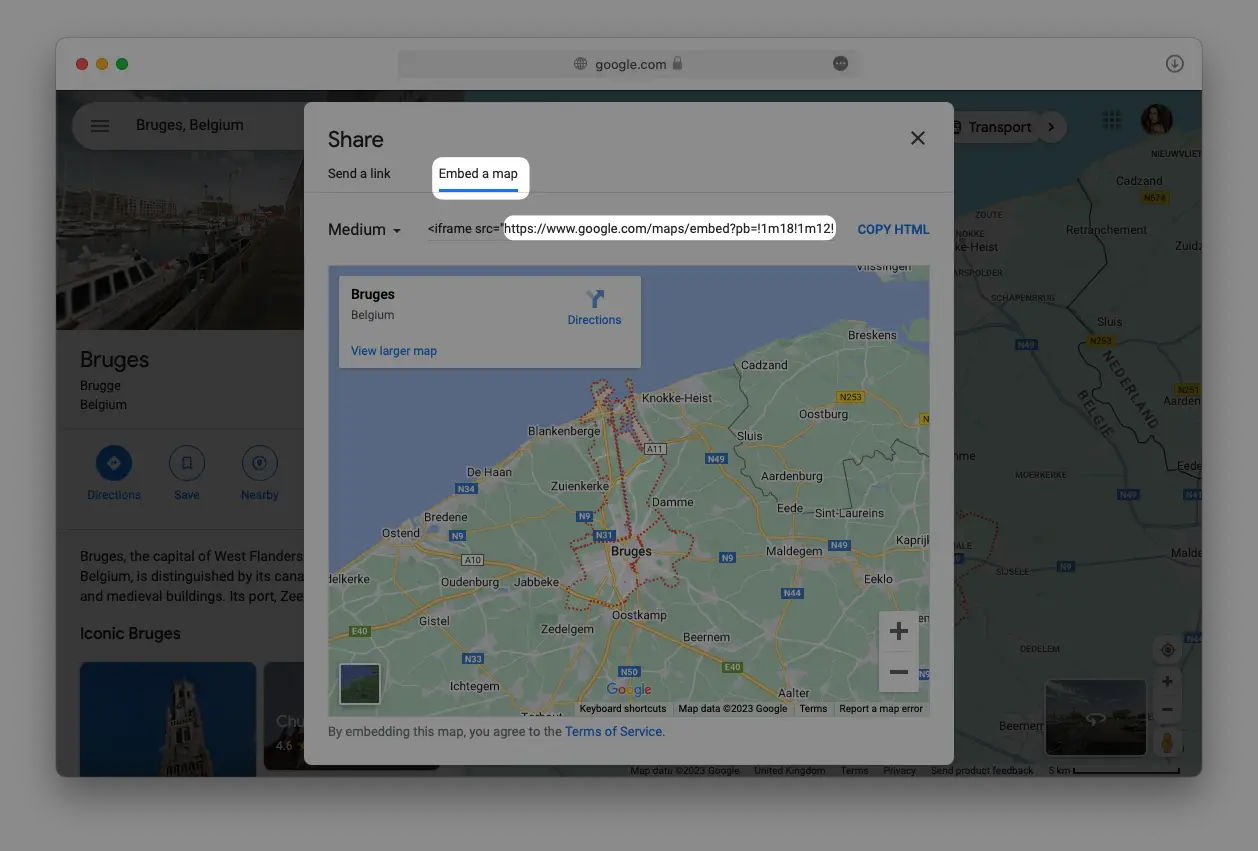
Search for the location on Google Maps and pressShare.Open the embed tab
PickEmbed a map.Copy only the address
Inside the code shown, copy the URL between the quotation marks, the one startinghttps://www.google.com/maps. Leave the rest of the code behind.Paste it into the block
In the editor, insertEmbed anythingand paste the URL.
Embed a PDF hosted on Google Drive
A PDF has to be reachable at a public address before it can be framed. Your own website works; so does Google Drive, as long as the file's sharing is set to anyone with the link.
Upload the PDF
Put the file in Google Drive.Share it
Right-click the file, chooseShare, and underGeneral accesspickAnyone with the link.Copy the link
Copy the sharing link Drive gives you.Change the ending
The link ends in/view?usp=sharing. Replace that part with/preview.Embed it
InsertEmbed anythingin the editor and paste the edited link.
Before: https://drive.google.com/file/d/xxxxxxx/view?usp=sharing
After: https://drive.google.com/file/d/xxxxxxx/preview