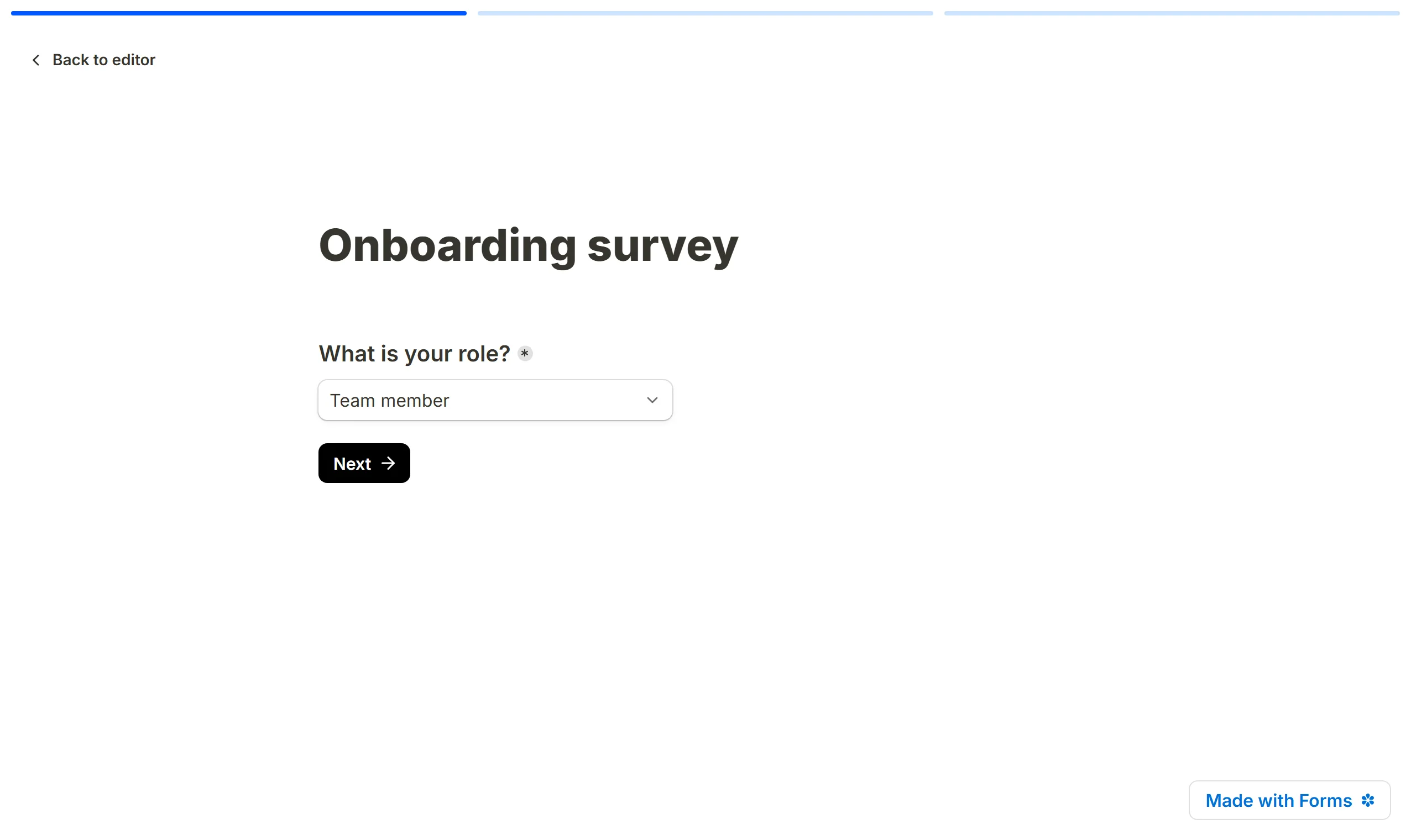
Progress bar
Turn on the progress bar so respondents see how far through a multi-page form they are, and restyle it with custom CSS.
The progress bar tells a respondent how much of a form is left, one segment per page, and gives them a reason to carry on to the end. It is a switch in the form's settings, and it shows only on a form with two pages or more.
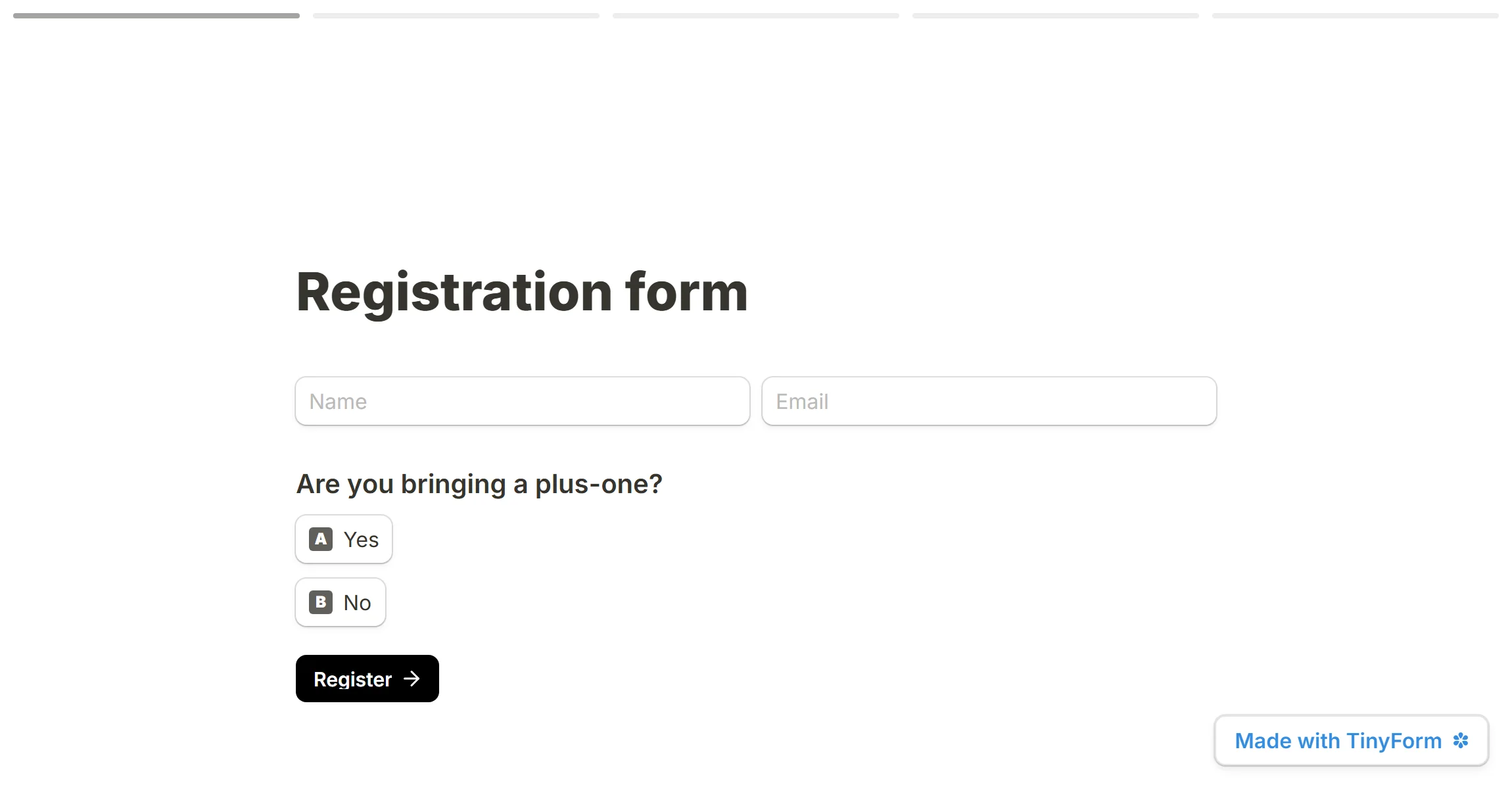
Activate the progress bar
Open the form's Settings tab
From the form's tabs, pickSettings.Turn on Progress bar
It is in theGeneralsection: "The progress bar provides a clear way for respondents to understand how much of the form they have completed, and encourages them to continue until the end."Save
PressSave changesat the foot of the page.
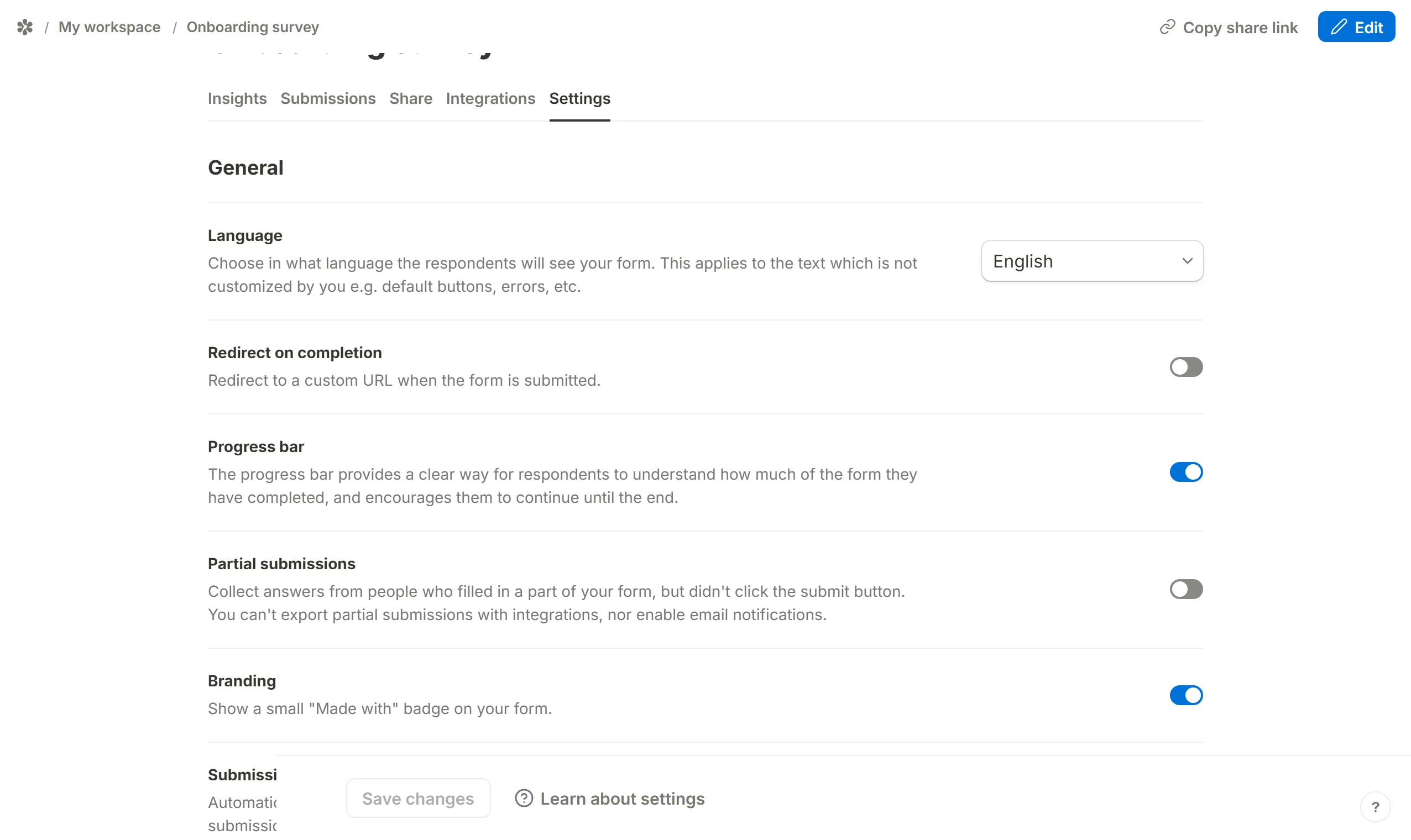
Back in the editor, press Preview — or open the published form — to see it drawn across the top of the page.
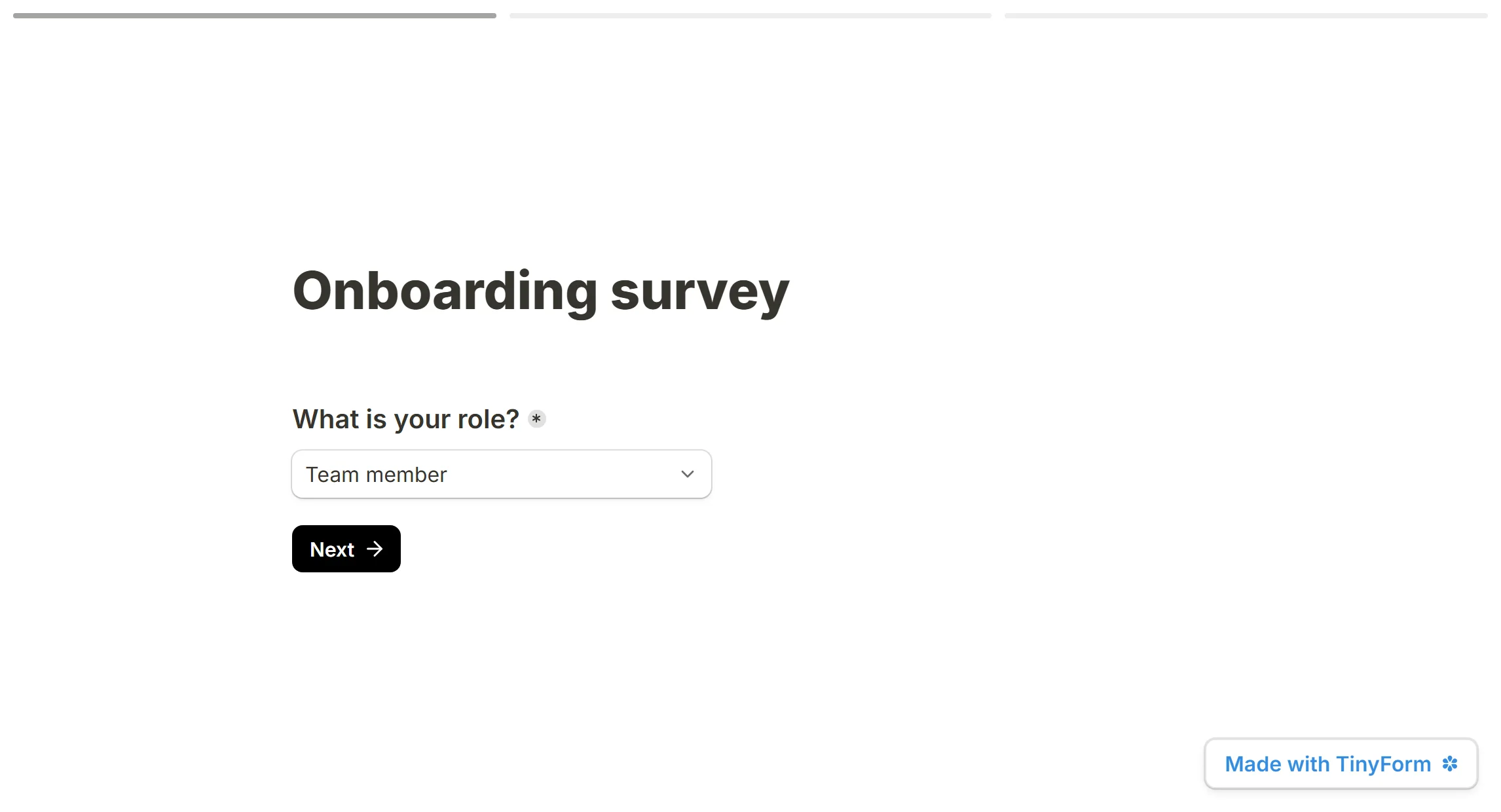
Over a cover image the bar switches to white on a soft shade, so it stays legible whatever the photo.
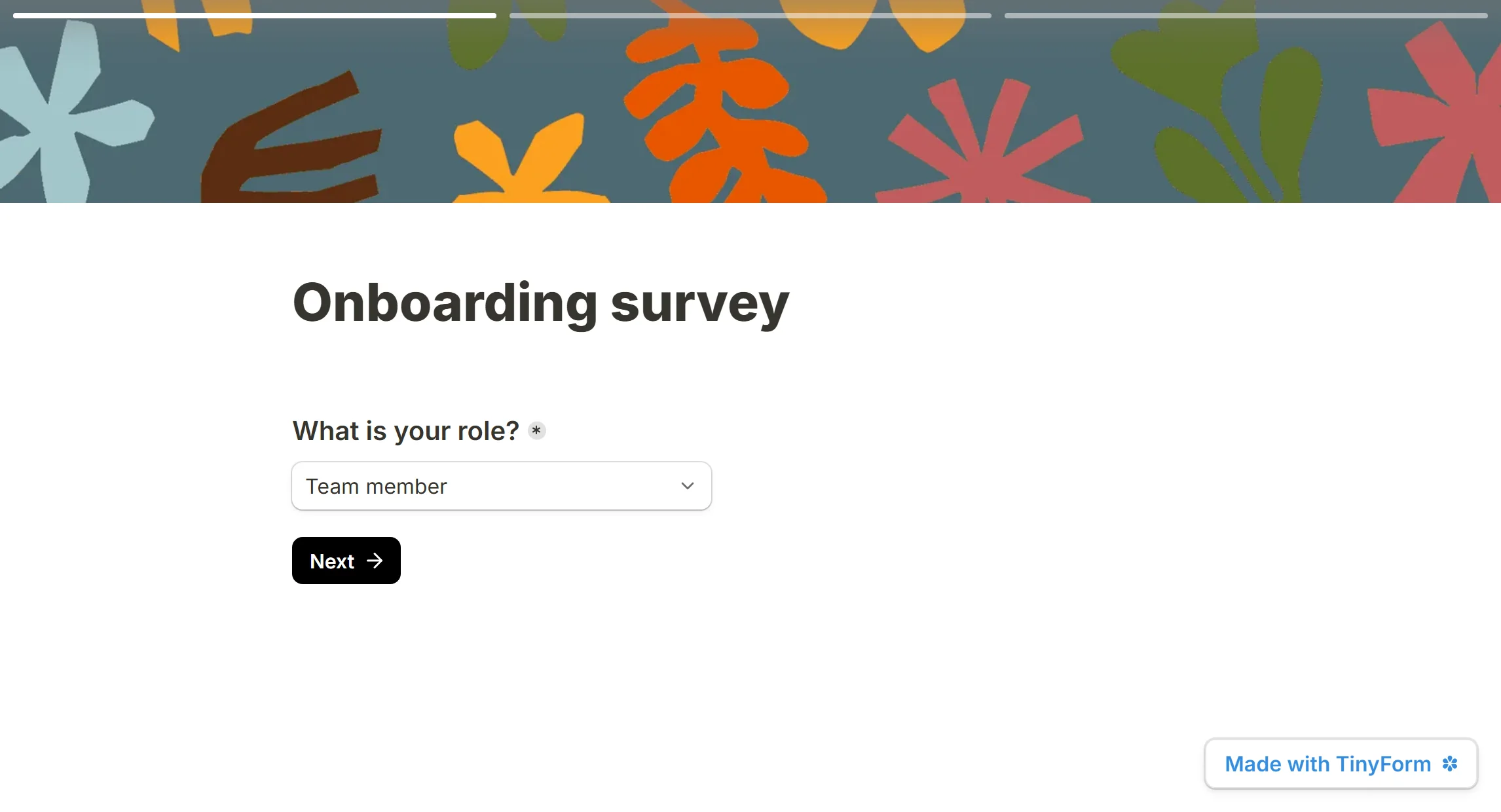
Using the progress bar with conditional logic
The bar counts every page the form has. When conditional logic jumps a respondent over pages, the bar leaps with it: 2 of 8, then 6 of 8, which can read as if something went wrong. The form cannot know which path a person will take, so it cannot show how much of that path is left.
Customize the progress bar
Automatic design
The bar takes its colours from what is behind it. On a plain page the track and the fill are shades of the form's own text colour, so a theme change recolours them too; over a cover they turn white on a faint scrim.

Custom CSS
Custom CSS can restyle the bar by hand. It carries two stable class names:
| Description | CSS class |
|---|---|
| The band across the top of the page | .fe-progress-bar |
| One segment, one per page | .fe-progress-bar-item |
| The filled part of a segment | .fe-progress-bar-item::after |
This snippet paints the track light blue and the reached pages dark blue:
.fe-progress-bar-item {
  background-color: #cce4fe;
}

.fe-progress-bar-item::after {
  background-color: #0057ff;
}
Press Customize above the form title, scroll to the Custom CSS box at the bottom of the panel, paste the snippet and swap in your own hex codes.
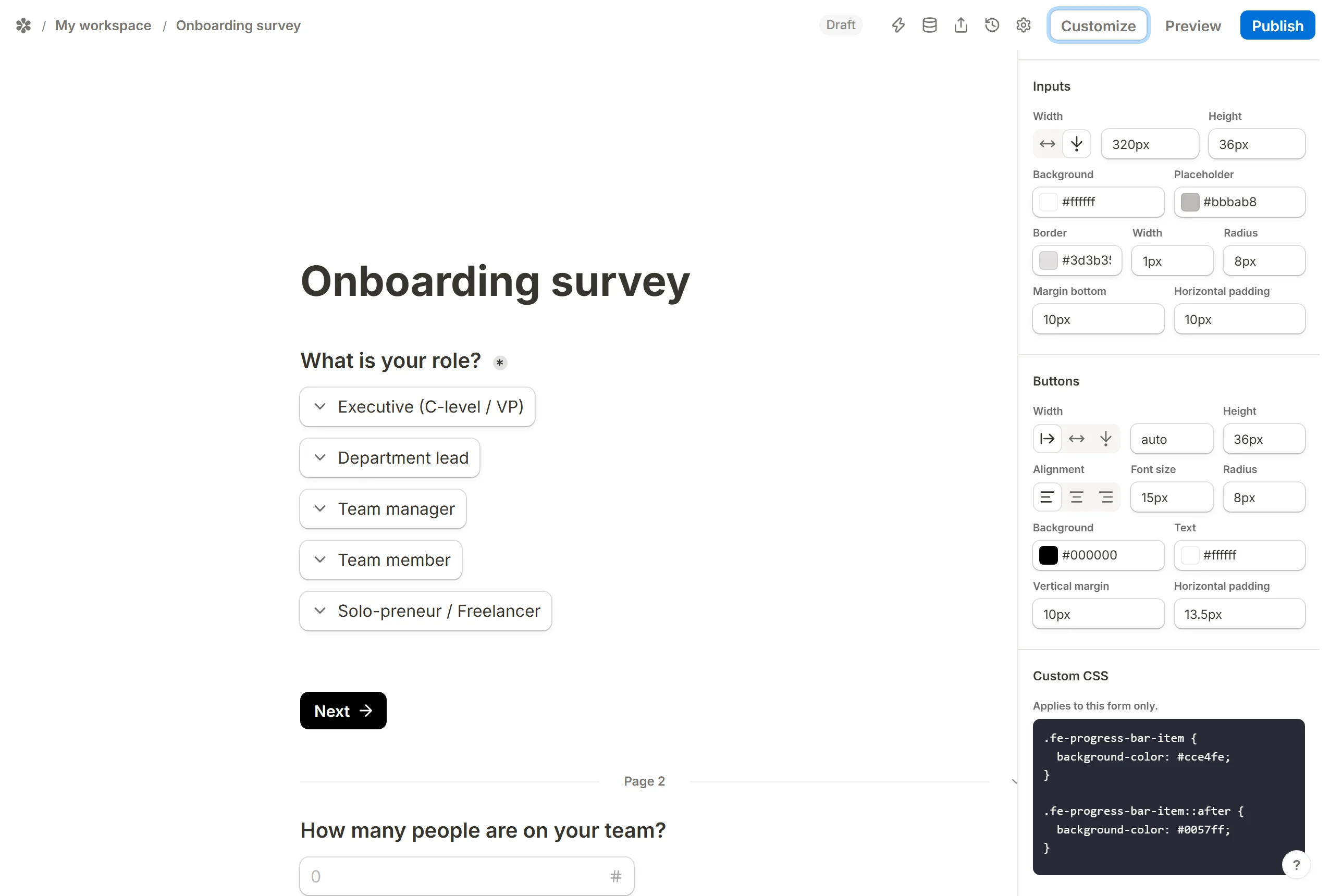
Press Preview to check the result.