Conditional logic
Write rules that show, hide or require questions, skip pages and compute values from earlier answers, so each respondent sees only what applies to them.
Conditional logic makes a form react to its own answers. A rule reads what the respondent has entered so far and does something with it: hides a question, shows one that was hidden, makes a field required, jumps past a page, updates a calculated field, or takes away the button that would let them finish. The form gets shorter for everyone, because each person only meets the questions their answers led to.
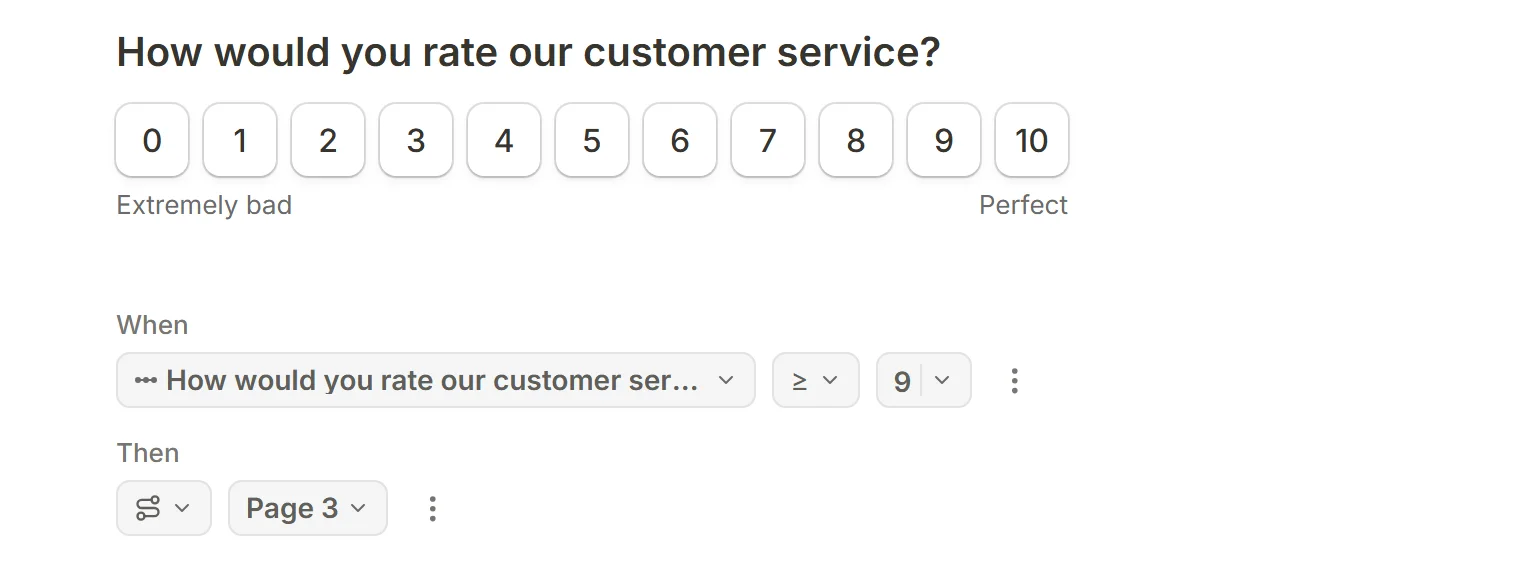
What people build with it
- Progressive disclosure. Ask the follow-up only when the first answer calls for it: a waiting-list form that asks for a company size after "I'm signing up for work", a check-in form that asks about symptoms only after "I feel unwell".
- Lead qualification. Ask a little, decide, and either dig deeper or end early. A qualified lead can be jumped to a page of their own or sent on to a different address on completion. See Redirect on completion.
- Pricing calculators. Pair rules with calculated fields to build a quote as the respondent picks options, and show the running total on the page.
- Personalised endings. Jump to one of several thank-you pages depending on the answers, for a quiz score, an NPS band or an application outcome. See Create Thank You pages.
- Personality quizzes. Score each answer into a calculated field per type, then jump to the page of whichever scored highest. See How to create a free personality quiz.
How to create logic
Open the insert menu with / and choose Conditional logic from the Advanced blocks, or press Add conditional logic in any input block's settings to start a rule already pointed at that block. The block reads as a sentence: When a field meets a condition, Then do an action.

The ⋮ beside a condition opens its menu: Add condition, Duplicate, Remove, and Wrap in group. The same menu on an action offers Add action, Duplicate and Remove, so one rule can fire several actions.
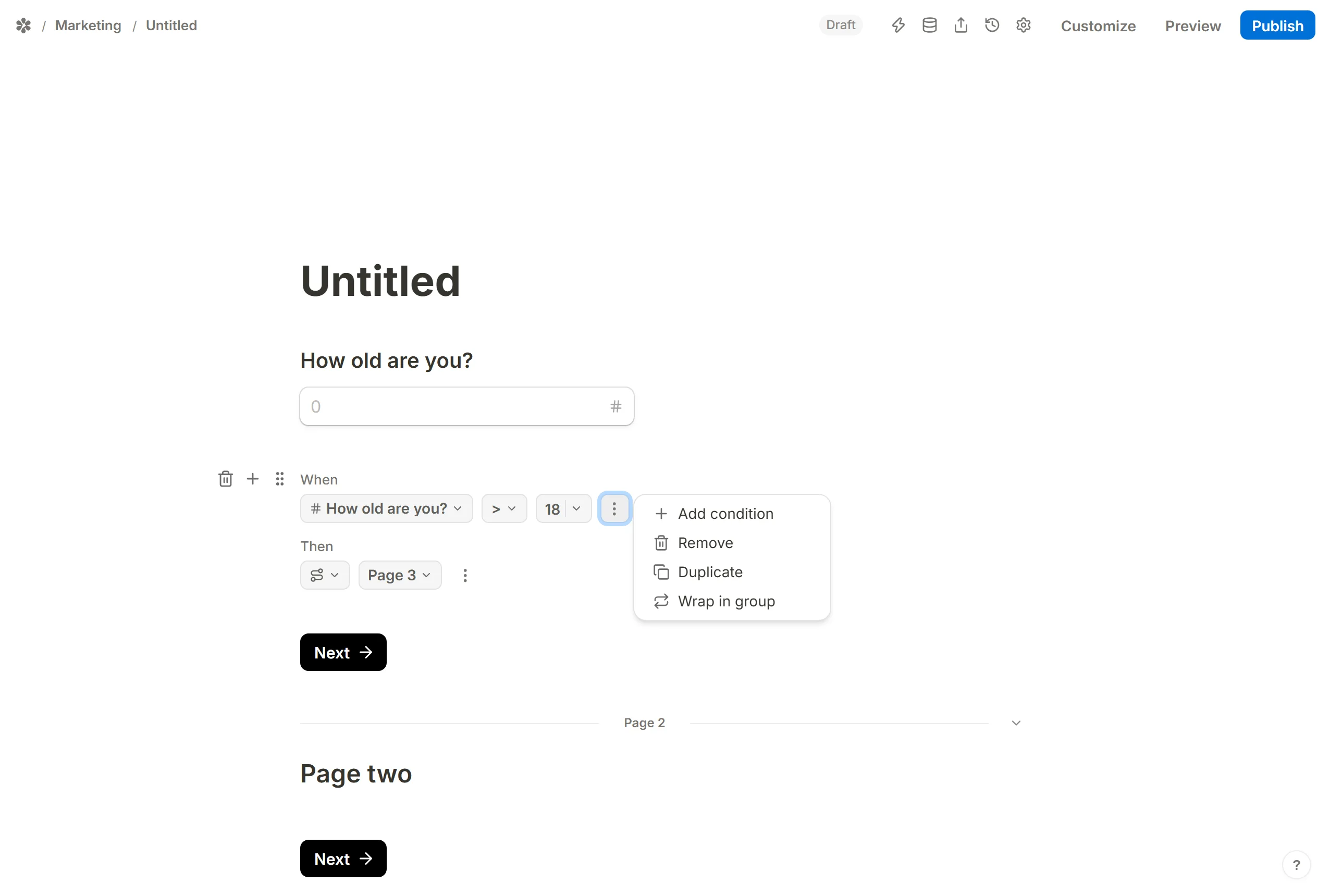
The comparators
What the When row offers depends on the field it reads. A text field gets Is, Is not, Contains, Does not contain, Starts with, Does not start with, Ends with, Does not end with, Is empty and Is not empty. A choice field adds Is any of, Is not any of and Is every of. A number or a scale gets =, ≠, >, <, ≥ and ≤; a date gets Is before and Is after; a signature reads Is signed or Is not signed. Hidden fields and the respondent's country can be read the same way.
Condition groups: matching all or any
A rule with more than one condition has a switch in its When row that decides how they combine.

allmatch: every condition must hold, an AND. Use it to pin down one combination, such as respondents from Germany who are older than 18.

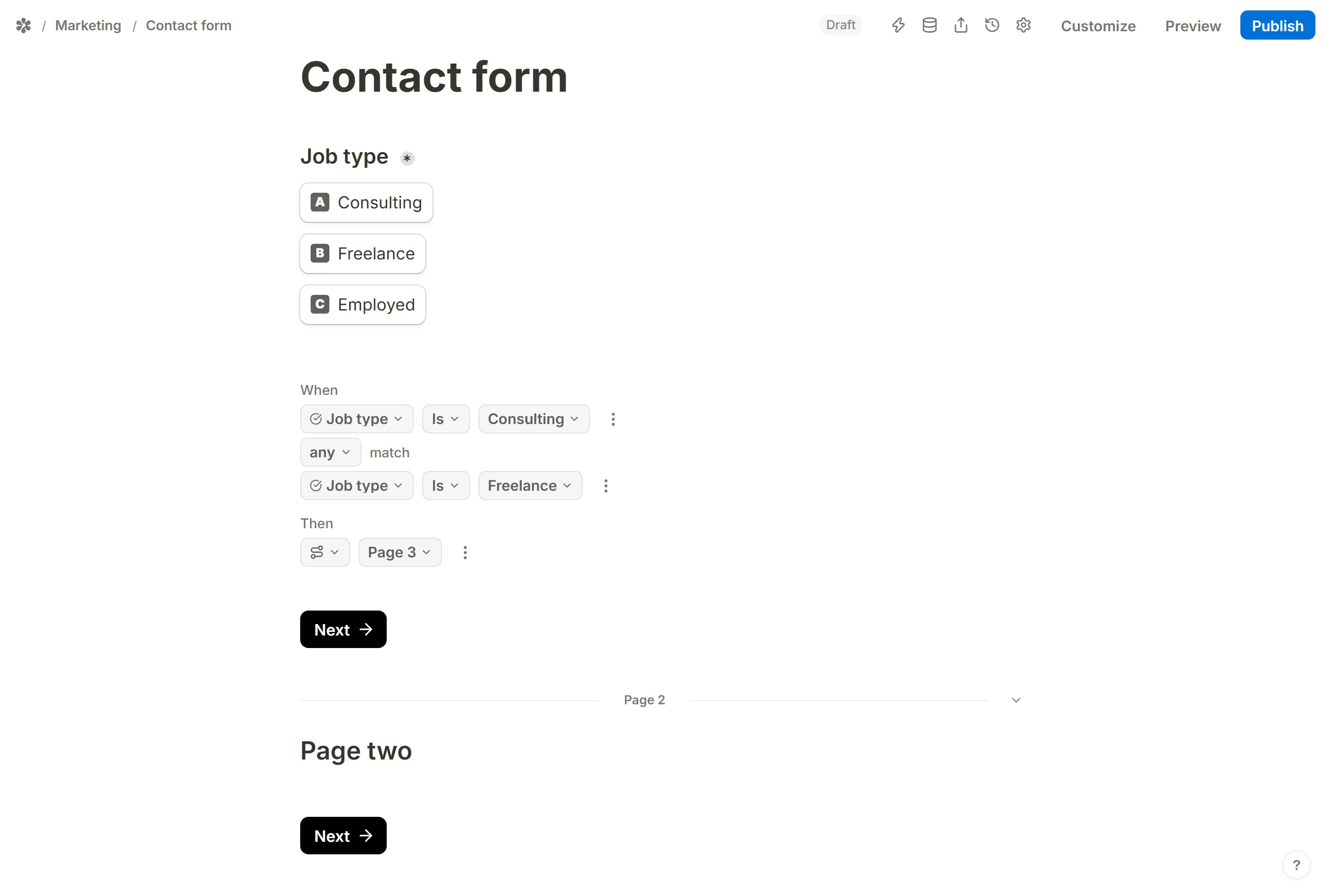
anymatch: one condition is enough, an OR. Use it when several answers should lead to the same place, such as "Consulting" or "Freelance" as a job type.
Nesting condition groups
Wrap in group on a condition's menu folds it into a group with its own all/any switch, and Unwrap group takes it back out. That is how a rule says "age is under 18, AND country is Germany OR France": an any group for the two countries sitting inside an all rule.
Actions
The Then row offers six actions. Five of them run live, re-evaluated on every keystroke and click, so a block appears or a total updates the moment the answer that drives it changes. Only Jump to page waits for the button.
Jump to page
Jump to page sends the respondent past pages that do not concern them, or to a thank-you page of their own. A form might send anyone under 18 straight from page 1 to page 3 and skip the questions in between.
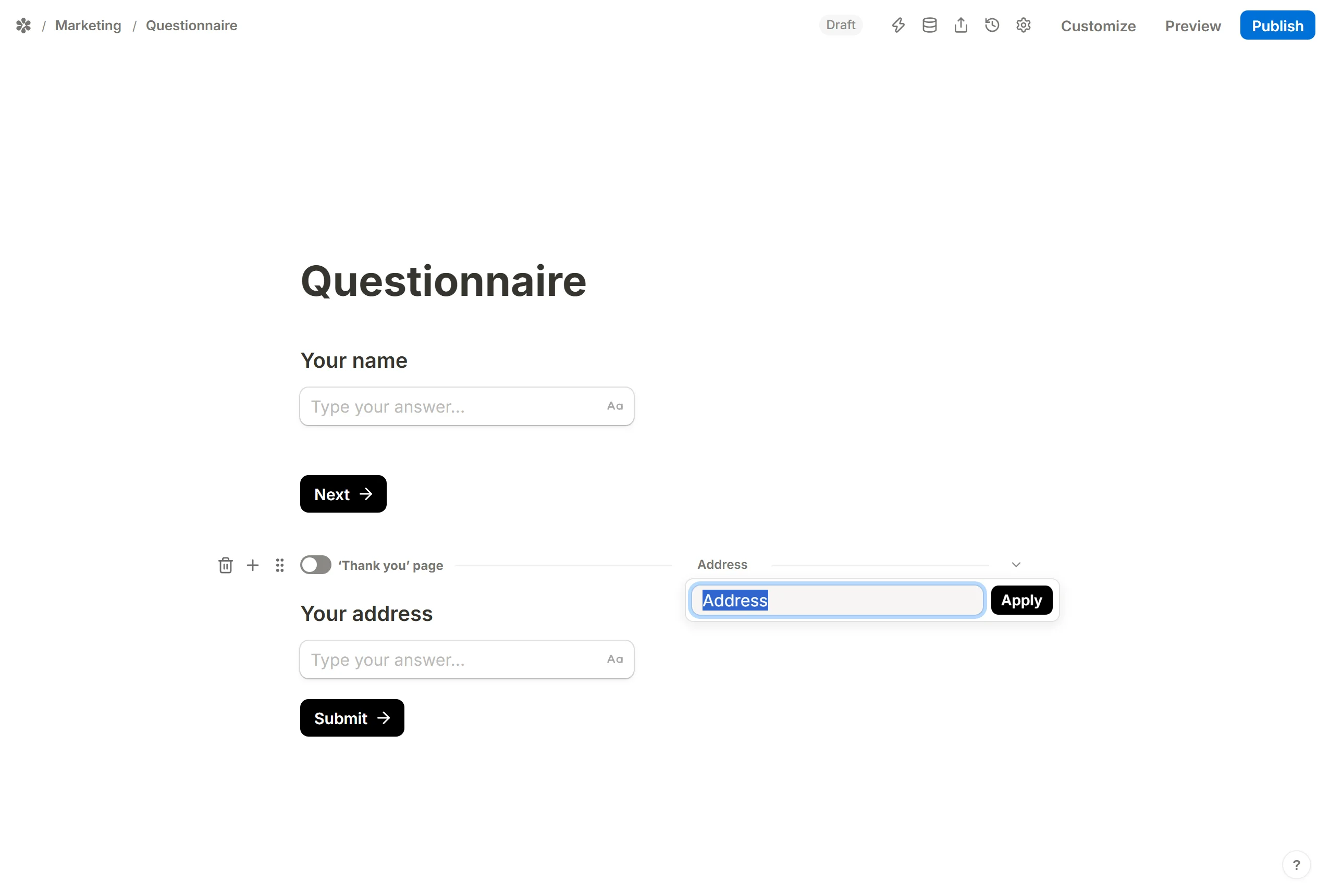
Naming pages makes the picker readable in a long form. Click the page break and type into Page name; the Then row then offers the name instead of a number.
Calculate a value
Calculate changes a calculated field: set it, add to it, multiply it, and so on, from a number or another field. It is the action behind scores, running totals and quotes.
Make answers required

Require answer makes a field required only when the condition holds. A form that asks "Subscribe to the newsletter?" can require the email box only after "Yes".
Show or hide blocks
Any block, and any single option inside a choice block, can be hidden or shown on an answer.
How to hide blocks

Insert a logic block and choose Hide blocks. The picker lists the form by page: tick a page to take every block on it, or open the arrow beside a page or a question to tick blocks and options one by one.
How to show blocks

A block that should appear only on an answer starts hidden. Open its menu from the handle and choose Hide; it stays on the canvas, marked, and leaves the published page.
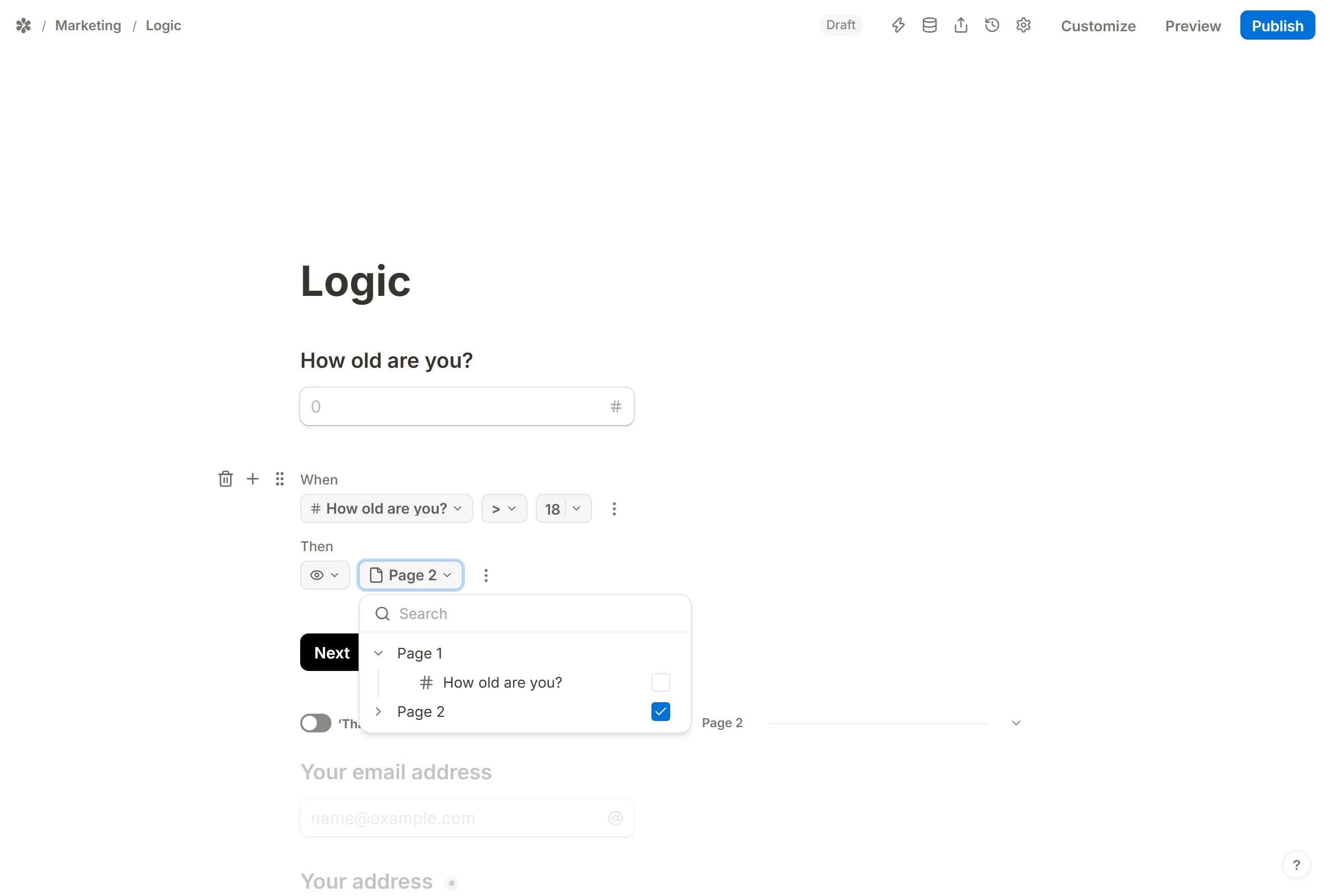
Then insert a logic block with Show blocks and tick it in the picker. A block the author hid comes back only through a Show blocks rule; nothing else can bring it onto the page. Ticking a page or a question takes everything inside it.
Hide button to disable completion
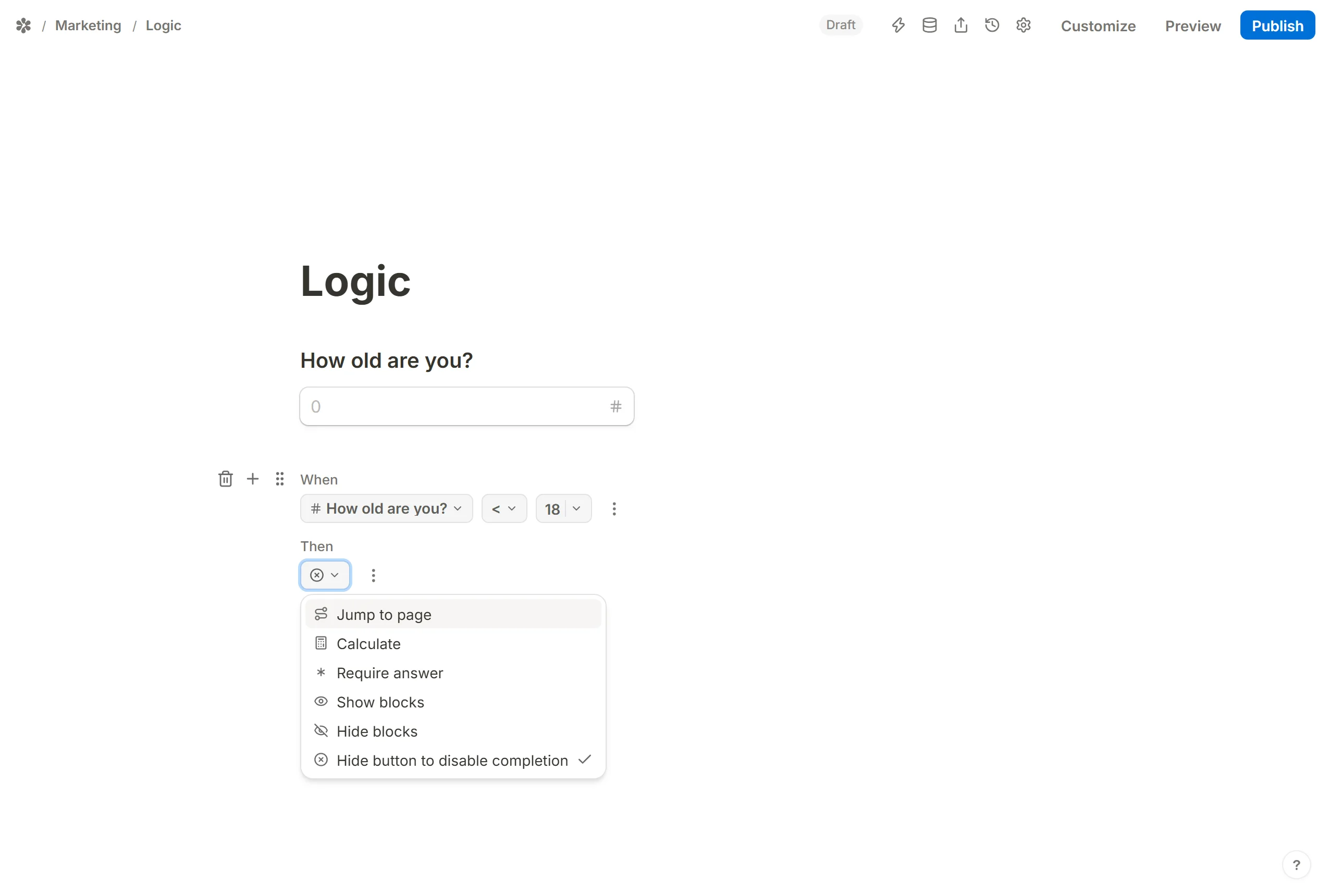
Hide button to disable completion removes the Next or Submit button while the condition holds, so a respondent who does not qualify cannot go on. Paired with an Email block's Verify email, it is how a form is limited to one company's addresses. See Email.
Redirect to different URLs and forms
Sending respondents to different pages when they finish is a setting rather than an action: Redirect URL on the form's Settings tab. The address can mention fields, so a rule that writes a destination into a calculated field and a redirect that mentions that field together send each respondent somewhere of their own. Hidden fields ride along the same way, for a landing page that knows who arrived. See Redirect on completion.
Troubleshooting
A long form with many rules is where mistakes hide. When a rule does not do what you meant:
- Read the rule back. Check that the
Whenrow points at the field you meant and theThenrow at the right target. A field that was deleted shows asDeleted fieldand the rule does nothing. - Name your fields. A rule against "Untitled multiple choice field" is hard to read next to three others. Give each question a title. See How to name question fields.
- Test every path. Use
Previewin the editor and fill the form more than once, choosing a different answer each time. - Mention the values. Put an @ mention of the field or the calculated field in a text block near the rule, so you can see what the rule is reading at that point.
- Cut it down. Remove conditions until the rule behaves, then add them back one at a time.
Frequently asked questions
What is a conditional logic form?
A form whose shape depends on the answers: if this, then that. Questions appear, disappear, become required or get skipped according to what the respondent has already said.
Is it free?
Yes. Rules are available on every form, with no limit on their number.
Which actions can a rule take?
Six: Show blocks, Hide blocks, Require answer, Hide button to disable completion, Jump to page and Calculate. A redirect is a setting the rule can feed rather than an action of its own.
Does it work with a multi-page form?
Yes. Jumps skip whole pages, and show, hide, require and calculate reach across pages: a rule on page one can hide a question on page three. See Create a multi-page form.
Why is my rule not firing?
Usually one of three things: a jump on the wrong page, a condition pointing at a different field than intended, or a path nobody tested. The steps above find all three.