Supported languages
The languages a form's buttons, errors and system messages can be shown in, how to switch a form to one, and right-to-left text.
Tinyform ships translations for the text on a published form that you do not write yourself: the buttons, the validation errors, the closed-form screen, the password wall and the "Made with" badge. Fifty-four languages have a translation pack, and the picker offers a few more that do not yet.
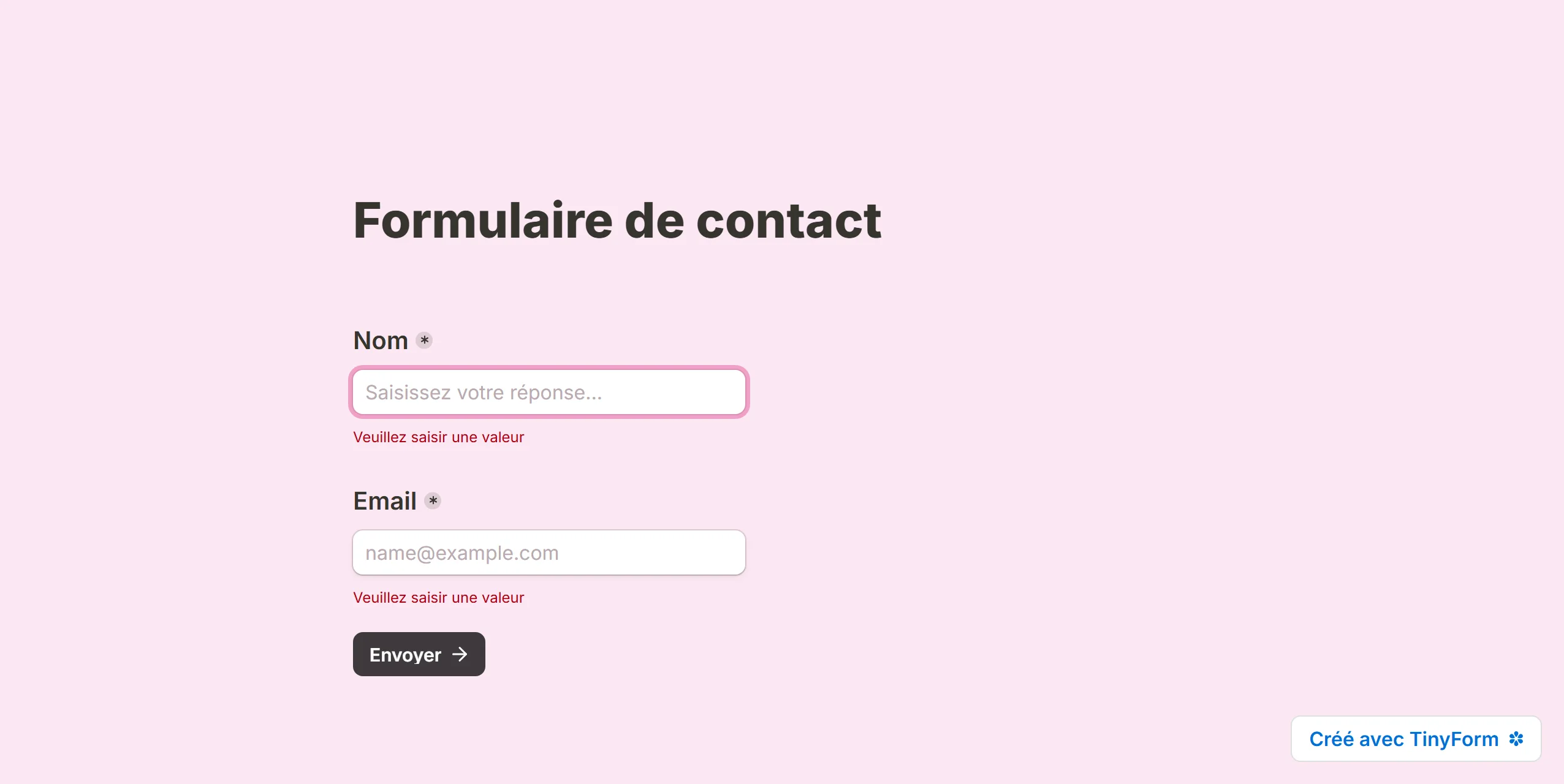
Supported languages
- Afrikaans
- Albanian
- Arabic
- Bengali
- Bulgarian
- Catalan
- Chinese (Simplified)
- Chinese (Traditional)
- Croatian
- Czech
- Danish
- Dutch
- English
- Estonian
- Euskara
- Faroese
- Farsi
- Filipino
- Finnish
- French
- Georgian
- German
- Greek
- Greenlandic (not yet translated)
- Hebrew
- Hindi
- Hungarian
- Icelandic
- Indonesian
- Irish Gaelic
- Italian
- Japanese
- Korean
- Latvian
- Lithuanian
- Macedonian
- Malay
- Norwegian
- Polish
- Portuguese
- Portuguese (Brazil)
- Romanian
- Russian
- Serbian
- Sinhala
- Slovak
- Slovenian
- Spanish
- Spanish (Mexico)
- Swedish
- Tamil
- Thai
- Turkish
- Ukrainian
- Uzbek
- Vietnamese
- Yoruba (not yet translated)
How to change your form language
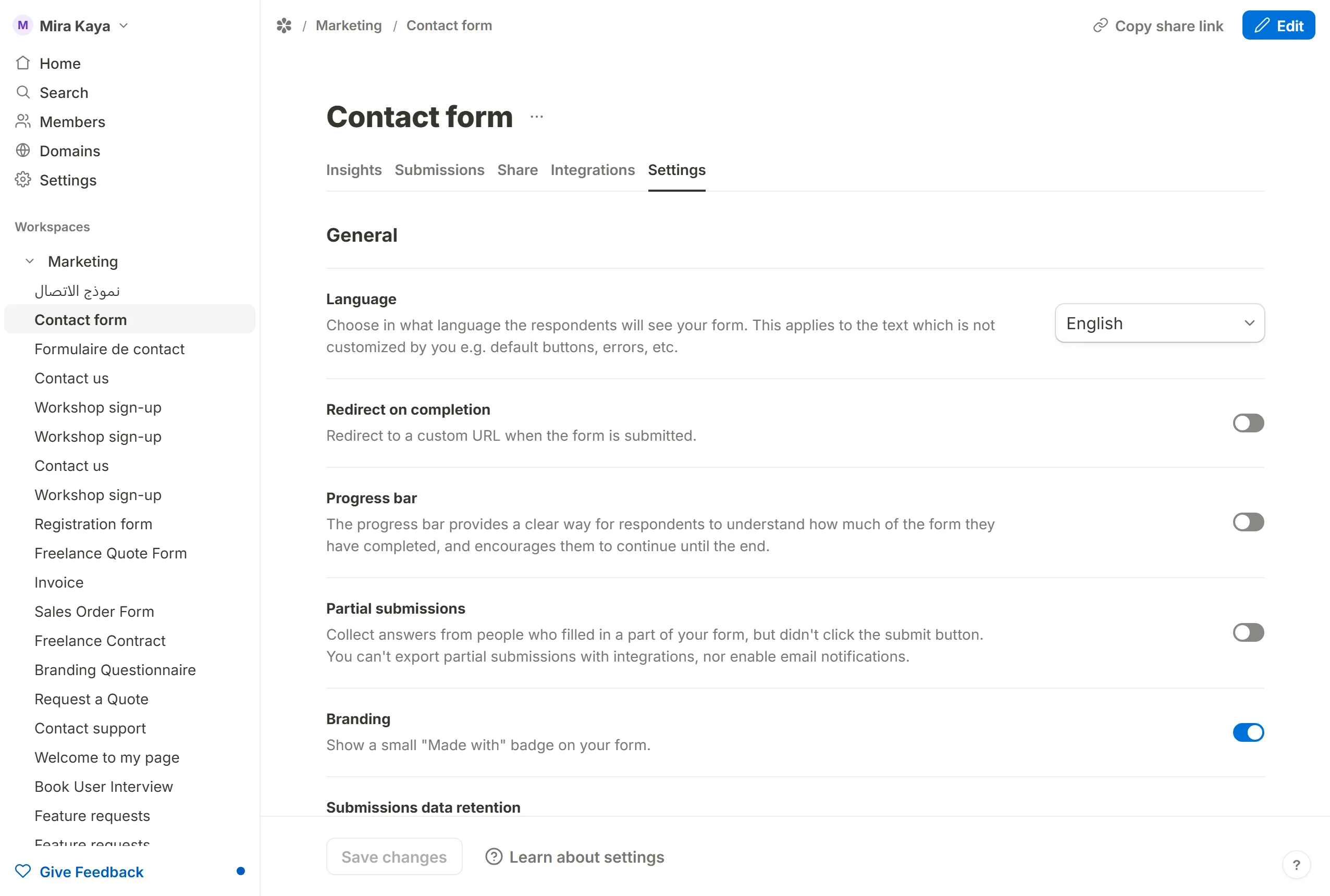
Open the form's Settings tab at /forms/<id>/settings. Language is the first row under General: "Choose in what language the respondents will see your form. This applies to the text which is not customized by you e.g. default buttons, errors, etc." Pick a language from the list (typing filters it) and press Save changes.
The published page at /r/<id> announces the language to the browser too, so screen readers and spell-checkers pick the right one.
RTL (right-to-left) text support
A form in a language written right to left lays its text out that way across the whole page, which is what makes it readable to the people it is for. The builder follows: the canvas you type into and Preview are laid out the same way, so what you are writing is what will publish. Direction follows the language for:
- Arabic
- Farsi
- Hebrew
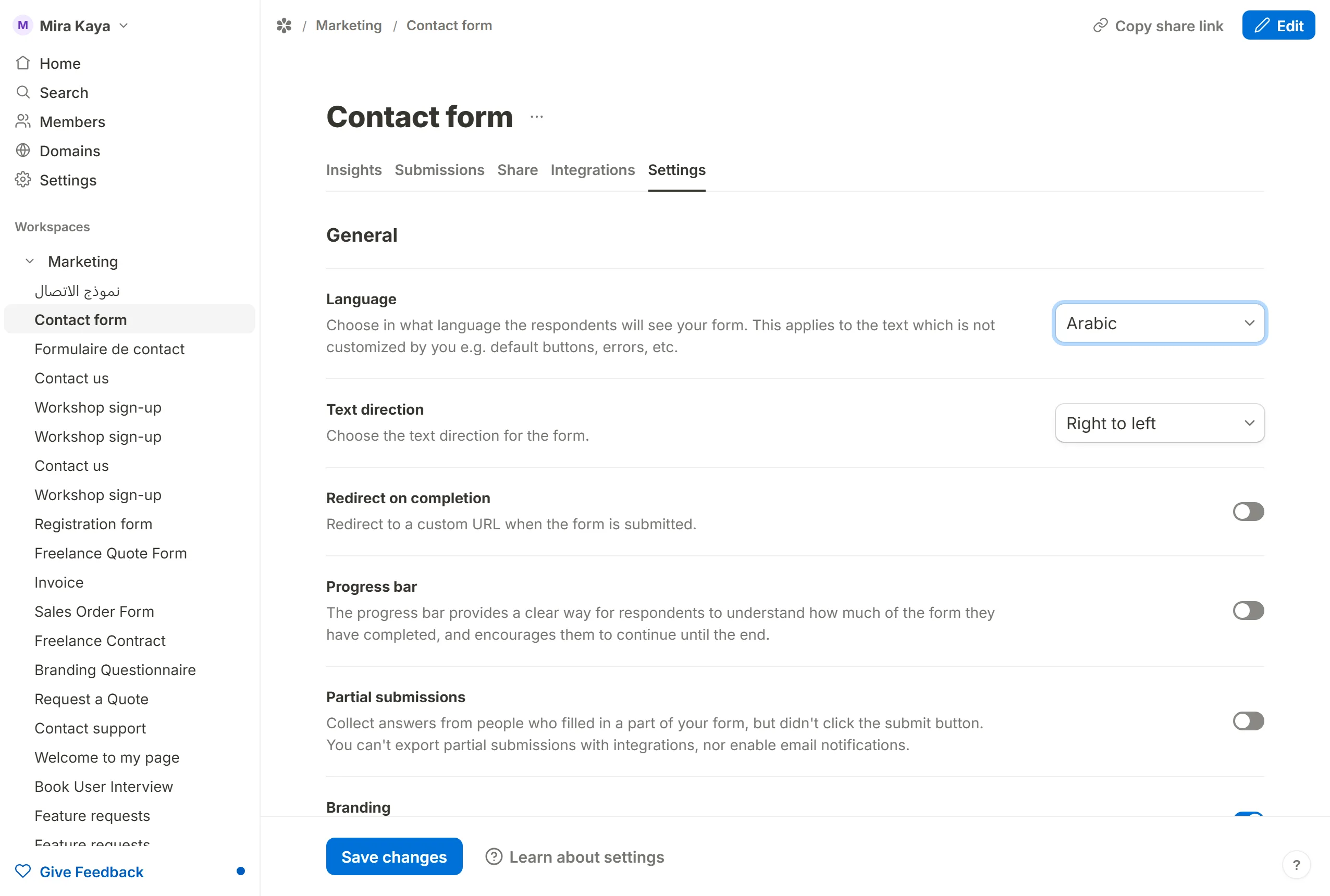
When one of these is selected a Text direction row appears directly under Language, offering Left to right and Right to left. It defaults to the language's own direction; change it only if your form needs the other, then press Save changes. The row is drawn for these three languages alone — under a language that runs one way only there is nothing to choose. Switching the form to a left-to-right language drops the override.
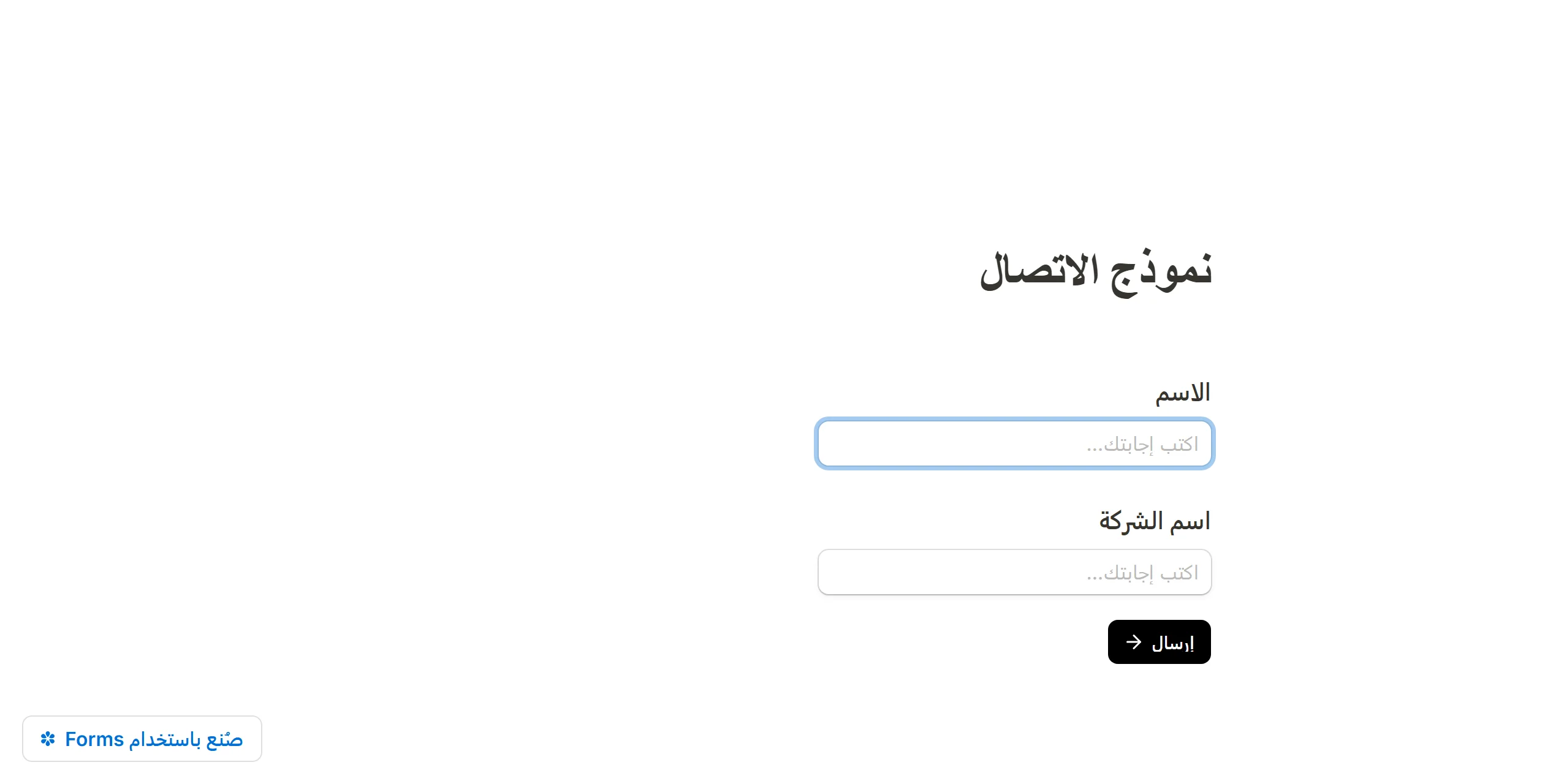
Create multilingual forms
A form has one language. To offer the same questions in several, duplicate the form from the dashboard's row menu, translate the copy's wording, and set each copy's Language to match. There is no built-in translation of your own text.