How to rename forms
Rename a form from the dashboard or from its own pages, what the name has to do with the title visitors see, and how to keep the title off an embed.
A form's name is what you see on the dashboard, in the sidebar and in the tab strip of its own pages. Rename it from the row menu without opening the editor. To keep related forms together, sort them into folders and workspaces.
How to rename your form
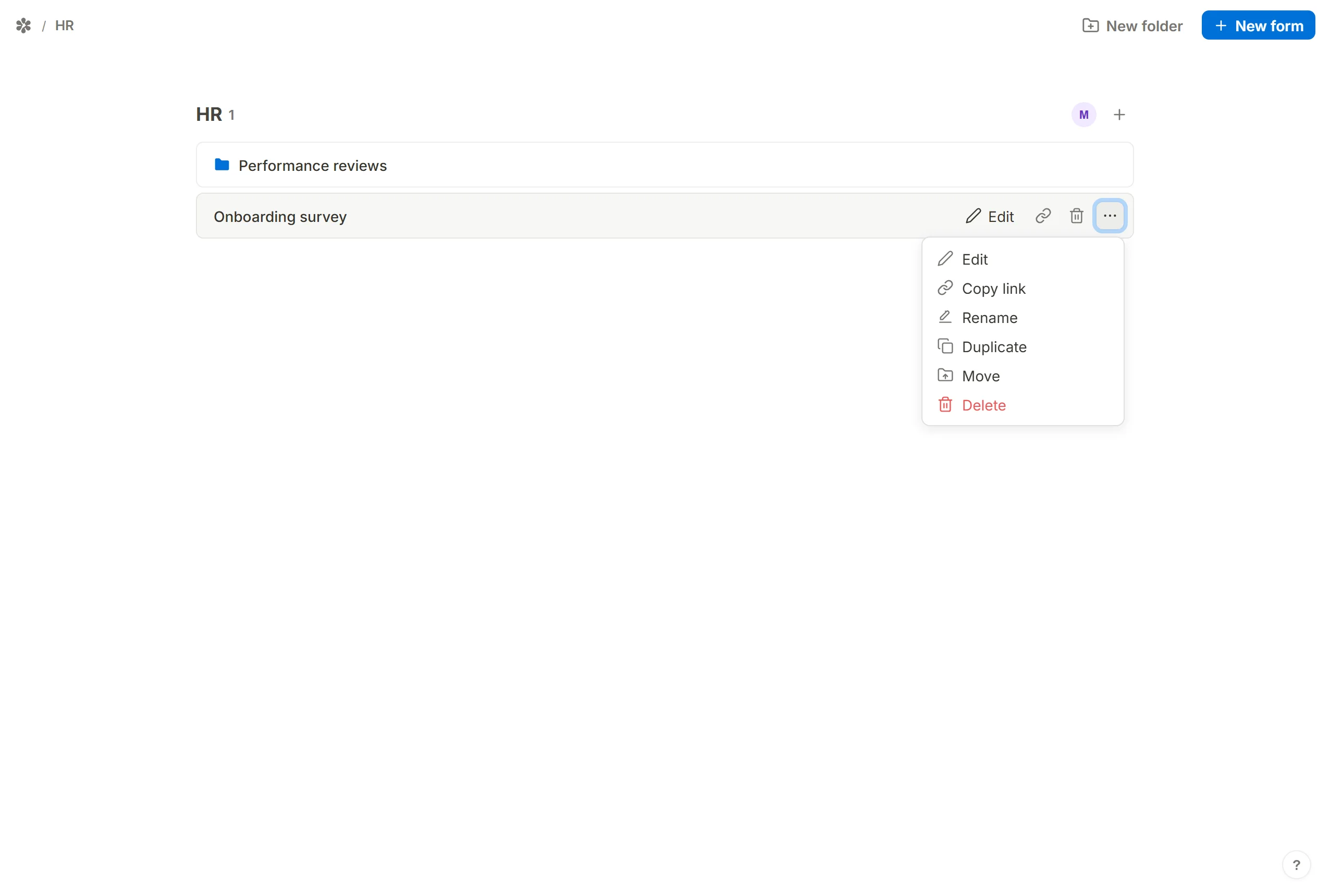
On /dashboard, or on a workspace or folder page, hover the form's row and click the … at its right end (the tip reads "Rename, duplicate, and more..."). Choose Rename, type the new name into the box that replaces the menu and press Save.
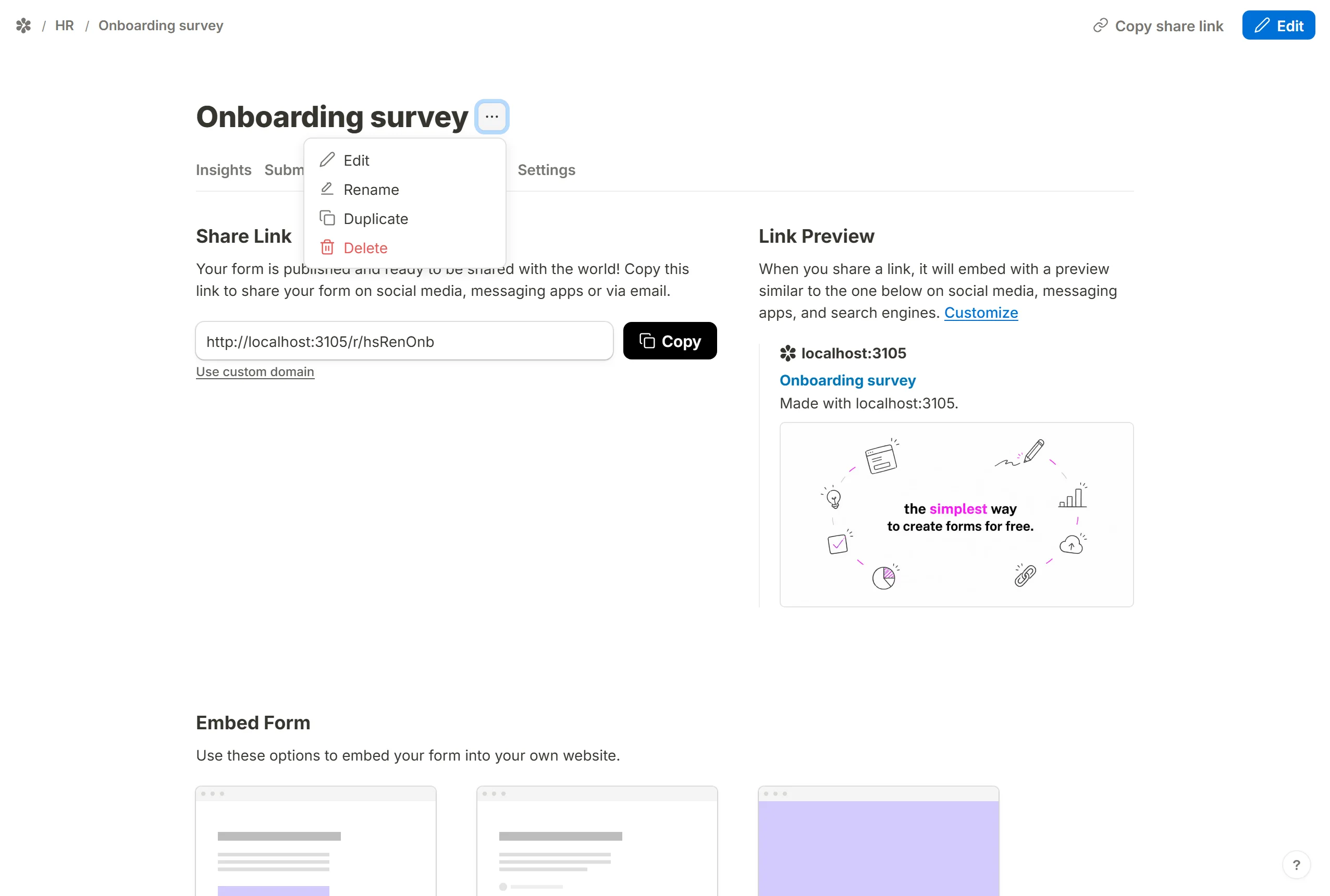
The same menu sits in the header of the form's own pages (Insights, Submissions, Share, Integrations, Settings), so you can rename a form you are already looking at.
The rest of the menu is Edit, Copy link (on a published form), Duplicate, Move and Delete. On a narrow screen, under 576px, the row's separate buttons fold into this one menu.
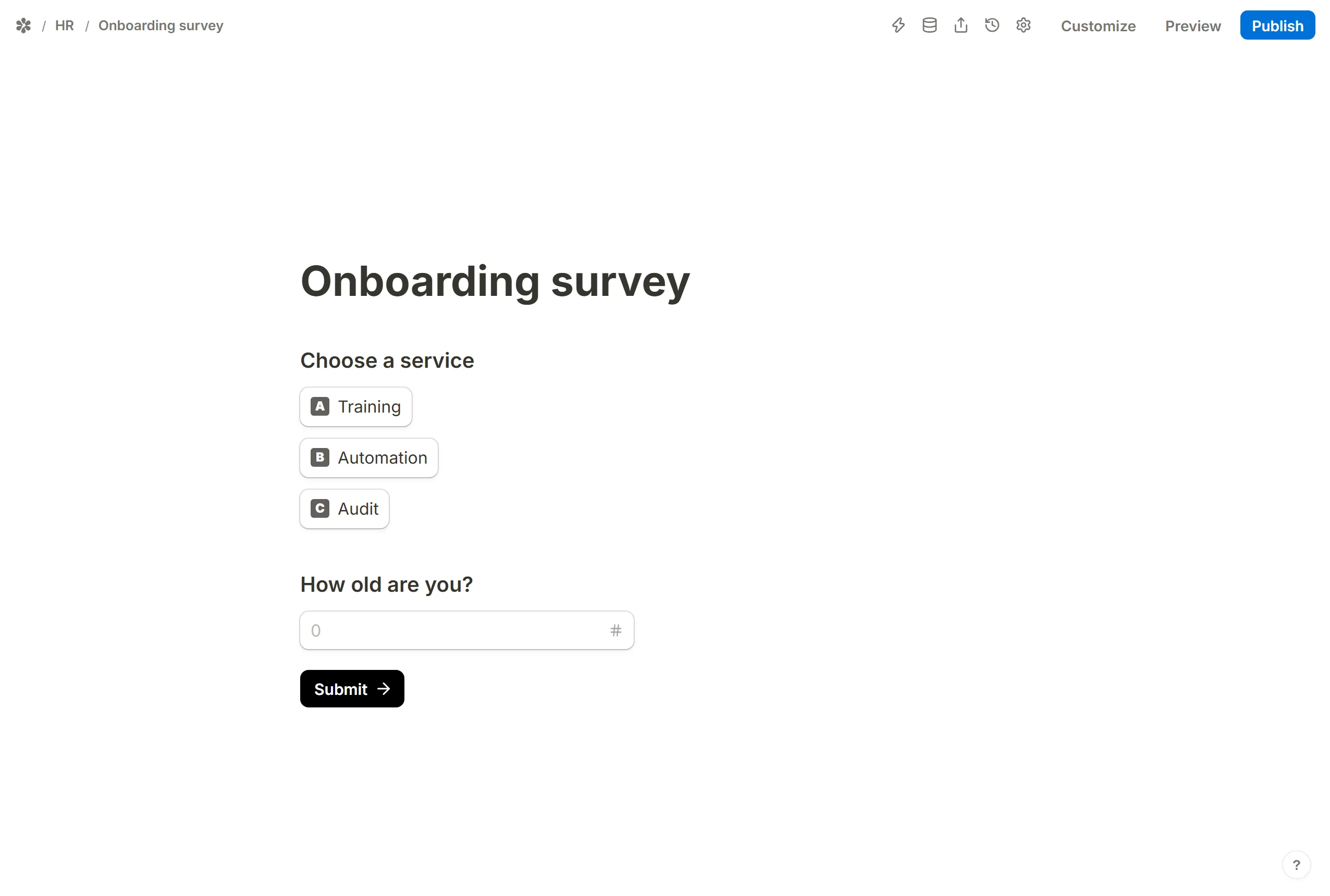
In the editor at /forms/<id>/edit, the title at the top of the form is the same value. Type there and the dashboard follows on the next save.
How to hide your form title
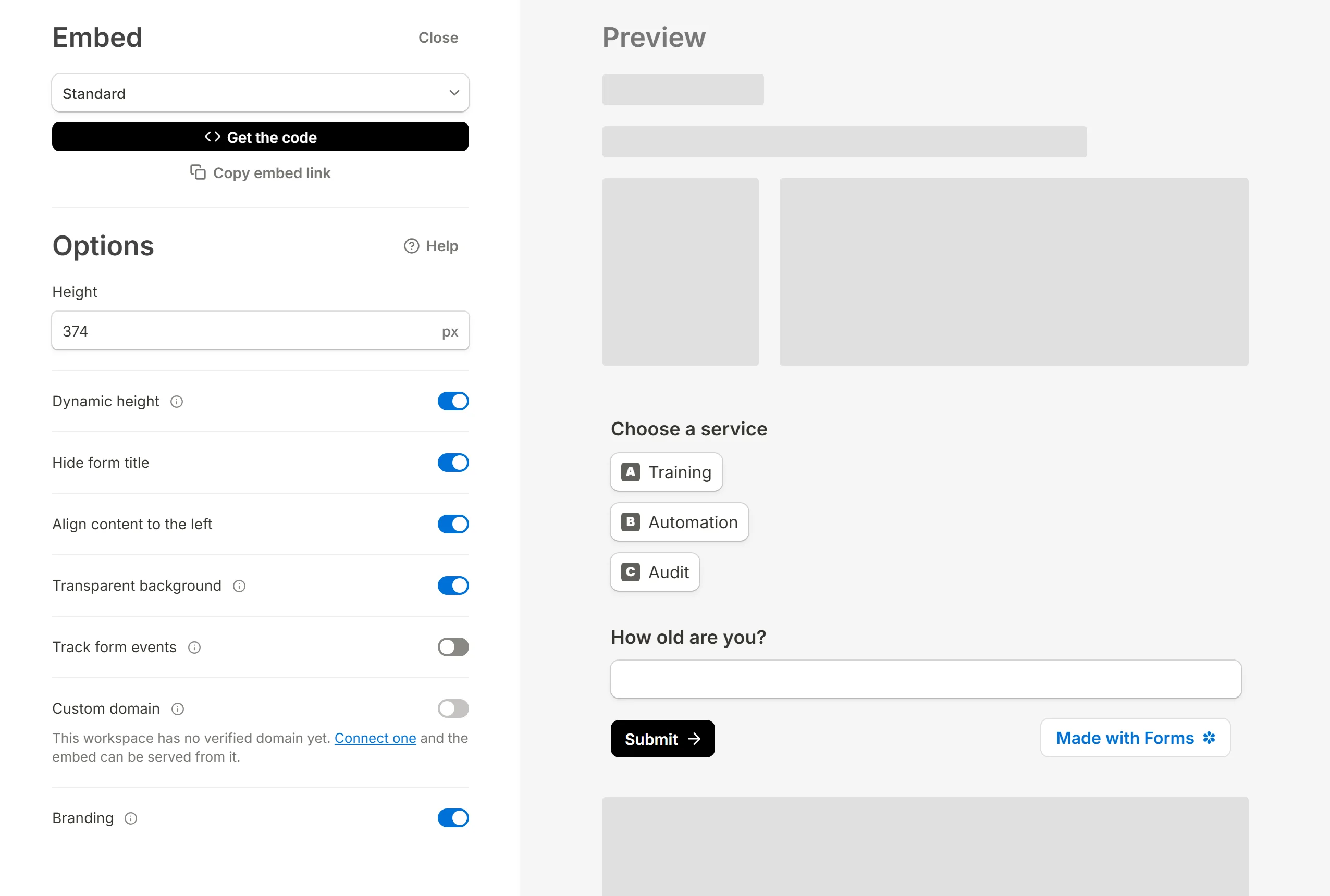
Because the name and the title are one thing, leaving the title blank leaves the form nameless on the dashboard too. If you do not want visitors to see the title, keep the name and hide it where the form is shown instead.
When embedding a form, the embed dialog on the Share tab has a Hide form title switch. It leaves the title off the framed form while the dashboard keeps it.