Form settings
Every switch on a form's Settings tab, section by section: language, redirects, notifications, who can respond, and how the form behaves.
A form's settings live on its Settings tab, at /forms/<id>/settings. The page is four sections of rows, each row a switch or a picker with a short description beside it. Nothing is written until you press Save changes at the bottom; the button only lights up once something has changed, and the page checks what you typed on that press rather than while you type. Leaving with unsaved changes asks first.
General
Language
The buttons, error messages and other text you did not write yourself can be shown in any of the languages Tinyform ships. A right-to-left language adds a Text direction row under it.
Redirect on completion
Send the visitor to an address of your choosing once they submit: your site, a booking page, anything with a URL. The address can quote answers with @.
Progress bar
A bar across the top of a multi-page form showing how far along the visitor is, which nudges people to finish.
Partial submissions
Keep what a visitor typed even if they never pressed submit. Useful for seeing where people give up and for reaching a lead who stopped halfway. Partial submissions do not go out through integrations or email notifications.
Branding
Take the "Made with" badge off the form's footer and its thank-you page. This is one of the two things a paid plan adds on an install that sells one.
Submissions data retention
Delete submissions automatically once they reach a chosen age. Set a number and a unit, from minutes to years, per form. Off, submissions are kept until somebody deletes them.
Control submissions data retention
Email notifications
Self email notifications
An email to you, or to the addresses you list, for every new submission. The subject and body are yours to write, and both can quote answers.
Respondent email notifications
A follow-up email to the person who filled the form in, sent to the address they gave in an Email question: a thank-you, a copy of their answers, a quiz score.
Respondent email notifications
Access
Close form
Stop taking responses. Visitors see the closed-form message below instead of the questions.
Close form on a scheduled date
Pick a date and time, and a time zone, and the form closes itself when that moment arrives.
Limit number of submissions
Set how many submissions the form accepts in total. Once the count is reached the form closes on its own.
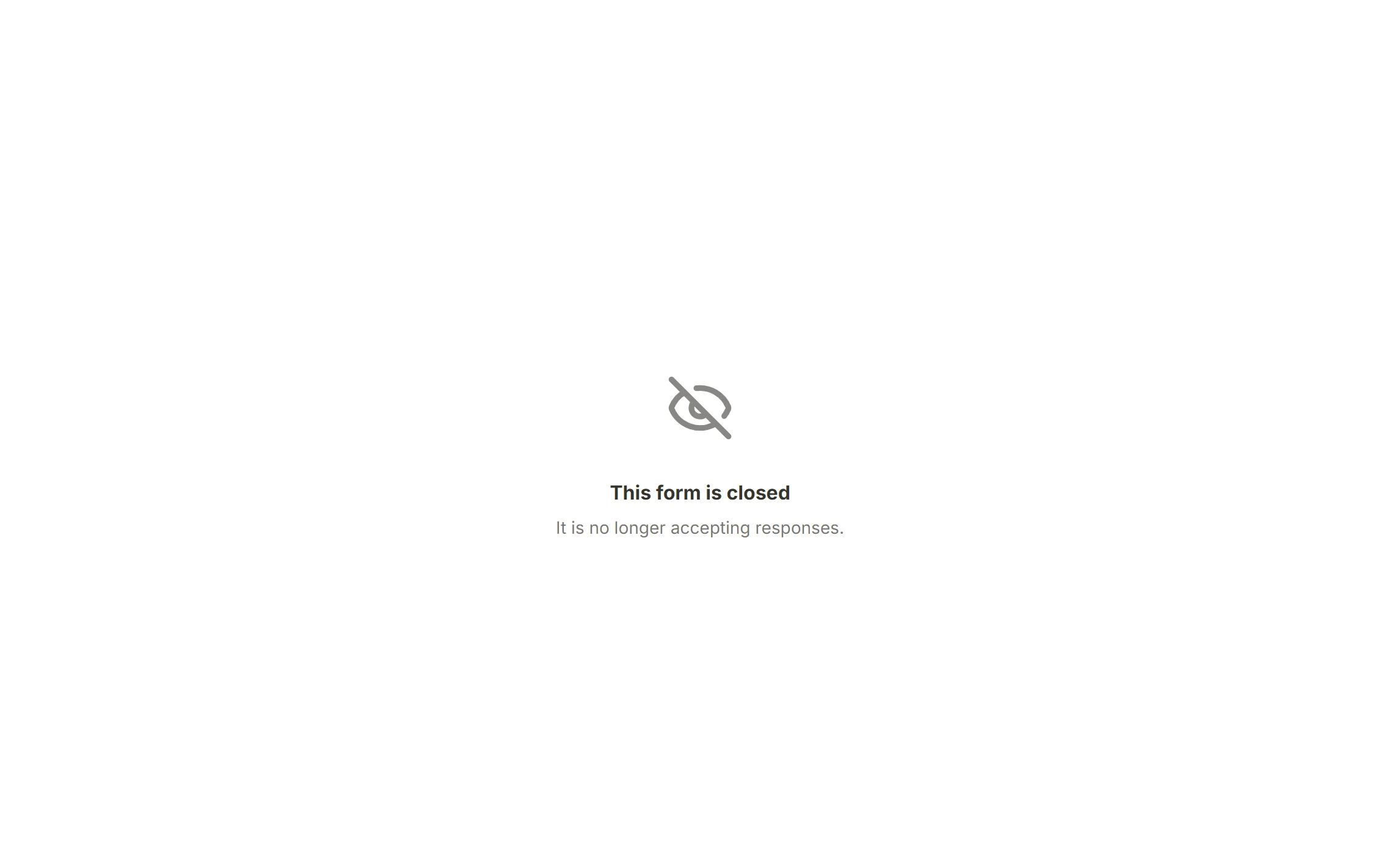
Closed form message
The title and text a visitor sees when the form is closed by any of the switches above. Both are yours to write. Left alone, a closed form reads:
Prevent duplicate submissions
Let each person submit once, by choosing what counts as the same person: the visitor's IP address, their Respondent ID, or their answer to one of the form's questions. It only looks at submissions received after you turn it on, and it is friction rather than a lock.
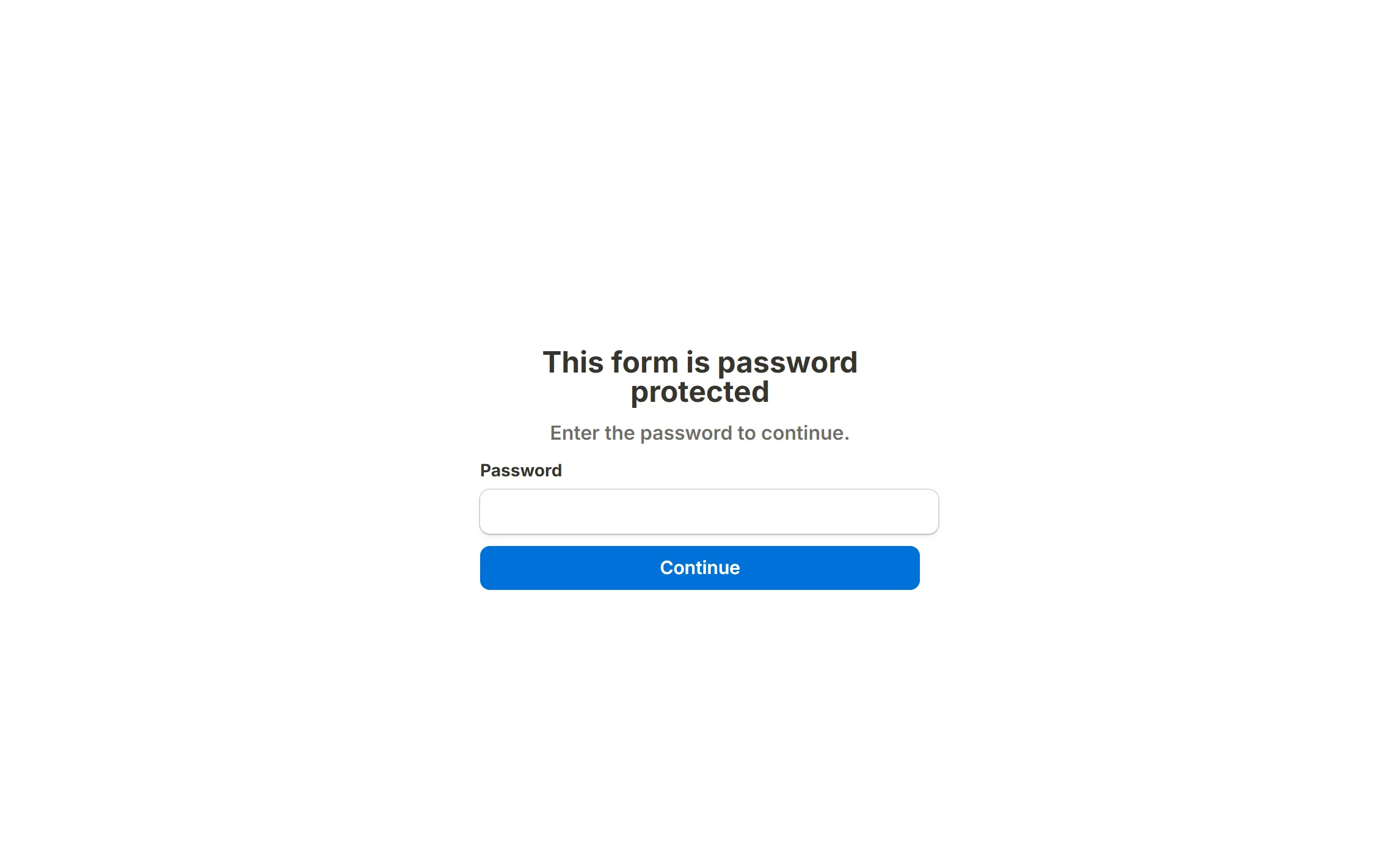
Password protect form
Ask for a password before the form is shown. Set the password in the row; the eye reveals it and the copy button puts it on your clipboard for sharing.
Behavior

Auto-jump to next page
On a page that holds a single question, move to the next page as soon as it is answered, with no Next press. It works with one multiple choice, dropdown, rating or linear scale question per page, and it is off by default.
To turn it on:
Open the form's Settings tab
Go to/forms/<id>/settings.Find the Behavior section
Scroll to the bottom of the page.Switch it on
Turn onAuto-jump to next page, then pressSave changes.
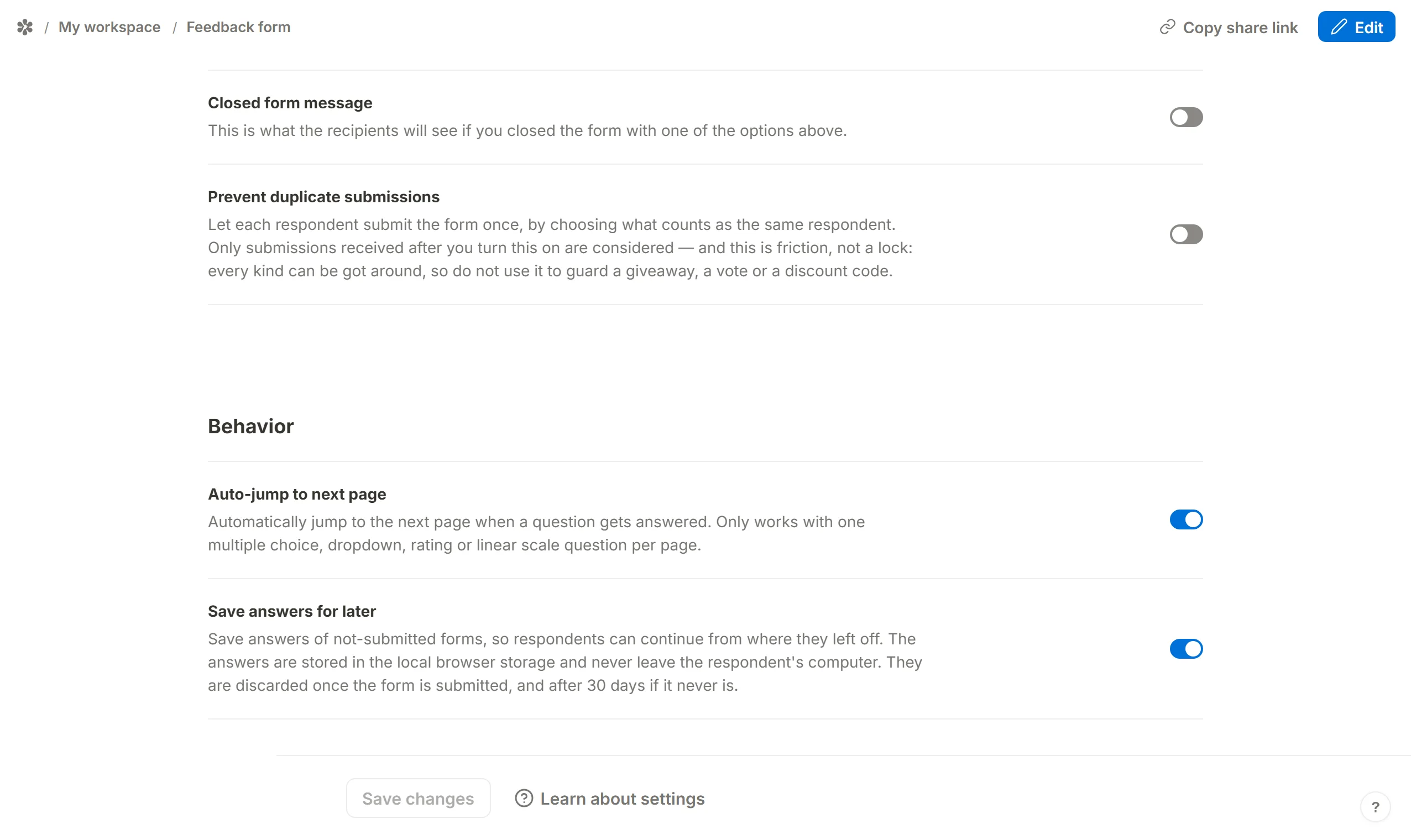
Save answers for later
Keep a visitor's answers on their own device so they can come back and pick up where they stopped. The answers are held in the browser's local storage and never leave it. They are discarded once the form is submitted, and after 30 days if it never is.
Answers saved this way are only there in the same browser on the same device. Another browser, another device or a private window starts empty.