Creating workspaces
Group your forms into workspaces and folders, one per team, client or project, and invite the people who should see each one.


A workspace is a shelf of forms with its own members. Your dashboard at /dashboard stacks every workspace you belong to; each has a page of its own at /workspaces/<id>, and inside it you can file forms into folders, nested as deep as you like within reason. Membership is per workspace, so a colleague invited to the marketing workspace sees nothing of the finance one. Who can be invited, and how, is on invite team members.
Tinyform creates one workspace for you when you sign up, inside an organization that holds all of your workspaces together. There is no limit on how many workspaces or folders you add.
Create a workspace and add members
In the sidebar, hover the Workspaces heading and press the + beside it (its tooltip reads New workspace). Name the workspace and press Create. It appears in the sidebar and on the dashboard at once, with you as its only member.
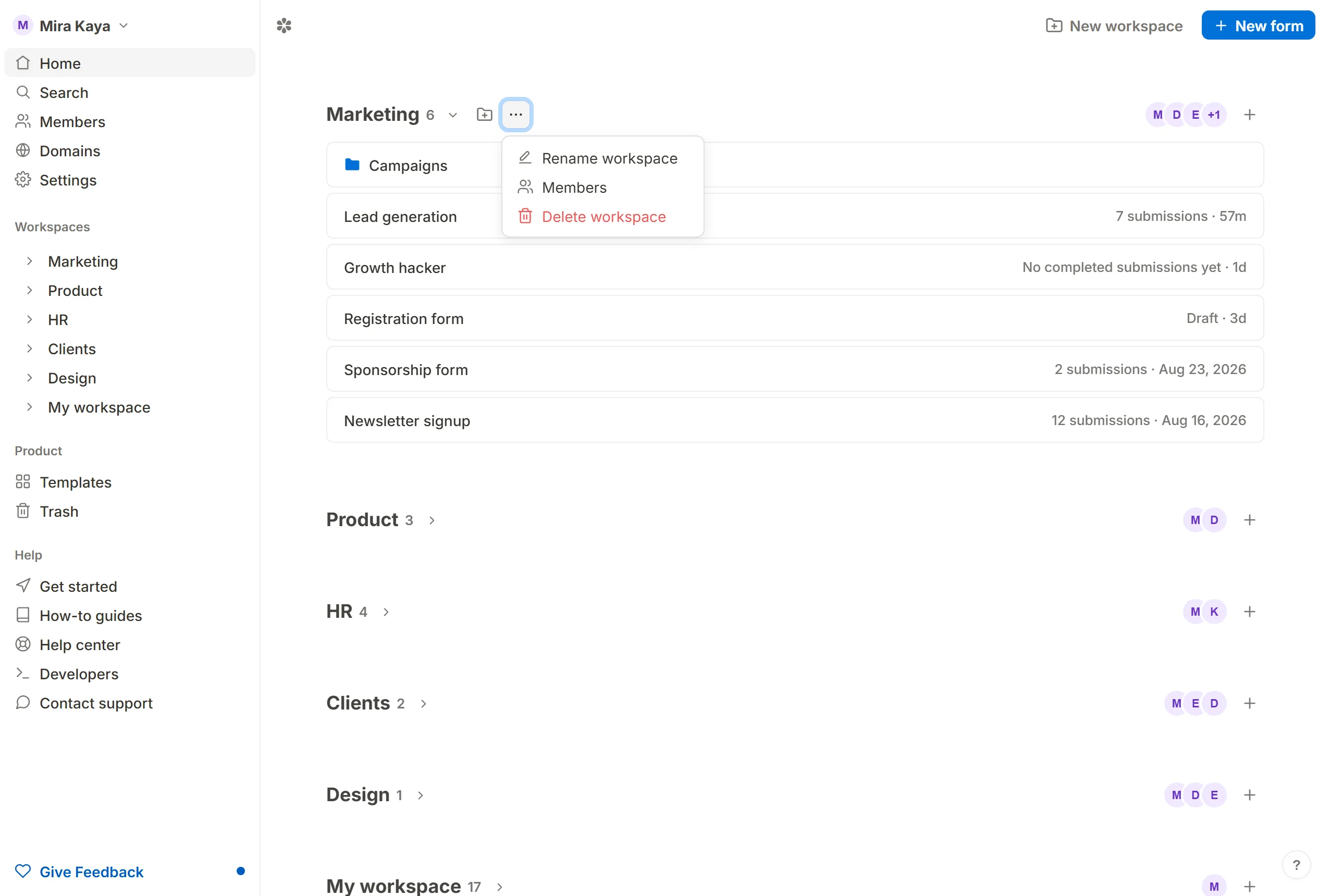
The … beside a workspace's title opens its menu: Rename workspace, Members, which opens the members dialog on that workspace, and Delete workspace, drawn only for the organization's owner.


To reorder workspaces, drag a row up or down in the sidebar. On the dashboard, the chevron after a workspace's count folds it closed or open, and your browser remembers which ones you folded.
Organize forms with folders
Inside a workspace, folders group related forms. They show on the workspace's page and on the dashboard, ahead of the loose forms at that level, and can be nested up to ten levels deep. A folder can be renamed, and forms can be moved in and out of it, at any time.
To create one, press New folder (the folder button beside the workspace's name on the dashboard, or the button at the top of the workspace's page), give it a name and press Create. Open a folder and press New folder again to create one inside it.
To move forms, press … on a form's row and choose Move. The Move forms dialog lets you pick several forms at once and a destination: a workspace, or a folder written as Workspace / Folder / Subfolder. Only workspaces in the same organization are offered.
Deleting a folder does not delete its forms. Every form inside it, at any depth, moves up to the folder's parent (or to the workspace's loose list), and only then do the folder and its subfolders go.
Delete a workspace
Only the organization's owner can delete a workspace. The confirmation counts the forms it holds, and deleting it is the same act as deleting each of them: they move to Trash, filed under the owner's next workspace, where they can be restored for 30 days. Two cases are refused: a workspace that holds forms when the owner has no other workspace to park them in, and your only workspace.
Troubleshooting
If a workspace you used to see is gone from your dashboard, you were removed from it, or it was deleted. Ask the organization's owner or the workspace's creator, who are the two people able to remove members, to add you back through the members dialog. If you are in no workspace at all, the dashboard says so and offers nothing else until somebody invites you.
Frequently asked questions
What is the difference between a workspace and a folder?
A workspace has members; a folder does not. Access to a folder is exactly access to its workspace, and there are no permissions on individual folders or forms.
Can I move a form from one workspace to another?
Yes. Press … on the form and choose Move, then pick the destination workspace or folder. Both must be in the same organization.
How many folders can I create?
As many as you like, nested up to ten levels deep inside a workspace.
Is any of this restricted to a plan?
No. Workspaces, folders and members are available to every account.