Electronic signatures
Add a draw-to-sign pad to a form, store each signature as an image beside the answers, and download the signed submission as a PDF.
The Signature block puts a drawing pad in a form. The respondent signs with a finger, a stylus or a mouse, and the mark is stored as an image with their other answers. It turns a contract, a waiver, a consent form or an offer letter into something that can be signed on a phone without printing anything.
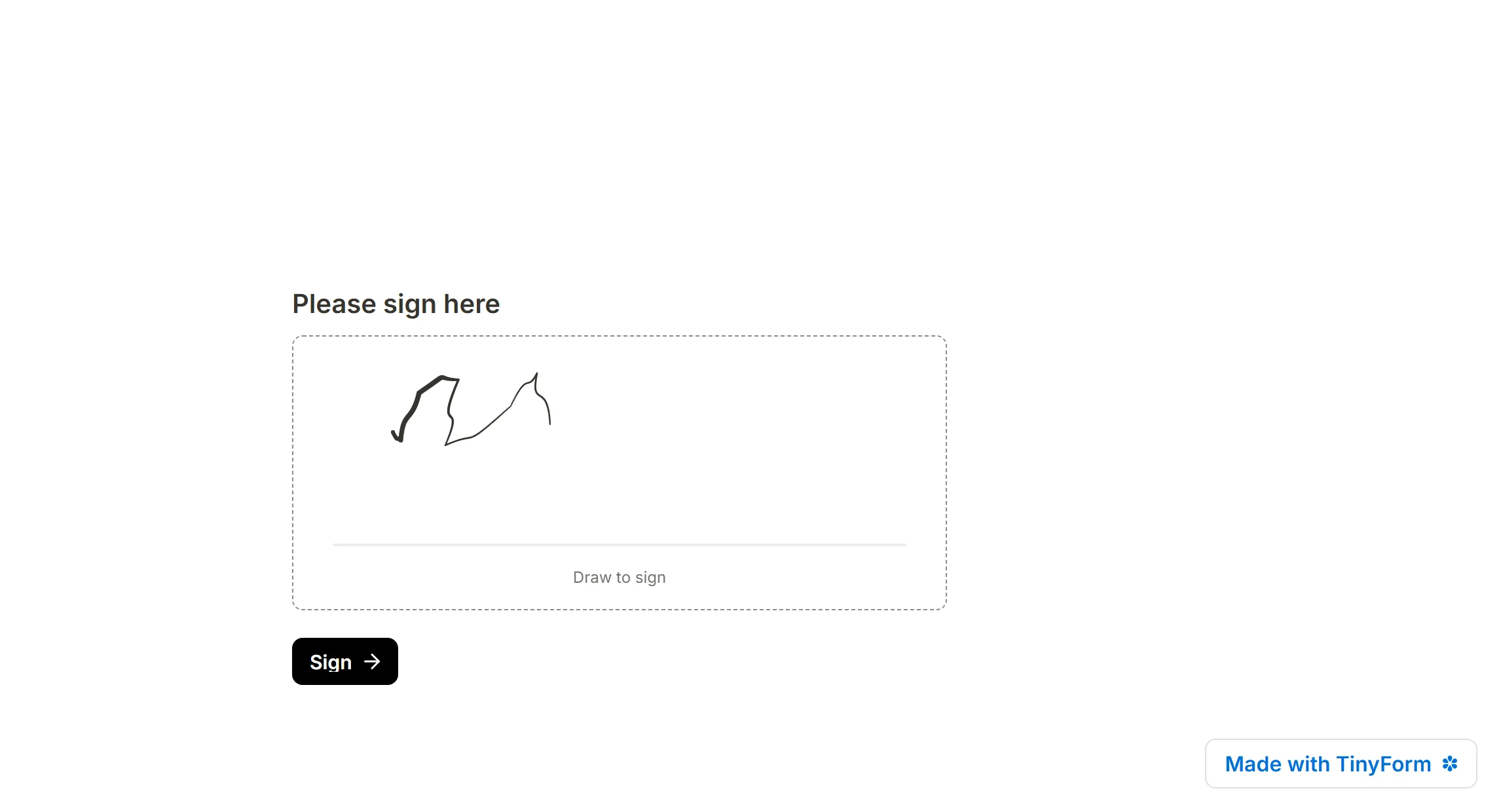
Add a signature field to your form
- Open a form in the editor, or create one
- Open the insert menu with
/and chooseSignature
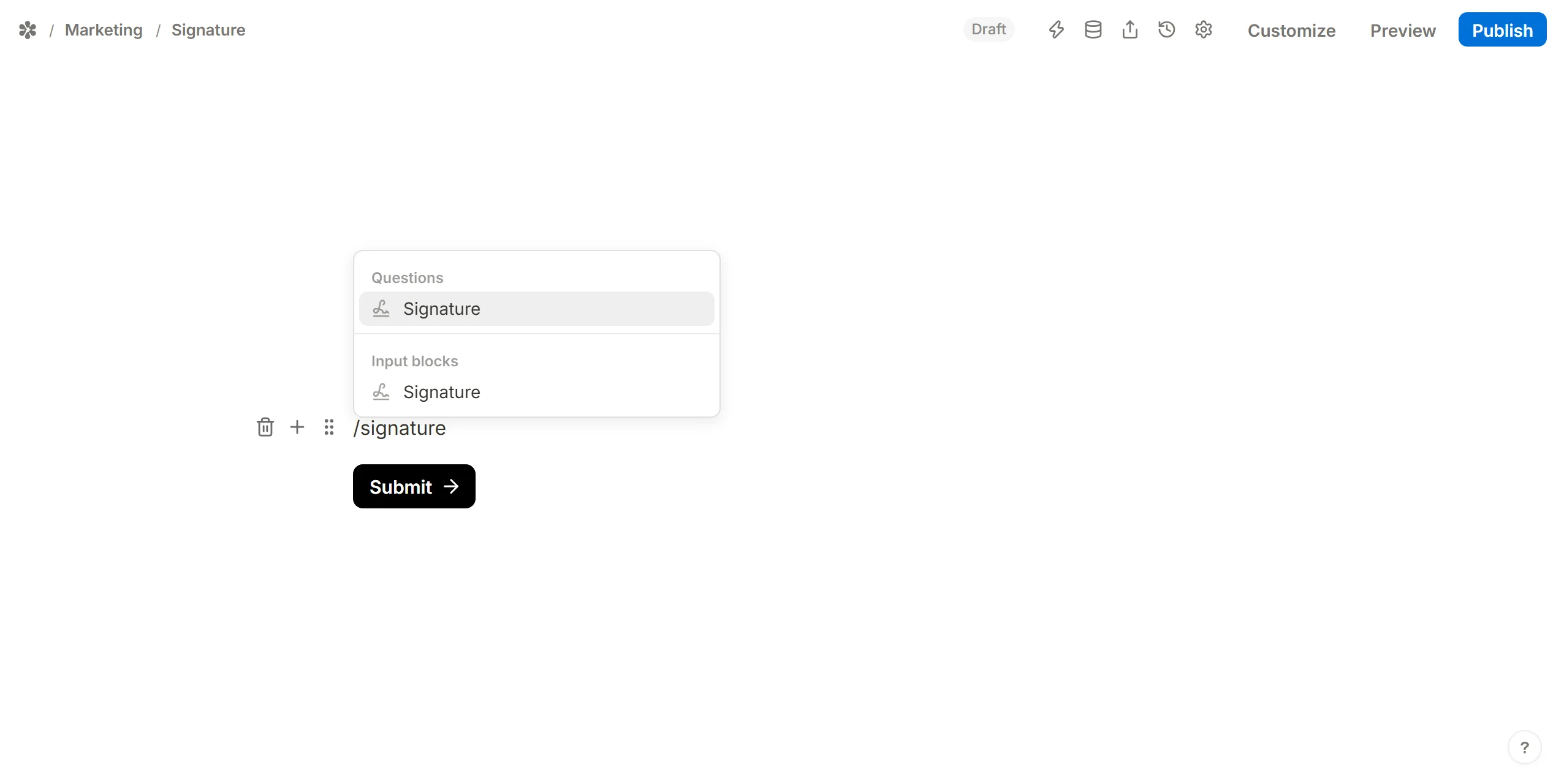
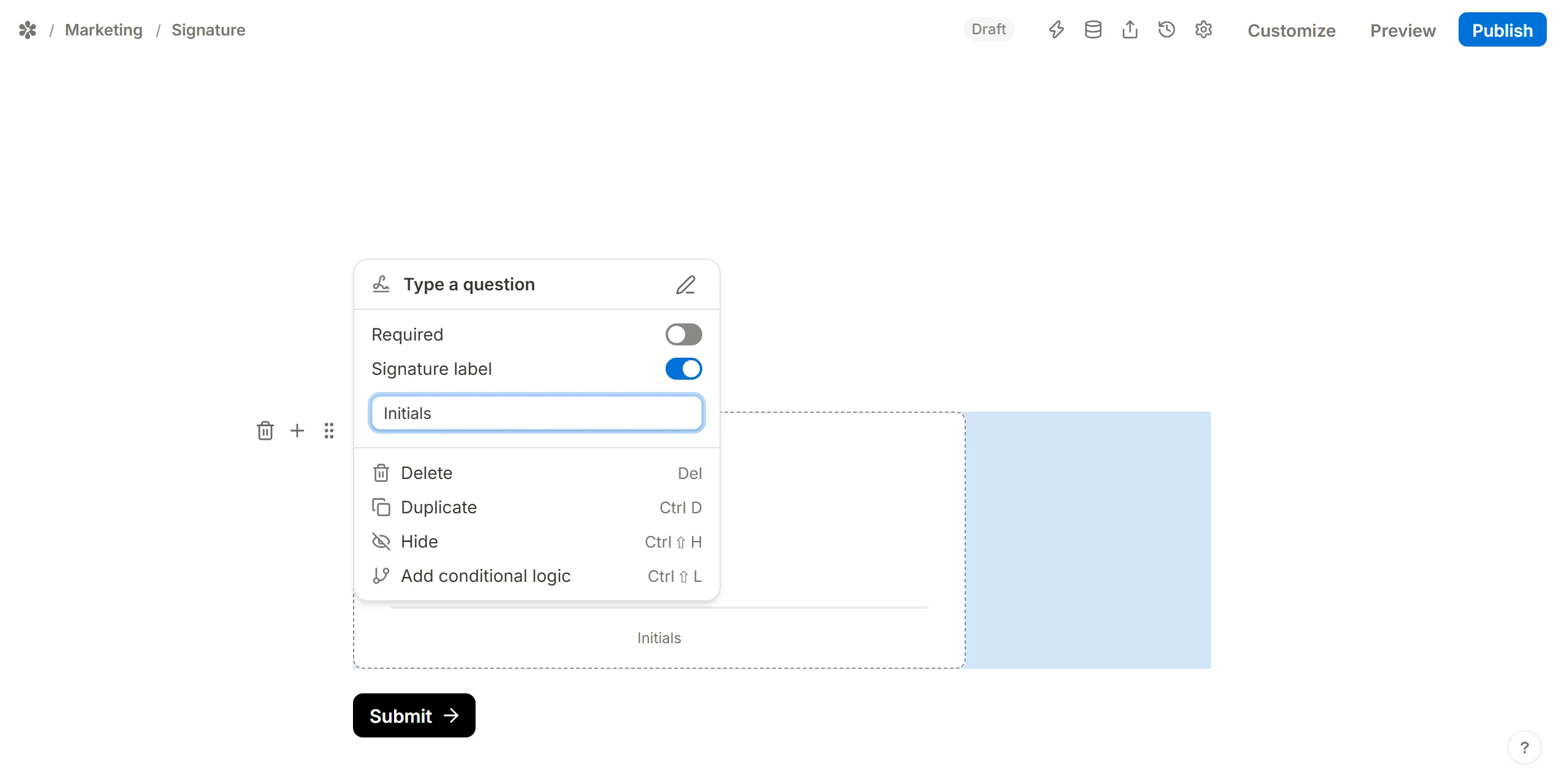
- Change the label under the pad if you want: open the block's settings from the handle at its left edge and type into
Signature label. It reads "Sign here" until you do. The pad itself says "Draw to sign".
- Press
Publish. ARequiredsignature block refuses a submit until something has been drawn, with "Please sign" under the pad.
View collected signatures
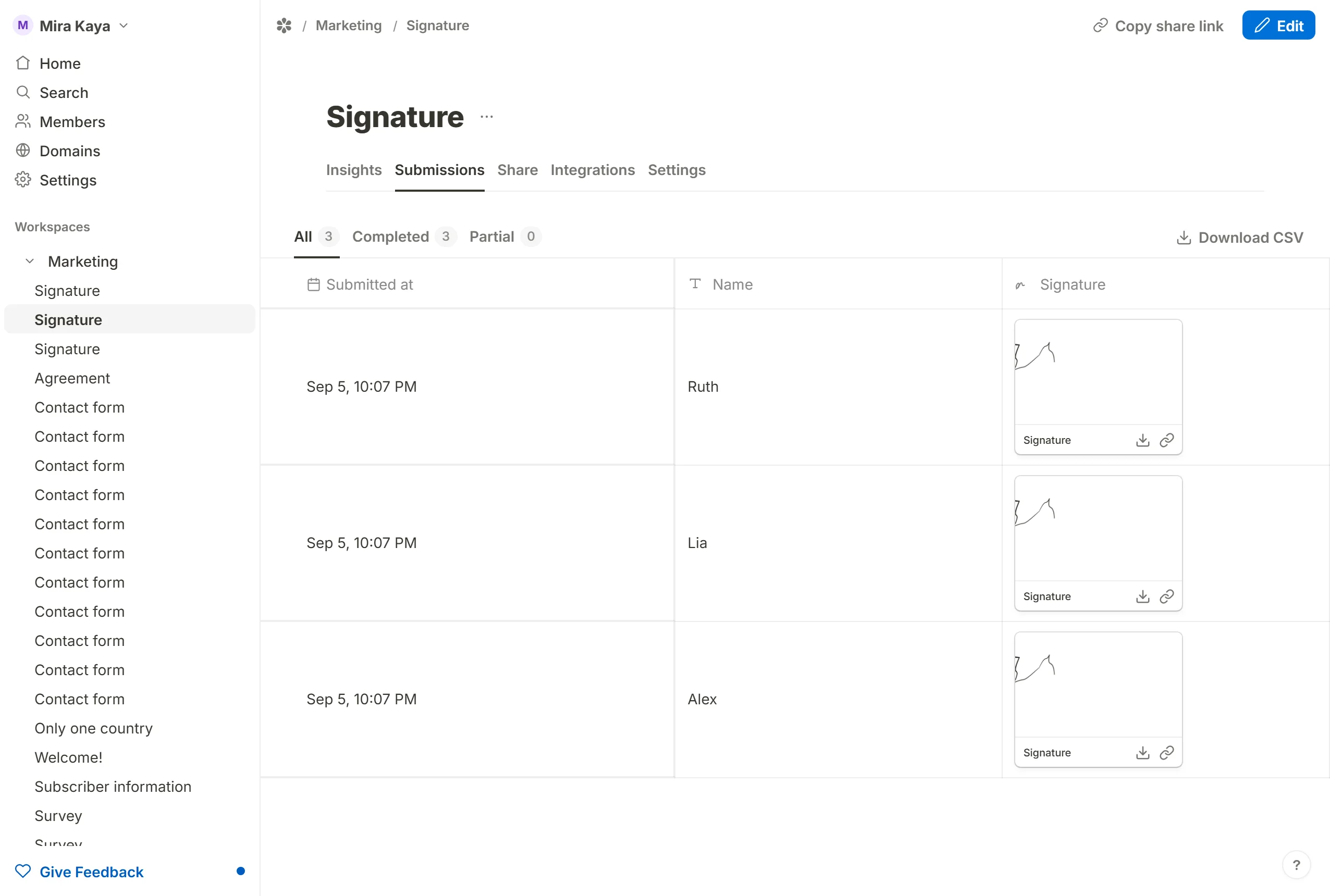
When the form is submitted, the drawing is saved as a PNG in the same private bucket as a file upload, and the answer holds a reference to it rather than the image itself. In the Submissions tab the cell shows the signature as a small card with Open, Download and Copy link. Only a signed-in member of the workspace can open it; the link a stranger tries answers "not found".
Export signed documents as PDF
Any submission can be downloaded as a PDF from the table, and the signature is drawn on it beside the answers, so a waiver or a contract leaves as one signed sheet.
- Open the form's
Submissionstab - Hover a row and press
Download PDF - The sheet is rendered on the server and downloads
To send a copy without visiting the tab, turn on the PDF attachment on an email notification: the same document then arrives in your inbox, or the respondent's, as soon as the form is submitted. See Turn form submissions into PDF files.
Integrations
A signature travels with the submission everywhere the submission goes. A webhook carries it as a file entry with a name and a link, and the REST API hands it out as a signed link that expires, so a receiving system can fetch the image without holding a session of its own.