Turn form submissions into PDF files
Download any submission as a PDF drawn in your form's own theme, or attach one to the notification emails a form sends.
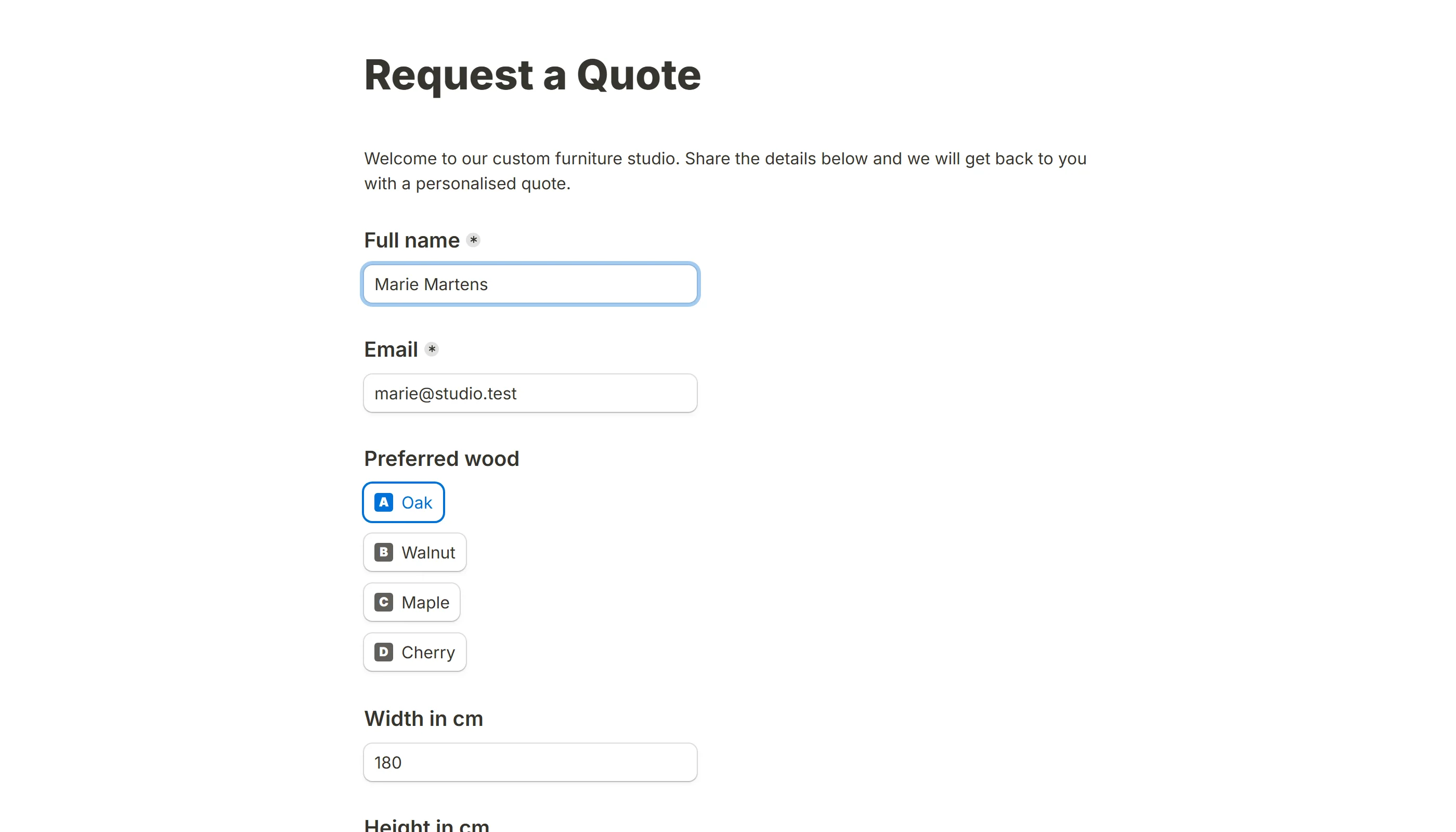
Every row in the Submissions table can be saved as a PDF. The file is the form itself, filled in with that respondent's answers, in the colours, font and layout you gave it in the editor. There is nothing to set up first and nothing to design: Tinyform prints the same page a visitor saw, so a signed agreement, an order or an application comes out looking like the form it was filled in on.
Export a submission as a PDF
How to download the PDF
Open the form and switch to its Submissions tab. Move the pointer over a row and click the Download PDF action that appears at its end. The file is generated on the spot and your browser saves it.
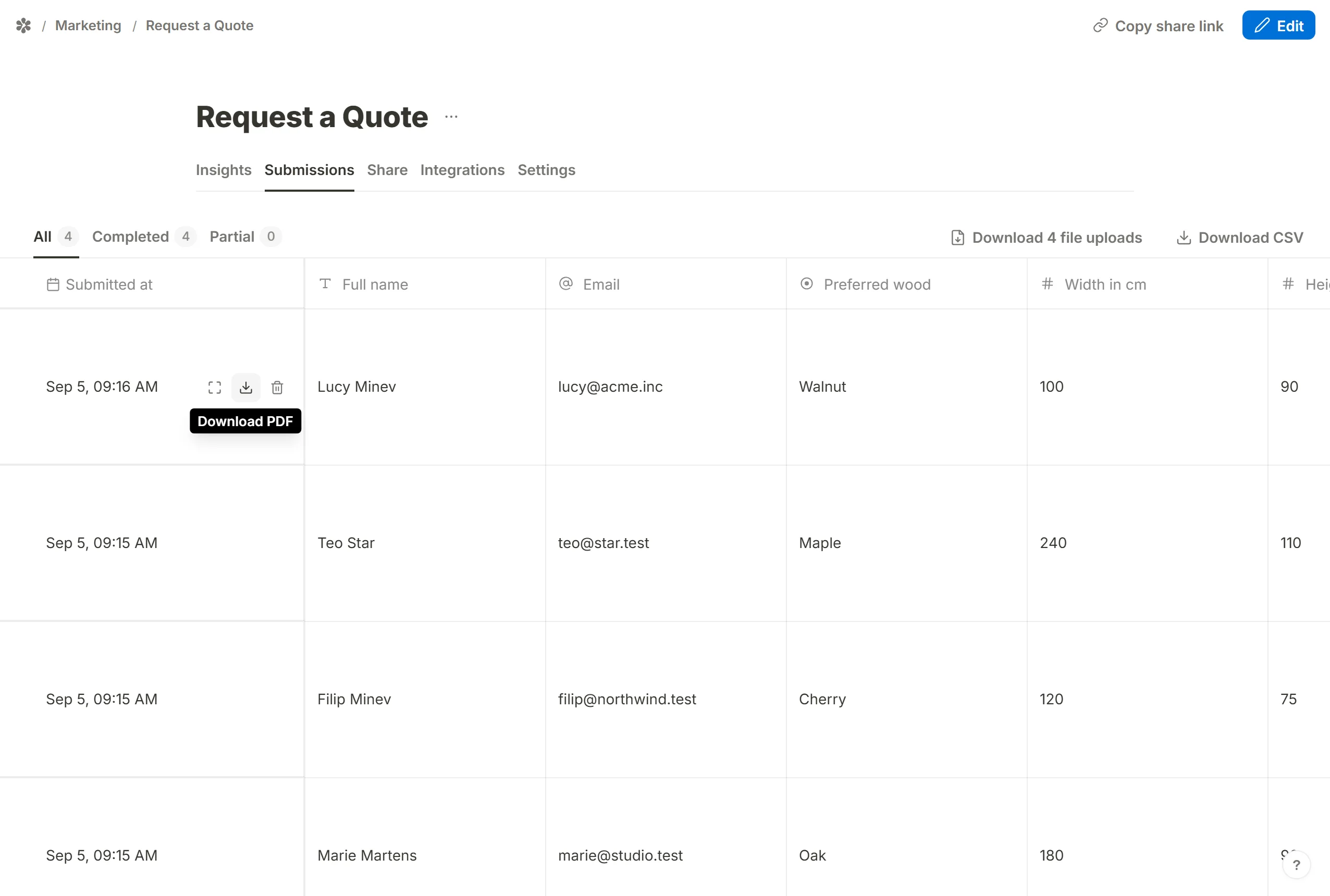
The address behind that action is /forms/<id>/pdf/<submissionId>, so a colleague who is a member of the workspace can open it directly. Anyone else, and any submission that does not belong to this form, gets a not-found answer rather than a refusal, so the address never confirms that a submission exists.
What the PDF looks like
The document is a read-only copy of the form with every answer filled in: headings, text blocks, images, the questions and the values under them, in the same column layout the form uses on screen.
- Page breaks in a multi-page form become a divider line. The Next button itself is not drawn, because nobody reading a record can press it.
- A custom thank-you page is printed after a final divider, as prose only. A form that ends on the default thank-you screen ends on its last answer instead.
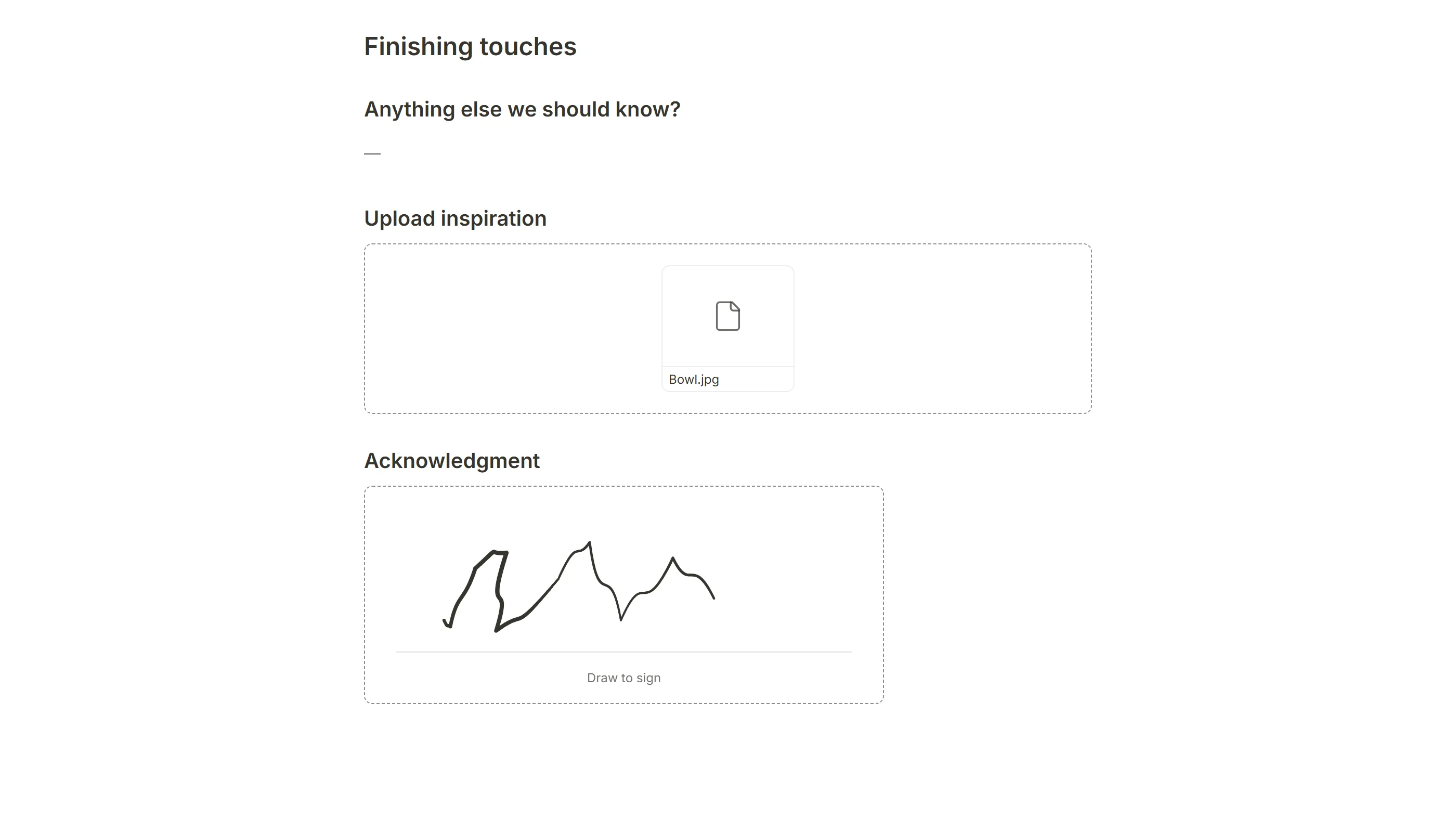
- Unanswered questions show a dash where the value would be, rather than their placeholder text, so an empty field cannot be mistaken for an answer.
- Signatures drawn with a signature block are printed in place.
- Uploaded files are listed, not embedded. The files themselves are downloaded from the Submissions table.
What is left out
A few things that exist on the live page are deliberately not part of a printed record:
- Hidden fields and calculated fields: they are never shown to a visitor, so they are not shown here either. Their values are still in the Submissions table and in the CSV.
- Conditional logic does not run again. A block a rule would have hidden is drawn with the empty answer it was submitted with, so the record is complete rather than re-interpreted.
- The reCAPTCHA widget and the "Made with" badge are never drawn on a PDF, whatever the form's settings say for the live page.
- The default thank-you screen, as above.
Send PDFs automatically
With email notifications
Both notification emails a form can send take the same document as an attachment. In the form's Settings tab, open the self email notification or the respondent email notification row and tick Attach PDF with answers. Every message that row sends from then on carries the PDF of the submission it is about.
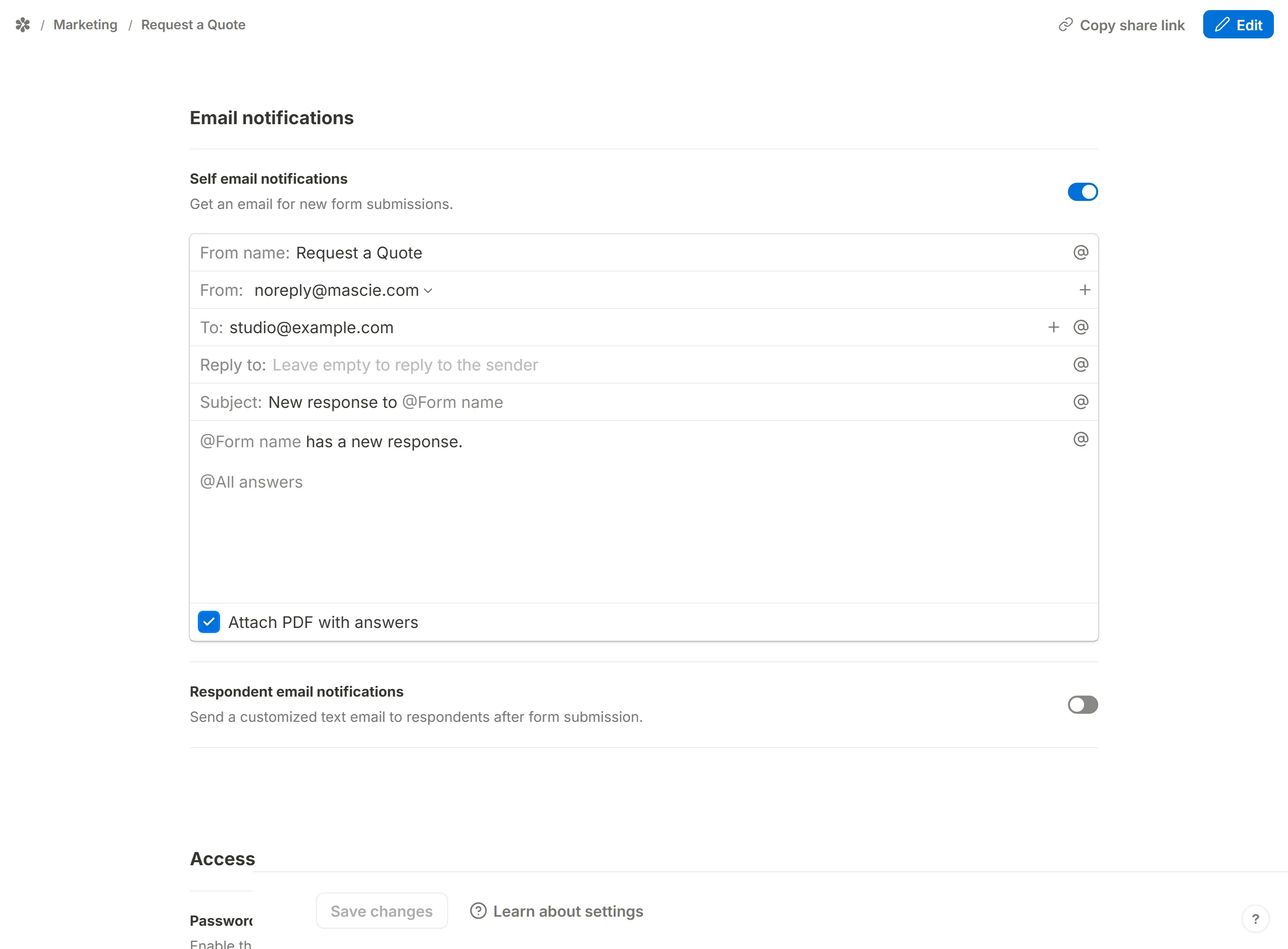
The attachment and the download are one and the same file, produced by the same code, so what lands in an inbox is exactly what a row's Download PDF gives you.
With integrations
There is no link to the PDF inside a webhook payload or the REST API's submission records; the file is produced on request rather than stored. What the API does carry, for a file-upload or signature answer, is a signed link to the attachment itself. If a workflow needs the PDF, an owner's session or a member of the workspace can fetch /forms/<id>/pdf/<submissionId> directly.
Customize your PDF
PDFs with electronic signatures
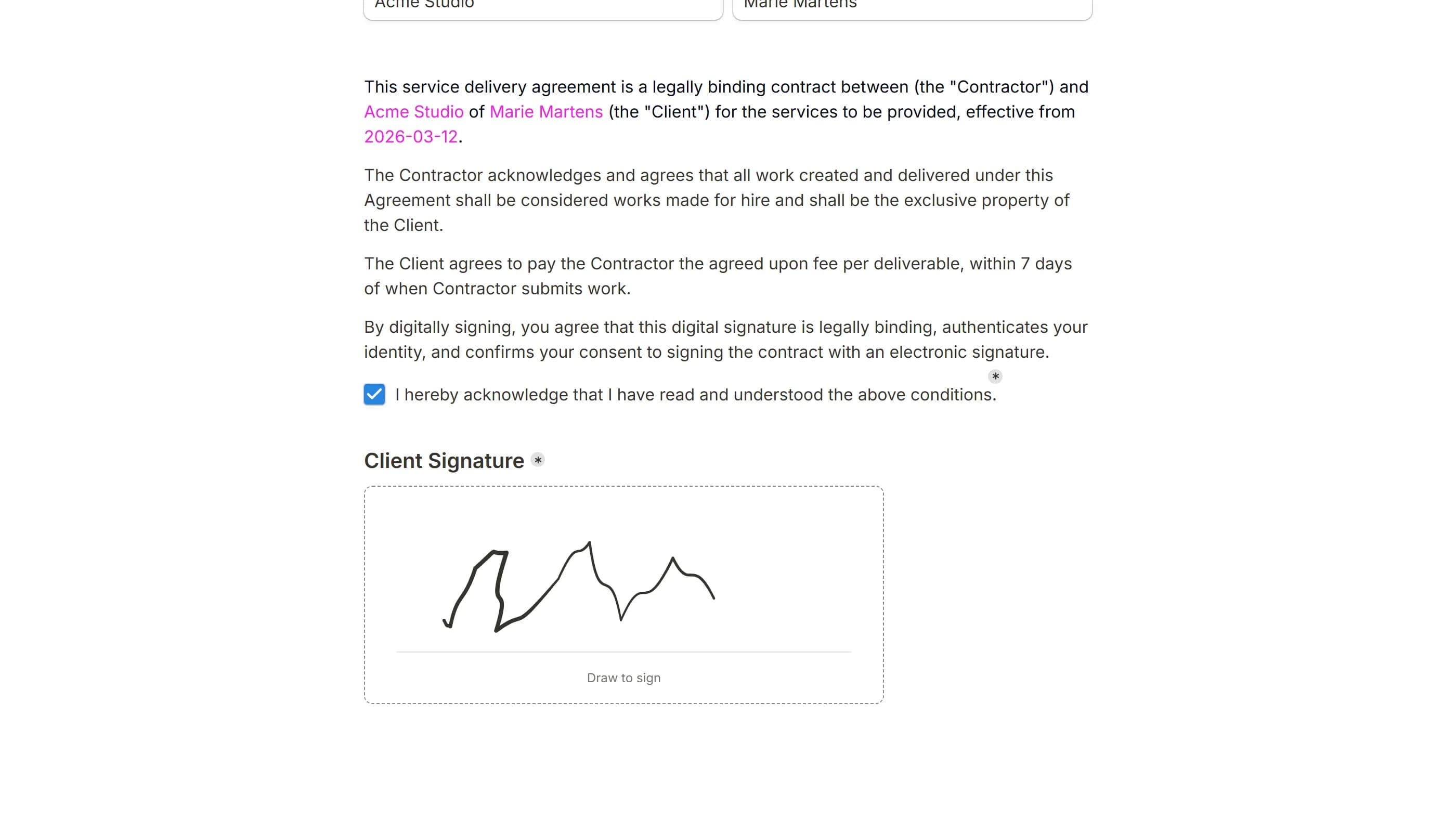
Add a /signature block to the form and the drawn signature is printed inside the PDF, in the place the block sits. That turns a waiver, a contract or a consent form into a signed document that is ready to file, with nothing else involved. The signature is stored privately with the submission and only inlined into the print; see Electronic signatures.
Personalized documents with answer piping
Answer piping lets you place an earlier answer inside a heading, a paragraph or a question label by typing @ in any block. In the PDF those mentions come out as the filled-in values, so a contract reads "This agreement is between Acme Ltd and ..." rather than as a list of questions and answers. Build the document's wording into the form's text blocks and let the answers complete it.
Use cases for PDF export
A printed record is useful anywhere you would otherwise keep a paper copy. The template gallery at /templates has ready-made forms for each of these.
Client deliverables
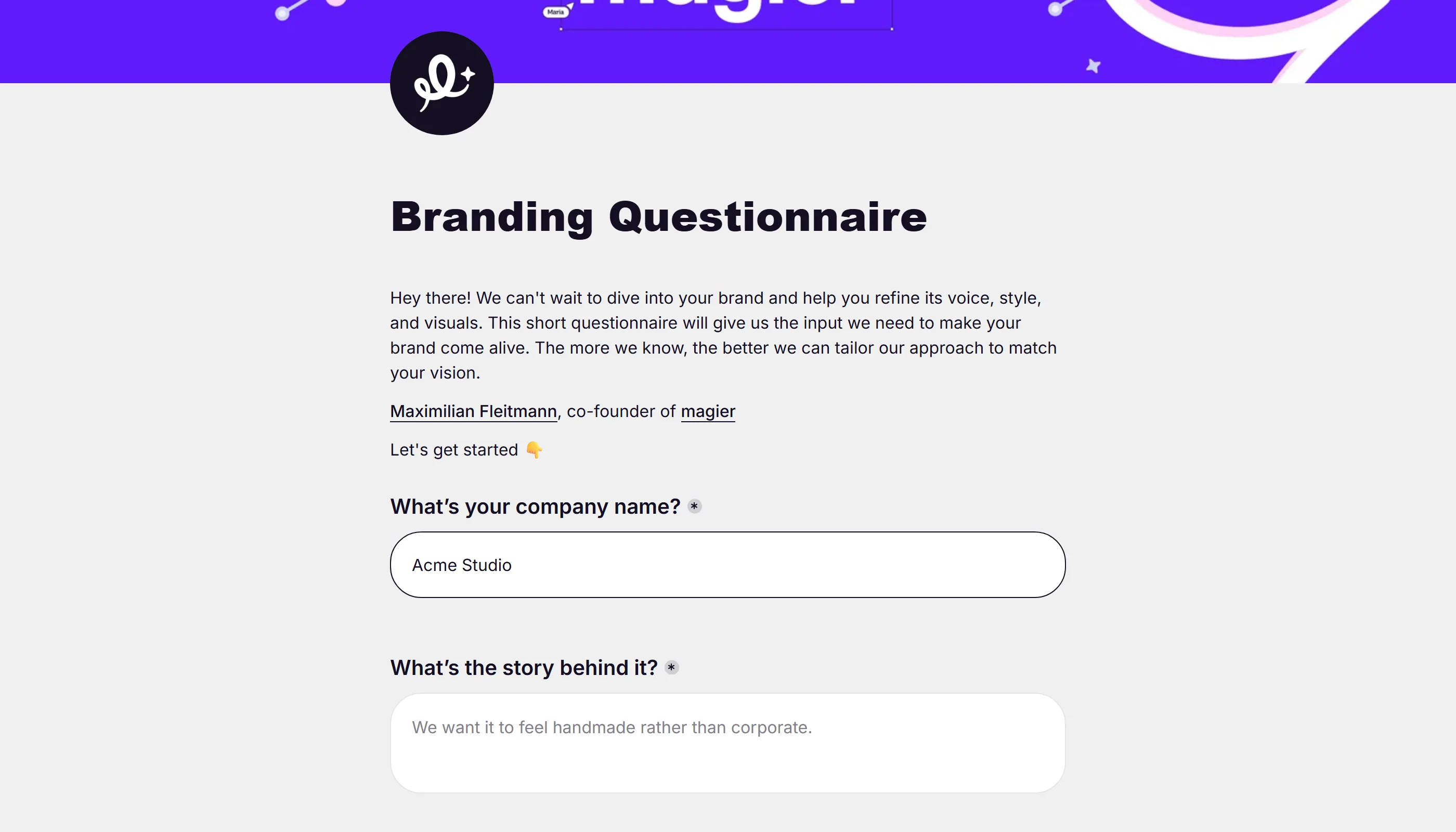
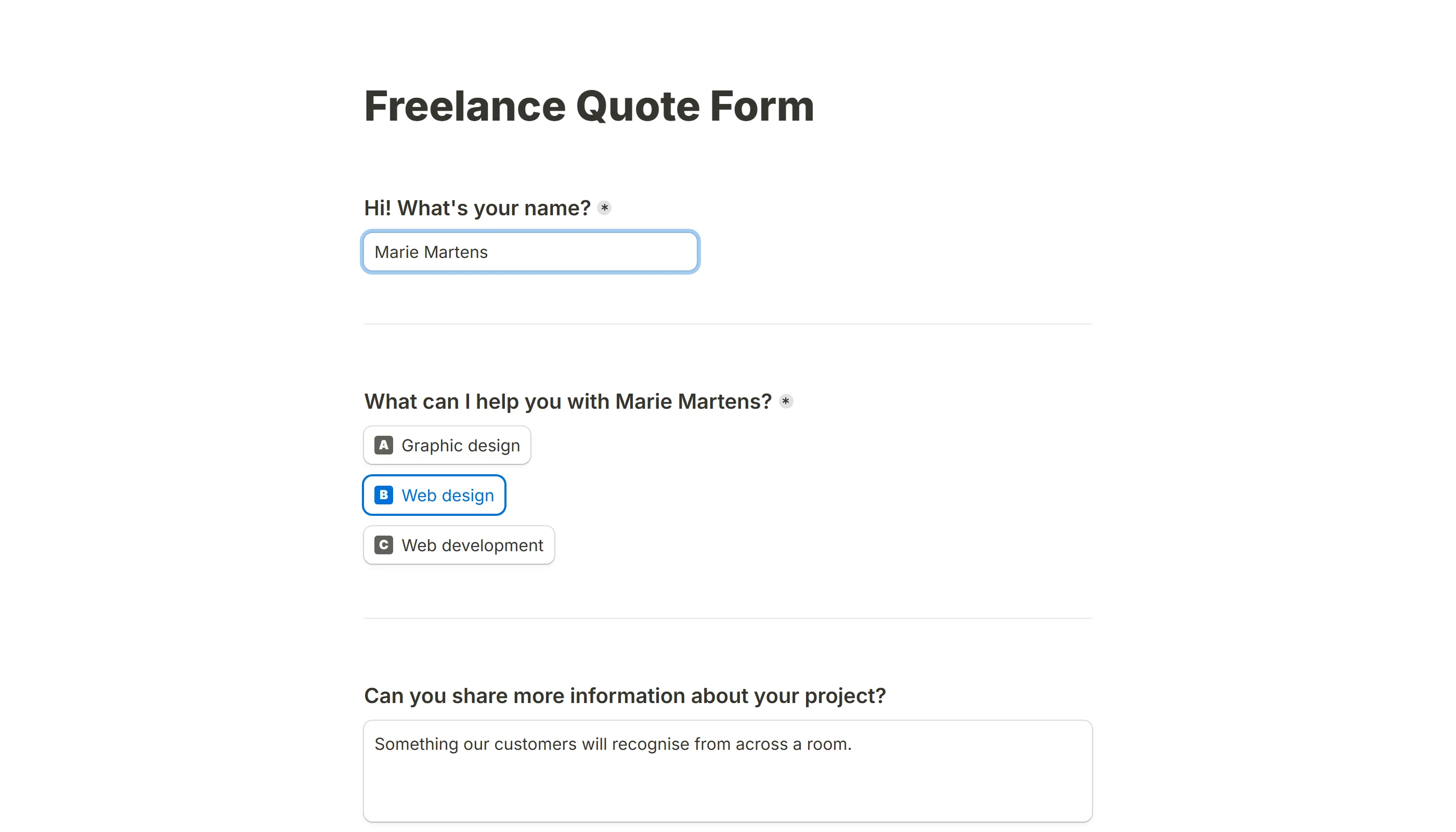
Turn a completed intake questionnaire or a job application into a document you can attach to an email or drop into a case file. The PDF keeps your branding and layout, so a freelancer, an agency or a consultant can hand a client a clean summary without formatting anything.
Contracts and compliance
Keep offline copies of sign-ups, consent forms, regulatory records and waivers. Pair the form with a signature block and each submission becomes a fully signed document with an audit trail, without a separate contract tool.
Orders and bookings
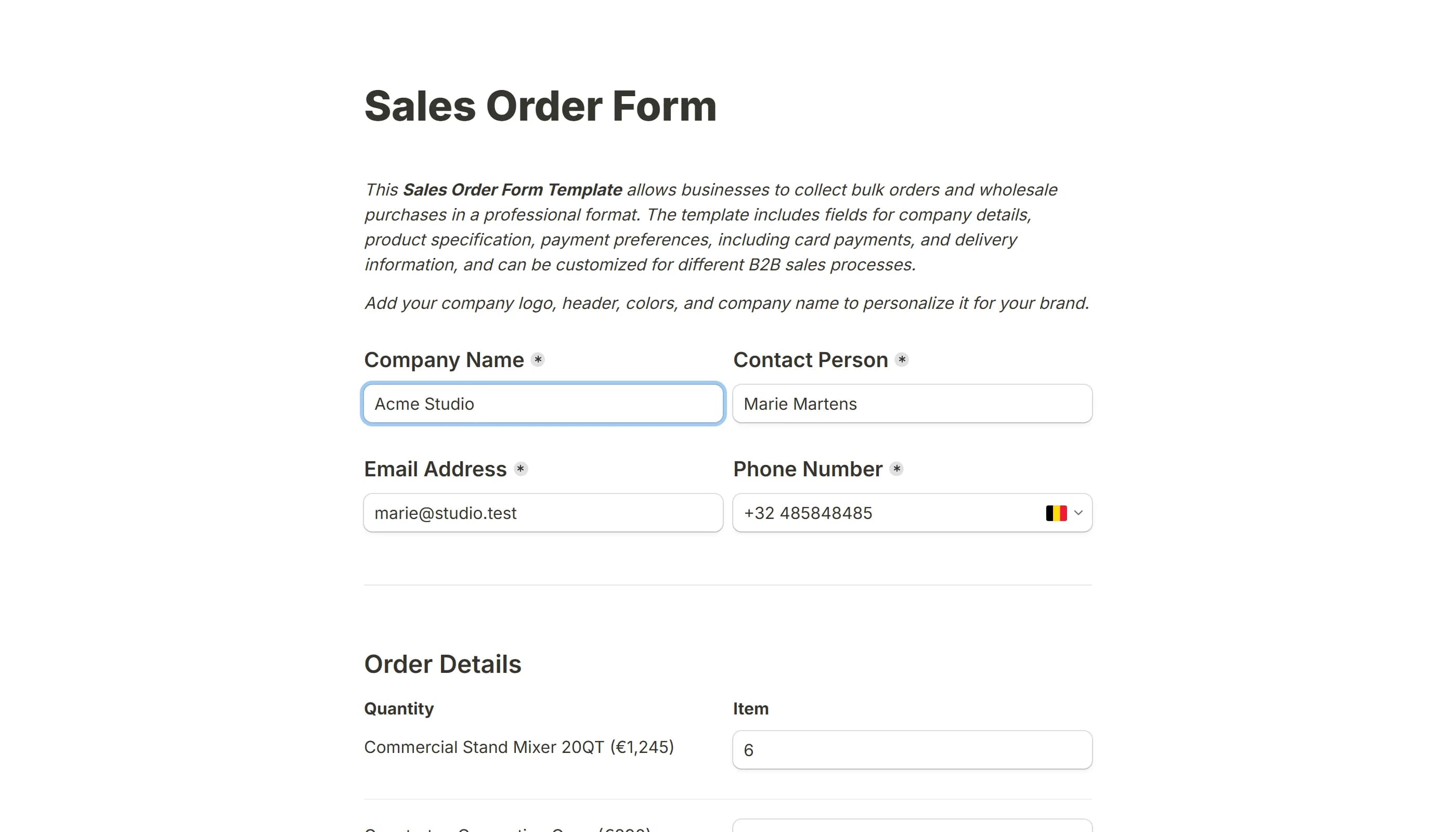
Print a copy of every order or booking as it comes in. The PDF holds the customer's details and what they chose exactly as submitted, so it doubles as a receipt. Turn on the self email notification with Attach PDF with answers and each order arrives in your inbox ready to file.
Freelance invoices
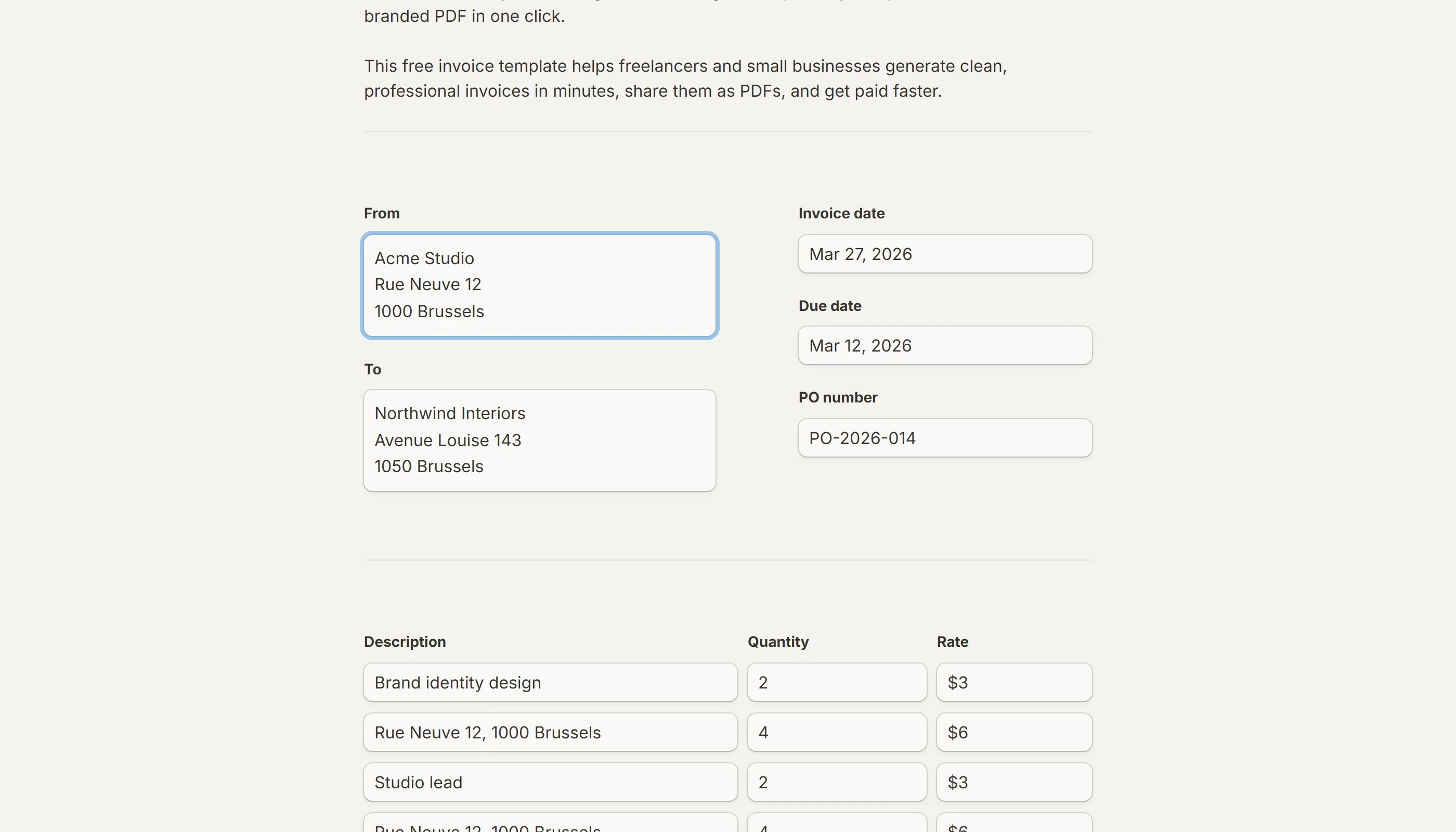
Build an invoice form with line items and quantities, let a calculated field do the total, address the client by name with answer piping, and switch on the respondent email notification with the PDF attached. The invoice goes out the moment the form is submitted.
Estimates and quotes
Collect the details of a job, then send both sides a copy: the self email notification gives you the PDF to quote from, and the respondent email notification gives the client a record of what they asked for.
Frequently asked questions
Can respondents download their own submission as a PDF?
Not from the form. The download action lives in the Submissions table, which only members of the workspace can open. To give respondents a copy, turn on the respondent email notification and tick Attach PDF with answers; the confirmation email then carries their PDF.
Can I attach the PDF to the respondent's confirmation email?
Yes. In the form's Settings tab, open the respondent email notification row and tick Attach PDF with answers.
Can I change what appears in the PDF?
Not directly. The PDF is the form, so the way to change the document is to change the form: its theme in Customize, its wording in the editor, its structure with page breaks and text blocks. There is no separate PDF layout to edit.
Can I print a submission?
Yes. Download the PDF from the row's Download PDF action and print it from your browser or PDF viewer.
Does the PDF carry the branding badge?
No. The badge is never drawn on a printed record, whether or not the form shows it on the live page. See Remove the branding badge for the live page's setting.