How to create a color picker input field
Ask for a colour with the choice controls the editor already has, or turn a text input into a real colour picker with a script on a connected domain.
Tinyform has no colour input type. If you need a respondent to pick a colour, there are two routes: a choice question that shows colours natively, or a short script that turns a text input into the browser's own colour picker, which needs a custom domain.
A choice question with colours
For a fixed palette, a Multiple choice question does the job without any code. Open its settings popover and turn on Color-code options: each option is tinted, and the palette offers Red, Orange, Yellow, Green, Blue, Purple, Pink and Grey. For a palette of your own, give each option an image swatch instead; see Multiple choice.
The answer stored is the option's label, so name the options after the colours they show.
A real picker with code injection
To collect any hex value, use the browser's native colour control. This route only works on a custom domain, because that is the one place Tinyform runs a script of yours; nothing you inject reaches /r/<id>.
Add the input
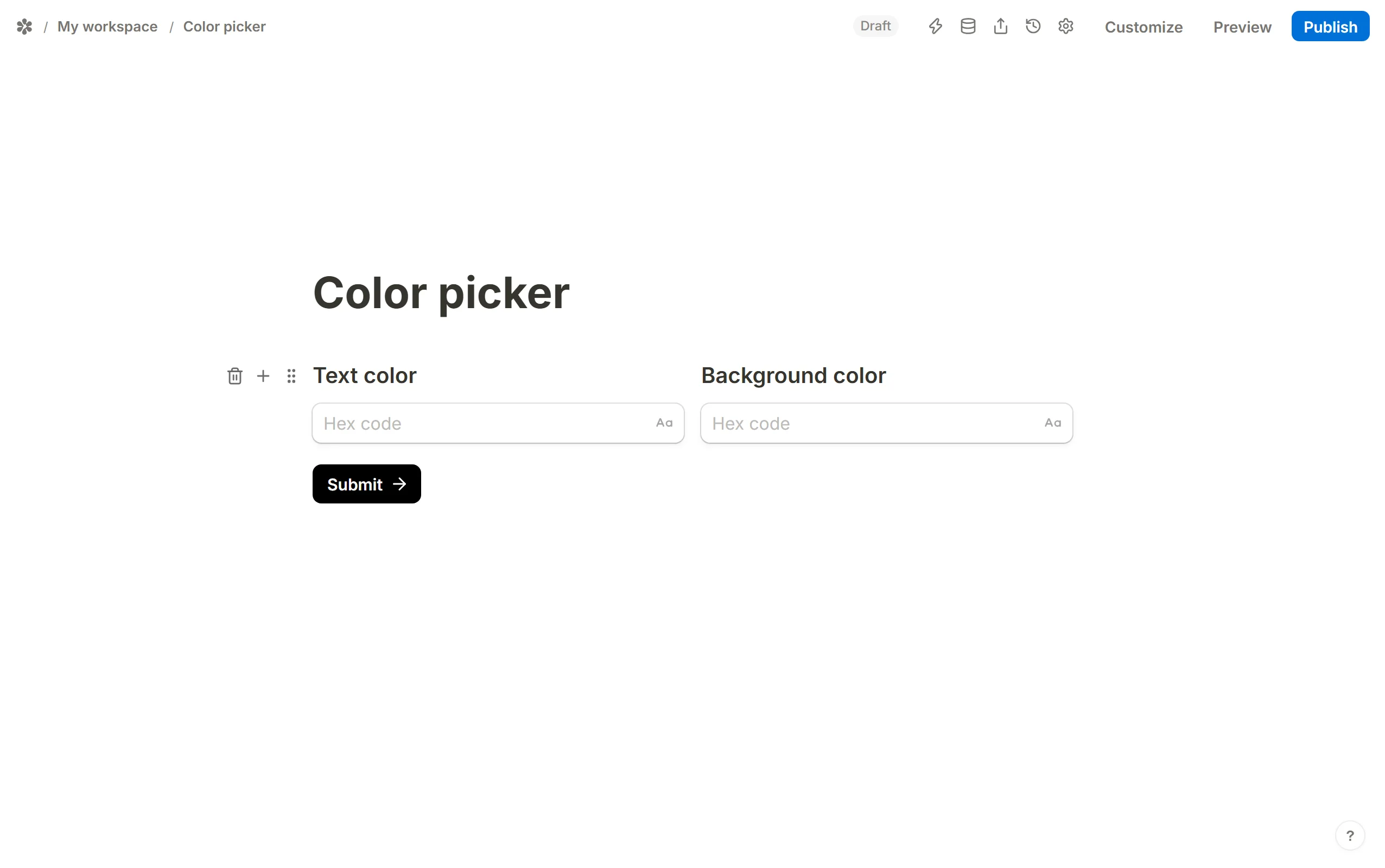
Insert aShort answerquestion and set its placeholder toHex code. The placeholder is what the script uses to find the input, so spell it exactly. Drop the question into a column to narrow it; see Columns.
Connect the domain
Connect the form to a custom domain, then openDomains, pick the domain and findCode injectionunder its general settings. See Code injection.Inject the script
Paste the snippet below. It changes every input whose placeholder is "Hex code" into a colour control, and watches the page so an input drawn later, on another page of the form, is changed too.
<script>
  function toColorInputs() {
    document
      .querySelectorAll('input[placeholder="Hex code"]')
      .forEach(function (el) { el.type = "color"; });
  }
  toColorInputs();
  new MutationObserver(toColorInputs).observe(document.body, {
    childList: true,
    subtree: true,
  });
</script>

<style>
  input[type="color"] {
    box-shadow: none !important;
    padding: 0 !important;
  }
</style>
The value a respondent picks is submitted as the input's text, a hex code such as #3b82f6, and shows up in Submissions like any short answer.
Styling without a script
The editor's Customize panel has a Custom CSS box that can restyle any control on the published page through its fe-* classes, but CSS cannot add a control the page does not draw. Use it to size or colour the swatch once the script above has created it. See Add custom styles.