Multiple choice
Offer a list of answers and let the respondent pick one, then shape the list with badges, colours, images, an Other option and a default.
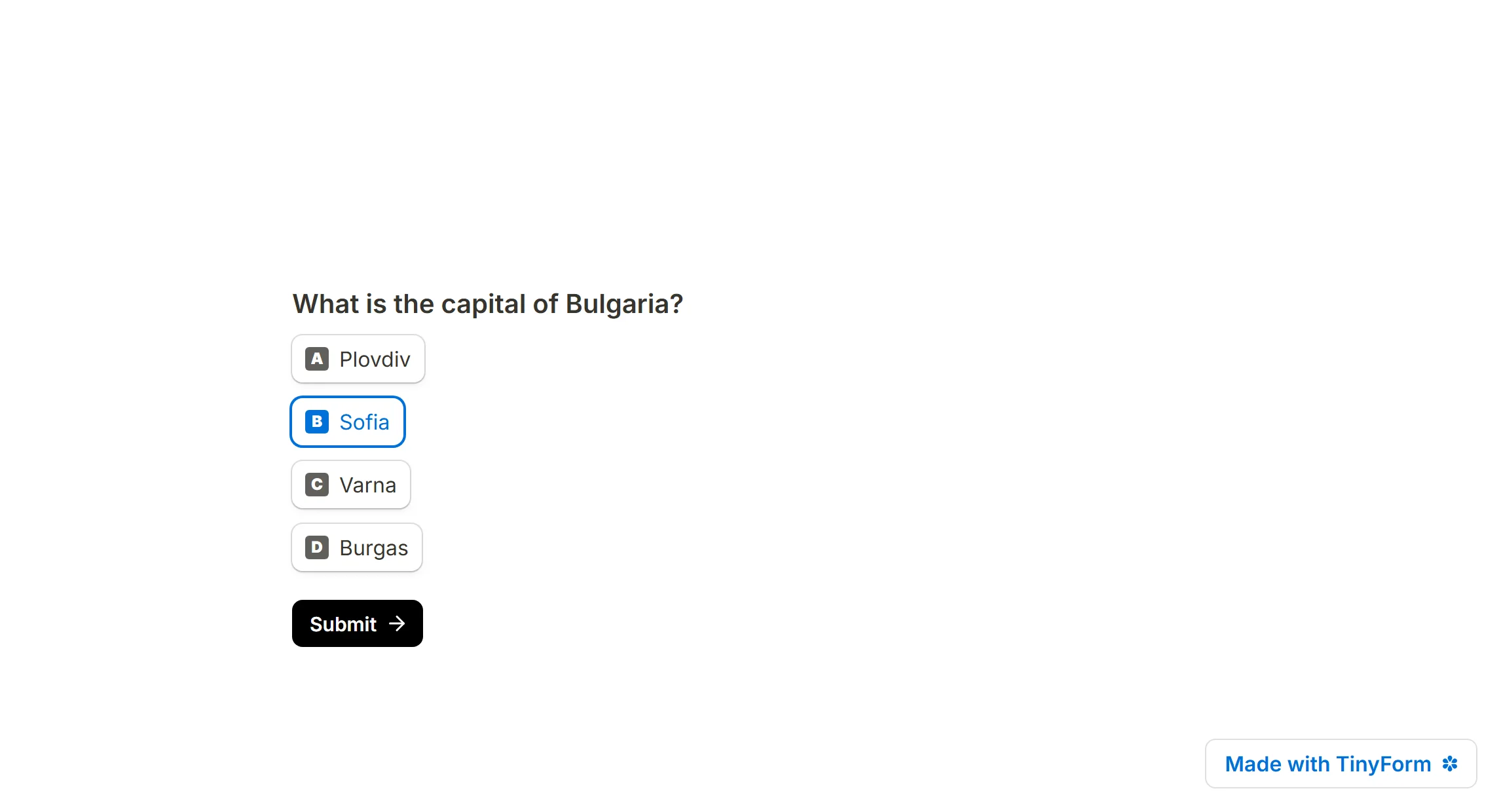
A Multiple choice question shows every answer on the page and lets the respondent pick one of them. It is the workhorse of quizzes, surveys and application forms, because the options do the explaining: the respondent reads the list, recognises the answer and clicks it. In Tinyform Multiple choice is the pick-one block; its pick-many twin is Checkboxes, and the two swap places with one menu action.
How it works

Open the insert menu with / and choose Multiple choice. Type the question, then the answers one per row. Enter starts the next option, Backspace on an empty row removes it, and a paragraph or an image can sit between two options because they are rows on the canvas like any other block.
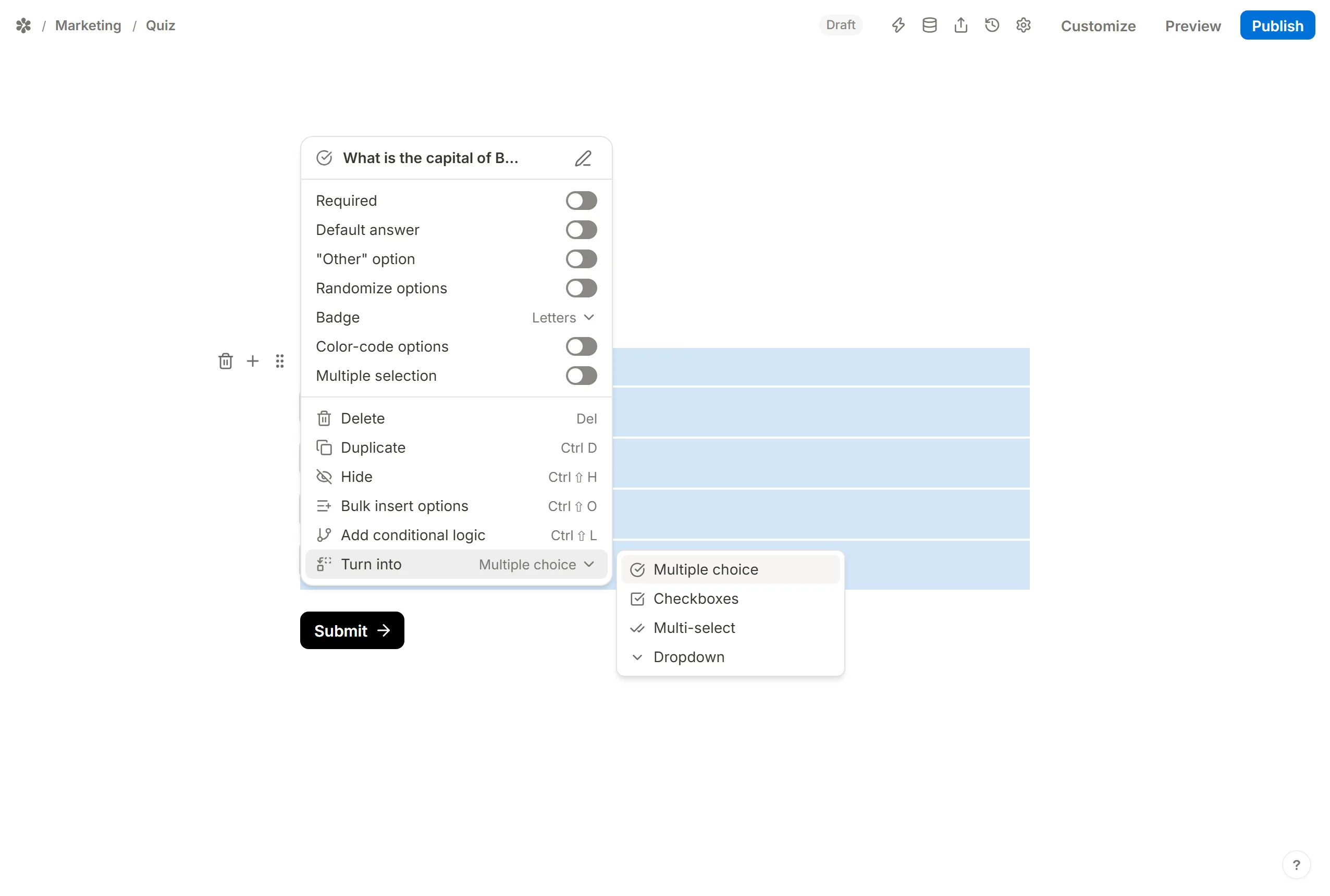
A respondent chooses one option. To let them choose several, open the block menu, pick Turn into and choose Checkboxes: the options stay, and the block gains Min choices and Max choices. The same menu turns the list into a Dropdown or a Multi-select, and back again.
Multiple choice settings
Open the settings from the handle at the block's left edge. Each row below is one switch or picker on that panel.
Add a default answer
Default answer opens the form with an option already selected. Pick it from the list, or point it at another field so the selection follows a hidden field or an earlier answer. See Pre-populate form fields.
Enable an "Other" option
"Other" option adds a final row that opens a text box when picked, so an answer you did not list can still be given in the respondent's own words. See How to create an other field.
Randomize options
Randomize options shuffles the list for each respondent. Lock options in place on one option pins it, which is how "Other" or "None of the above" stays last while the rest move. See Randomize answer options.
Multiple selection
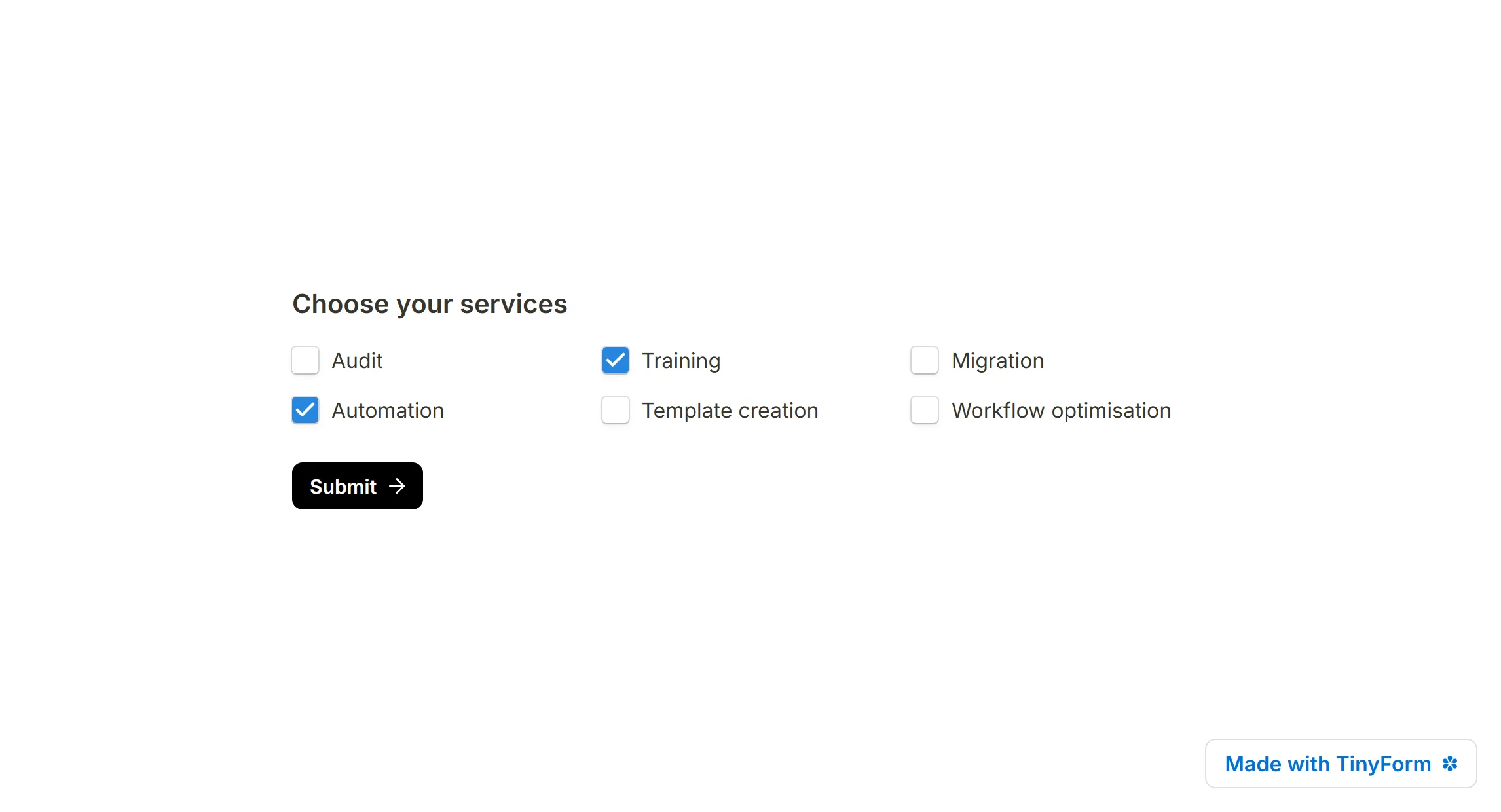
There is no switch for this on the block: pick-many is the Checkboxes block, reached through Turn into. Checkboxes carry Min choices and Max choices, and a respondent outside those bounds sees "Choose at least" or "Choose at most" when they press Next or Submit.
Bulk insert options
A list that already exists somewhere is pasted in one go: Bulk insert options in the block menu (or Ctrl+Shift+O), one option per line, then Insert options. See Bulk insert option lists.
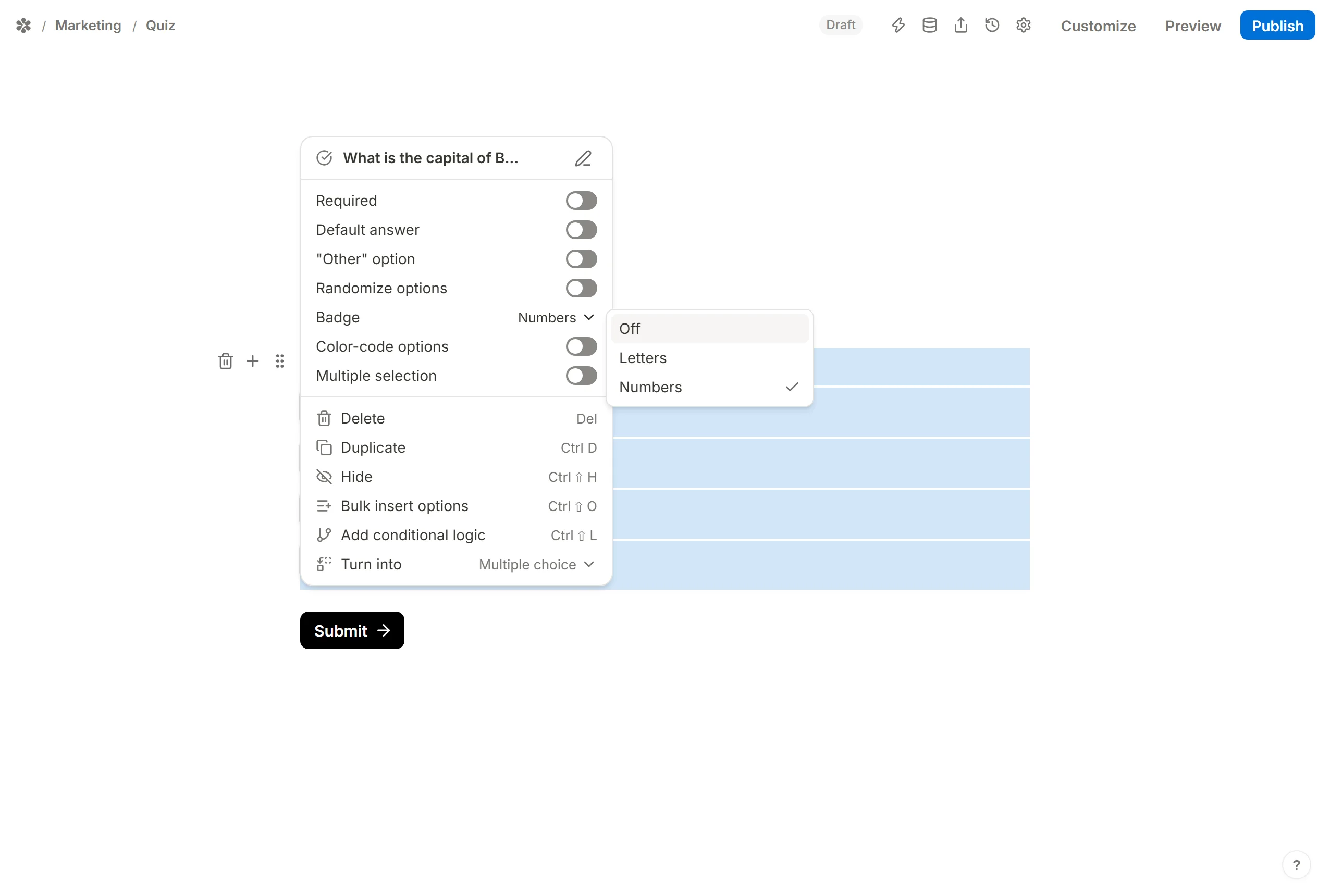
Badge
Each option carries a small badge at its left edge, a letter by default.
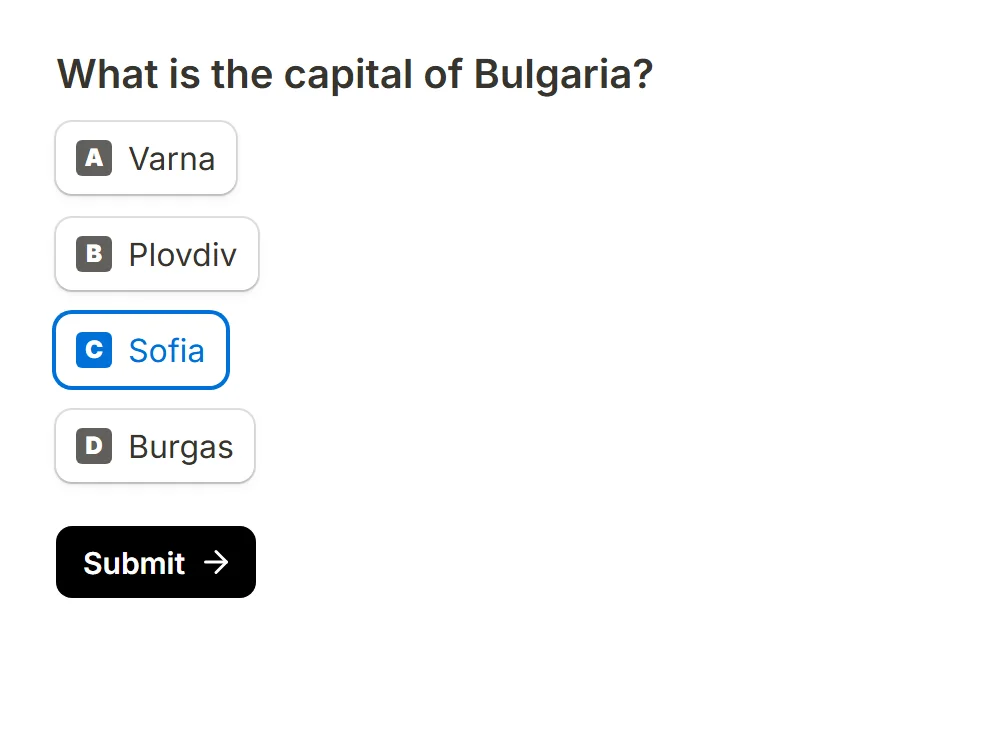
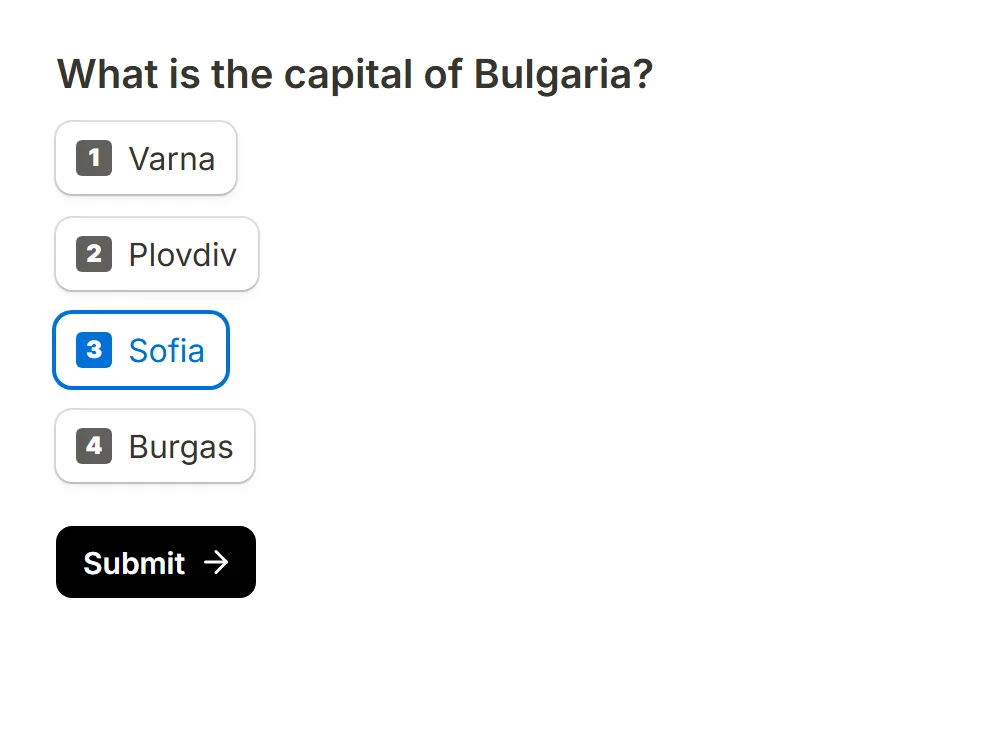
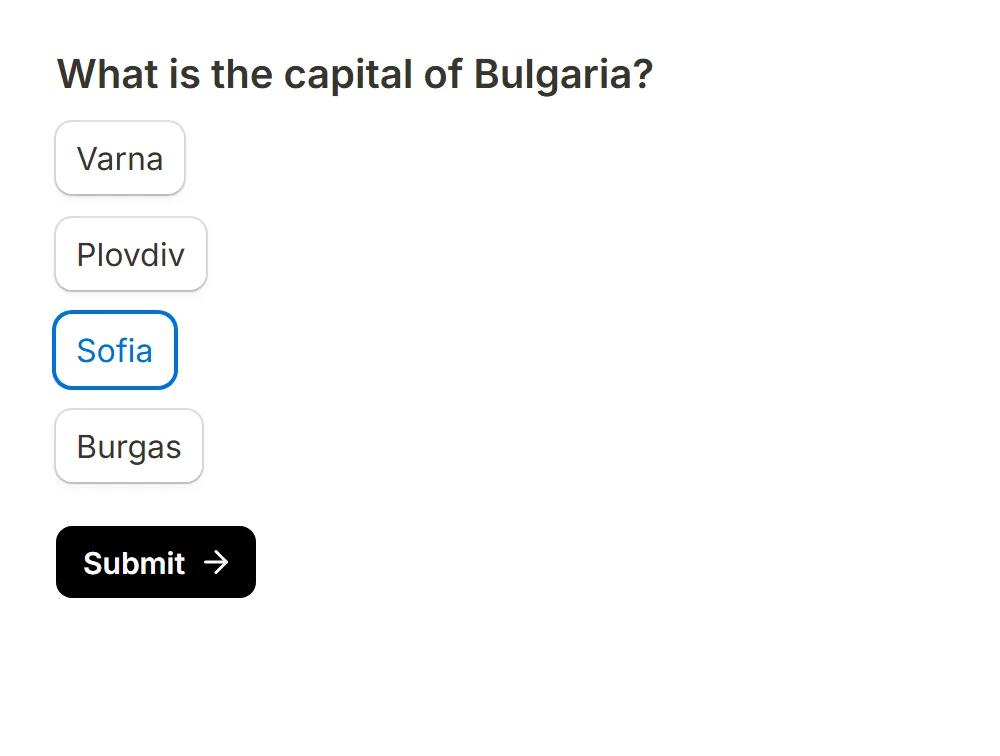
Badge switches between Letters, Numbers and Off. Numbers read naturally for a scale of options; Off leaves a plain pill, which suits a list of two or three short answers.
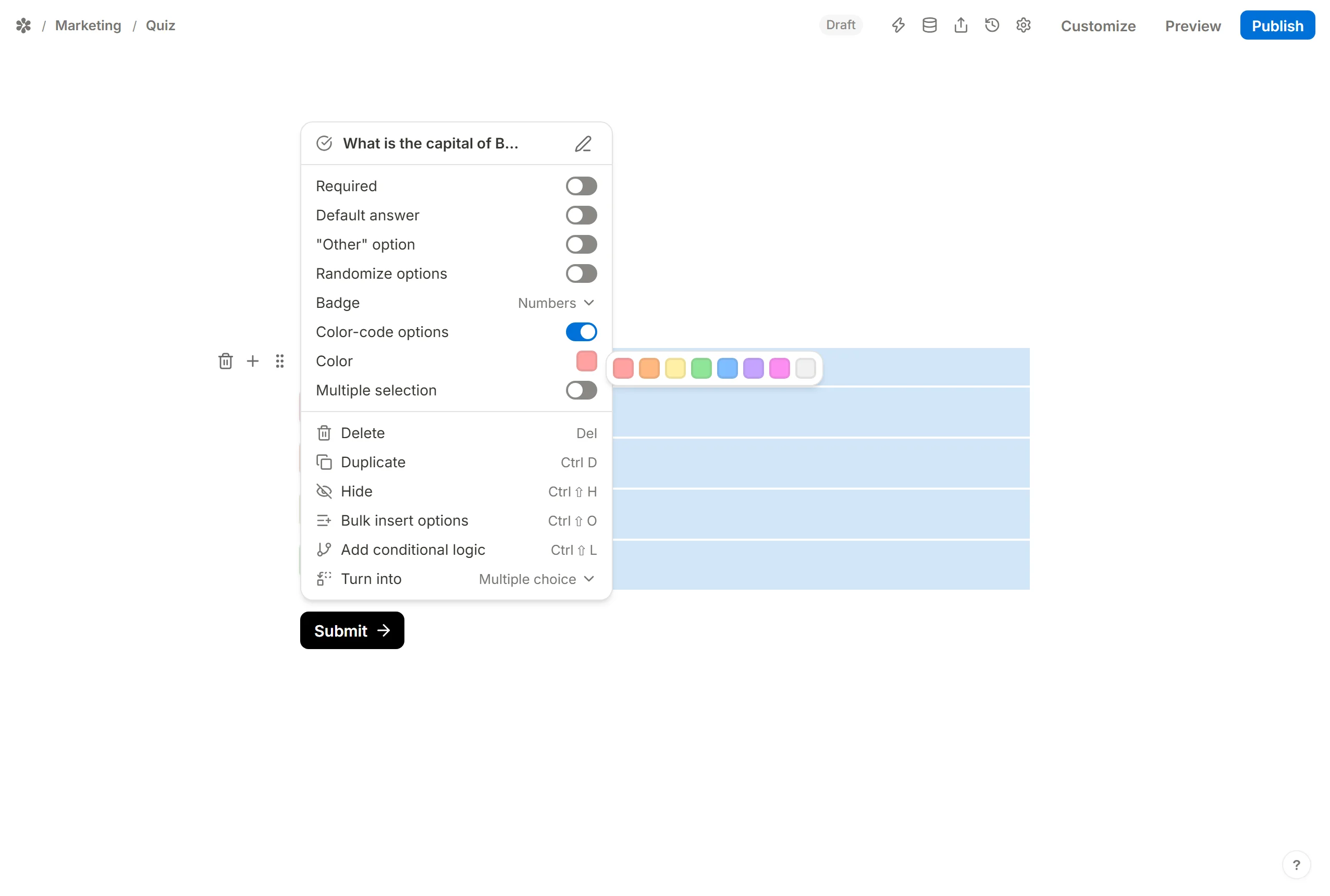
Color-code options
Color-code options tints each option with its own colour.
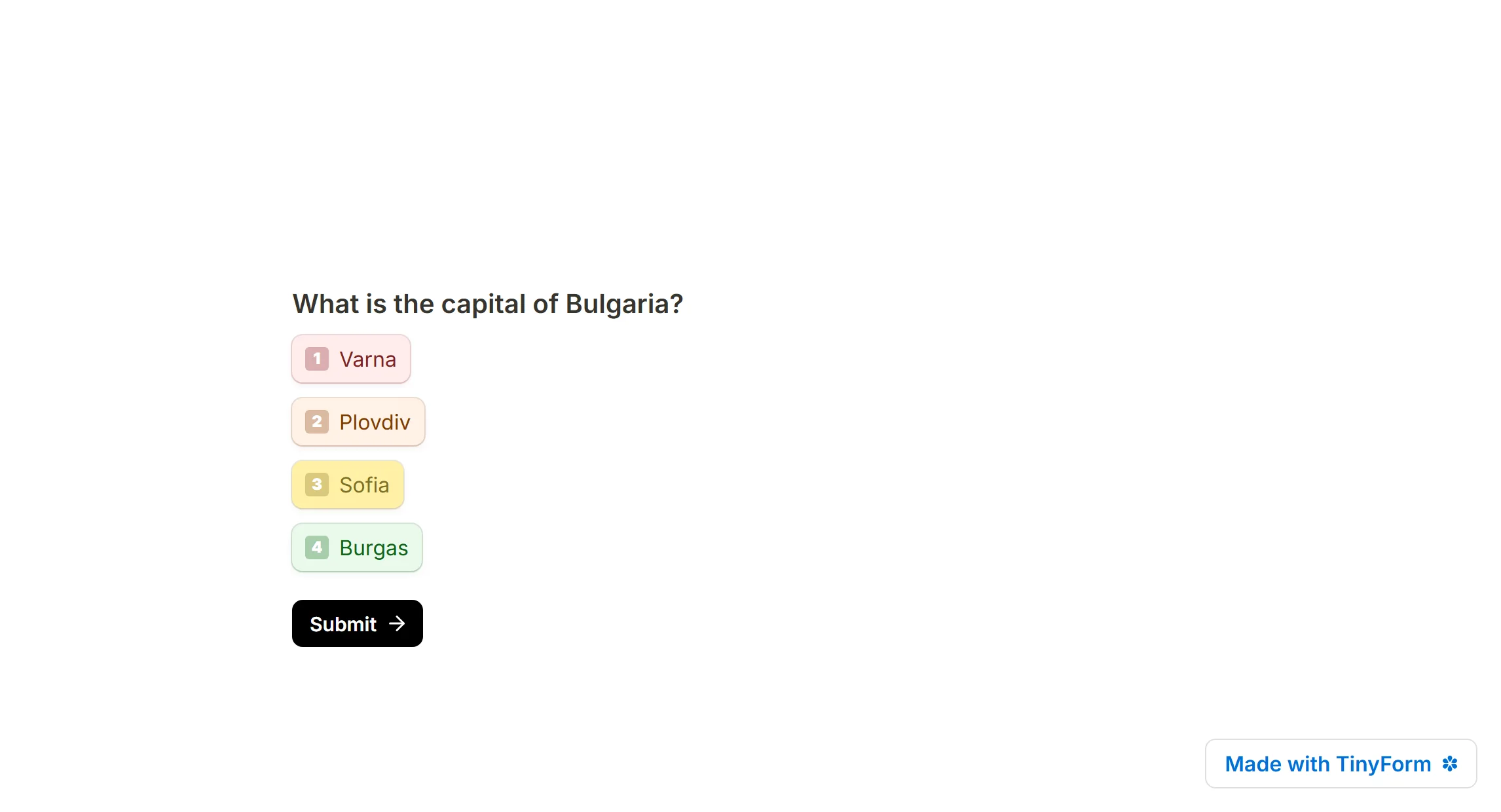
Each option also has a Color row of its own, with a fixed set from Red to Grey, so you can give two options the same colour or mark one as the odd one out.
Add an image
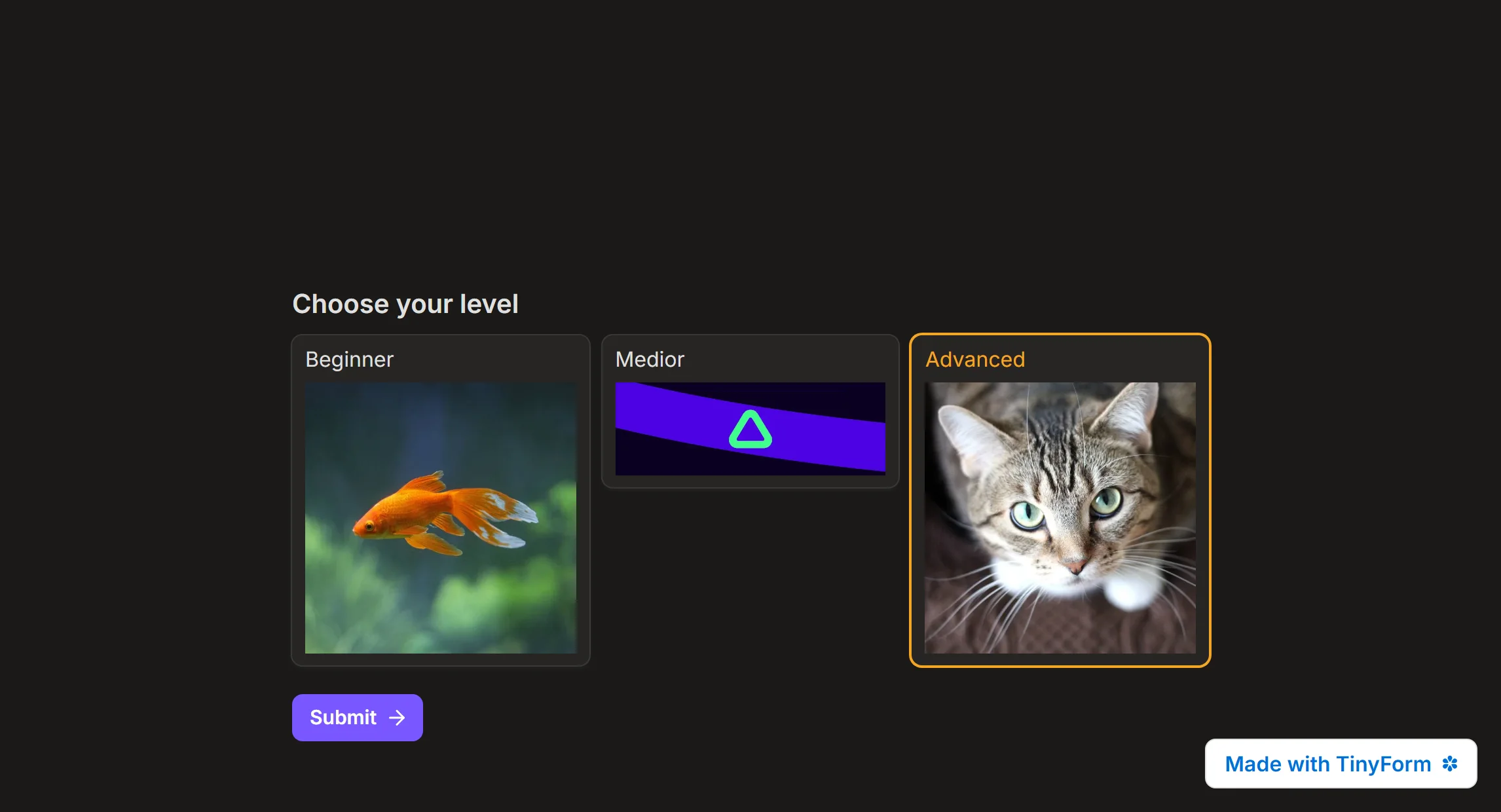
An option's Image row turns the pill into a card with a picture. Upload a file, paste an image link, or search the Pexels library from the same dialog the Image block uses. With pictures on every option the question reads as a visual choice rather than a list.
Conditional logic and options
A rule that points at an option keeps pointing at it after you reorder, rename or shuffle the list, because it holds the option's own id rather than its position or its text. See Conditional logic.