How to create an other field
Let respondents write in an answer your list does not offer, either with the built-in "Other" row or with a follow-up question shown by conditional logic.
A fixed list of options is easy to count but it misses the answer you did not think of. Tinyform gives you two ways to catch that answer: switch on the built-in "Other" row, which adds a free-text box to the end of the list, or build the follow-up yourself with conditional logic so you control exactly what appears when someone picks "Other".
How it works
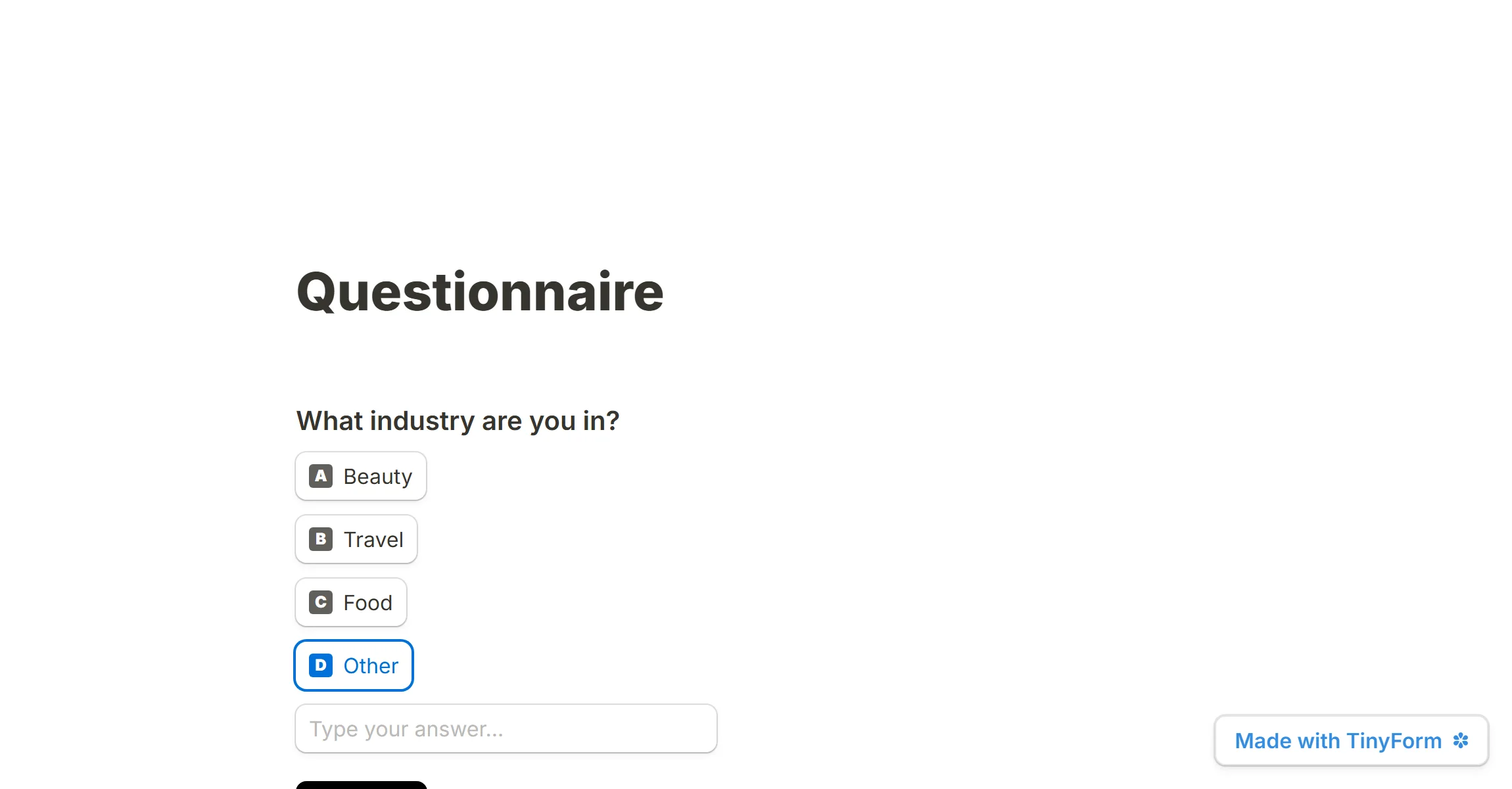
A choice question with an "Other" row lets a respondent type a value instead of settling for the closest match. The typed text is stored as that question's answer, so it shows up in the Submissions table and the CSV like any other answer.
The built-in row is the quick route: one switch, no extra blocks. The manual route costs a few more blocks but lets you decide what the follow-up says, which type of input it uses, and whether it is required.
The built-in "Other" switch
The switch is available on every question type that offers a list to pick from: Multiple choice, Checkboxes, Dropdown and Multi-select.

Add the question, write your options, then open the question's settings popover and turn on "Other" option.
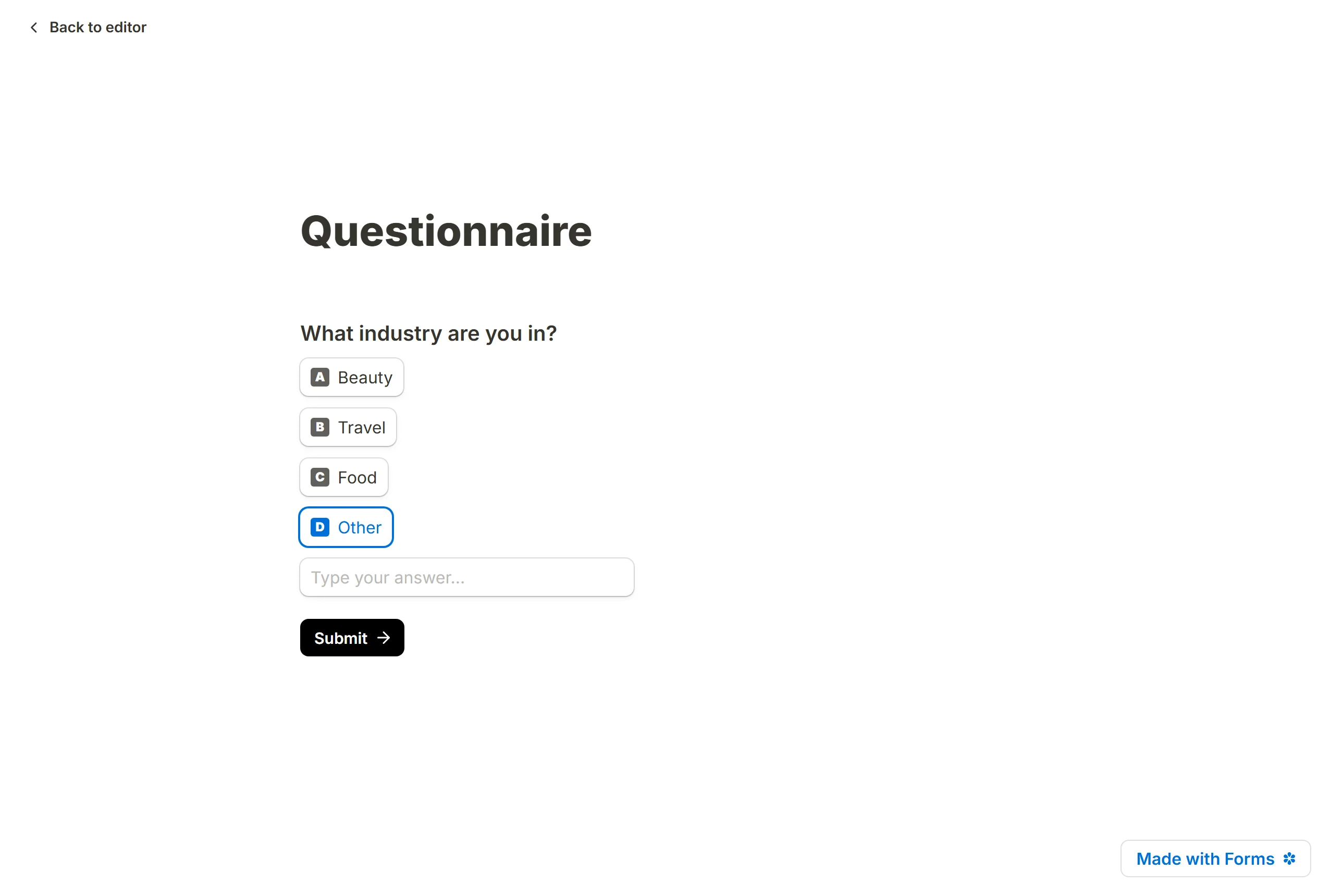
On the published page the respondent sees an "Other" row after the last option. Picking it reveals a text box with the placeholder "Type your answer…". The row is drawn after the list rather than inside it, so it is always the last entry however the options are ordered.
Building the follow-up yourself
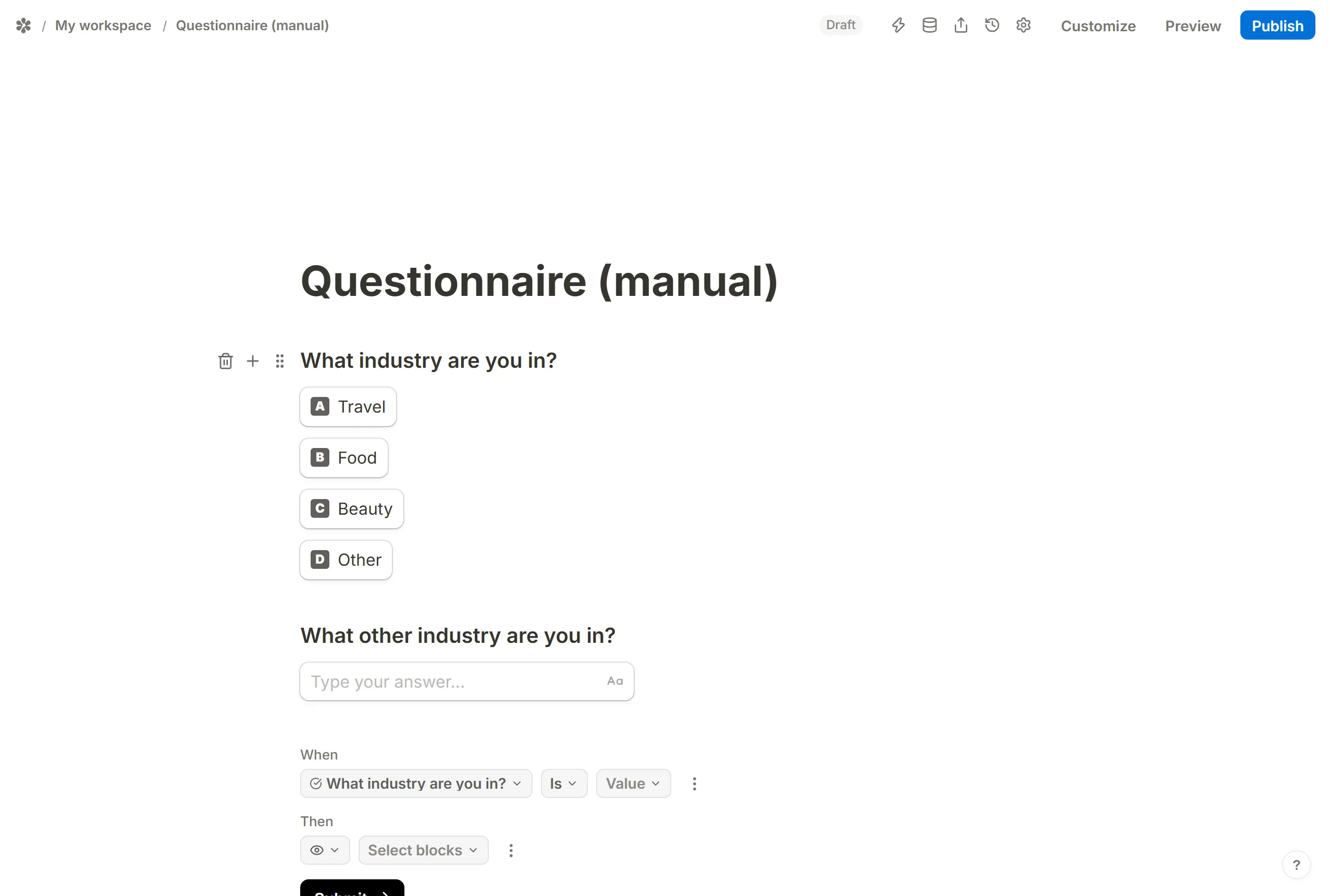
If you want the follow-up to be a full question of its own, add "Other" as a plain option and reveal a hidden question when it is chosen.
Add the choice question
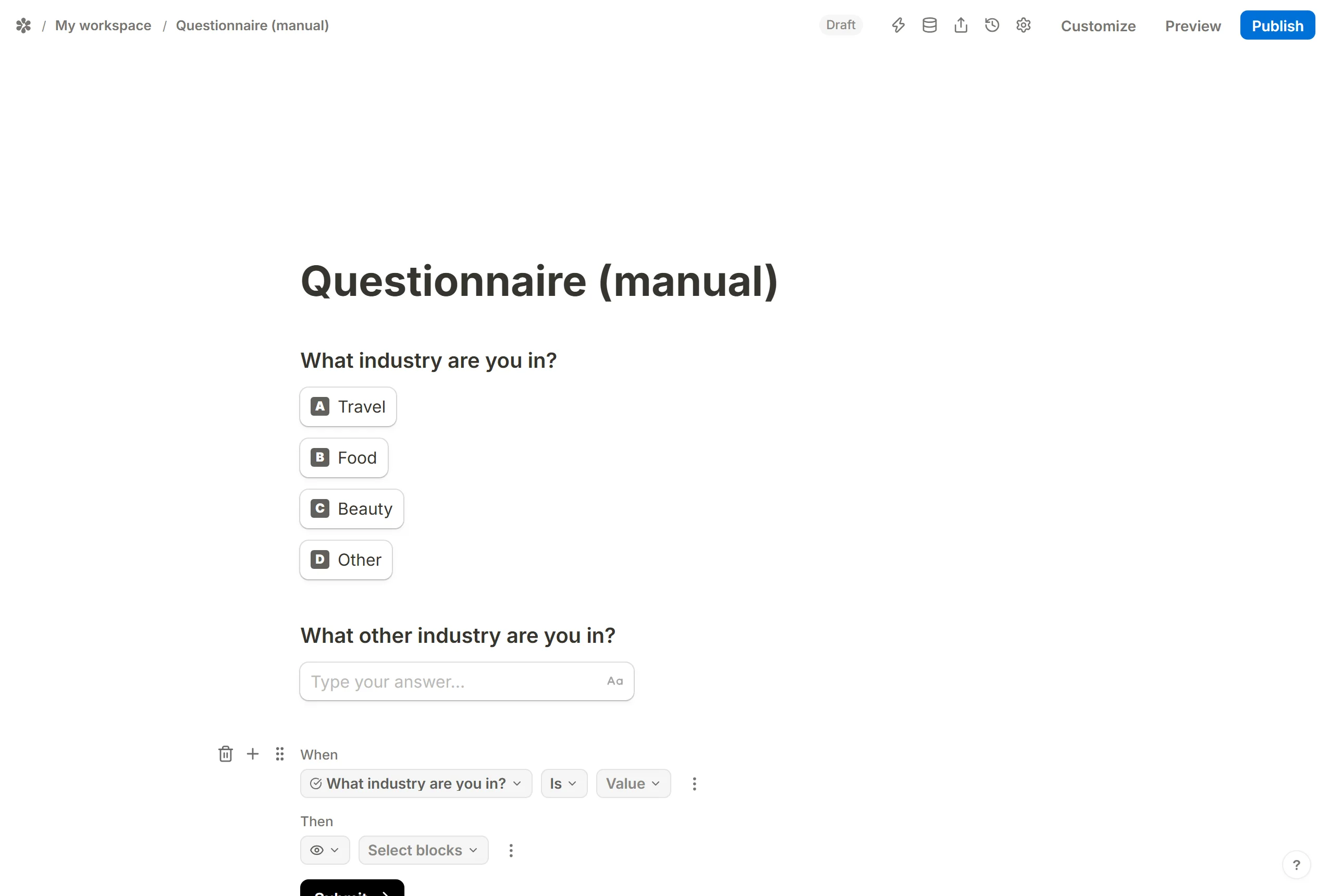
Insert aMultiple choiceblock (type/multiplein the editor) and add "Other" as one of its options.
Add the follow-up
Insert aShort answerquestion under it, worded for the detail you want, for example "Which industry are you in?".
Hide the follow-up

Open the follow-up's block menu and chooseHide. A hidden block stays in the editor but is not drawn on the published page until a rule shows it.
Add a rule
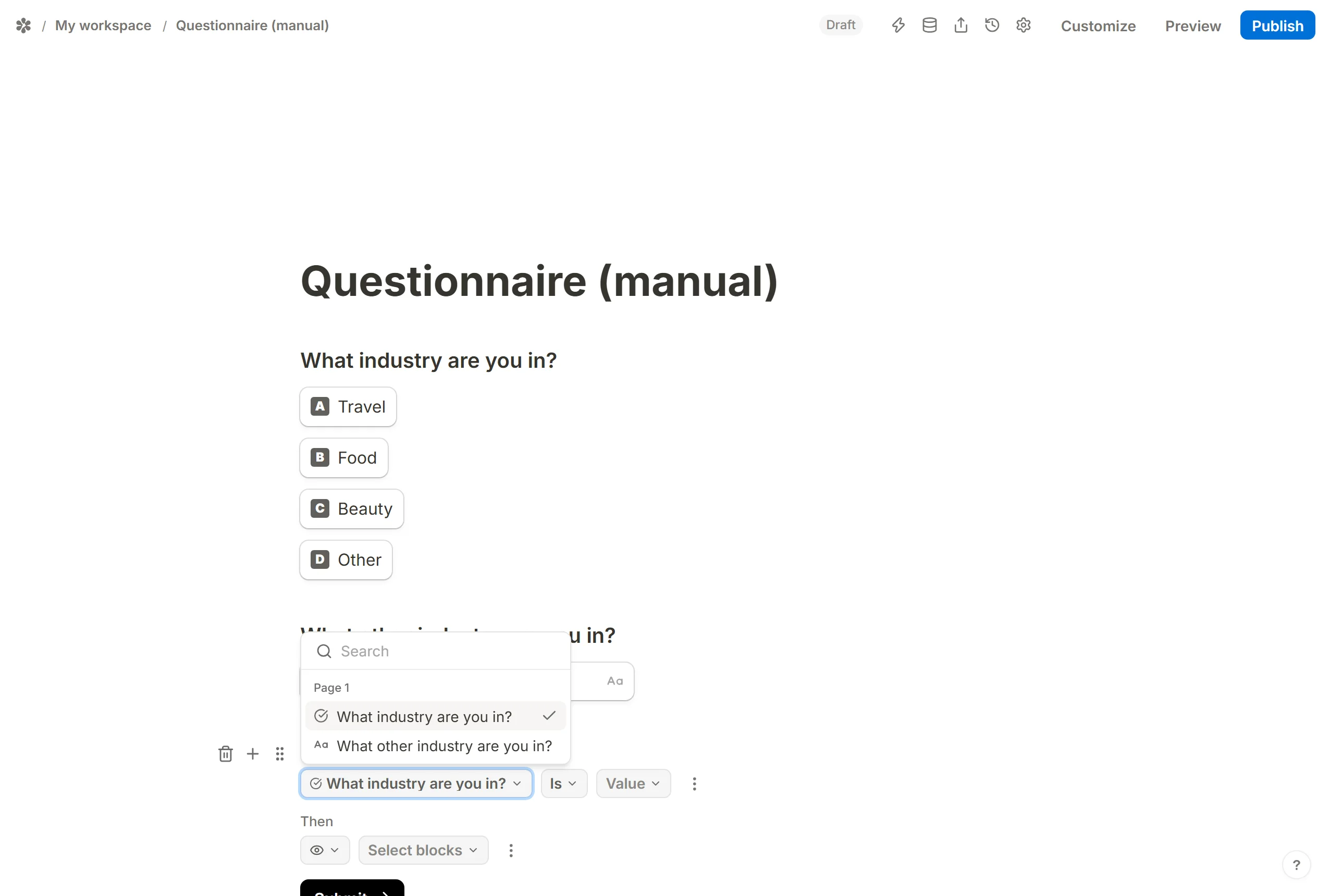
Insert aConditional logicblock (type/conditional). UnderWhen, pick the choice question from the field list.
Pick the option
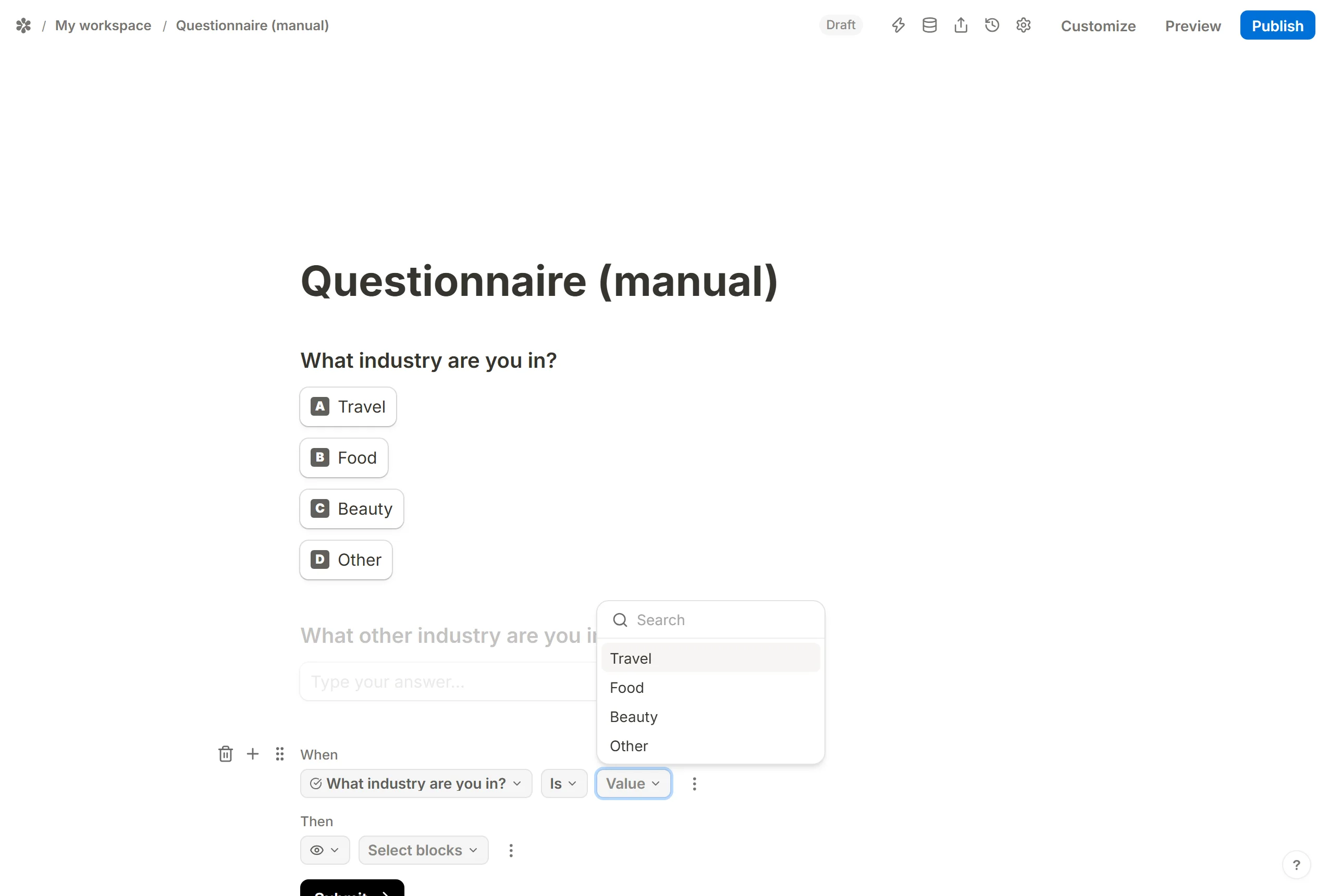
Leave the comparator onIsand choose "Other" in theValuepicker.
Show the hidden question
UnderThen, chooseShow blocks, then pick the hidden follow-up inSelect blocks. A question is one block in Tinyform, its title and its input together, so one pick is enough.
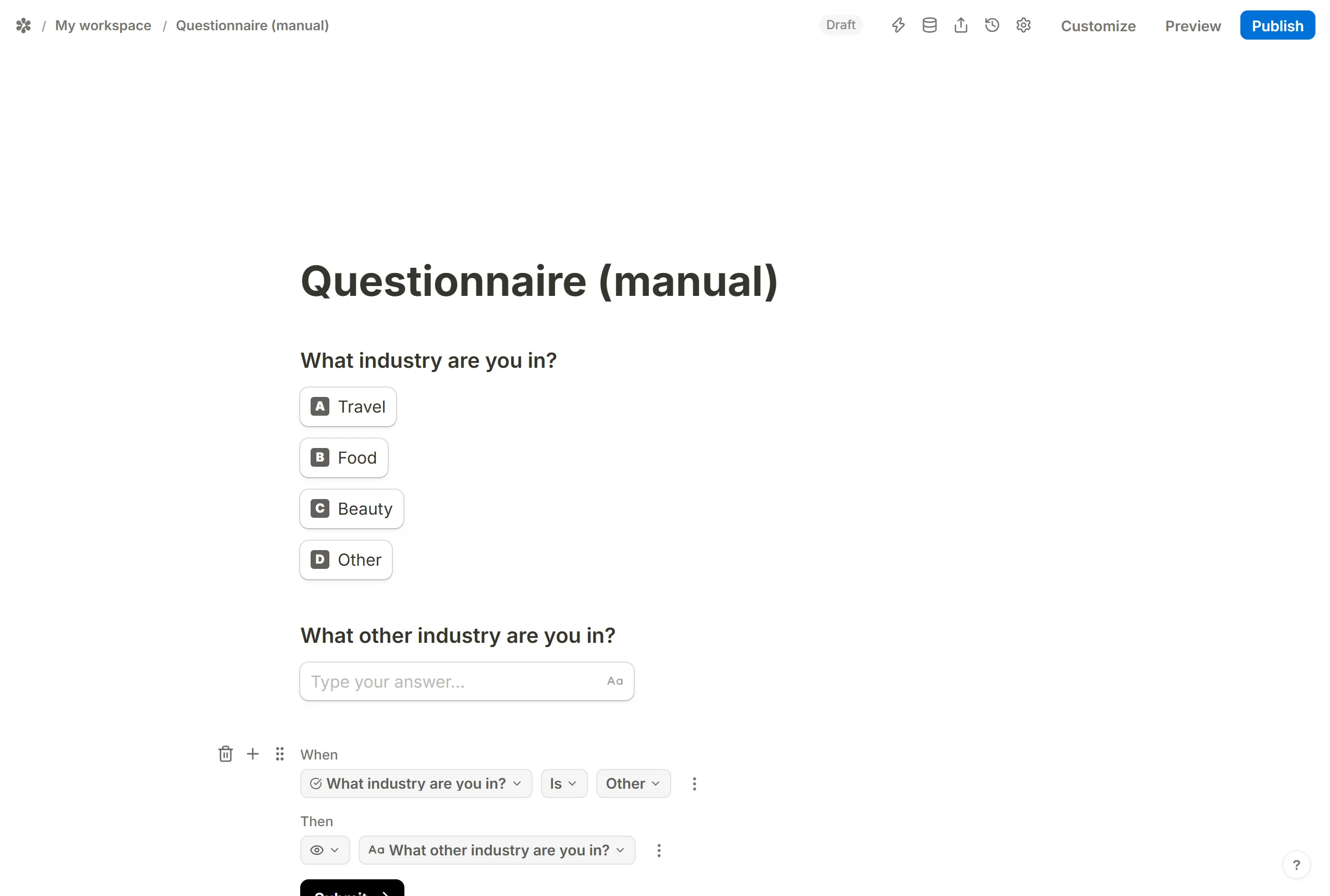
Publish the form. The follow-up only appears for respondents who pick "Other"; everyone else never sees it.
See Conditional logic for everything else a rule can do.
Randomizing the other options
Shuffling options per visitor cancels order bias, and you usually still want "Other" to stay at the bottom.
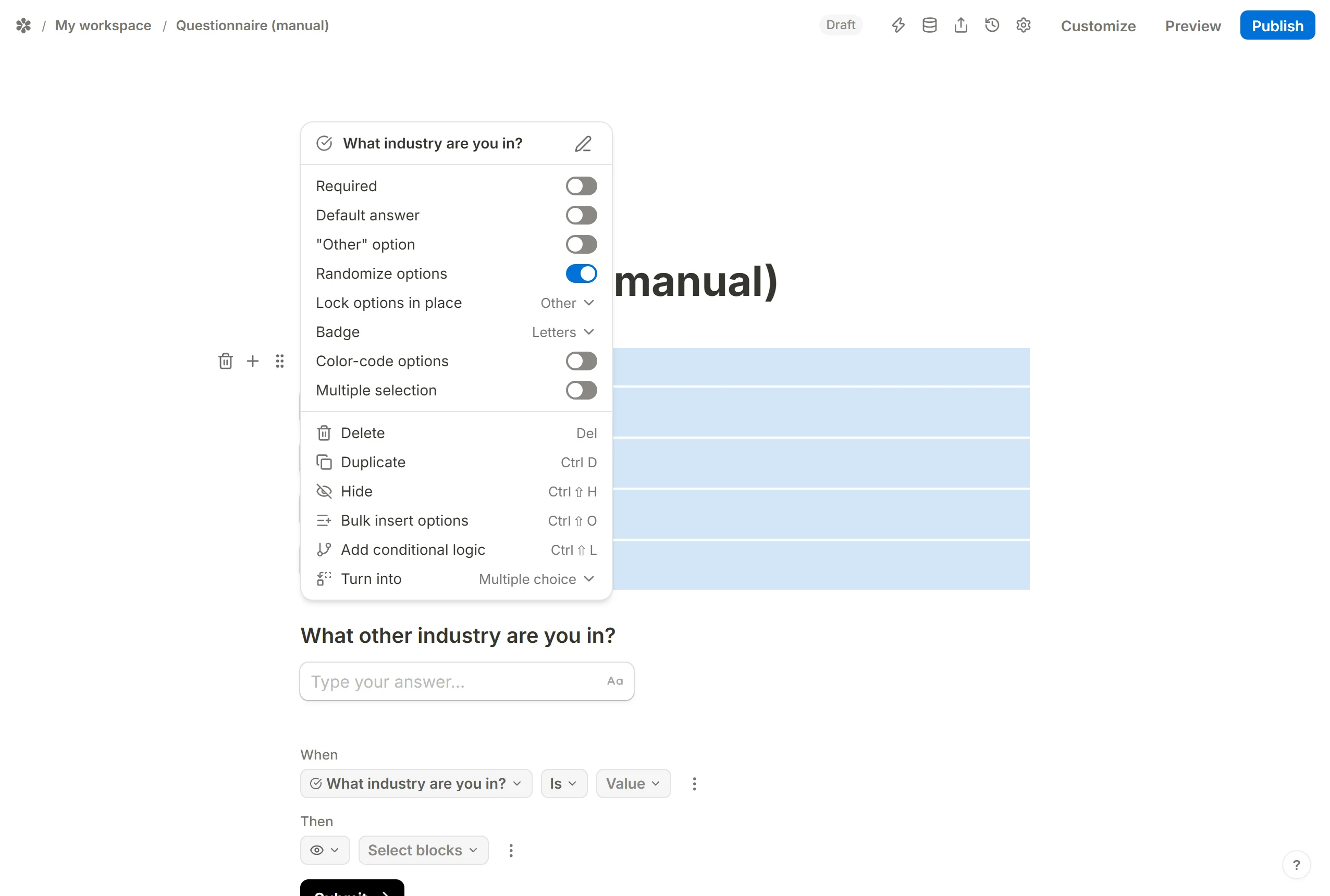
Turn on Randomize options in the question's settings popover. With the built-in "Other" option there is nothing more to do: that row is drawn after the list, so it is last no matter how the rest are shuffled. If your "Other" is a plain option you added by hand, use Lock options in place to pin it; a locked option keeps its own position while the others move around it.
More on shuffling in Randomizing answers.