How to embed a form in an email
Put the first question of a form inside an email as buttons that open the form with that answer already filled in, using a hidden field and a default answer.
An email client will not run a form. Scripts are stripped, most interactive markup is ignored, and what a recipient sees is text and pictures. What you can do is draw the first question inside the email and have each option open your Tinyform form with that answer already chosen, so the recipient confirms it with one press.
This guide sets that up. It gets more people to answer, because the first step happens in the mail itself, and it makes the answer feel instant.
Wiring a form into an email
Three steps: design the question in the email, link each option to the form with the answer in the address, and teach the form to read it.
1. Draw the question
Lay out the first question in the email as something that looks like the form. That can be a row of images styled as buttons, a set of real buttons if your email tool draws them, or a picture of the form itself.
If the form opens with a rating from 1 to 5, make five buttons, one per score.
2. Link each option to the form
Every button links to the published form, but not to its bare address. Take the form's address from the Share tab (Share Link, which has the shape /r/<id>) and add a query parameter carrying the answer that button stands for:
- Button 1 links to
/r/<id>?vote=1 - Button 2 links to
/r/<id>?vote=2 - Button 3 links to
/r/<id>?vote=3 - and so on.
The parameter name is yours to choose; vote is used here because the form's next step refers to it.
3. Prepare the form
The form has to pick the answer up from the address. Open it at /forms/<id>/edit and:
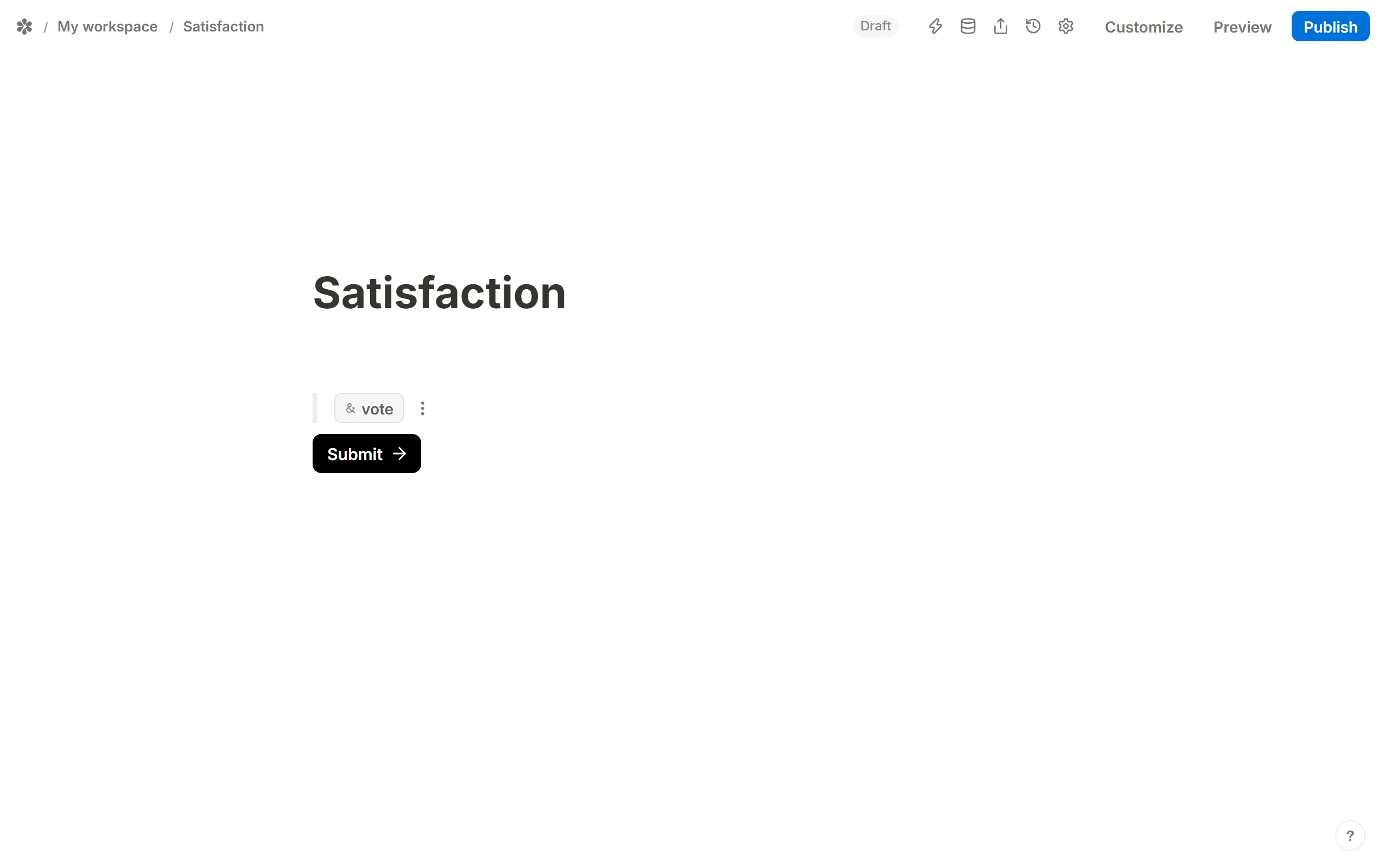
Add a hidden field
Insert aHidden fieldsblock and name a field after the parameter,votein this example. The field takes its value from the URL each time the form is opened, and the respondent never sees it.
Add the question
Insert the question the email drew, with the same options in the same order: aRatingorLinear scalefor the 1 to 5 example.Set its default answer
Open the question's menu, chooseDefault answer, and pick the hidden field underHidden fields. The question now starts out answered with whatever the link carried.
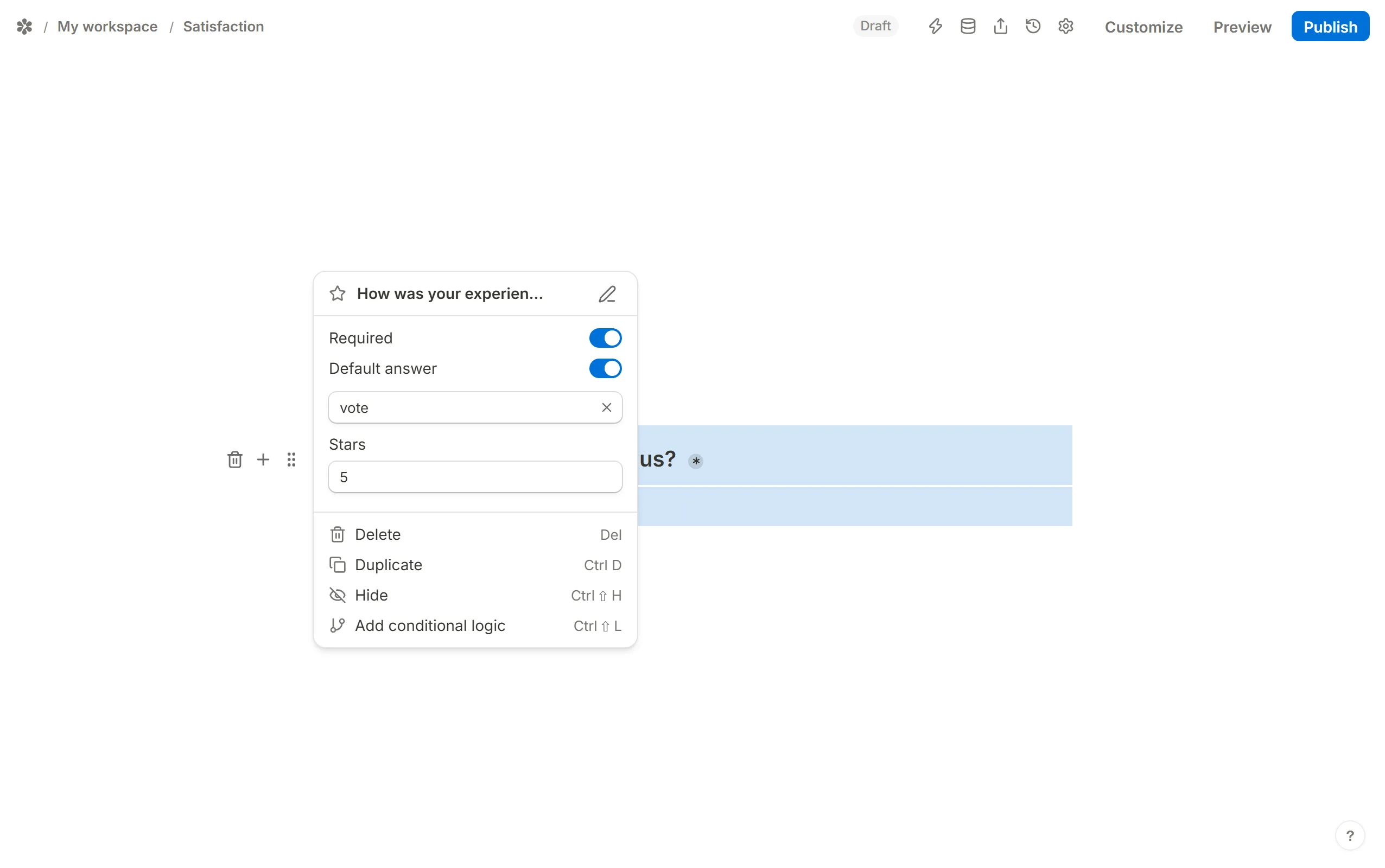
When a recipient presses a button in the email, the form opens with their choice already selected. All that is left is to press Submit, or to carry on to the questions that follow. The email keeps the feel of something interactive, and the answers land in the form's Submissions tab like any other.
Hidden fields and Pre-populate form fields cover the two pieces this recipe rests on.