Hidden fields
Pass data into a form through its link, keep it out of the respondent's sight, and read it back beside every submission.
A hidden field is a value your form receives from its own link rather than from the person filling it in. You append the value to the URL as a query parameter, Tinyform reads it when the page opens, and it is filed with the submission as if it were an answer. The respondent never sees it.
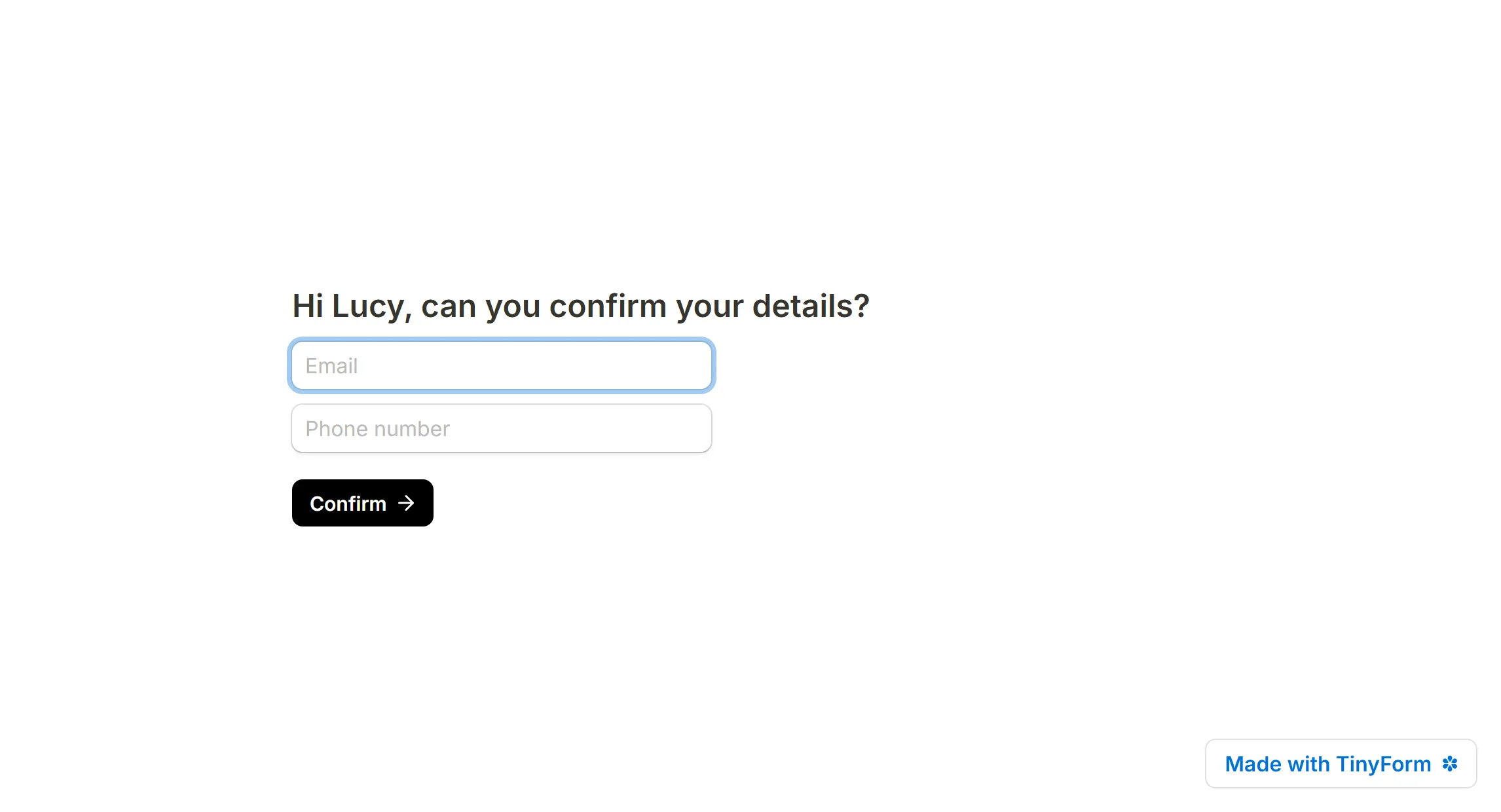
What a hidden field is
Most forms already know something about the person about to fill them in: which newsletter sent them, which campaign they clicked, which customer record they belong to. A hidden field is the place that knowledge lands. It is invisible on the published page, but the value travels with the submission and can be used anywhere an answer can.
Some things people use it for:
- Record where a respondent came from (a social post, a button on your site, a partner link).
- Attach details you already hold, such as a name or an email address, to the response.
- Greet the respondent by name inside the form with answer piping.
- Pre-fill a question with a value from the link.
- Carry data from one form into the next.
- Keep UTM parameters so a campaign can be traced through to its submissions.
Create a hidden field

Open the editor at /forms/<id>/edit, open the insert menu and pick Hidden fields from the Advanced blocks group (typing /hidden on an empty line finds it too).
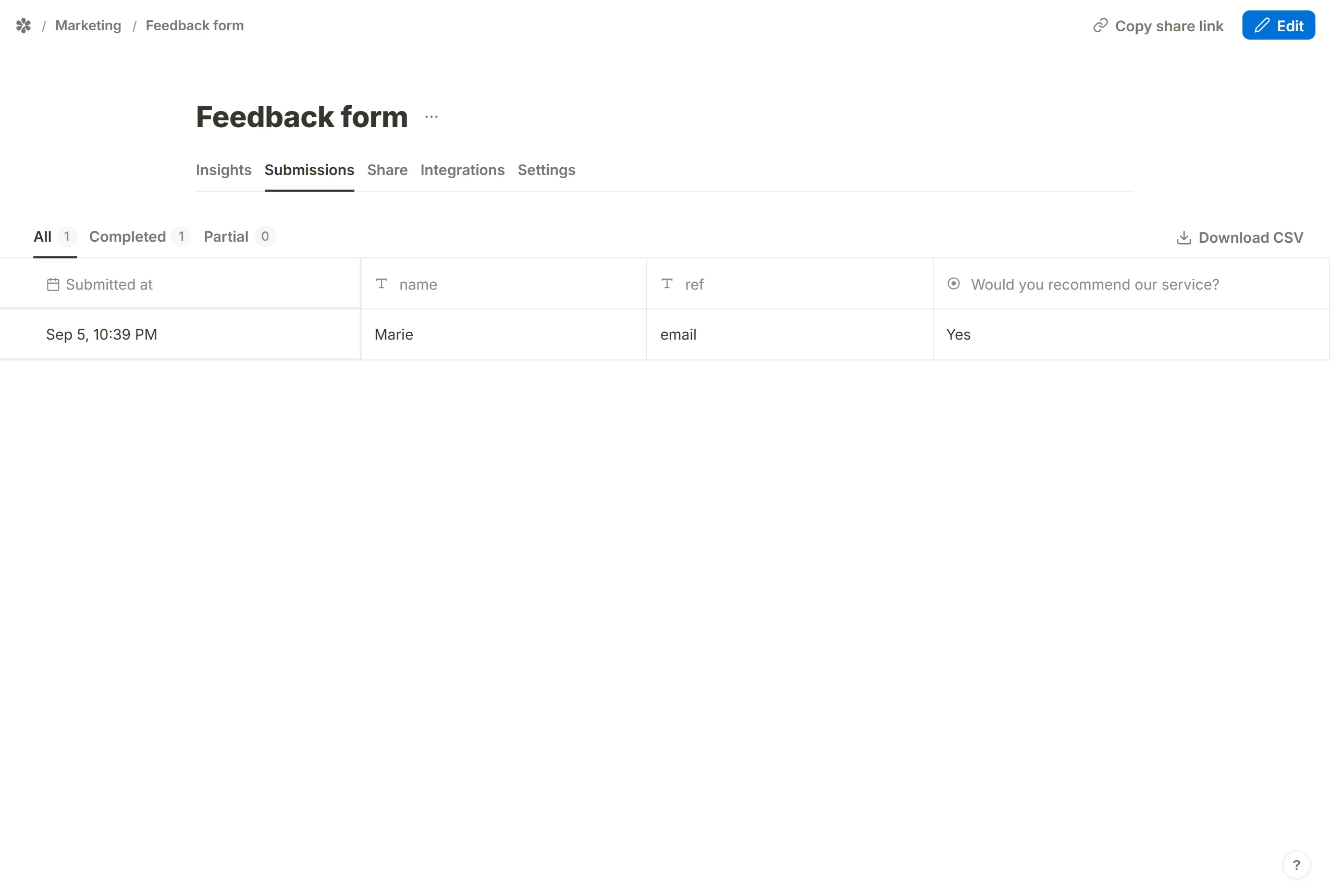
One block holds a list of rows, and each row is one parameter. The row's placeholder reads URL query parameter, and that is exactly what the name is: the key you will write into the link. Press Add hidden field for each value you want to receive. To record a respondent's name and their traffic source, for example, add two rows and call them name and ref.
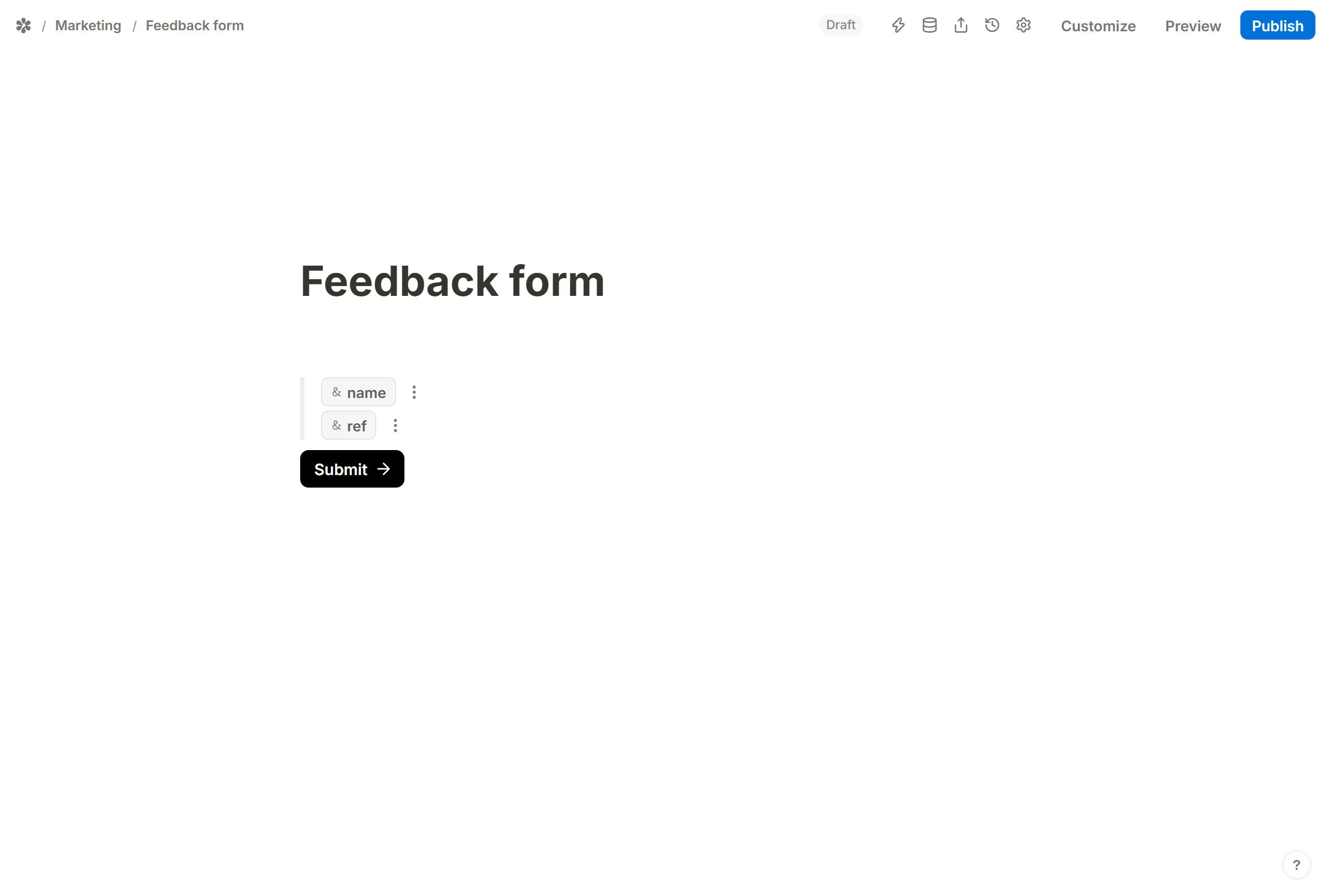
A row keeps its identity when you rename it, so a mention, a logic condition or a formula that points at it keeps working after the rename.
Finish the form and Publish it. The form's link is on the Share tab.
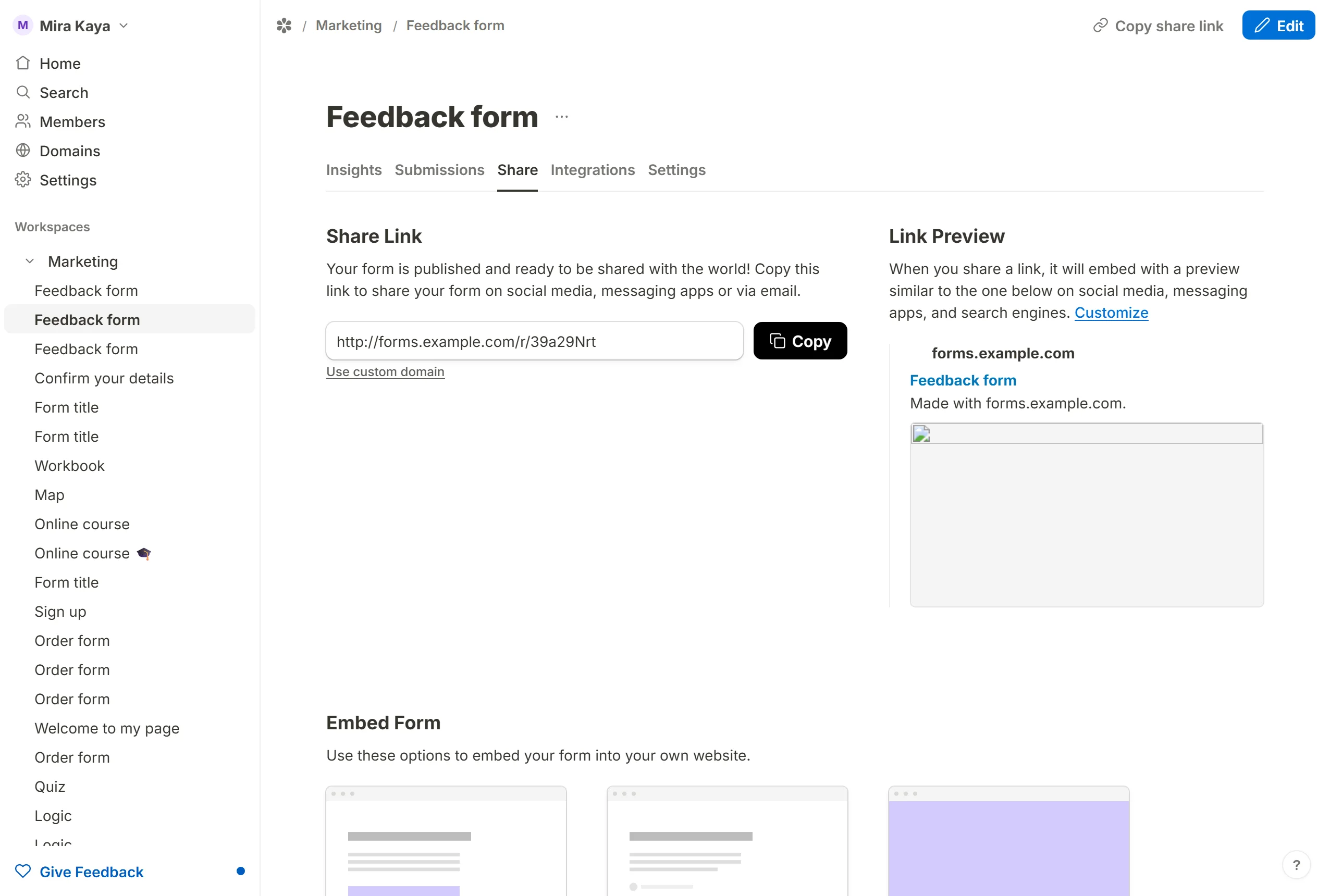
Before you send the link, add the parameters to it. There are two ways to do that:
- By hand: type the parameters onto the end of the URL before you share it.
- Automatically: let the tool that sends the link fill them in. A CRM or a mailing tool such as Mailchimp or ActiveCampaign can write each recipient's own values into their copy of the link.
Hidden fields in your results
Each hidden field is a column of its own on the Submissions tab and in the CSV export, and it appears as a Hidden fields row on the Insights tab. It never enters the drop-off funnel, because there was nothing for the respondent to answer.
Mention a hidden field
Type @ in any text on the canvas and pick the field under Mention a hidden field to show its value inside the form; answer piping covers the details, and there is a short walkthrough in How to mention hidden fields in your form. The same @ works in the Redirect on completion URL, which is how you pass a value on to the next form.
Hidden fields in an embedded form
When a form is embedded with the widget script, the host page's own query string is forwarded into the form, so a hidden field named ref picks up ?ref=downloads from the page the visitor is on. The page's path arrives too, under the name originPage. An element that opens a popup can add values of its own with a data-tinyform-<name> attribute. Embed your form has the full picture.
Guides
Step by step recipes for the tools people most often send links from:
- Populate hidden fields with HubSpot
- Populate hidden fields with ActiveCampaign
- Populate hidden fields with Mailchimp
All of them are listed under Hidden field guides.