Number
Collect a number with a minimum, a maximum, a currency or percent format, custom prefix and suffix, and separators that match your locale.
The Number block collects one numeric answer: an age, a quantity, a budget, a temperature. It only accepts digits, and it can be given bounds and a format, so what lands in your submissions is a number you can add up rather than a string you have to clean.
Add a Number block
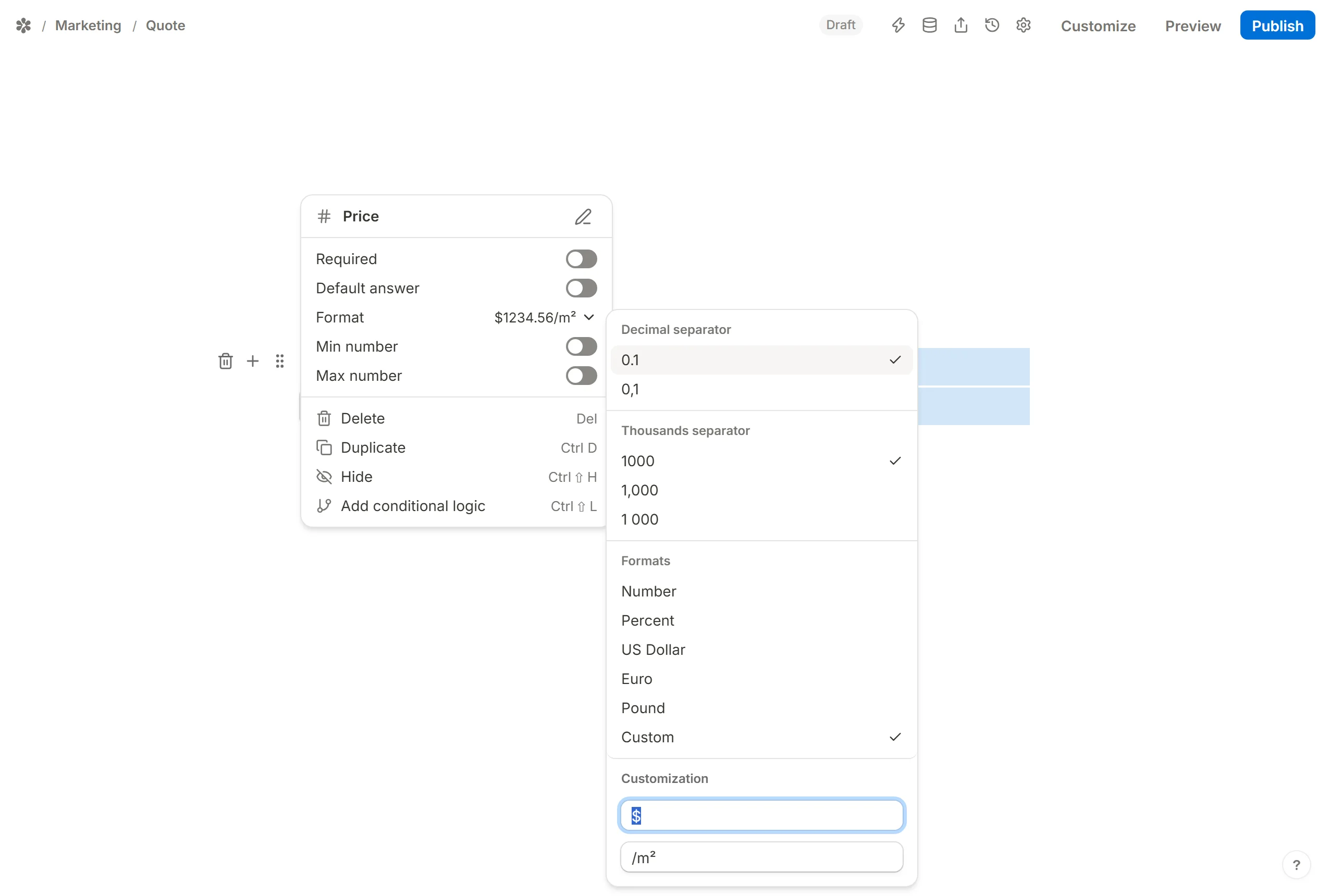

Open the insert menu with / and choose Number. Type the question above the box, or click into the box and type a placeholder such as "Quantity" so the respondent knows what shape of answer you expect.
Number settings
Open the settings from the handle at the block's left edge.
Make it required
Required refuses a submit while the box is empty. The respondent sees "Please enter a value" under the box when they try to move on.
Add a default answer
Default answer fills the box before the respondent touches it. Type a value, or pick another field from the menu: an input field, a hidden field or a calculated field, so a quantity can start where an earlier answer left it. See Pre-populate form fields.
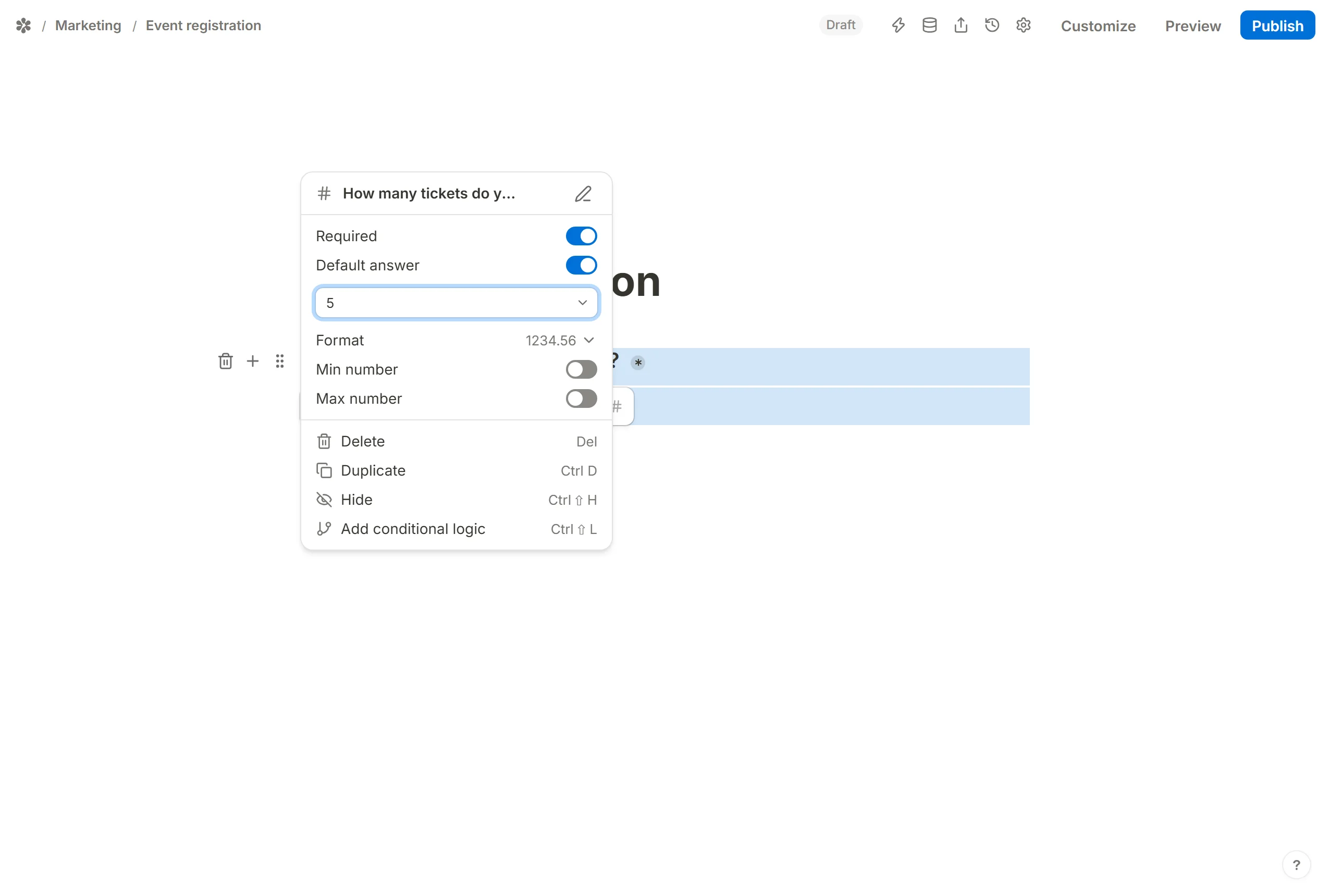
Change format

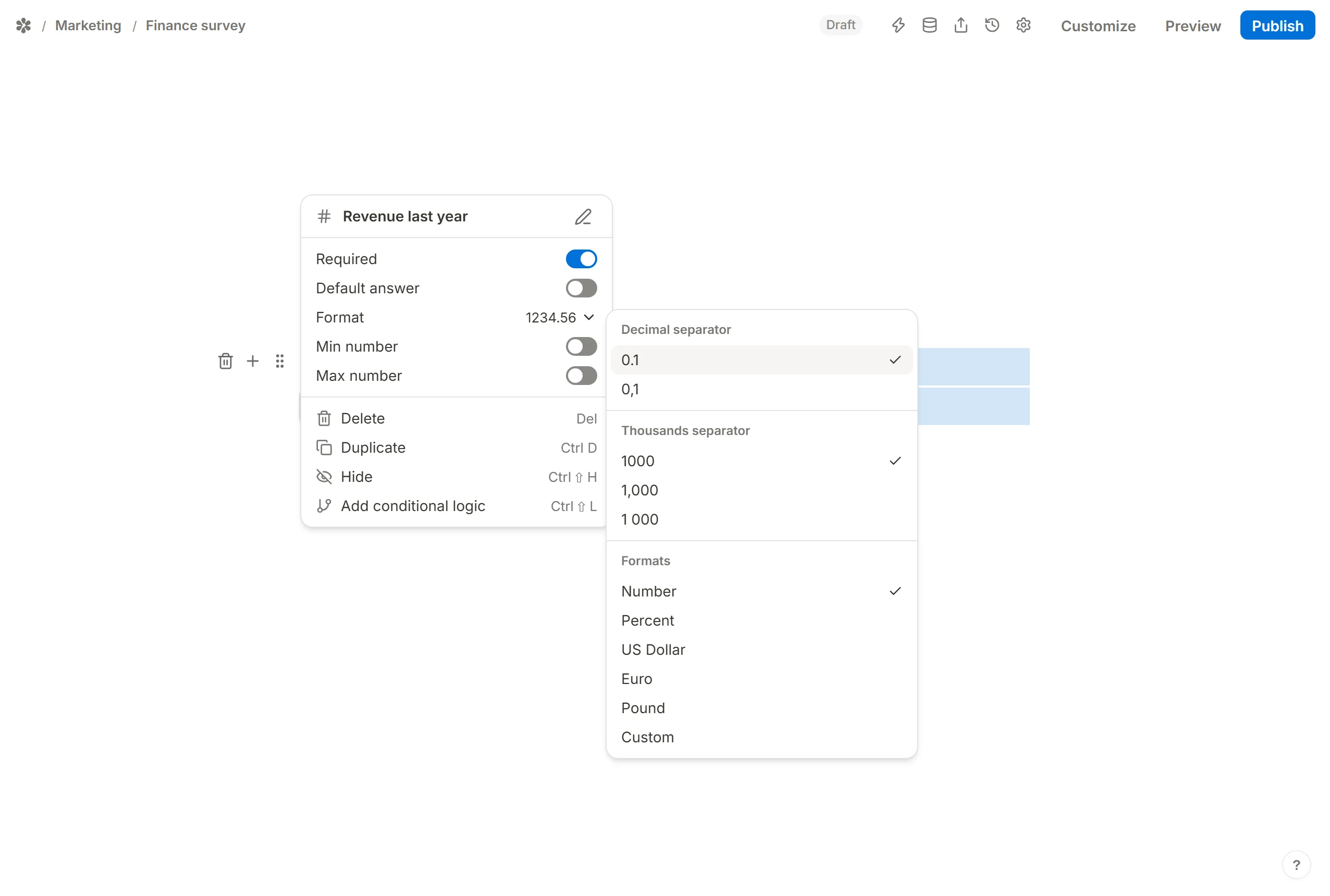
Format starts at Number. The other entries in the group are:
PercentUS Dollar,EuroorPoundCustom
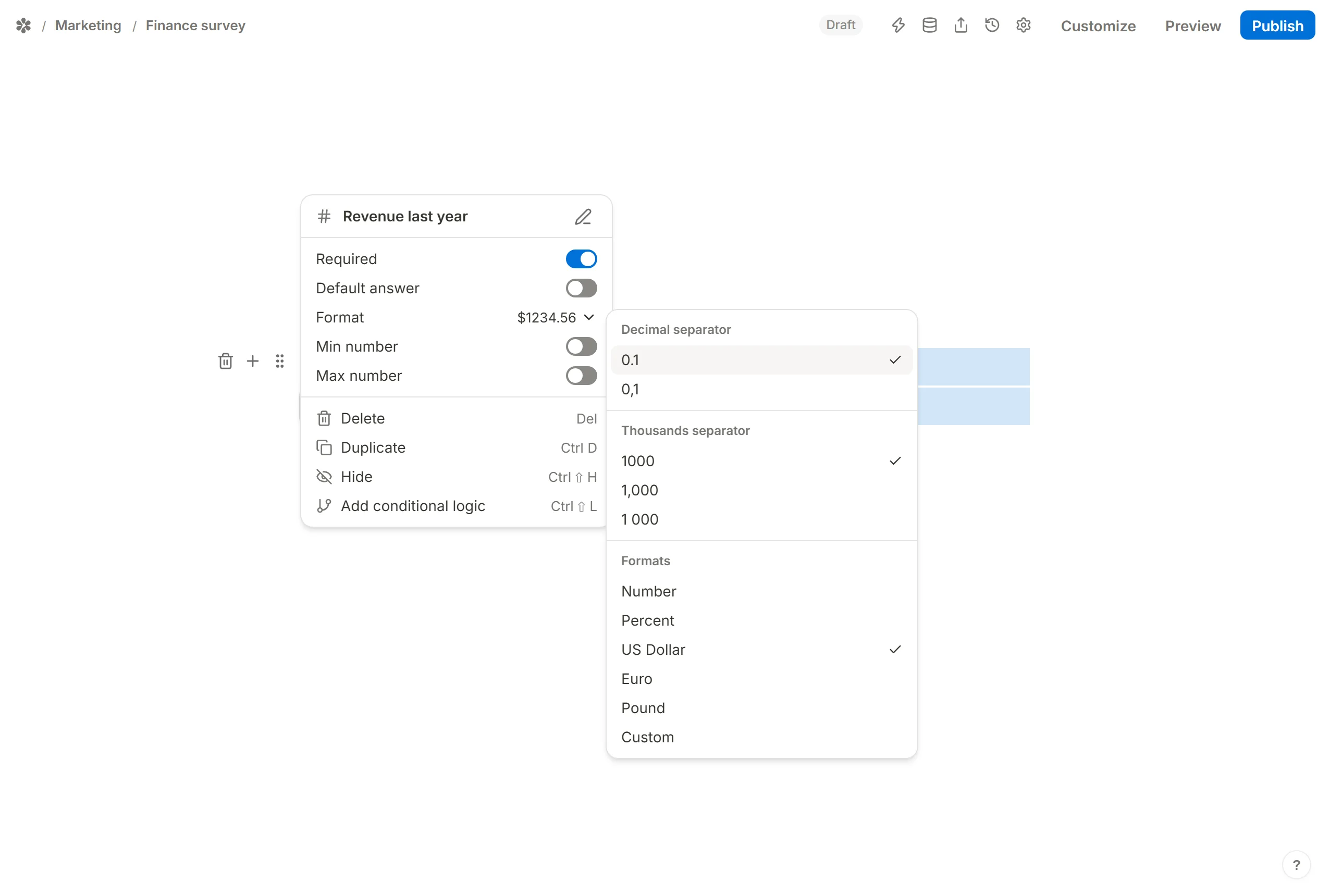
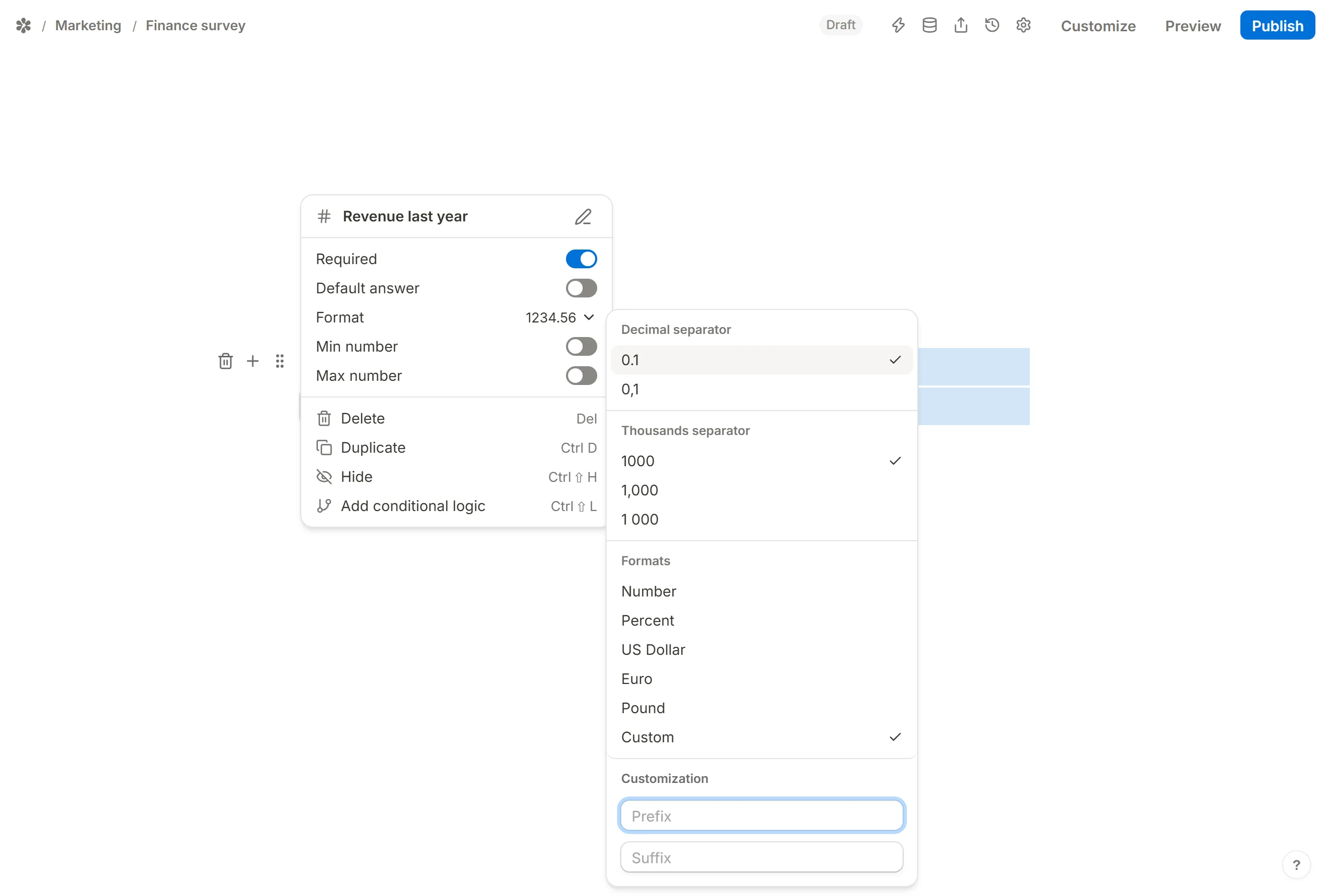
Custom opens Prefix and Suffix under a Customization group, for a currency or a unit the list does not carry. A prefix of "JP¥" makes a yen field; a suffix of "°C" makes a temperature.
Decimal separator chooses between a point and a comma (shown as 0.1 and 0,1), and Thousands separator between none, a comma and a space (1000, 1,000, 1 000). Set them to what your respondents write, and the box formats as they type.
Set min or max number
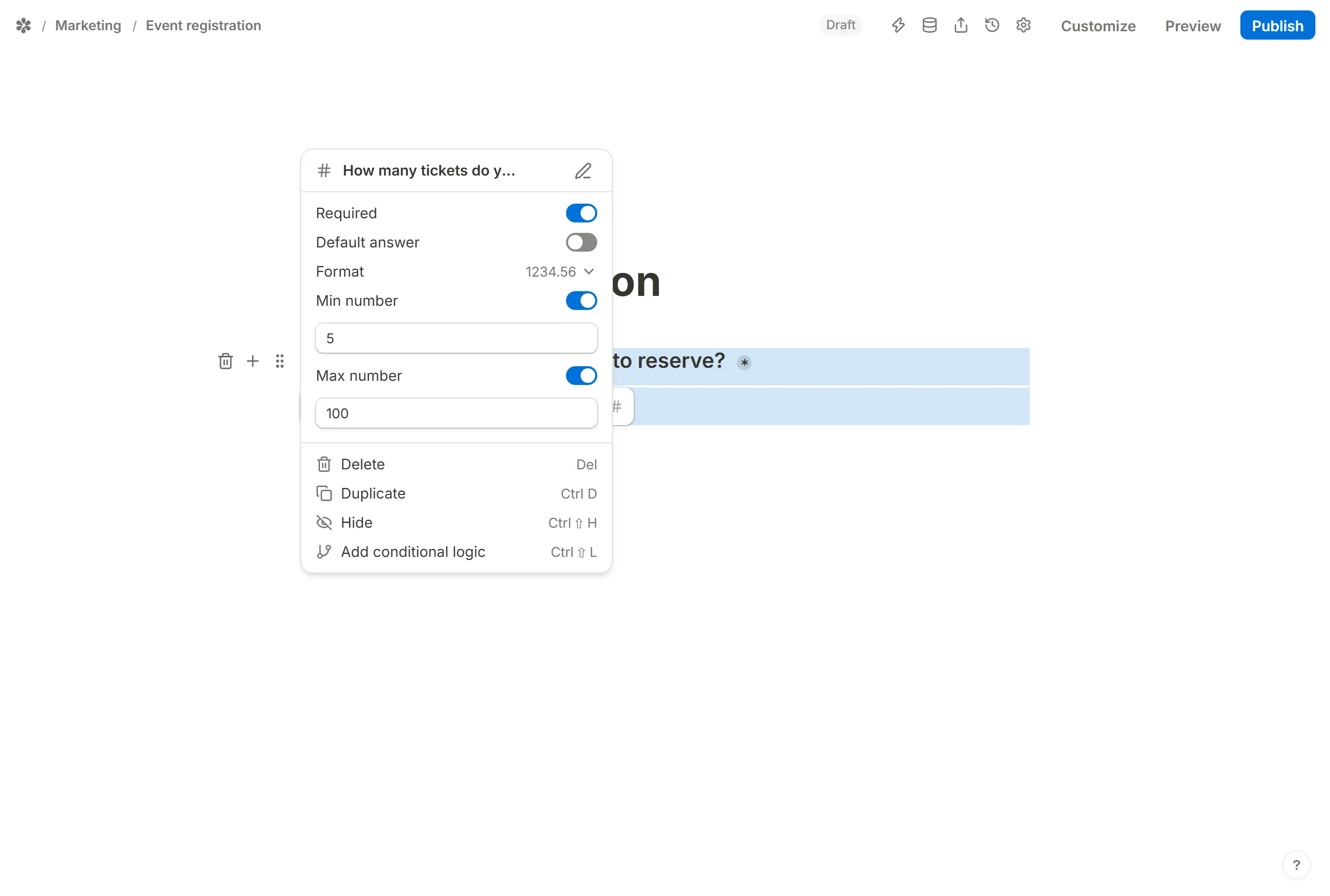
Min number and Max number bound the answer. Turn one on and type the limit:
- A lower bound of 18 on an age field for an adults-only survey
- An upper bound of 100 on a ticket count when that is all there are
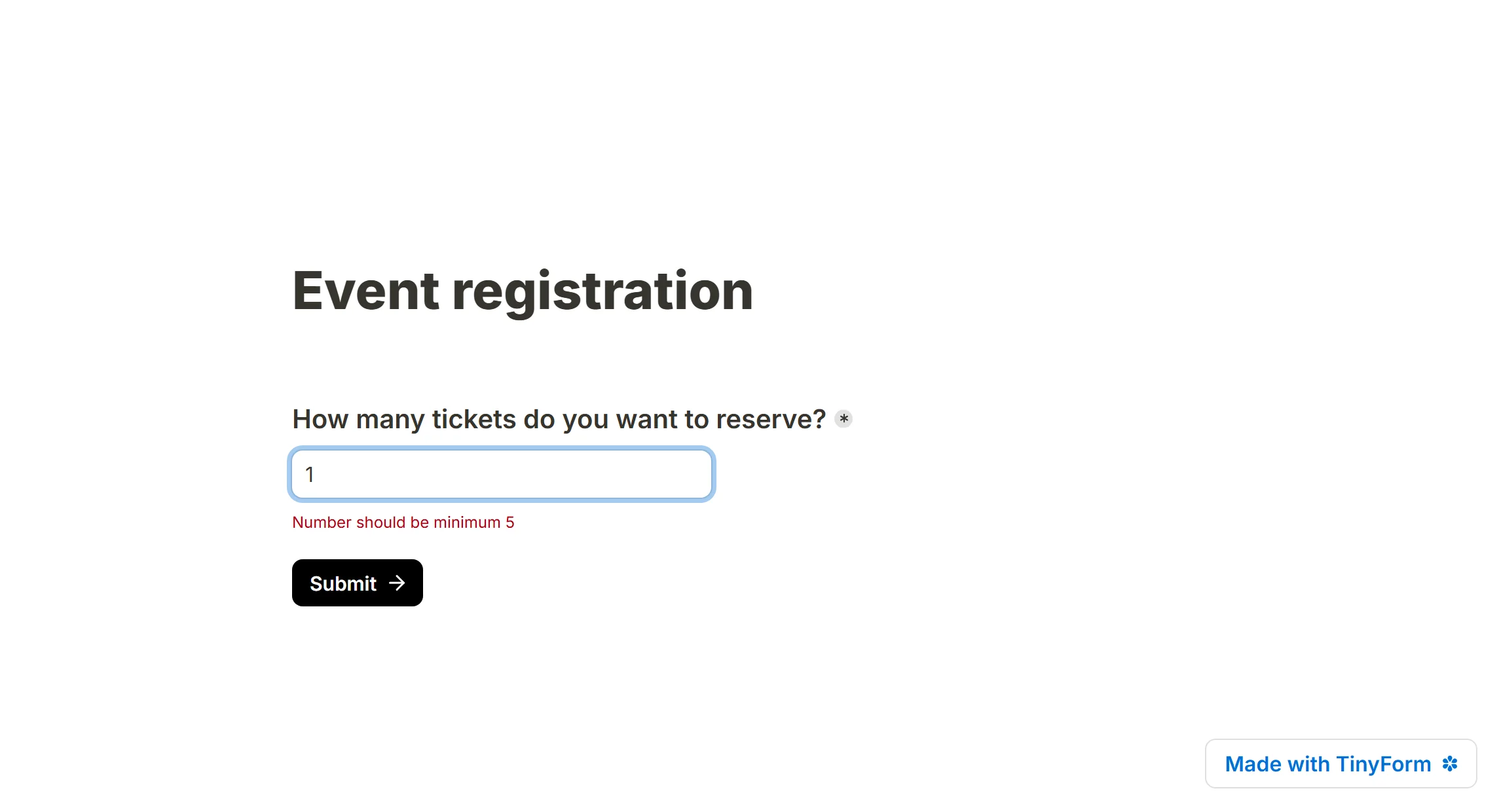
A value outside the bounds is refused when the respondent presses Next or Submit, with "Number should be minimum" or "Number should be maximum" and the limit under the box.
Hide block
Hide in the block menu (or Ctrl+Shift+H) keeps the block off the published page until a rule shows it. A Number answer is also something a rule can read, with =, >, ≤ and the rest. See Conditional logic.
View numbers
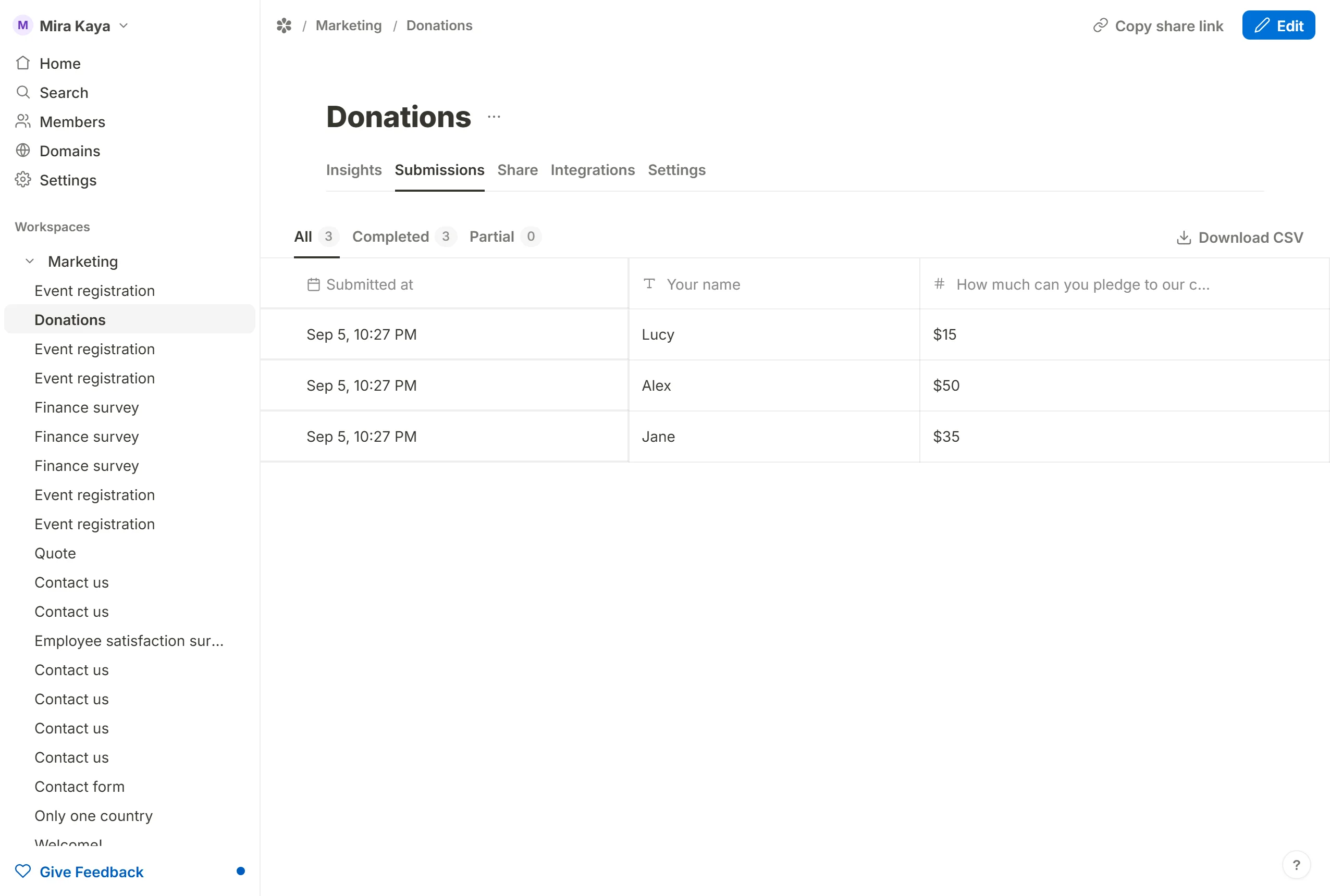
Every answer appears in the form's Submissions tab. The cell is drawn with the block's own format, so a field set to Euro shows the symbol and a field with a suffix shows it too. In Insights, a numeric question offers Average, Median and CSAT views beside the bar chart. See Form Insights.