Password protect forms
Put a password in front of a published form, so only the people you have given it to can open and fill it in.
A password-protected form shows a password page before anything else. Visitors who follow your link see the form's name and a single box; the questions appear only after the right password is entered. Use it for an internal survey, a client-only intake, or anything else that should not be open to whoever finds the link.

How it works
Any published form can carry a password, and you can switch it on and off in the form's settings at any time. The password is case-sensitive; a respondent who types Summer2026 for a form whose password is summer2026 is refused.
The password itself is never stored. Tinyform keeps a one-way hash of it, checks each attempt against that, and hands a visitor who gets it right a token their browser keeps for the form. That is also why the settings row cannot show you the current password later: type it somewhere safe when you set it.
Guessing is slowed down. An address that tries more than ten passwords in a minute is told to wait ("Too many tries").
Add a password to your form
Open the Access section
Go to the form'sSettingstab at/forms/<id>/settingsand scroll toAccess.Switch on Password protect form
The row reads "Enable this setting to require a password before respondents can access the form."
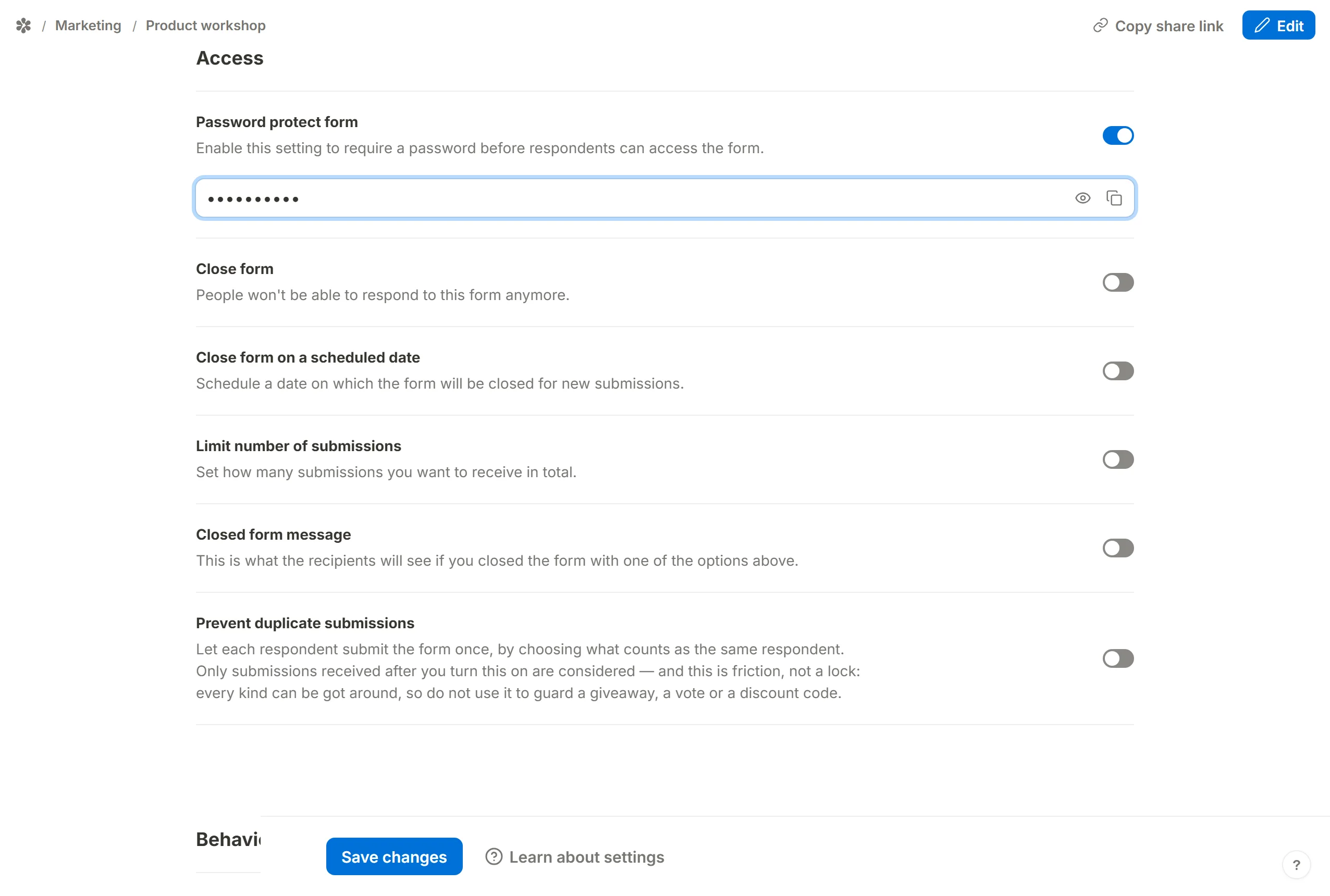
Type a password
Enter it in the box that appears. The eye button shows or hides what you are typing; the copy button puts it on your clipboard so you can paste it into the message you send respondents.
Save
Press
Save. From now on the published page asks for the password first.
To change the password later, switch the row on, type a new one (the box says Set a new password on a form that already has one) and save. Leaving the box empty keeps the existing password. To remove the password, switch the row off and save; the form is open to anyone with the link again.
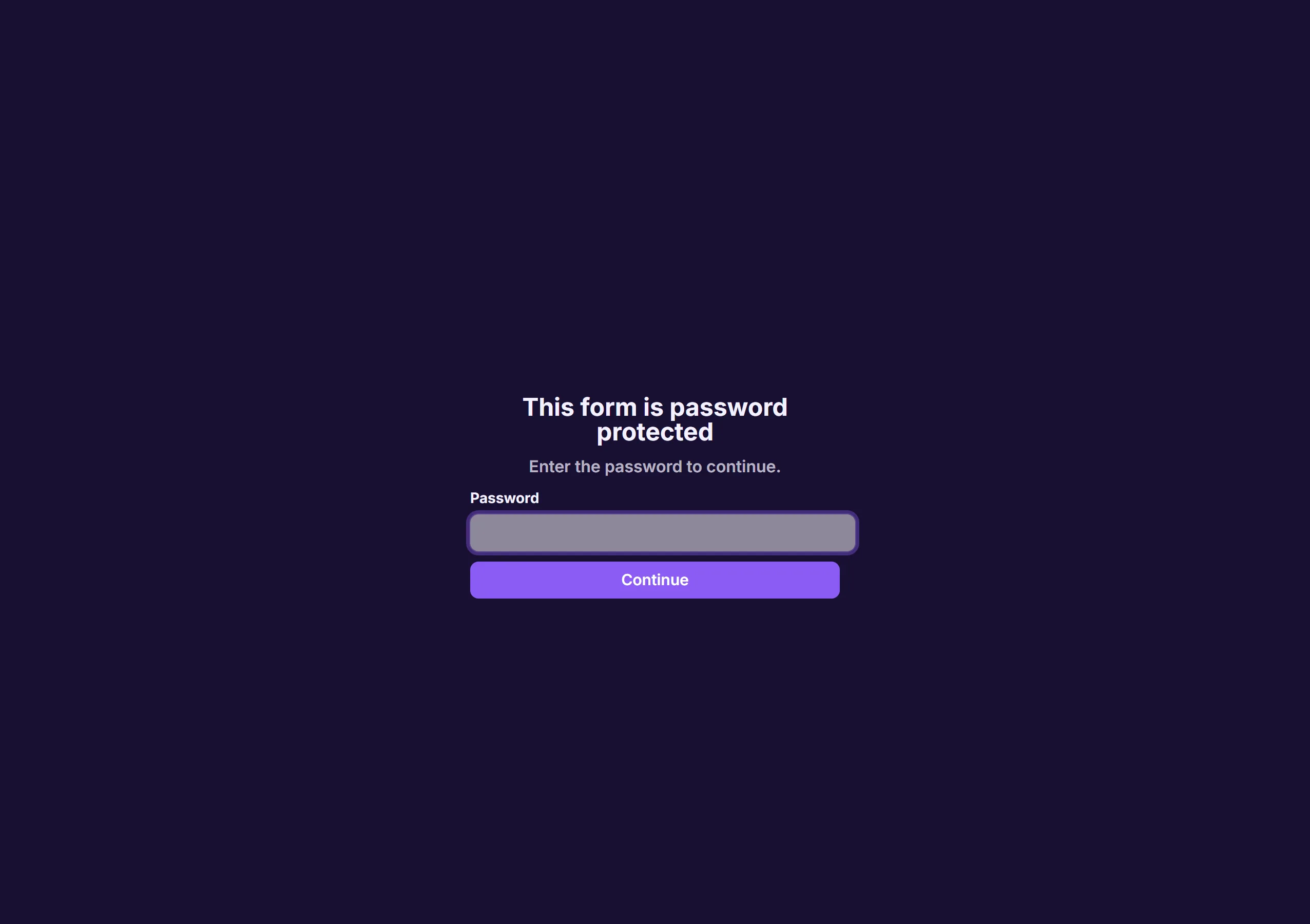
Design
The password page is drawn in the form's own palette rather than the app's, so a link to your form lands the visitor on a page that looks like your form: its background colour and its text colour reach the page, the box and the button. It is the same treatment the closed-form notice gets.
Language
If the form has a language other than English, the password page follows it: the heading ("This form is password protected"), the instruction, the button and the two error messages are all translated, and the page's text direction follows the language as well.
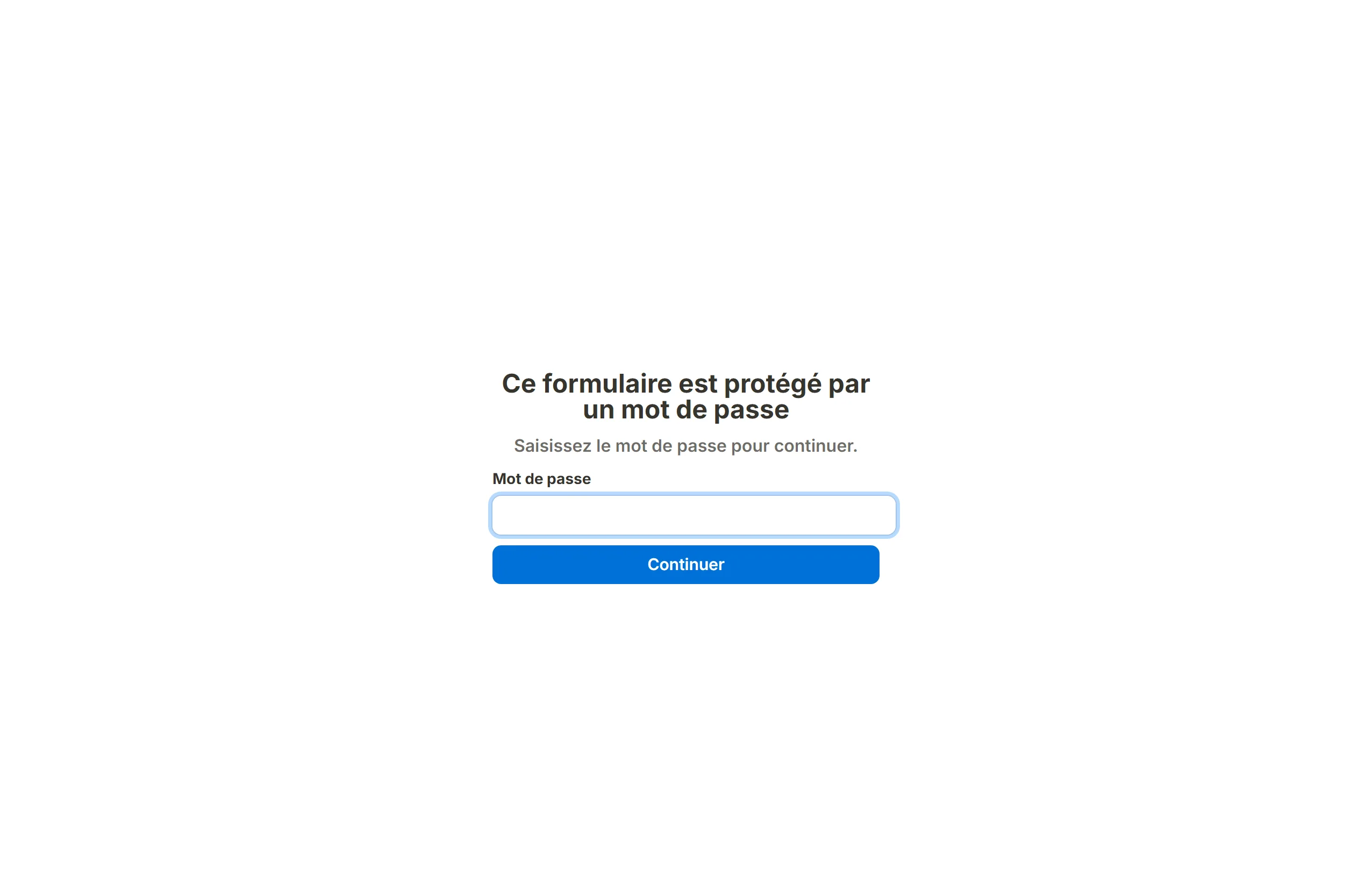
Preview the password page
The editor's Preview draws the form directly and never shows the gate. To see the password page as a respondent does, save your settings and open the form's share link, /r/<id>, in a private window; the token your own browser holds from an earlier visit would otherwise let you straight through.
Embedded forms
A password works inside an embed and a popup too. Because a browser does not send cookies into a frame on another site, the proof that the visitor entered the password is kept in the frame's own storage instead, so the form stays unlocked as the host page is navigated and reloaded.
What a password does not cover
A password gates who may fill the form in. A form you have shared as a template is still readable from the templates gallery, and the Submissions, Insights and other owner tabs are gated by workspace membership, not by the form's password.