Respondent email notifications
Send a confirmation email to the person who filled in your form, addressed from their own answer, with a subject and message you write yourself.
A respondent email notification is the message Tinyform sends to the person who has submitted your form. It confirms that their answers arrived, and it can carry whatever else you want them to have straight away: a thank-you, a summary of what they entered, a score, or the next step.
The email you receive yourself, as the owner, is a separate switch: self email notifications. The two are configured independently and one submission can trigger both.
Turn on respondent email notifications

Open the form's Settings tab at /forms/<id>/settings, find the Email notifications section and switch on Respondent email notifications, described as "Send a customized text email to respondents after form submission."
The switch will not move until the form has somewhere to send to. On a form with no email question, the row says "Add an email question to this form first", because a confirmation needs an address to go to. Add an Email block to the form, publish, and come back.
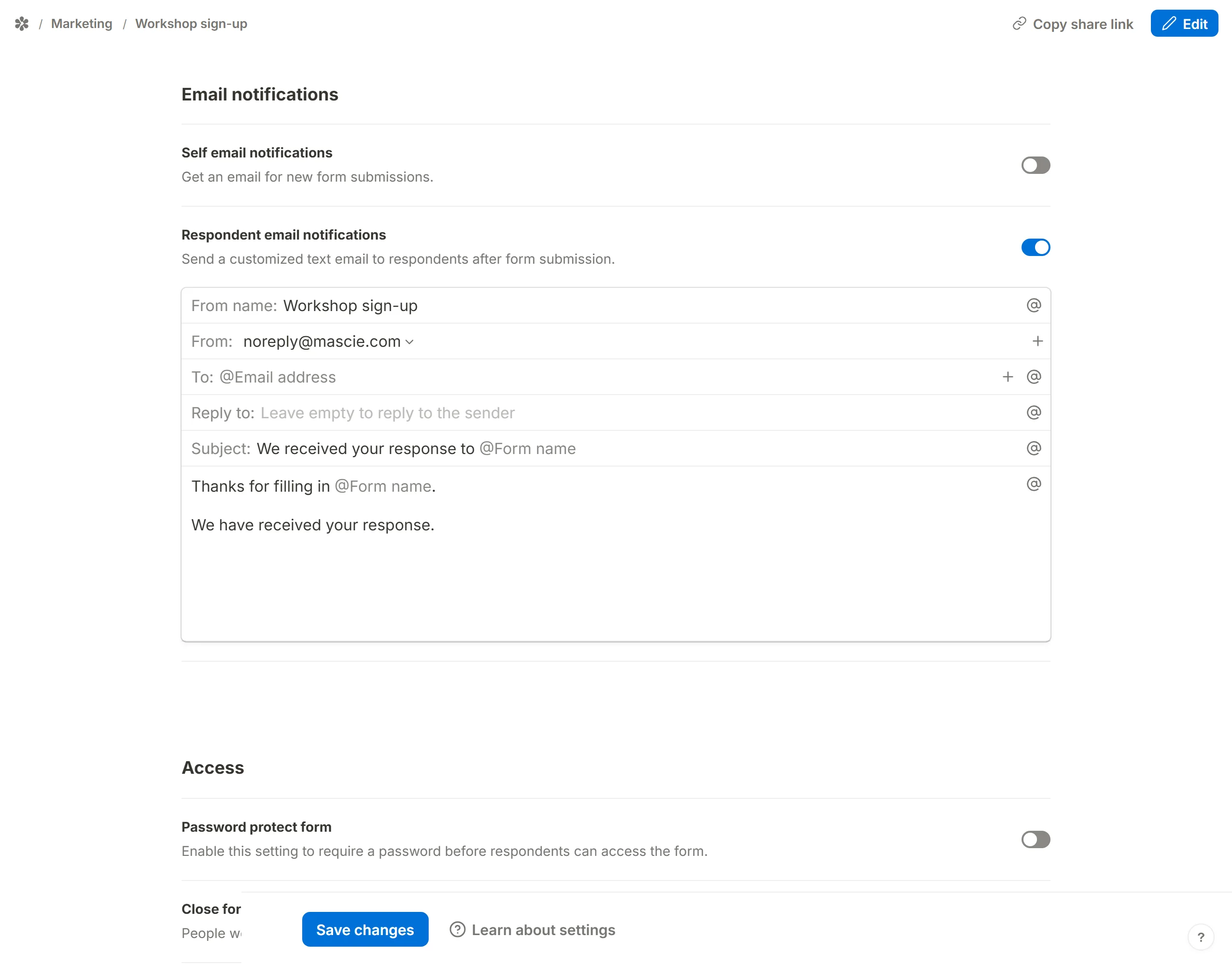
Every field in the composer takes mentions. Type @, or press the @ button at the end of a field, and pick from Mention metadata (All answers, Form name, Submission ID) or Mention an input field, which lists every question on the form. The mention is replaced by that submission's value when the email is sent. @All answers prints each answered question over its answer and skips the ones left blank.
The email fields
From name
The name the confirmation appears to come from. It defaults to the form's name; replace it with your own or your company's.
From
The address the confirmation is sent from: the default one, plus notifications@yourdomain for every custom domain verified for email in this workspace. With none verified the row is a fixed value rather than a menu. The rules are the same as on the owner's copy, described under self email notifications.
To
Where the confirmation goes, and the field that makes this email different from every other one the product sends: the address is chosen by a stranger, on a public form.
The row holds one mention, filled in for you the moment you switch the notification on: @Email address, or whichever email question comes first on the form. Change it from the @ menu, which lists every question rather than only the email ones — a form that collects the address through a short-answer question can address its confirmation too. The + adds a second recipient. Whatever the mention resolves to at send time has to be a valid address, or nothing is sent.
Reply to
Empty by default, so a reply from the respondent goes to the sending address. Put your team's inbox here if you want to see those replies.
Subject
Defaults to "We received your response to @Form name". Write anything, and mention answers to personalise it.
Message
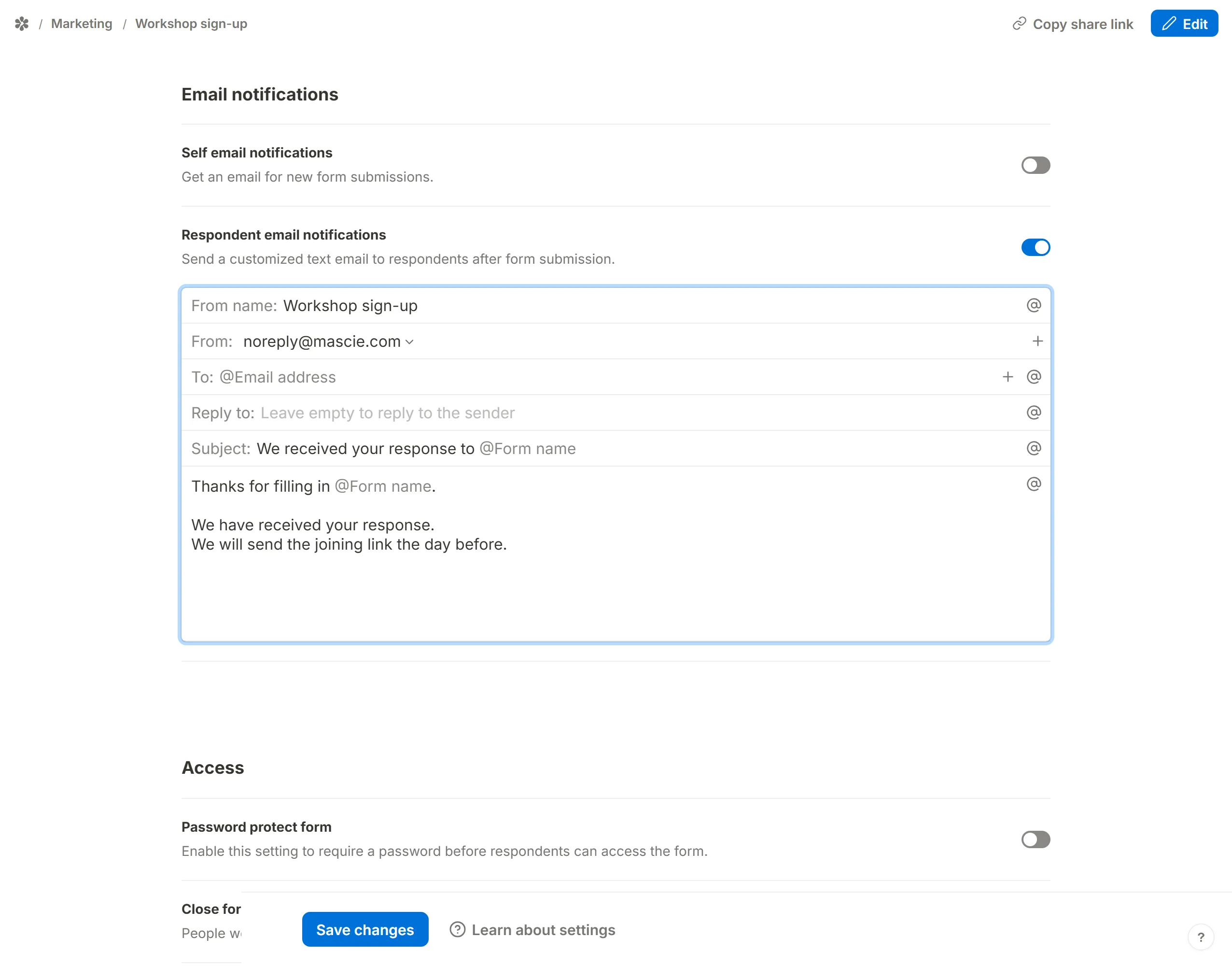
The default body thanks the respondent by form name and confirms the response. It deliberately contains none of their answers: the message goes to whatever address was typed, and one mistyped character would send somebody's answers to a stranger. If you want the answers echoed back, add @All answers or the individual questions yourself. The message is plain text; line breaks are kept and nothing is interpreted as formatting.
No PDF attachment on this copy
The respondent's confirmation is a text email and carries no attachment. Attach PDF with answers is offered on the owner's copy only, for the same reason the default message holds no answers: a full transcript sent to an address a visitor typed is one typo away from a leak. If a respondent needs a copy of what they submitted, mention @All answers in the message, or send them the PDF yourself from the Submissions tab.
What the email looks like
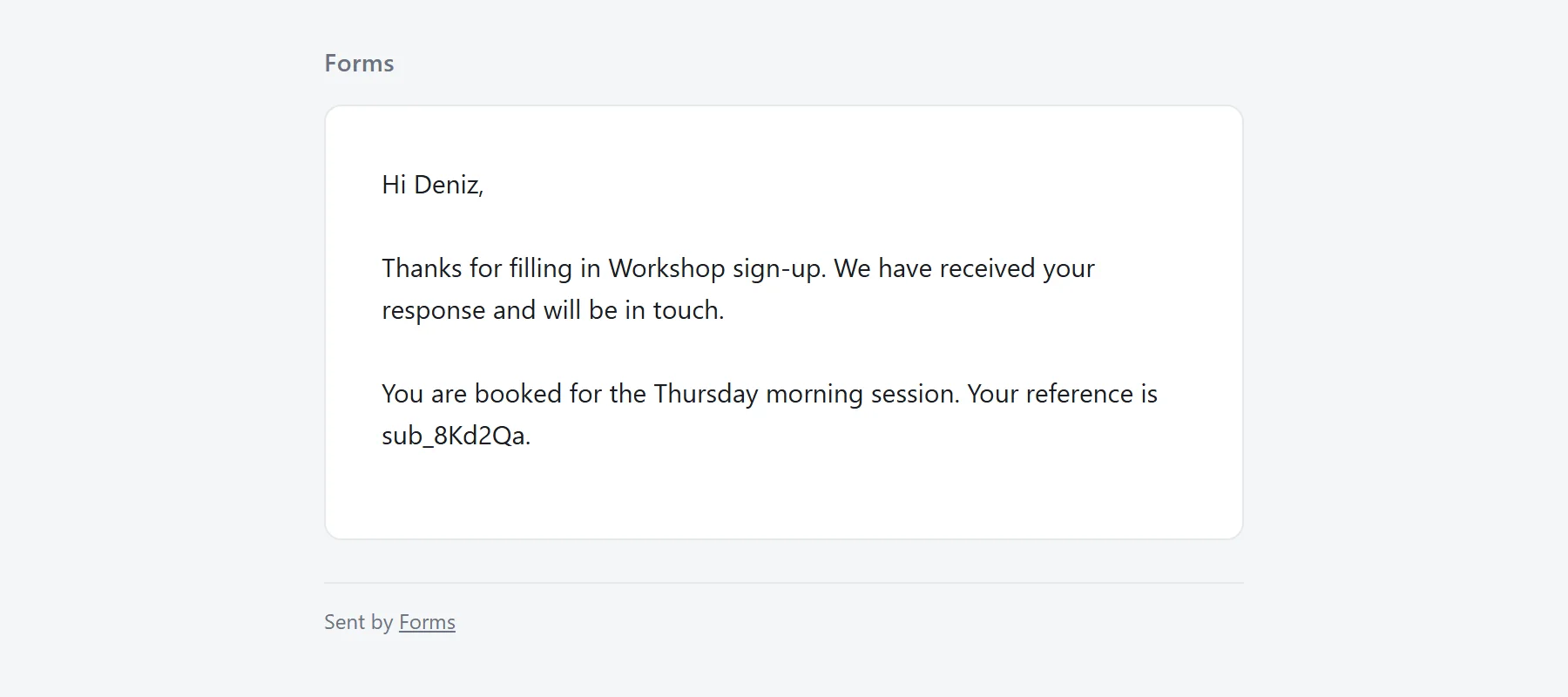
The body is exactly what you wrote, with each mention replaced by that submission's value. File uploads and signatures are not embedded: each appears as a link that works for seven days.
Sending limits
Because the recipient is chosen by whoever fills the form in, a published form is something a stranger could try to use as a relay. Two ceilings stop that: one form sends at most 200 confirmations an hour, and no single address is sent more than three confirmations an hour by the same form. A confirmation past either ceiling is dropped, not delayed, and the submission itself is unaffected.
Common uses
- Submission confirmations. "We received your response" with
@All answersso the respondent has a record. - Quiz results. Mention the questions that matter and tell people how they did; how to create a free quiz walks through the scoring.
- Order confirmations. Echo the order back and put your shop's inbox in
Reply to. - Intake summaries. For a client intake form, send a clean summary they can forward internally.
- Event registrations. Confirm the date, the venue and a join link, with the attendee's name from
@. - Thank-you notes. A short personal message with the respondent's name pulled from their answer.
Frequently asked questions
Why is the respondent not receiving the confirmation?
The usual causes: the To: mention points at the wrong question, it resolves to something that is not an address, the message landed in spam, or there is no mail server behind the site (the From: row says so). A respondent who reached the hourly per-address ceiling is also skipped.
Can respondents reply to my team?
Yes. Put the team's address in Reply to:.
Can I send a different confirmation depending on the answers?
Partly. Mentions make the subject and body vary with the answers, and @All answers naturally reflects which branch of a form was taken. See dynamic email notifications for what is and is not possible.
Can I attach a PDF to the confirmation?
No. The PDF attachment is on the owner's copy only, as explained above.
Can I use both kinds of notification at once?
Yes. Both switches live in the same section and are configured on their own; one submission sends the owner's email and the respondent's confirmation.