Collect email addresses that pass a format check, and optionally make the respondent prove the inbox is theirs with a six-digit code before they continue.
The Email block collects an address and checks its shape before the form moves on, so a typo is caught by the respondent rather than by your bounced reply. With Verify email on it goes one step further and sends a code to the address, which the respondent types back into the form. Use it for newsletter sign-ups, contact forms, and any form where the address is the whole point.
Add an Email block
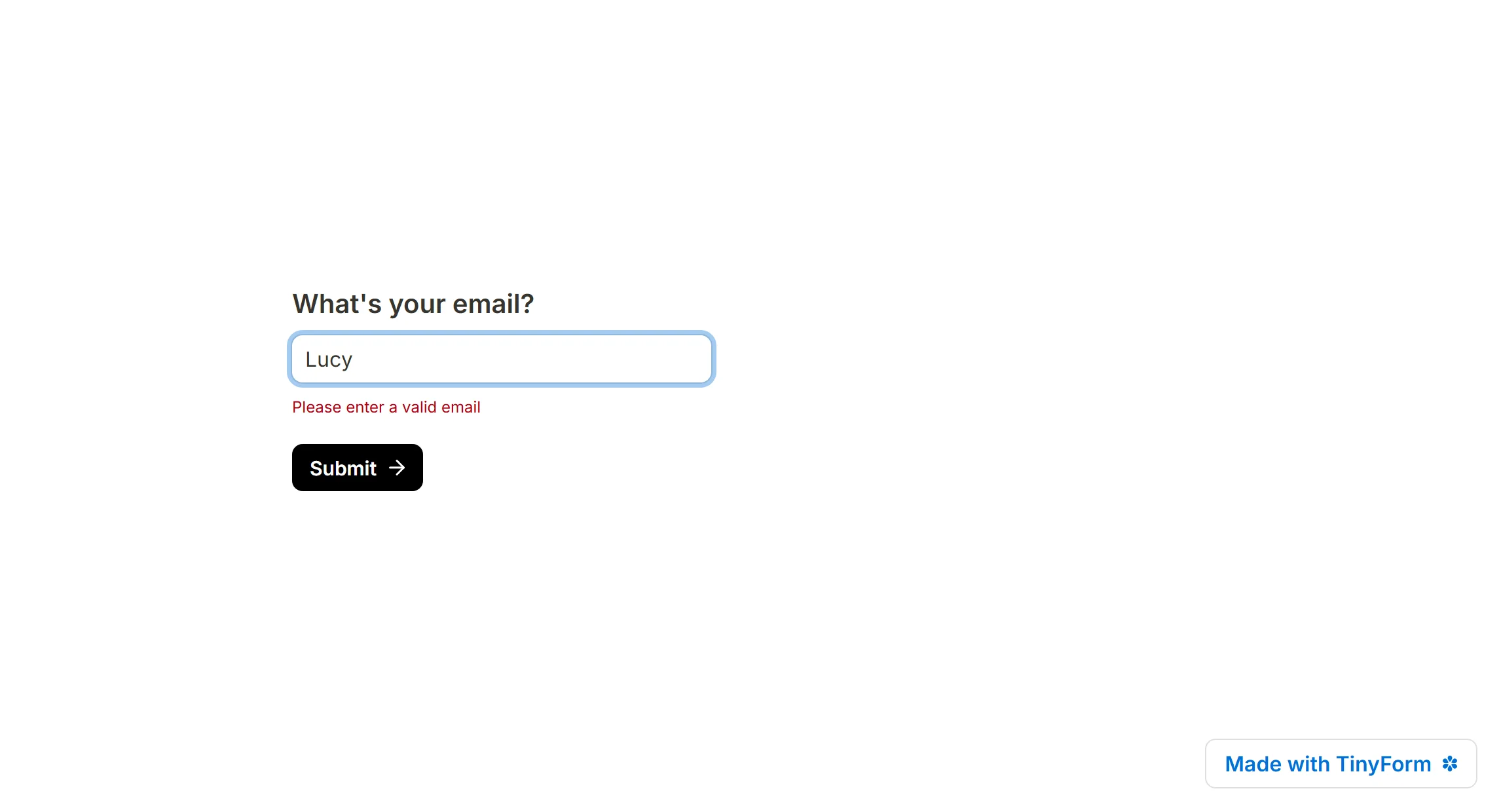

Open the insert menu with / and choose Email. Give it a question above the box or a placeholder inside it; the box's own placeholder reads name@example.com until you change it. A block with neither is listed as "Untitled email field" in your results. See How to name question fields.
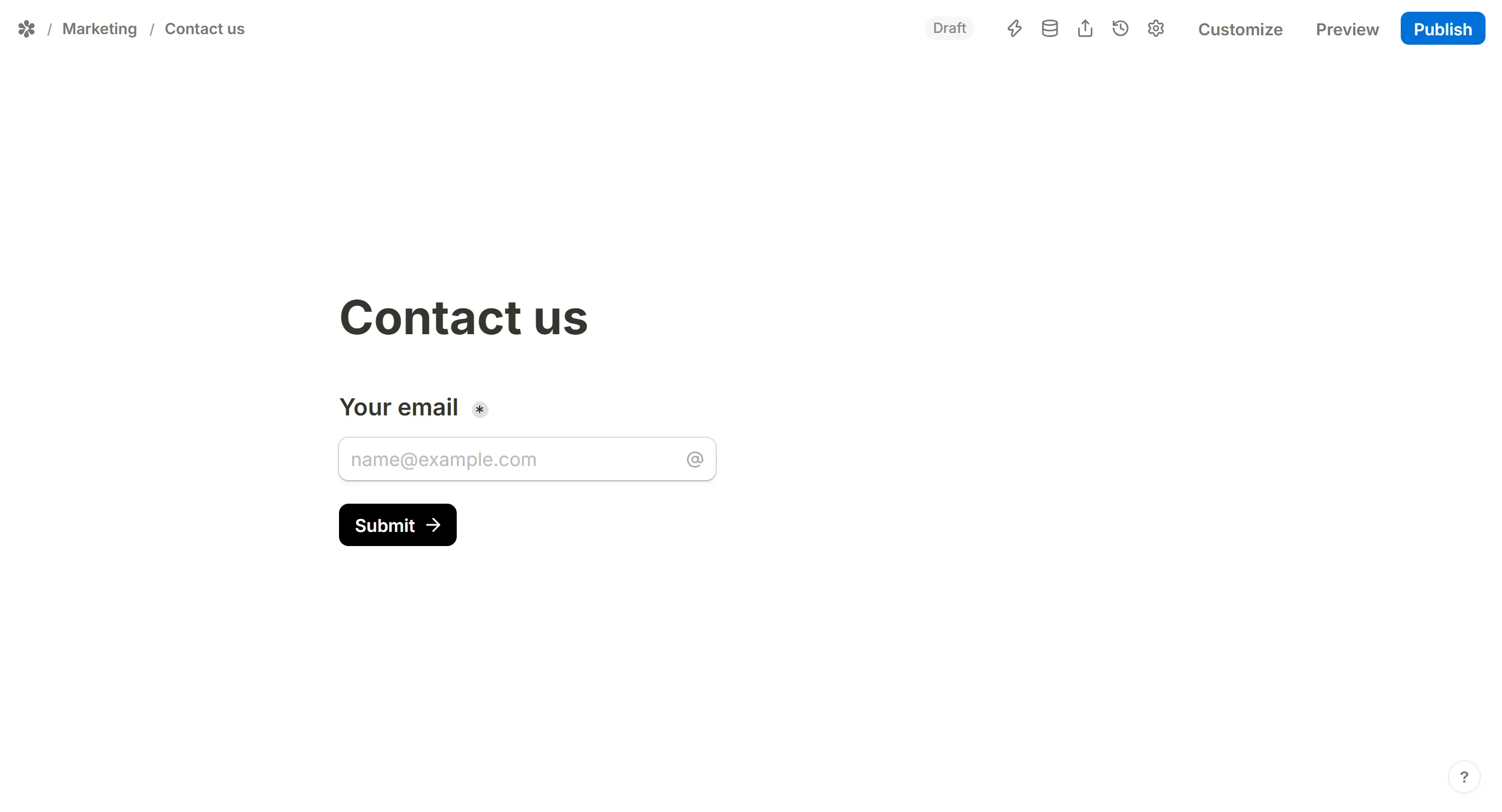
A respondent whose entry is not shaped like an address sees "Please enter a valid email" under the box when they press Next or Submit. Press Preview in the editor to try it.
Email settings
Open the settings from the handle at the block's left edge.
Make it required
Required refuses a submit while the box is empty; the respondent sees "Please enter a value".
Add a default answer
Default answer fills the box before the respondent arrives. Type an address, or pick a hidden field from the menu so a link that carries email= in its query string opens with the box filled. See Pre-populate form fields.
Verify emails
Verify email makes the respondent prove the address is theirs before the form accepts the page. A submit with an unverified address on it is refused on the server as well as in the browser, and the server checks the block on the version the respondent loaded and on the latest one, so an old link cannot skip a verification you turned on later.

How it works for the respondent:

- Once the address passes the format check, a
Verifybutton appears inside the box - Pressing it sends a six-digit code to that address, and the form says "A verification code has been sent to your inbox."
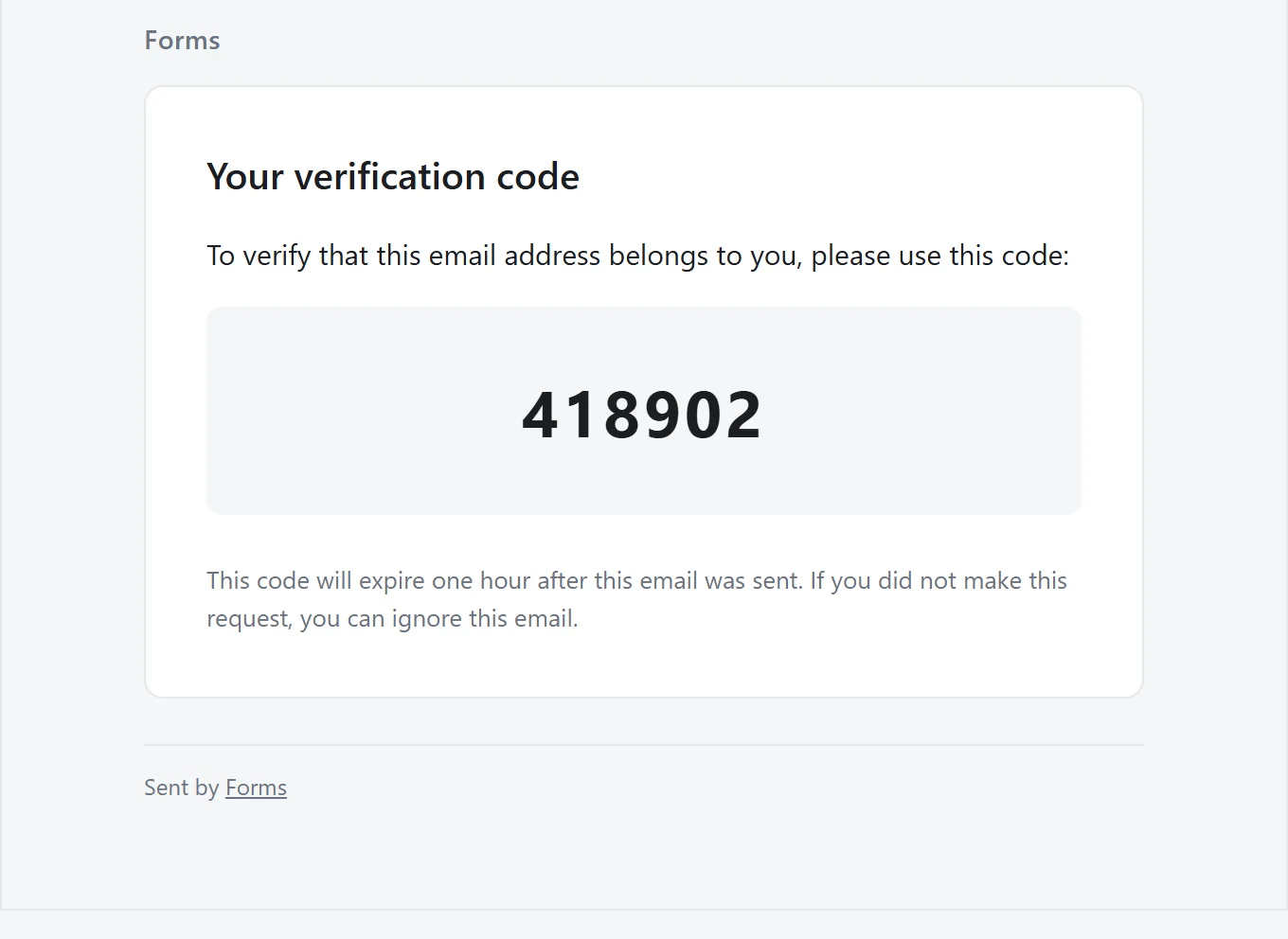
- The respondent types the code into the
Verification codebox that opens under the field - On a match the field reads "Email address verified" and the form moves on
Under the code box the form asks "Didn't receive a code?" with a Resend link, which becomes usable after a short countdown ("Resend in 30 seconds"). A code is good for one hour and for a handful of wrong guesses; past either, the form says so and offers a new one. Asking again always replaces the previous code, so only the newest one works.
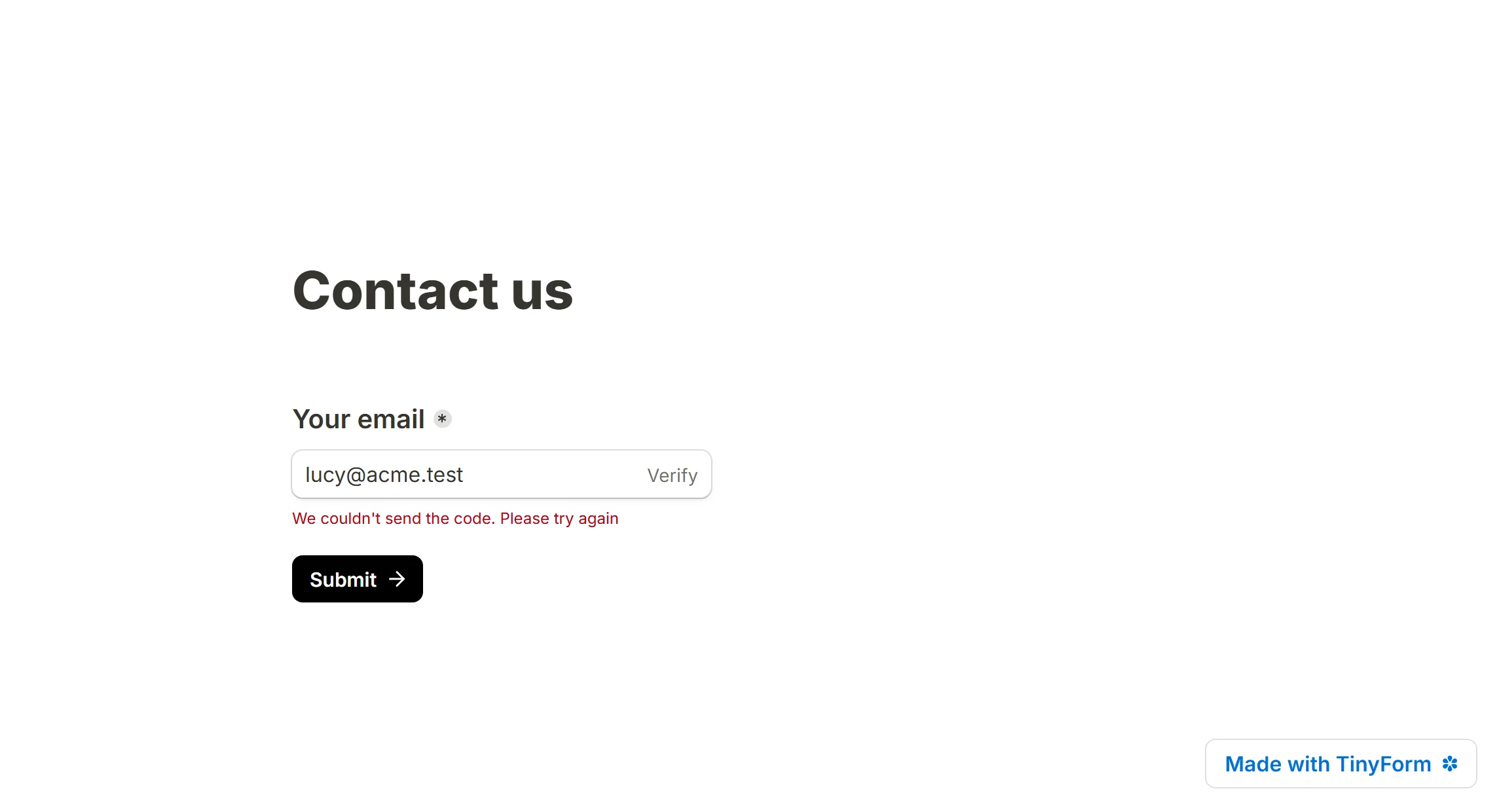
Who the code comes from
There is no per-form sender for verification mail: every code goes out from the same address, whatever a form's own From: is set to.
Domain-specific email verification
To let only one company's addresses through, pair Verify email with a rule that hides the way forward for everyone else:
- Turn on
Verify emailin the Email block's settings - Press
Add conditional logicon the same block
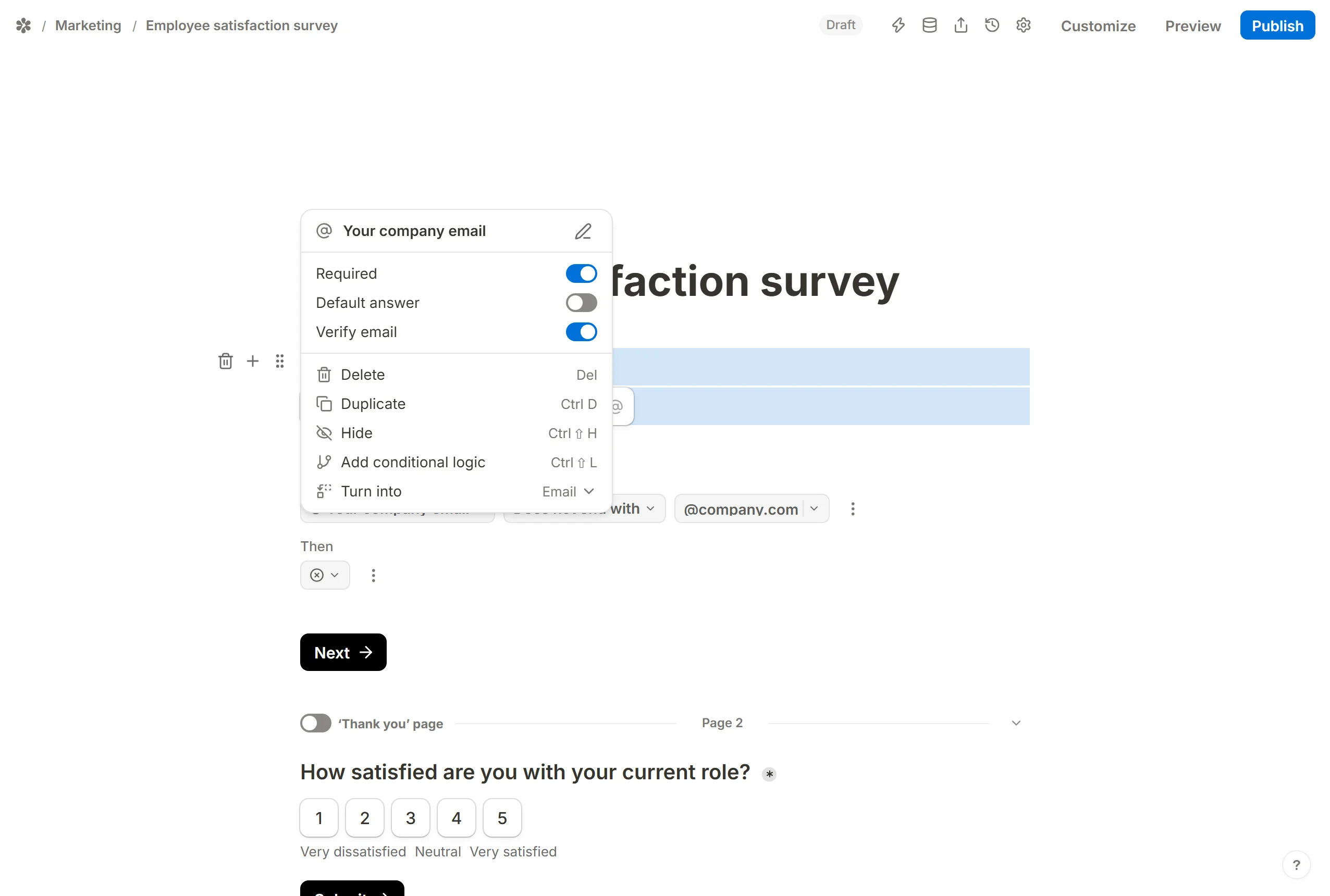
- In the
Whenrow pick the Email field, the comparatorDoes not end with, and type your domain,@yourcompany.com - In the
Thenrow chooseHide button to disable completion
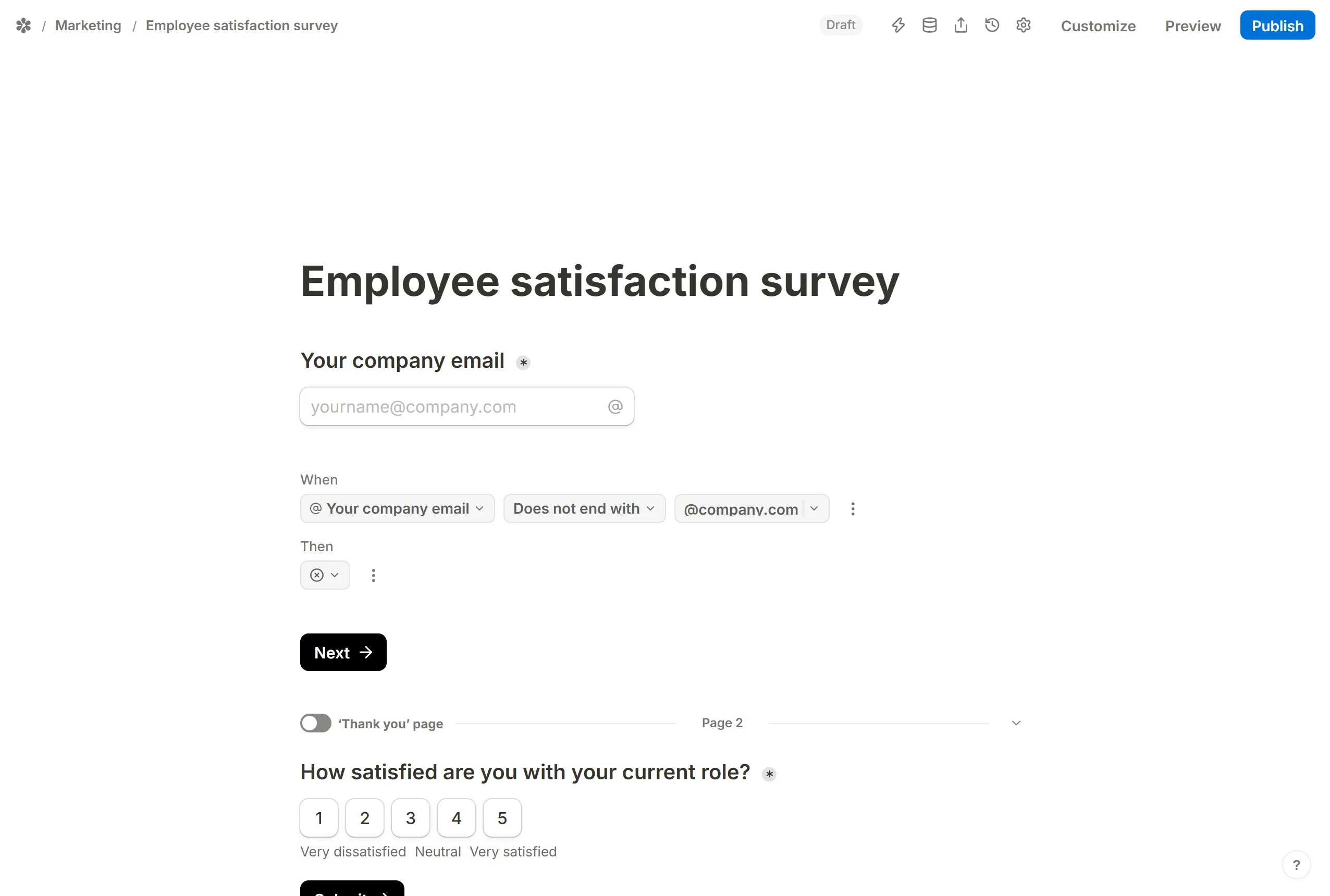
- Put the rest of the form on a following page, so the check gates everything after it
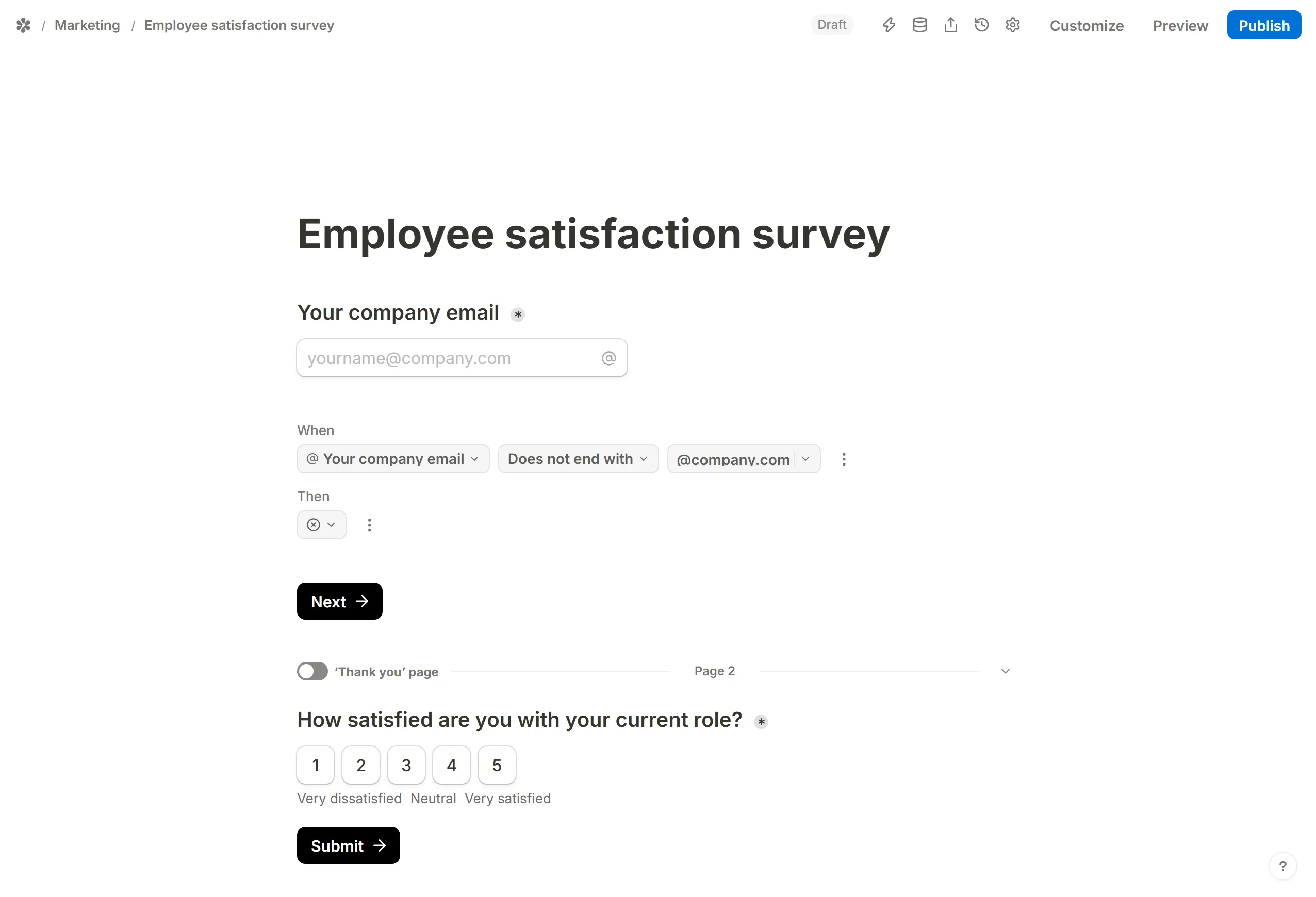
Publish and test it with an outside address: the Next button disappears the moment the address is typed, and reappears when it ends with your domain. See Conditional logic.
Where the address goes next
An Email answer is what Prevent duplicate submissions most often compares on, and it is the address a respondent email notification is sent to. Both are set on the form's Settings tab.