Self email notifications
Get an email for every new submission: choose who receives it, write the subject and message with mentions, and attach the response as a PDF.
A self email notification is the message Tinyform sends to you, the form's owner, when somebody submits. Instead of opening the Submissions tab to see whether anything has arrived, each response lands in your inbox with the answers in it. That is what makes a form usable for leads, applications, support requests and orders, where somebody has to react the same day.
The other direction, a confirmation to the person who filled the form in, is a separate switch: respondent email notifications.
Turn on self email notifications
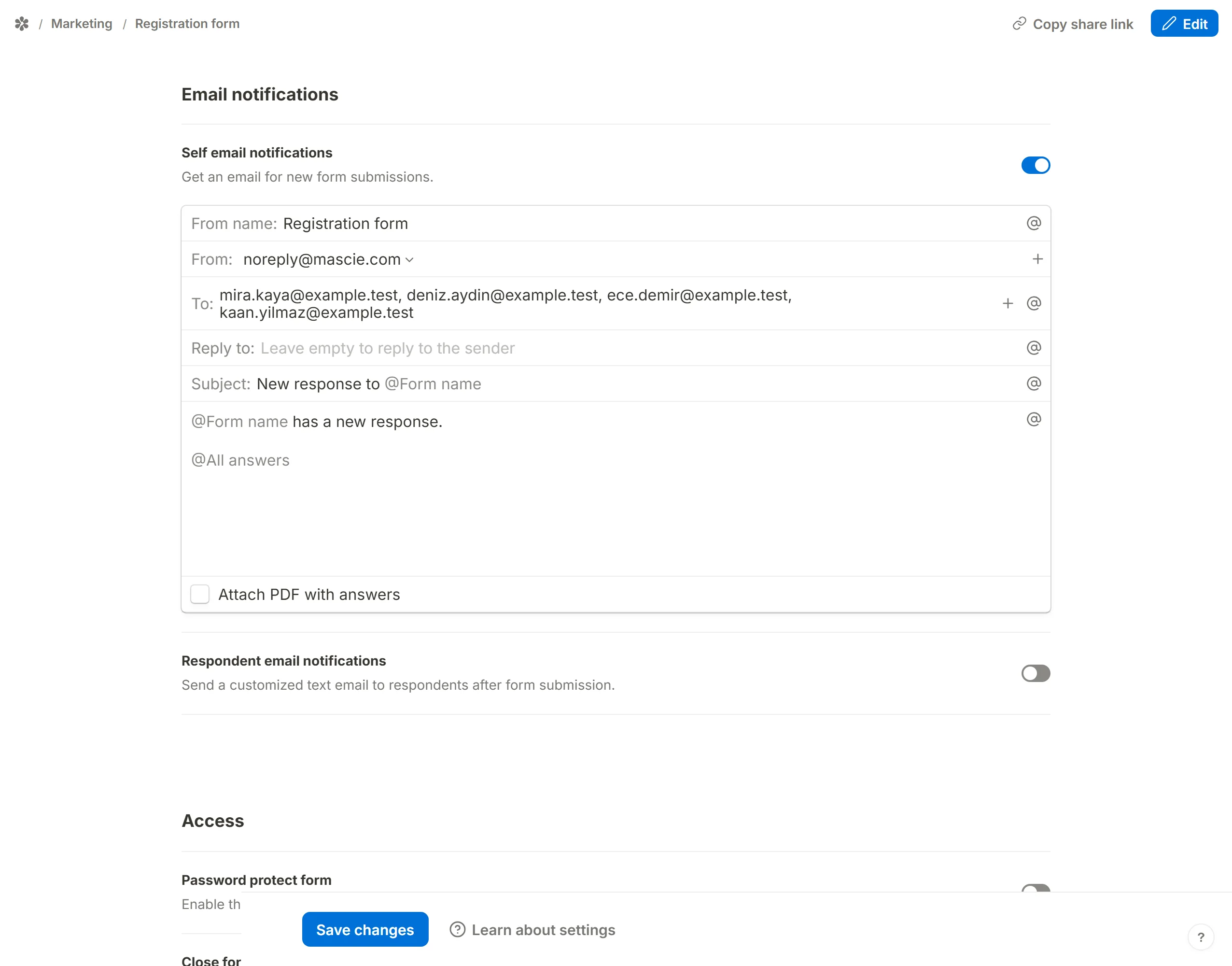
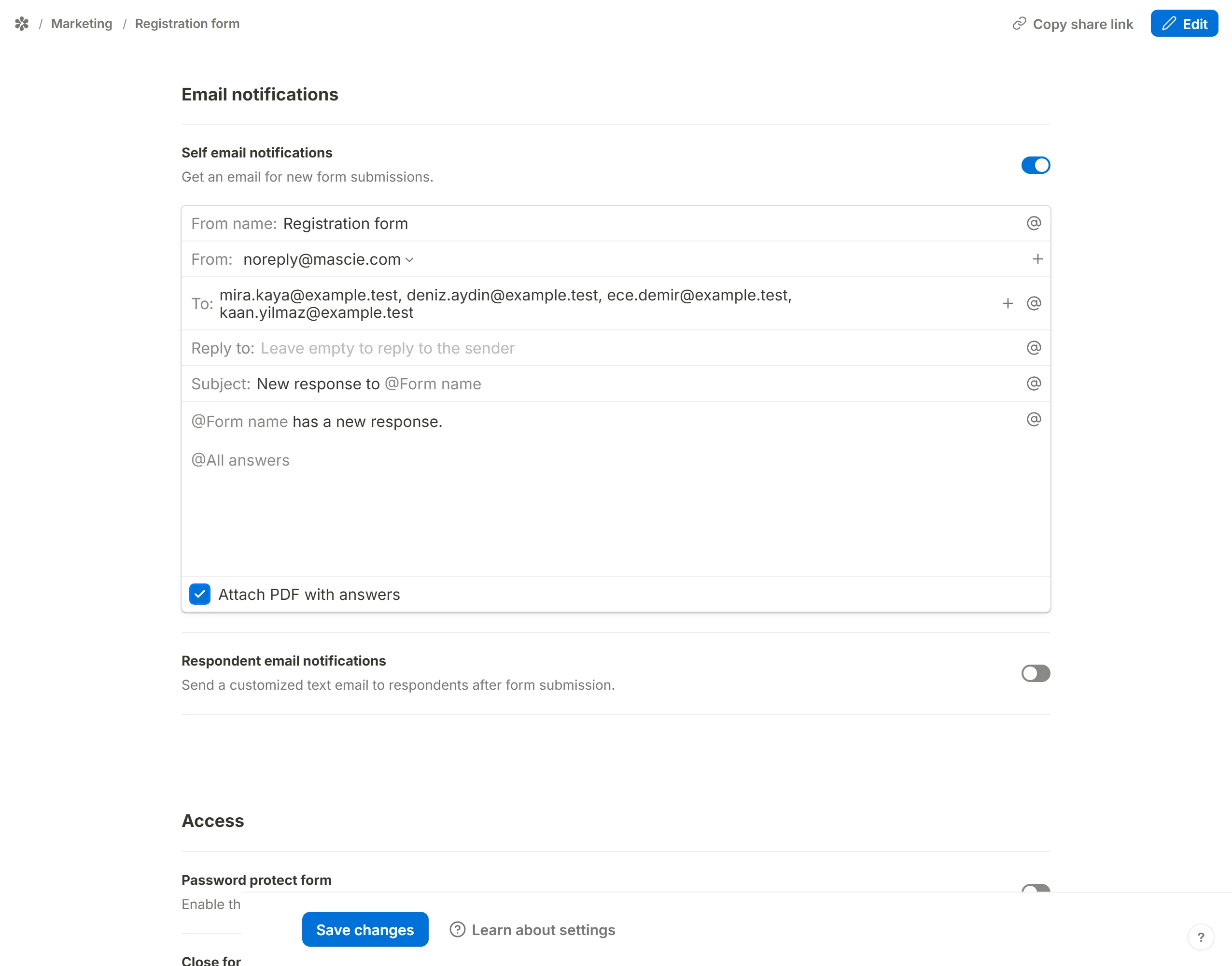
Open the form's Settings tab at /forms/<id>/settings and go to the Email notifications section. The first row is Self email notifications, described as "Get an email for new form submissions." Switch it on.
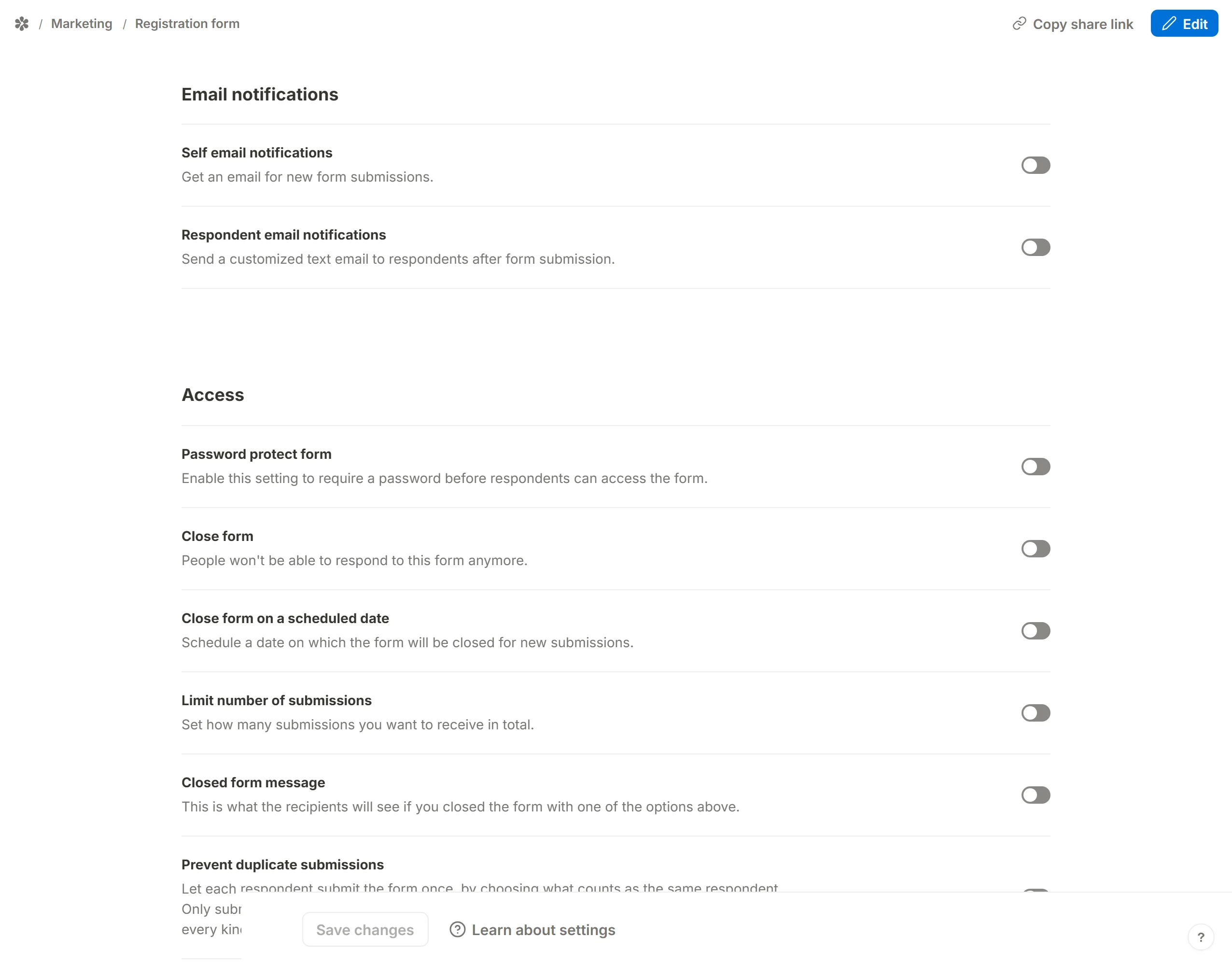
The switch reveals the composer. Every field is already filled in with a working default, so you can press Save straight away and get a complete email: the subject is "New response to @Form name", and the message announces the response, lists every answer through @All answers, and ends with a link to the Submissions tab. @All answers only prints the questions the respondent actually answered; a question they skipped is left out rather than shown blank.
Every field in the composer takes mentions. Type @ anywhere, or press the @ button at the end of the field, and a menu lists what the form knows: Mention metadata first (All answers, Form name, Submission ID), then Mention an input field with every question on the form. A picked mention is drawn as a chip. See dynamic email notifications for what you can build with them.
The email fields
From name
The display name the message arrives under. It defaults to the form's own name; type anything else to replace it.
From
The address the message is sent from. The install's own address is always the first option, and every custom domain in this workspace that has finished email verification adds notifications@yourdomain beside it — see sending email from a custom domain. Until one has, the row is a fixed value rather than a menu, because one option is not a choice.
Only a verified domain is offered. A domain whose DKIM records have not resolved yet is one the mail relay accepts and then silently drops, so an option for it would be an option that sends nothing.
A form that has never been given a sender follows the workspace and uses the first verified domain. Pick one here and that form keeps it even when another domain is added later, because choosing was a deliberate act. If the domain you picked is removed, the notification falls back to the default address rather than sending into the dark.
To
Who receives the email. Left untouched, the field shows the address of every member of the form's workspace, and that is who is mailed. Type one or more addresses separated by commas to narrow or change the list; each recipient gets their own copy. The list is checked when you press Save, and a malformed entry is refused with "One or multiple emails' format is incorrect. Emails should be separated by commas."
The field also accepts a mention, so an answer that holds an address can decide where the email goes.
Reply to
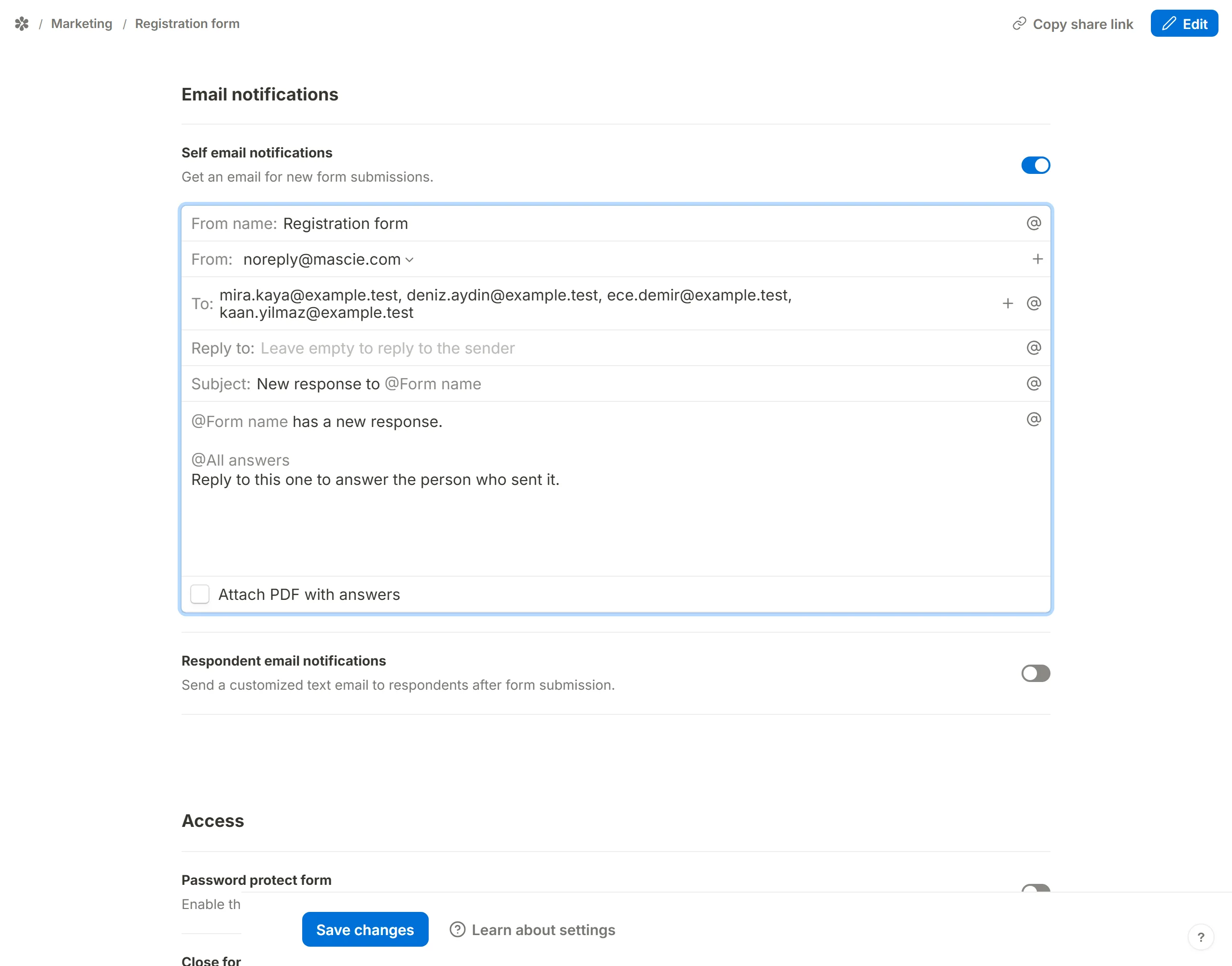
Empty by default, which means a reply goes back to the sending address. Put your support inbox here if replies should land somewhere else. A common trick is to mention the question that collects the respondent's address: pressing Reply in your inbox then answers the person who filled the form in.
Subject
Defaults to "New response to @Form name". Most inboxes group messages with the same subject into one thread, which is convenient for a low-volume form and confusing for a busy one. To give each response its own thread, add something unique to the subject, such as @Submission ID or the respondent's name.

Message
The body of the email. The default announces the response and inserts @All answers, which renders each answered question as a bold heading over its answer, a matrix as one heading per row. Rewrite it as you like and drop mentions in wherever an answer belongs. The message is plain text: line breaks are kept, nothing is interpreted as formatting, and an answer is never turned into markup, so a respondent cannot type their way into the layout of your email.
Attach the submission as a PDF
Tick Attach PDF with answers at the bottom of the composer and every notification carries the full response as a PDF, drawn in the form's own theme. It is the same document the Submissions table produces from its Download PDF action, so the file in your inbox and the one you download later are identical. Turn form submissions into PDF files has the details.
The bundled typeface covers Latin, Greek and Cyrillic scripts. An answer written in another script is named in the PDF but left unwritten rather than drawn as empty boxes.
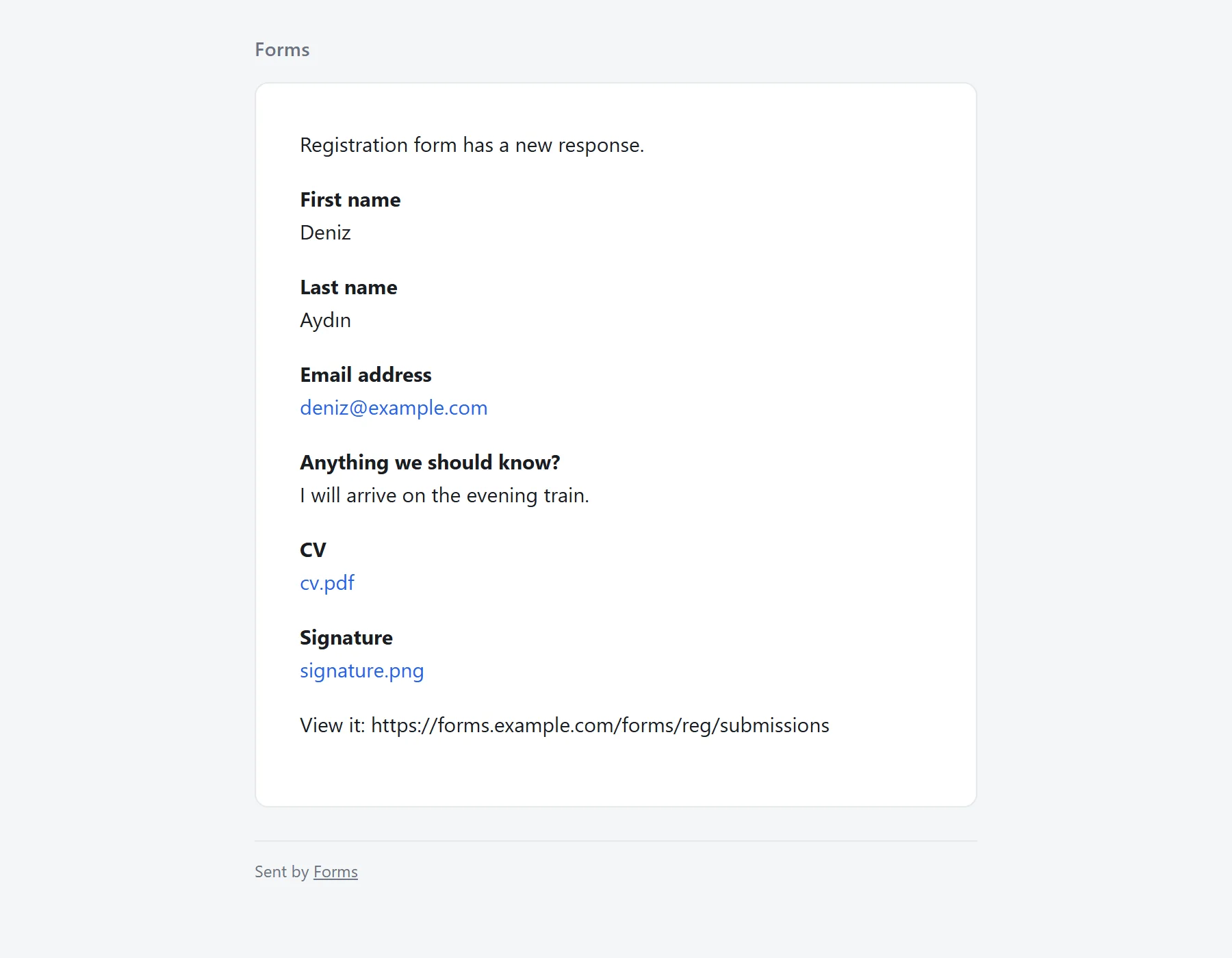
What the email looks like
The subject, sender name and body are whatever you set above. Two kinds of answer are handled specially, because embedding them would make the message heavy and expose files that belong in your private storage:
- File uploads appear as links. Each link is signed and stops working after seven days; open the Submissions tab for the file after that.
- Signatures are stored as images and appear as the same kind of link rather than being drawn inline.
Common uses
- Lead capture. Route a contact form to the sales inbox and mention the respondent's email in
Reply to, so the first reply goes to the lead without a copy and paste. - Job applications. Send each application to a hiring alias with the applicant's name and role in the subject and the CV link in the body.
- Support and bug reports. Feed a feedback form into your helpdesk address; the answers arrive in the order the form asked them.
- Event registrations. Get one email per sign-up with the attendee's details, ready to turn into a calendar invitation.
- Orders. Use the form as an order intake and tick
Attach PDF with answersfor a receipt-shaped copy of each one. - Internal routing. Combine with dynamic email notifications to send a submission to a different address depending on a dropdown answer.
Frequently asked questions
Why am I not receiving notifications?
Check, in this order: the Self email notifications switch is on and the form was saved; your spam folder; the To: field holds the right address; and the From: row shows a sending address rather than "No mail server configured". That last one is not something a form setting can fix: with no mail server behind the site, nothing will send whatever the form says.
Can I send notifications to several addresses?
Yes. Separate them with commas in the To: field. Every address gets its own copy of the message.
Can I send notifications to Slack instead of email?
Not yet. Webhooks are the way to push a submission somewhere else today; see Webhooks.
How quickly does the email arrive?
The message is queued the moment the submission is stored and is normally on its way within a minute.
Can I attach the submission as a PDF?
Yes, with Attach PDF with answers, described above.
Can I send a different email to the respondent?
Yes. Respondent email notifications are configured separately, and one submission can trigger both.
Can I change the sender name?
The From name: field is yours to set. The address beside it is the default one, unless this workspace has a custom domain verified for email — then From: becomes a menu and each form can pick which domain it sends from.
Will I get a notification for a partial submission?
No. Only a completed submission sends mail. See Partial submissions.
Do notifications count against anything?
Each message sent counts toward the monthly notification-email allowance, listed on the fair use page.