File upload forms
Collect documents, images and other files through a form, bound the count, size and type per question, and download what came in from the Submissions tab.
A File upload block lets a respondent attach files to their answers without signing in to anything: a CV, a screenshot of a bug, a signed scan, a set of product photos. You decide how many files, how large and of which types. Every attachment is stored in a private bucket on your own install, where only a member of the workspace can open it.
Why collect files with a form
- No account needed. The respondent picks a file and submits. There is nothing to sign up for on their side.
- Your storage, your rules. Files land in private storage only your workspace can read, and nothing leaves it unless you send it somewhere.
- No public link. An attachment has no address a stranger can guess. It is served only to a signed-in workspace member, or through a short-lived signed link the app mints itself.
Build a file upload form
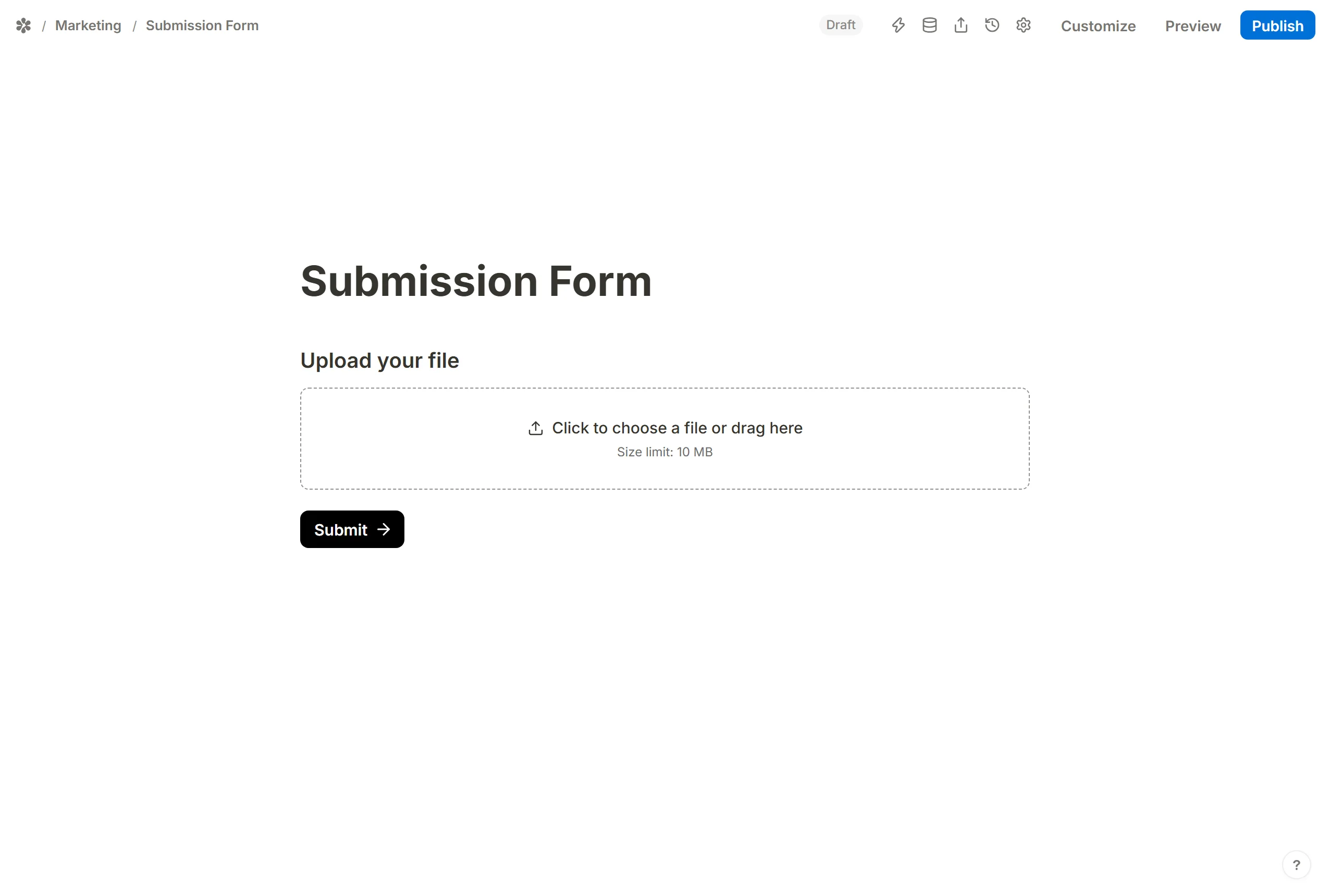
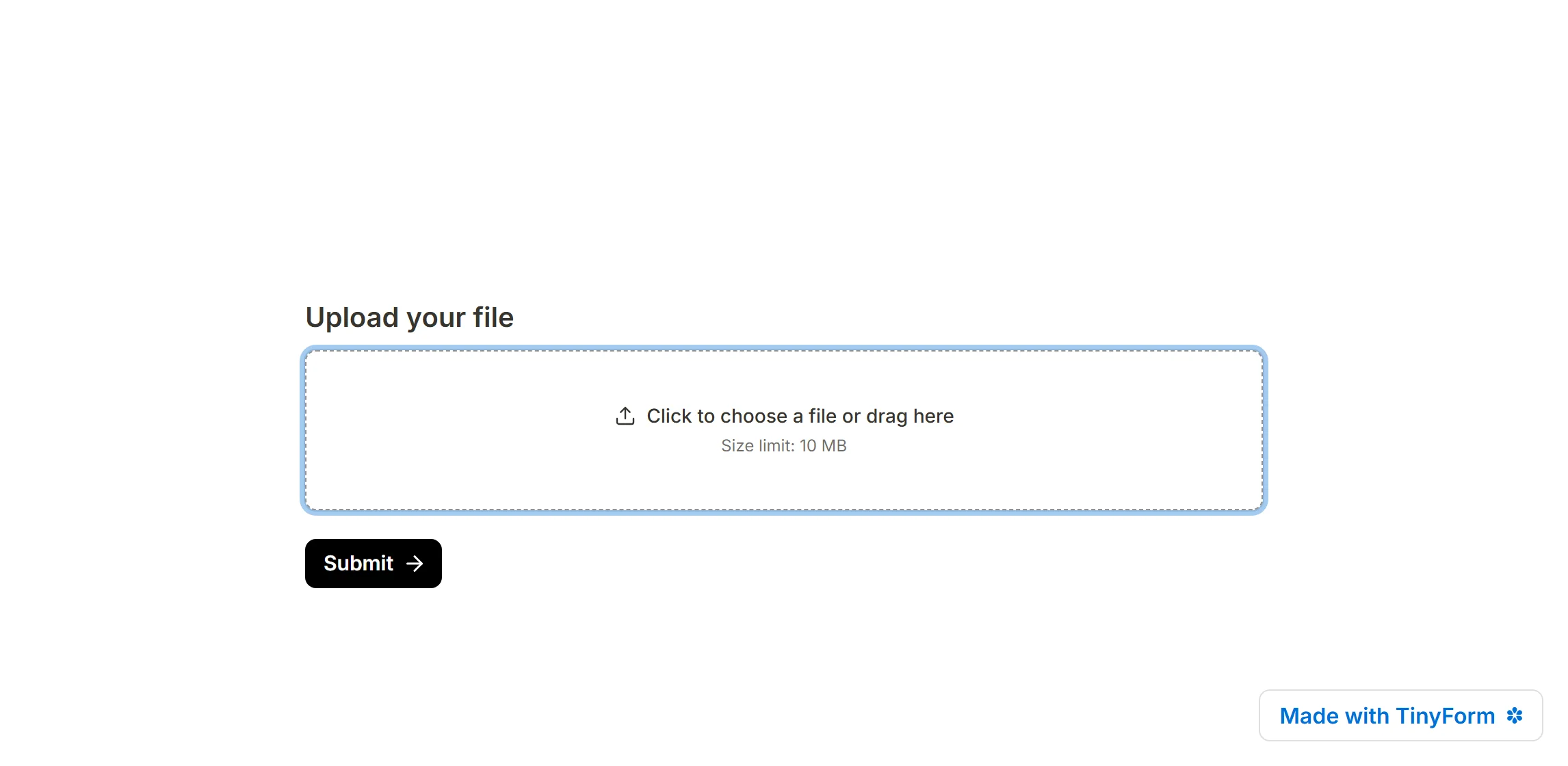
Open the insert menu with / and choose File upload. On the published page the block reads "Click to choose a file or drag here", and either works: a click opens the file picker, a drop takes the file straight from the desktop. The block also shows the size limit it will enforce.
File upload settings
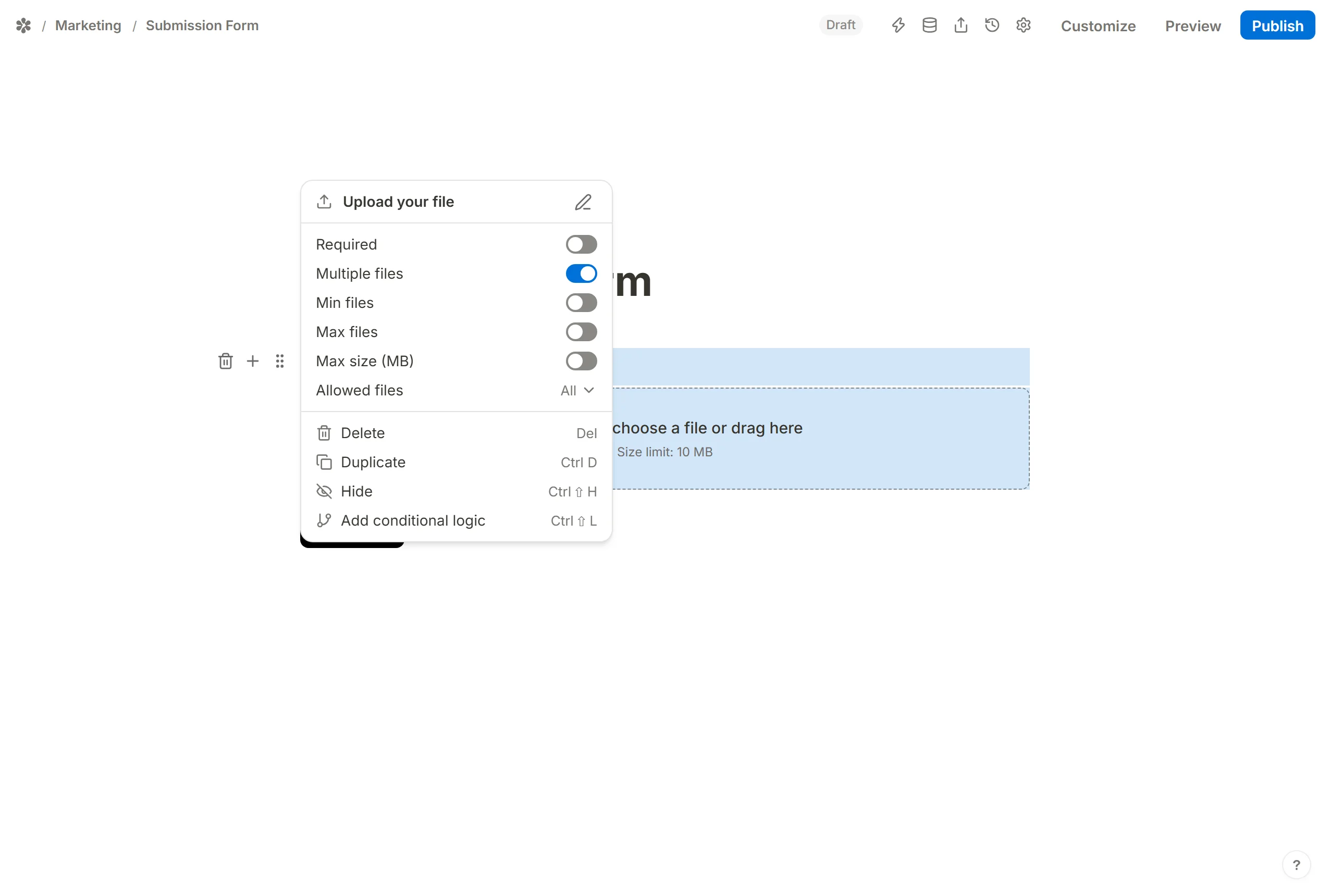
Open the settings from the handle at the block's left edge. The panel holds:
Required, to refuse a submit with no file attached ("Please upload a file")Multiple files, withMin filesandMax filesMax size (MB)Allowed filesHide, in the block menu, to keep the block off the page until a rule shows it
Allow multiple file uploads
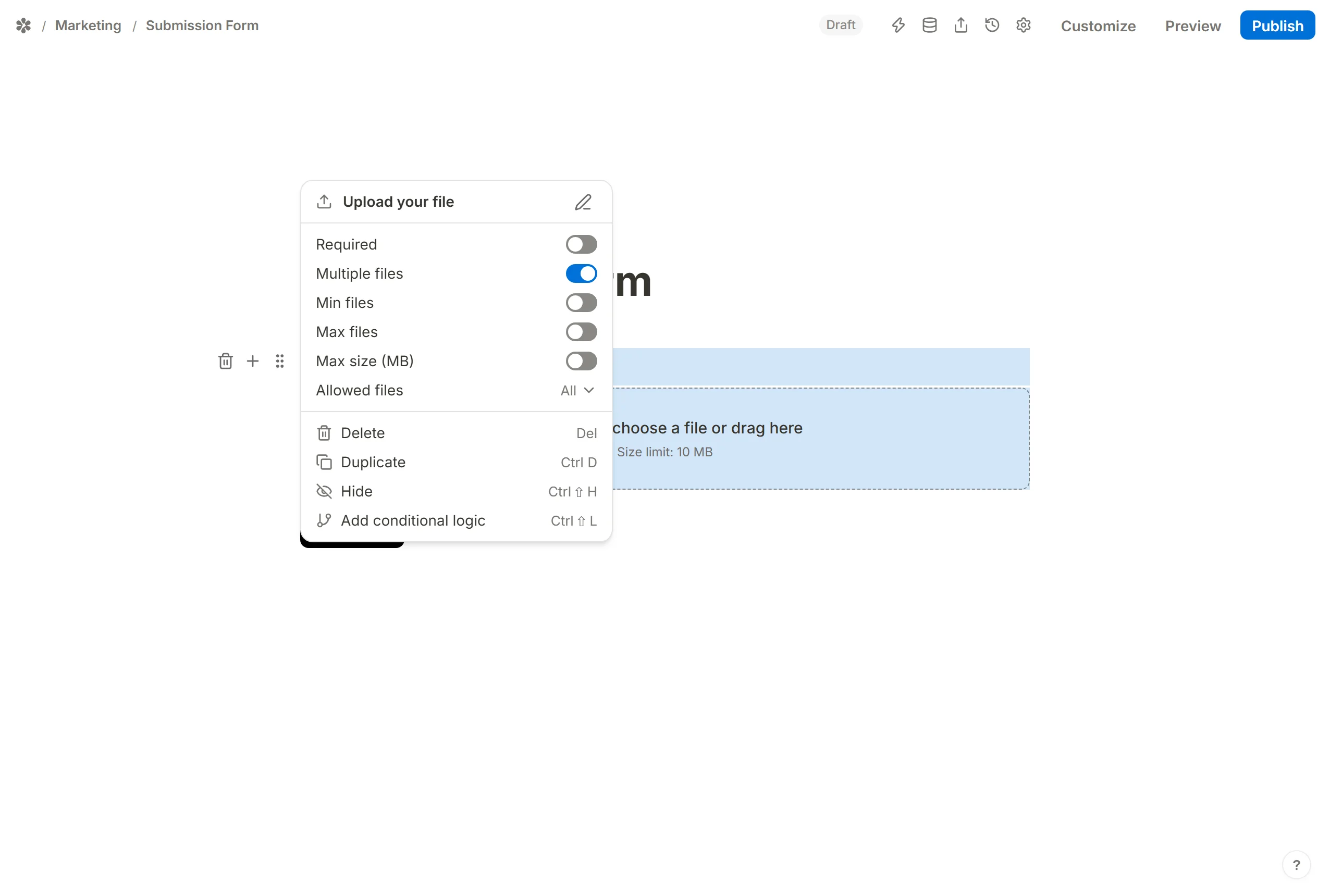
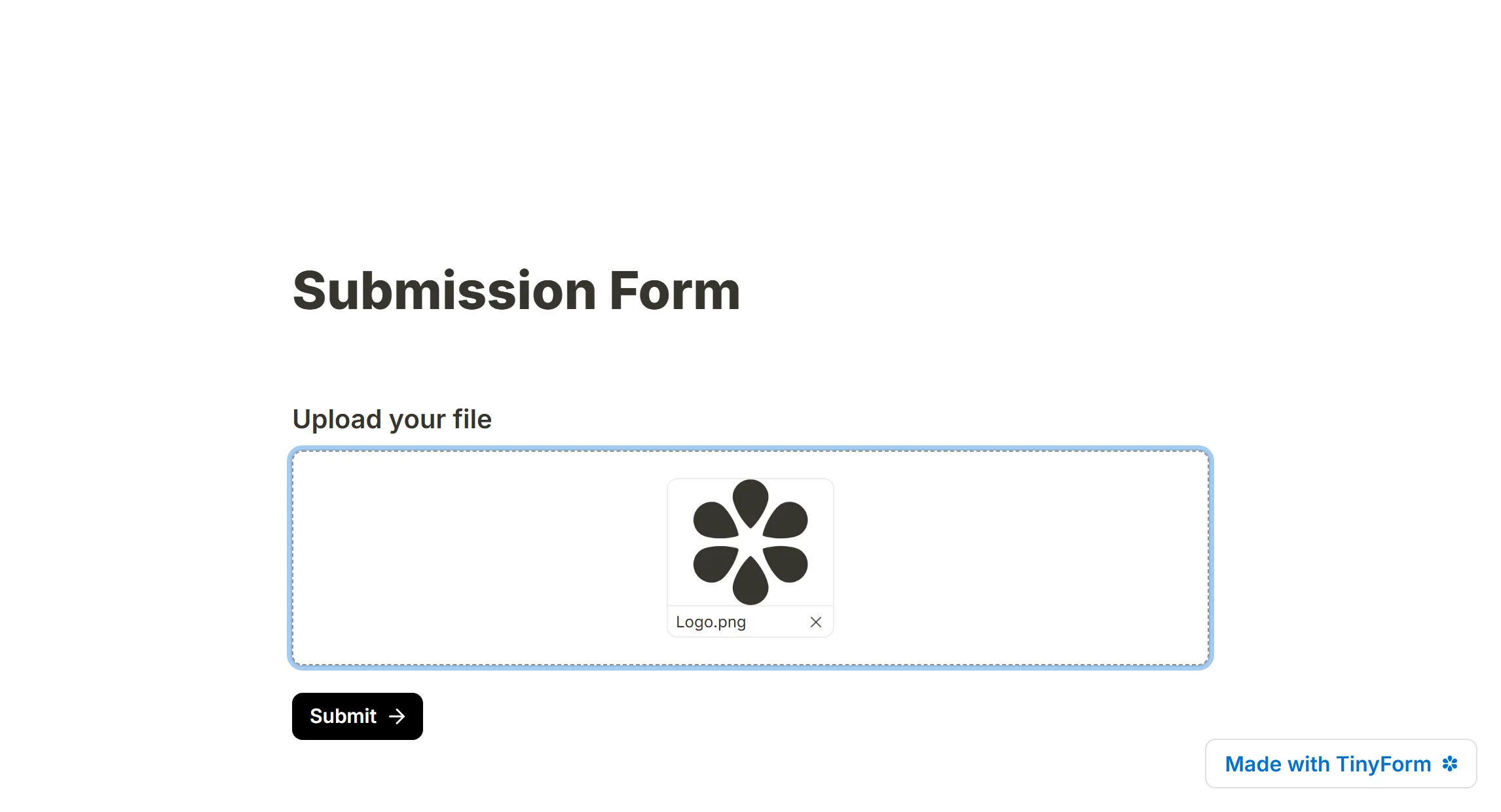
Multiple files lets one question take more than one file, and opens Min files and Max files so you can ask for exactly three photos or at most two documents. The ceiling is 5 files per question; a Max files above that is not honoured.
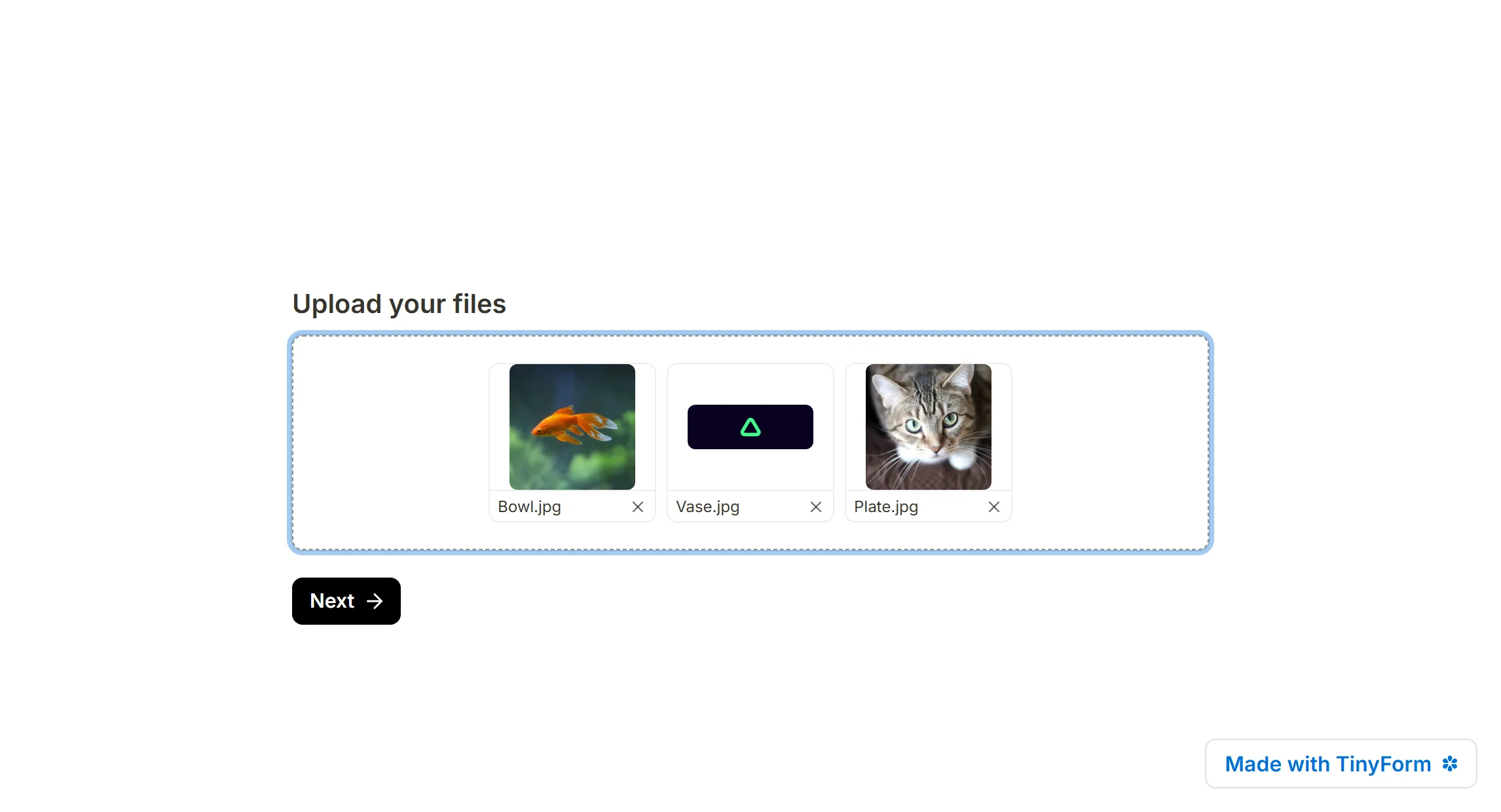
A respondent can drop several files at once or add them one at a time. Each one is listed under the box with a Remove file button, and a count outside the bounds is refused when they press Next or Submit ("Minimum 3 files required", "Maximum 2 files required").
Set a maximum file size
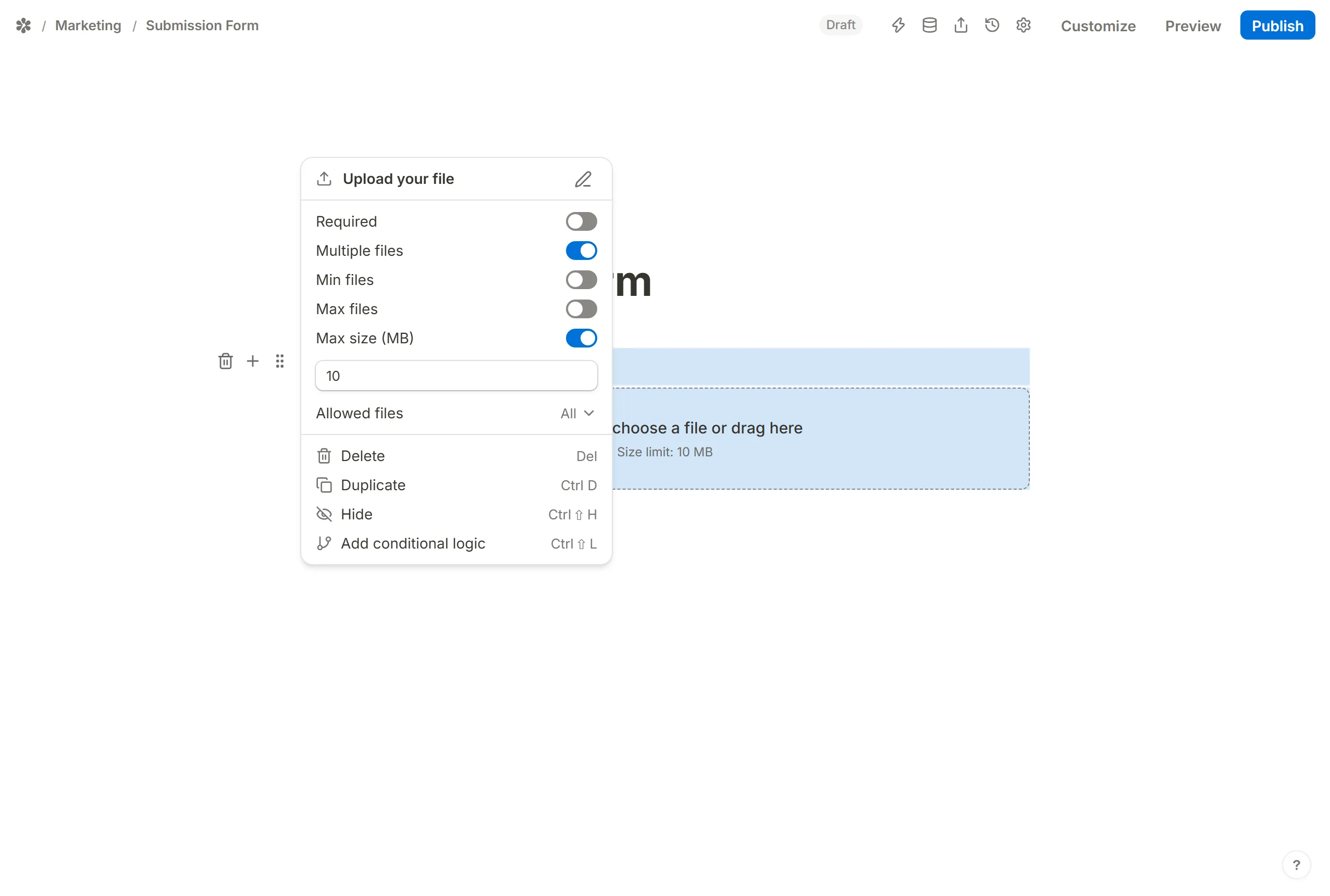
Max size (MB) lowers the limit for this one block. The number you set is drawn in the block on the published page ("Size limit: 2 MB"), and a file over it is refused as it is chosen, with its name in the message.
Restrict file types
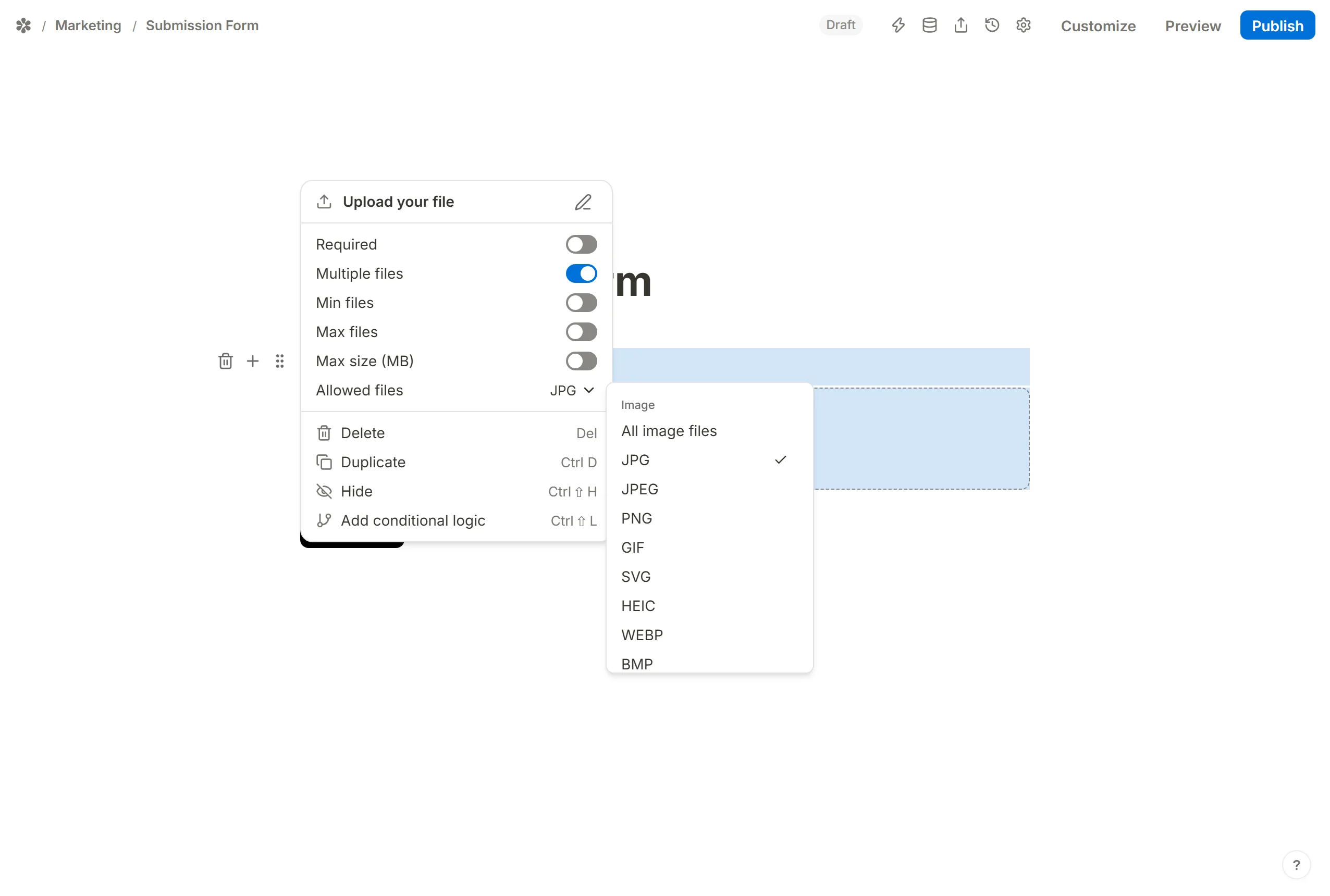
Allowed files narrows what the picker accepts. The list is grouped into Image, Video, Audio, Text and Application, and each group can be taken whole (All image files) or one type at a time (JPG, PNG, PDF, DOCX, CSV, Zip and so on).
The accepted types are named in the block on the published page, and a file of another type is refused as it is chosen: "report.exe is not an accepted file type".
Show or hide based on answers
A conditional logic rule can show or hide the block on an earlier answer: ask for a portfolio only from someone who picked "Freelancer", or for a doctor's note only after a medical absence is confirmed. Hide the block first, then a Show blocks rule brings it back for the right respondents.
Accessing and downloading uploaded files
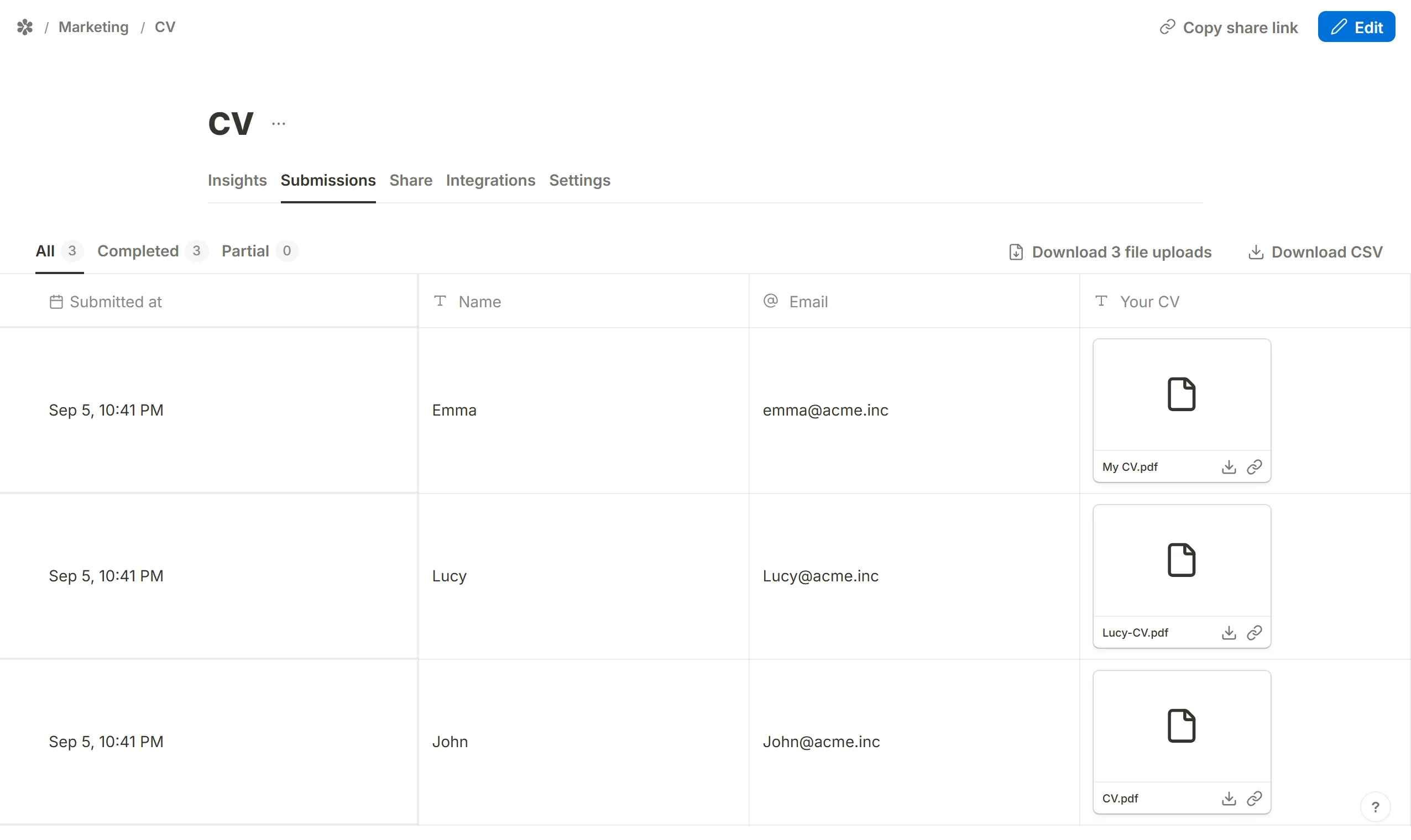
Attachments are listed in the form's Submissions tab, in the column of the question they answer.
- View files. Open a submission and click a file to open it. The link is served by the app to a signed-in member of the workspace; anyone else gets a "not found" page, not a login prompt, so the address confirms nothing.
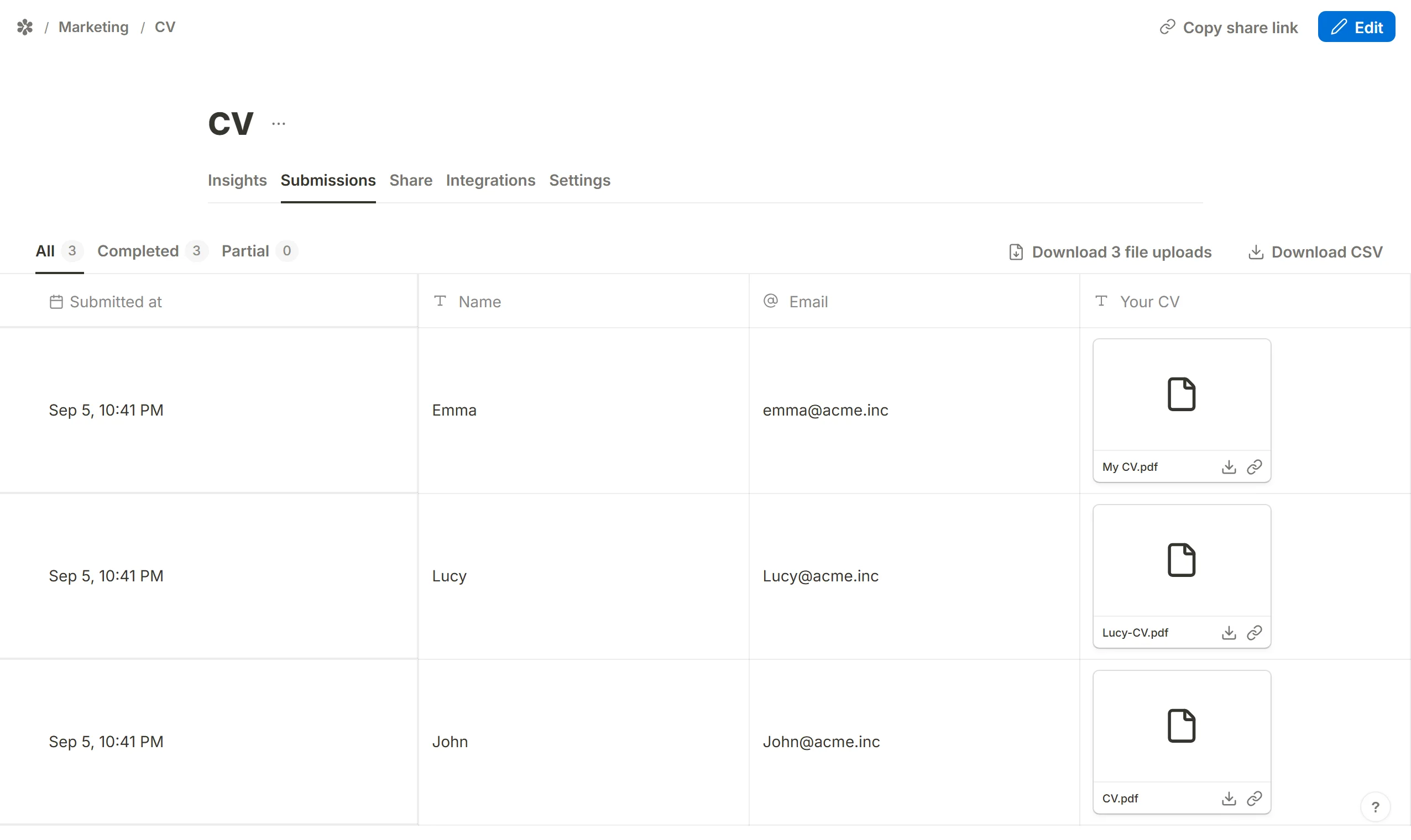
- Download one file. Open it from its cell and save it from the browser.
- Download them all.
Download N file uploadsat the top of the tab bundles every attachment on the current tab (all, completed or partial) into one ZIP.
Templates with a file upload
The gallery at /templates includes a job application form, a bug report form and client intake forms that already carry a File upload block. See How to use and create form templates.
Frequently asked questions
Do respondents need an account?
No. A published form is open to anyone with the link, and attaching a file needs nothing more than choosing it.
What is the largest file a respondent can attach?
10 MB, on every form. No block setting and no plan raises it.
How many files can a question take?
Up to 5. Max files on the block can lower that but not raise it. Across the whole install, storage is bounded by the fair use allowances.
How long are files kept?
For as long as the submission they belong to. Deleting a submission deletes its files from the bucket in the same step, and a retention rule on the form's Settings tab removes old submissions on its schedule. See Control submissions data retention.
Do more
Create Forms with File Upload in Framer and Create Forms with file upload in Webflow walk through the same block inside an embed.