Matrix question
Ask several statements against one set of answers in a grid: build the rows and columns, allow several picks per row, shuffle, and read the answers.

A matrix question is a grid. Each row is a statement or an item, each column is an answer, and the visitor picks one cell per row. Use it where several questions share the same answers: how strongly someone agrees with a series of statements on a Likert scale, or how a set of products rate on quality, price and service.
How it works
Type /matrix to insert the block. The picker describes it as "Use this to group similar questions with the same answer options, where each question can be single or multiple select."

A new grid is three rows by three columns, all empty. Write the statements down the left and the answers across the top. Each cell has a small toolbar on hover: Insert row below and Delete row on a row, Insert column on the right and Delete column on a column. A row or column you leave blank is drawn as "Row 1", "Column 2" on the canvas and on the published page alike, so an unfinished grid never publishes as a set of unlabelled circles.

To reorder, hold the grip on a row or a column and drag it to its new place.
By default a visitor picks one answer per row. To let them tick several, open the block's settings from the handle in its margin and turn on Multiple selection; the settings then also take a minimum and maximum per row.
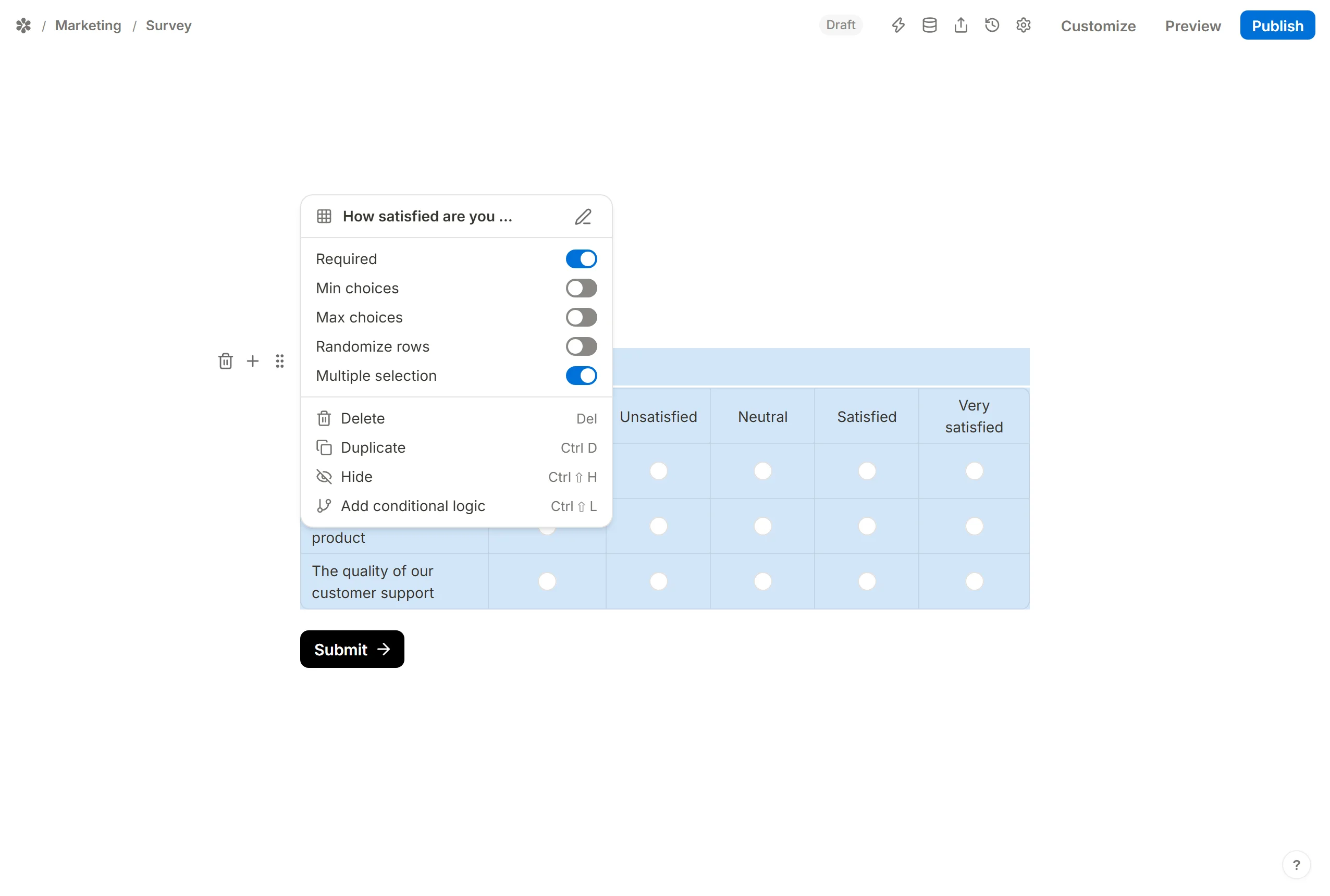
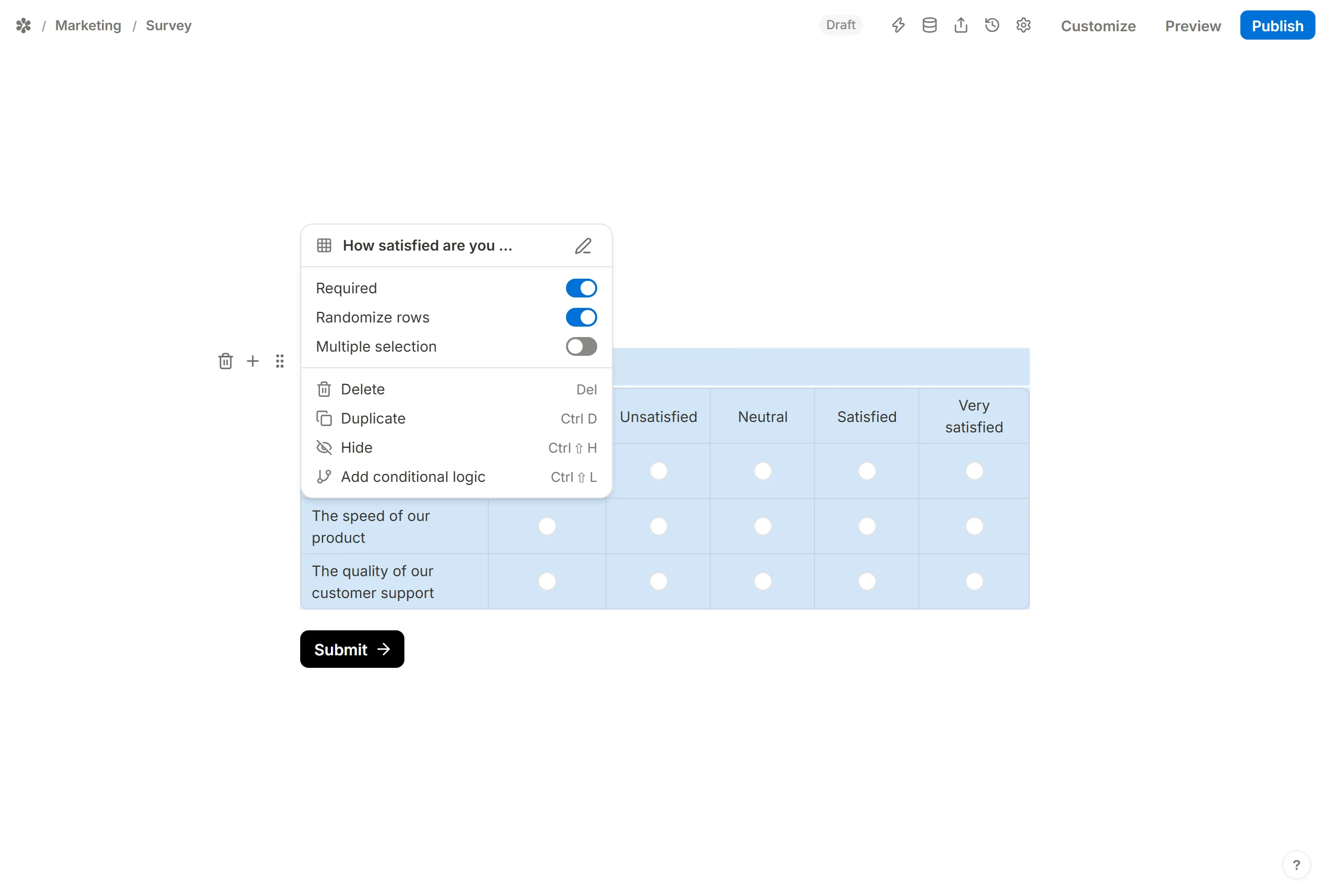
The rows can be shuffled so their order does not lean the answers: turn on Randomize rows in the same settings. The columns keep their order, since a scale that ran backwards for some visitors would not be one scale.
A matrix spans the whole width of the form, so it does not offer the Add title and Add label margin controls a narrower question does; write the question above it in the block's own caption, or in a Text block.
Conditional logic
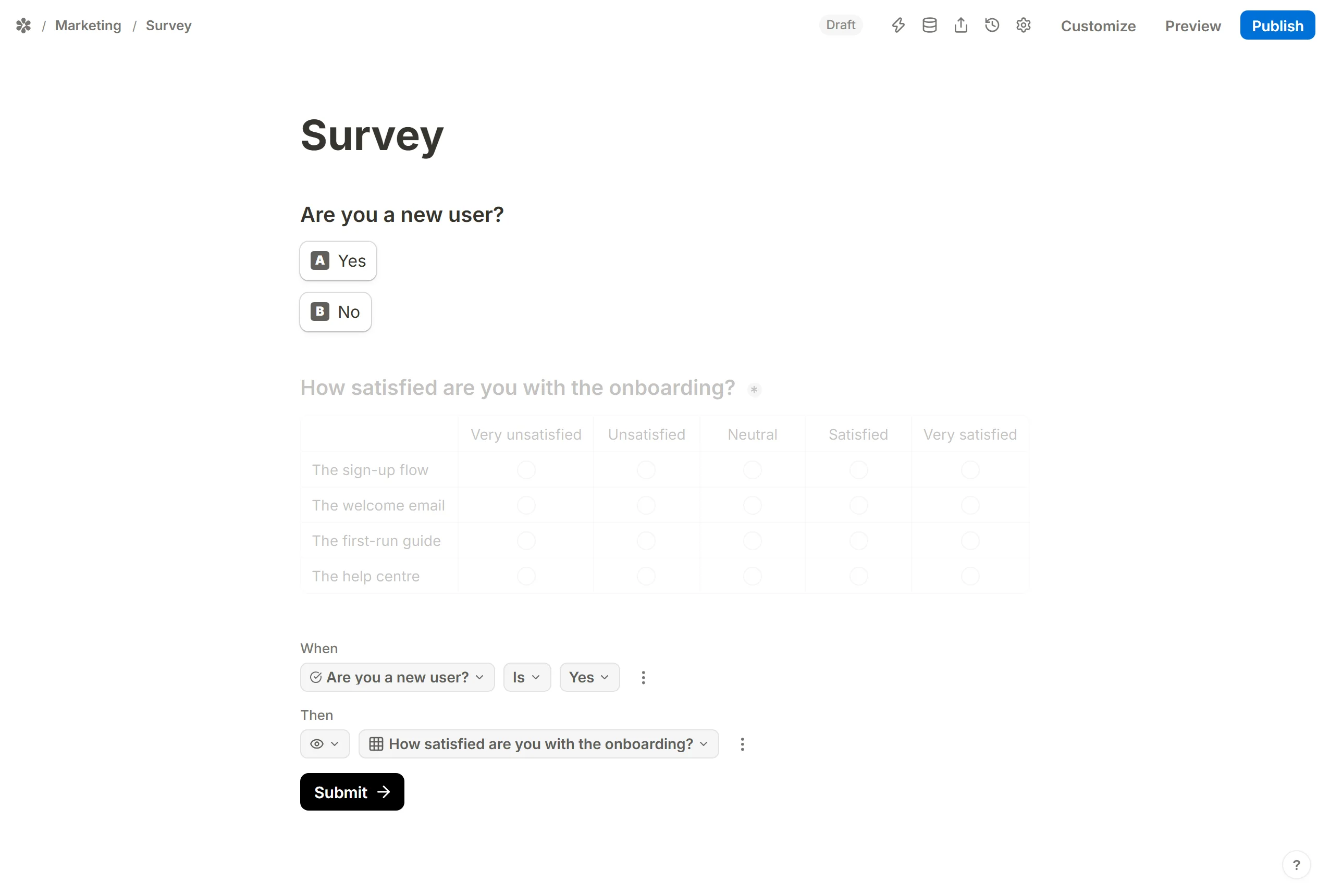
A conditional logic rule can show or hide a matrix as a whole, and can test whether it has been answered with Is empty and Is not empty. Type /conditional to add a rule block and set its steps.
In the example below, a matrix about the onboarding experience is only shown once a visitor has answered "Yes" to "Are you a new user?"; anyone who answers "No" never sees it. Individual rows and columns of a grid cannot be targeted on their own; when one row depends on an earlier answer, give it a matrix of its own.
Formatting text

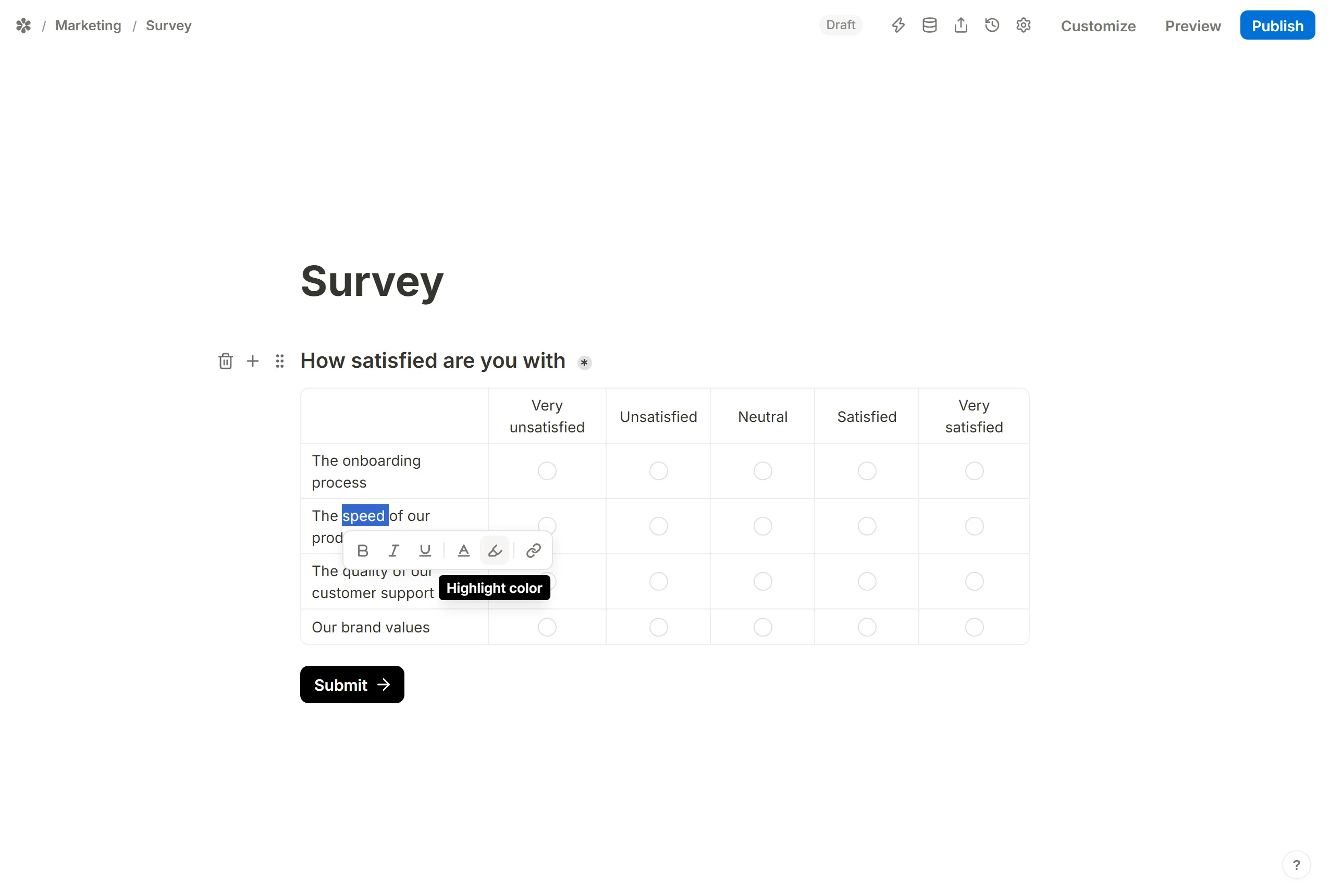
The words in a row or a column header take the same formatting as any other text on the form. Select the text in the cell and use the toolbar that appears: bold, italic, underline, a colour, a link. The formatting is drawn on the published page and does not change what the answer is filed under.
Customizing the design
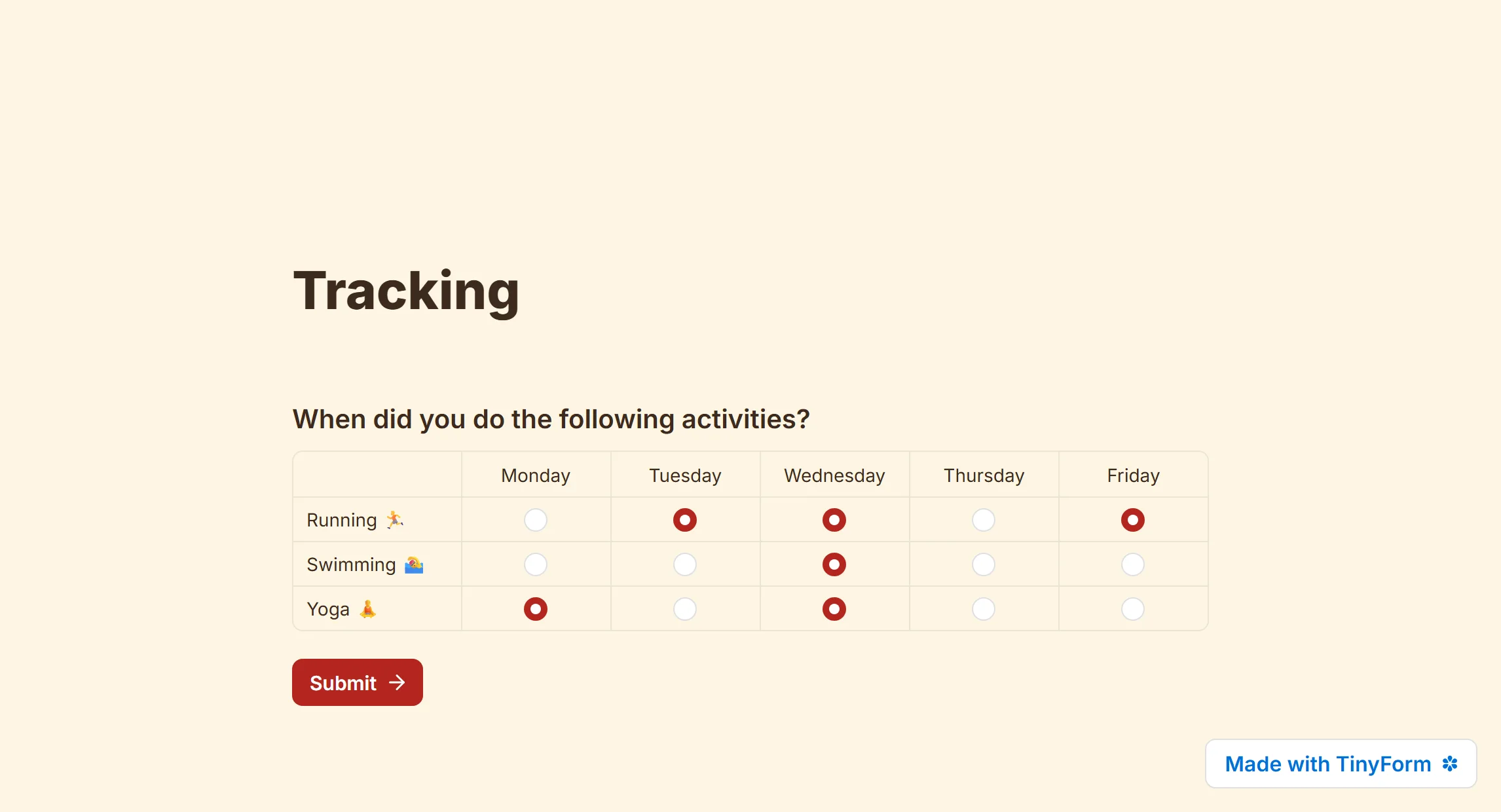
The Customize panel restyles the grid with the rest of the form, and custom CSS reaches anything the panel does not. Emoji in a row or column header work too, as in the example below.
Reading the answers
In the Submissions table a matrix is one column per row, headed with the question's name and the row in square brackets, so each row's answers sort and filter on their own. In the CSV export the whole grid is one cell, written as Row: Column; Row: Column. The Insights tab draws one bar chart per row, counting how that row's answers fell across the columns.
Templates
Several of the form templates in the gallery at /templates carry a matrix already built. Use one as a starting point and edit the rows and columns to suit.