Redirect on completion
Send respondents to another page once they submit, and build the address from their answers so one form can hand off to the next.
When a respondent submits, the form can send them somewhere else instead of showing a thank-you page: a page on your site, or another form. The address can carry answers, hidden fields and calculated values, which is how Tinyform passes data from one form into the next, or into a page that expects a query string.
Set up a redirect
Open the Settings tab
On the form's page, open
Settingsand findRedirect on completionunderGeneral. Its description reads: redirect to a custom URL when the form is submitted.Switch it on
A box labelledURLappears under the row.Enter the address and save
Type the full address, starting with
https://, and pressSave.
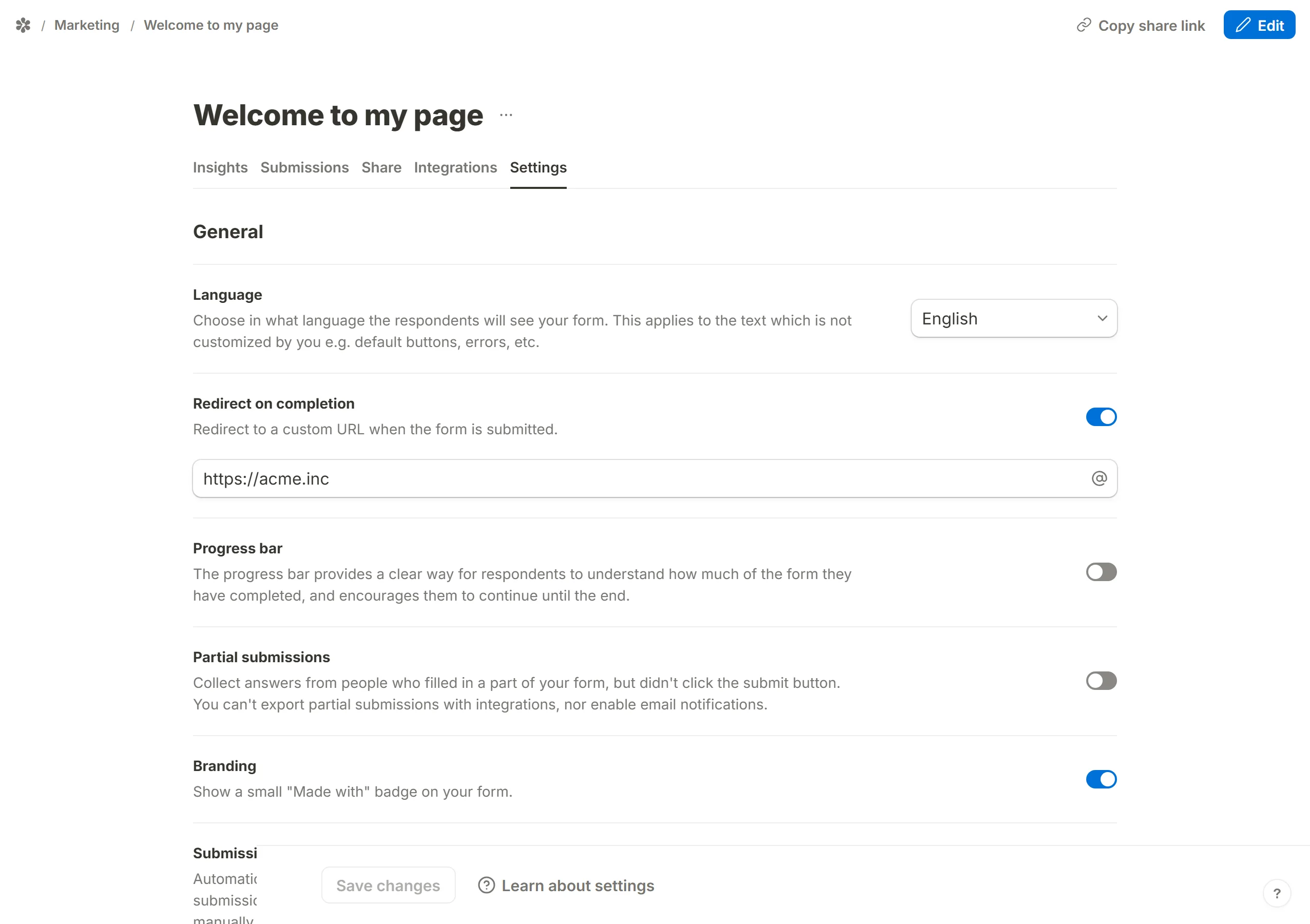
Only http:// and https:// addresses are accepted. An address with a username or password in front of the domain, a protocol-relative //host address, or one with a line break in it is refused when you save, with a message under the box saying why, and refused again at submit time as a second check.
Build a dynamic redirect
The address does not have to be fixed. It can quote what the respondent answered, so the destination knows who is arriving.
How it works
Type @ inside the URL box. A menu lists what can be inserted; pick one and it becomes a chip in the address.
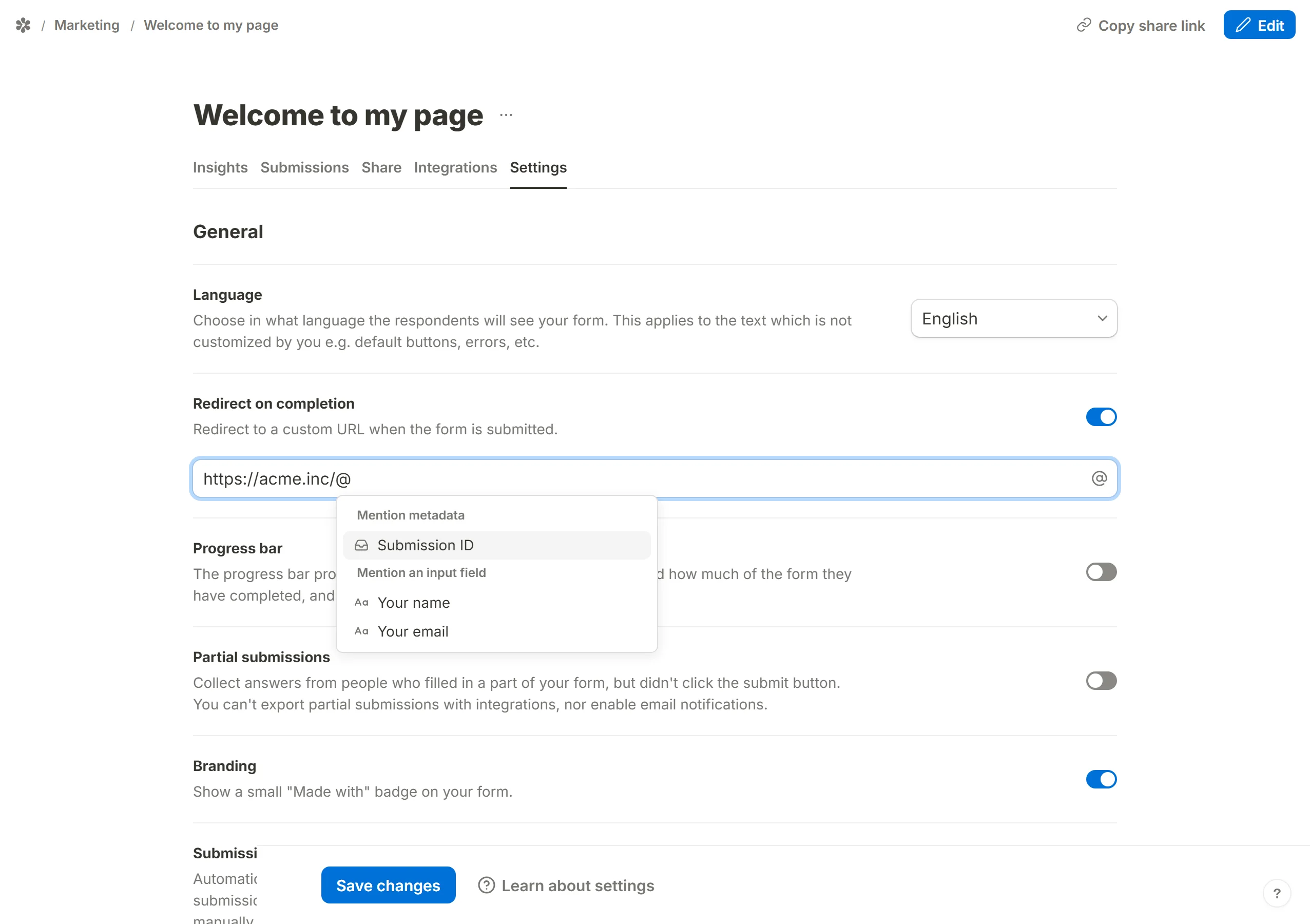
The menu offers:
Submission ID, the id the response is filed under- Input fields, meaning any question in the form
- Calculated fields
- Hidden fields
Each mention is escaped for the part of the address it sits in, so an answer containing &, / or a space cannot break the link or grow it a path it was not given. A question left unanswered arrives as an empty value (?email= rather than no email at all), and clicking the chip lets you set a default to send instead.
Kinds of redirect you can write
- An answer as part of the path:

- Answers as query parameters, which a second form can pre-fill from:

- An answer as the domain part of the address (only the characters a hostname can hold are kept):

- A whole address chosen by the answers, through a calculated field, as the guide below shows:
Inside an embed
When the form is embedded on another site, the redirect moves the form's own frame, not the page around it. A host page that wants to navigate as a whole says so on its iframe with data-tinyform-redirect="top"; the frame posts the destination to the page first either way. See Embed your form.
Redirect to different pages depending on the answers

To send respondents to different sites, landing pages or forms depending on what they chose, combine conditional logic with a calculated field. Hidden blocks can collect a little more before the respondent leaves, which turns the form into something like a small landing page.
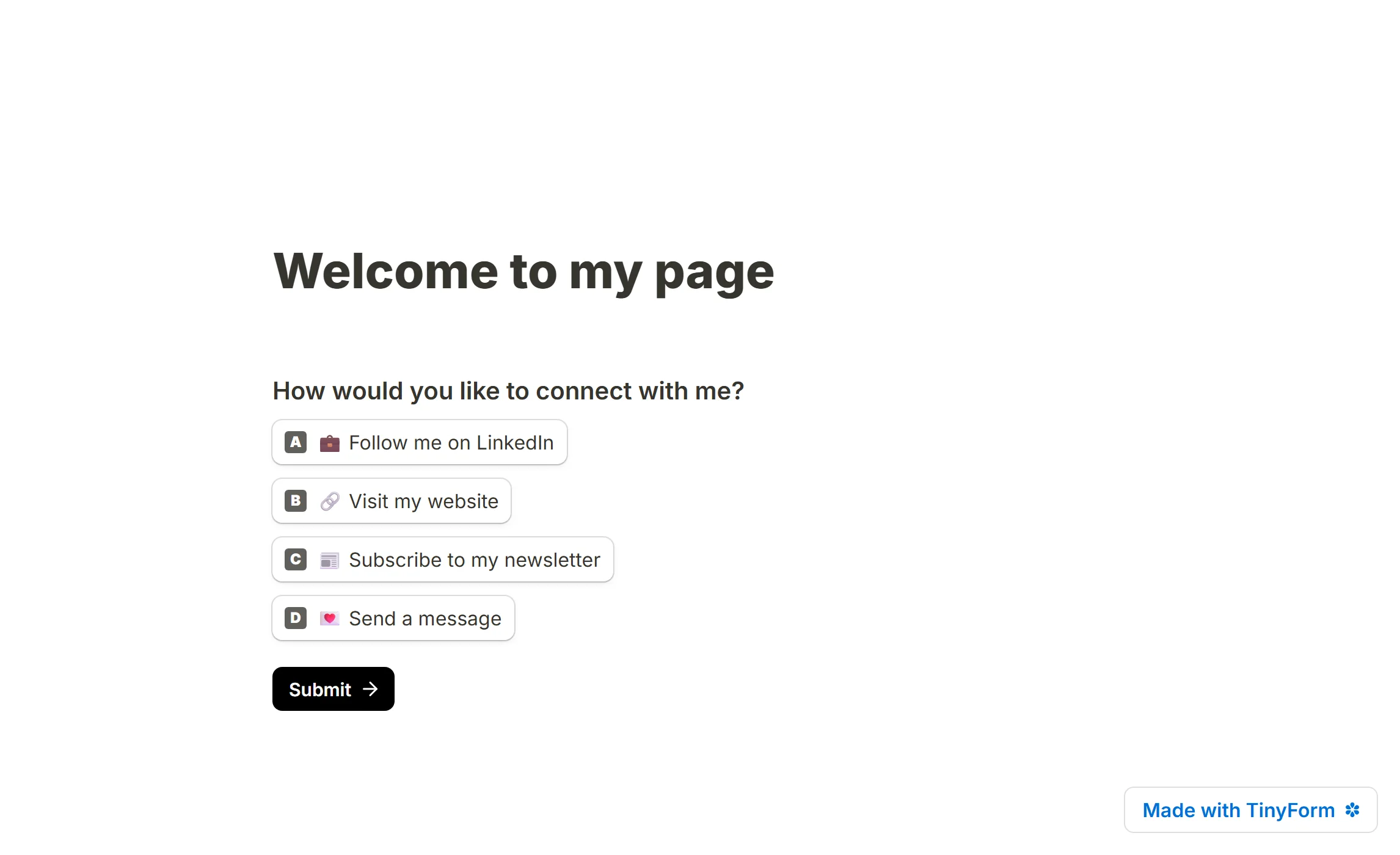
Ask the question
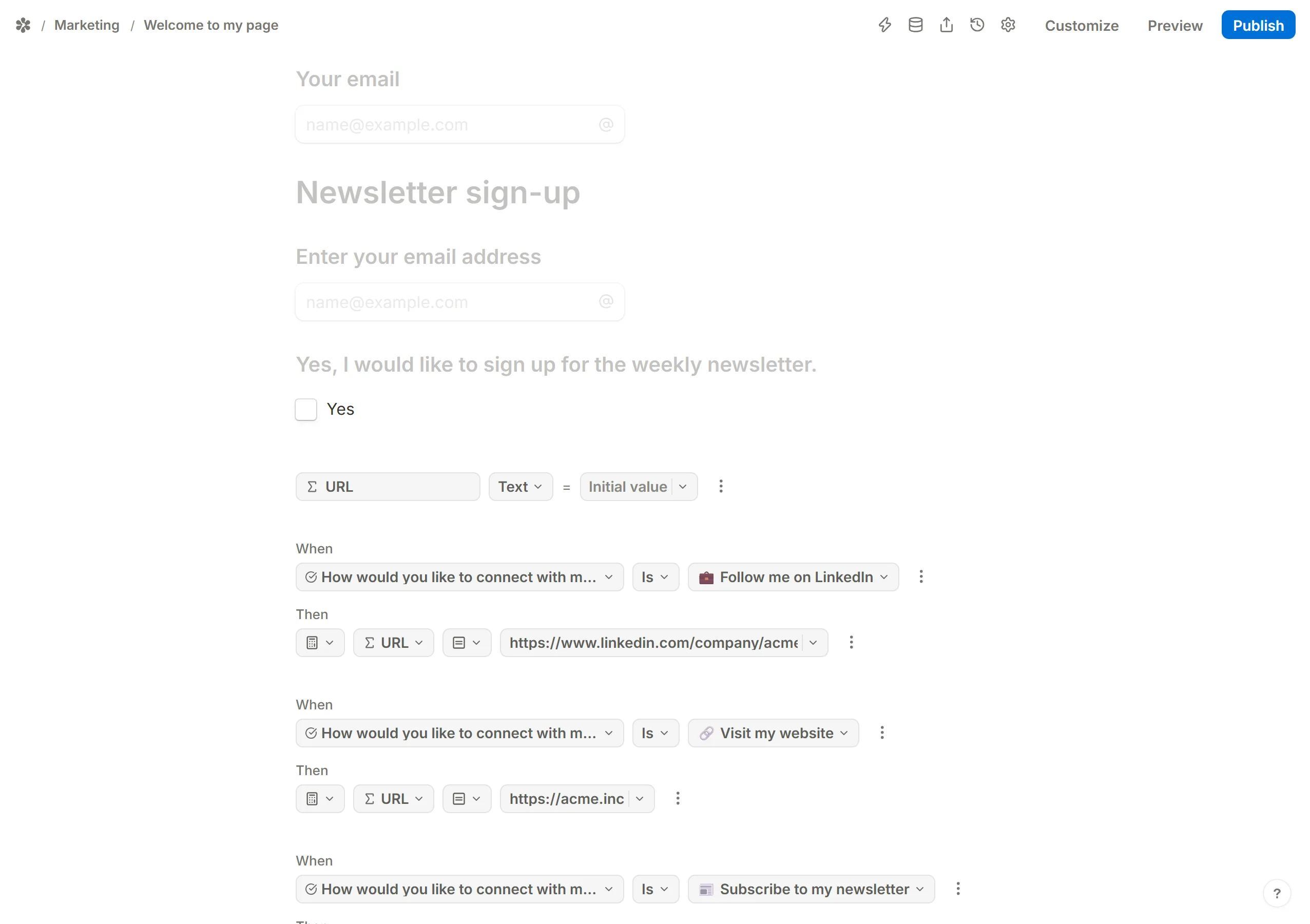
Start with a Multiple choice question (checkboxes work too) whose options are the actions you want visitors to take. Add as many as you like.
If some options should collect something before leaving, add the input blocks for them. The example adds:
Long answer,Short answerandEmailblocks, for the message- A title, an
Emailblock and aCheckbox, for the newsletter
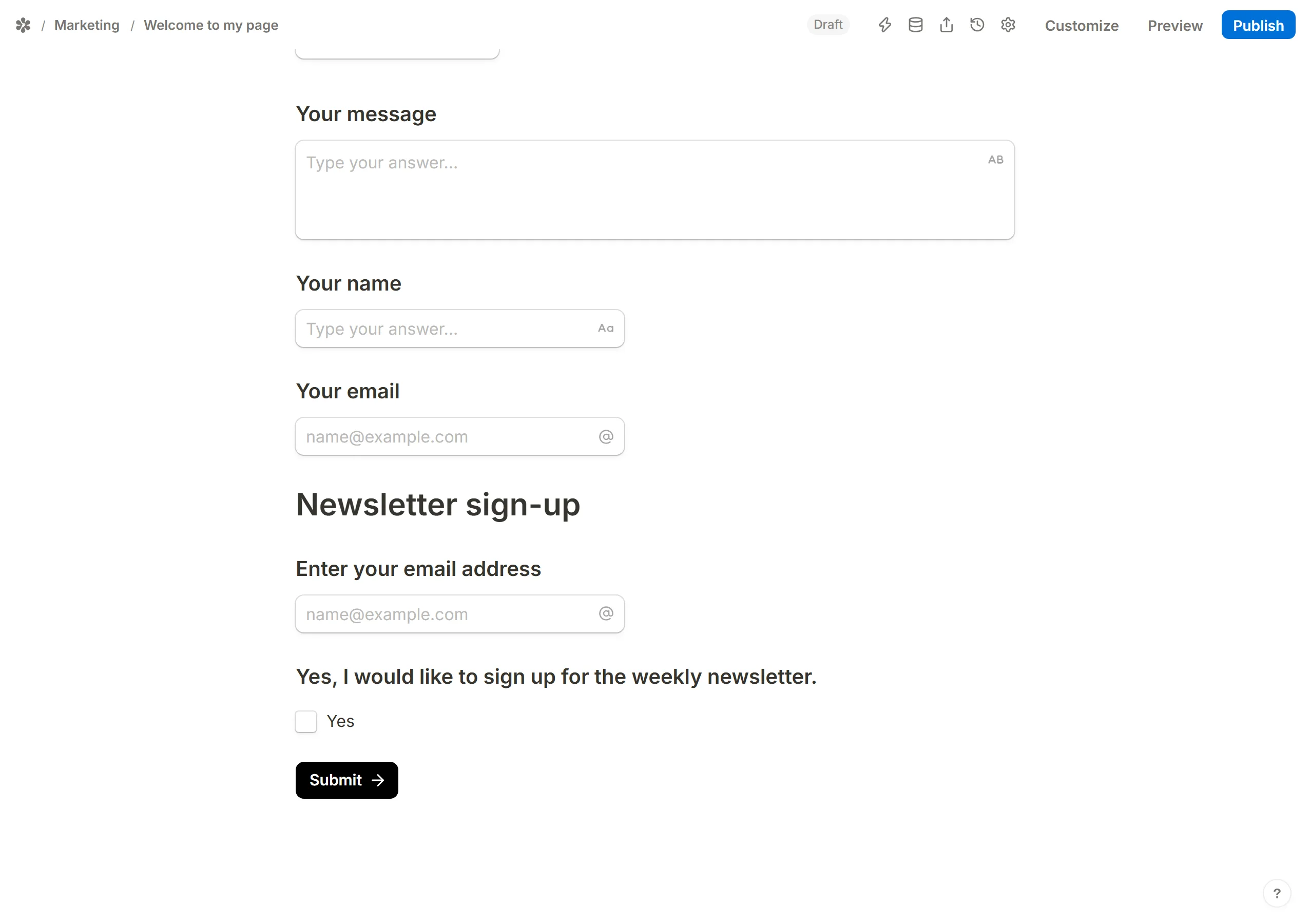
Place those blocks directly under one another and switch on Hide for each of them in its settings. A hidden block stays out of sight until a logic rule shows it.
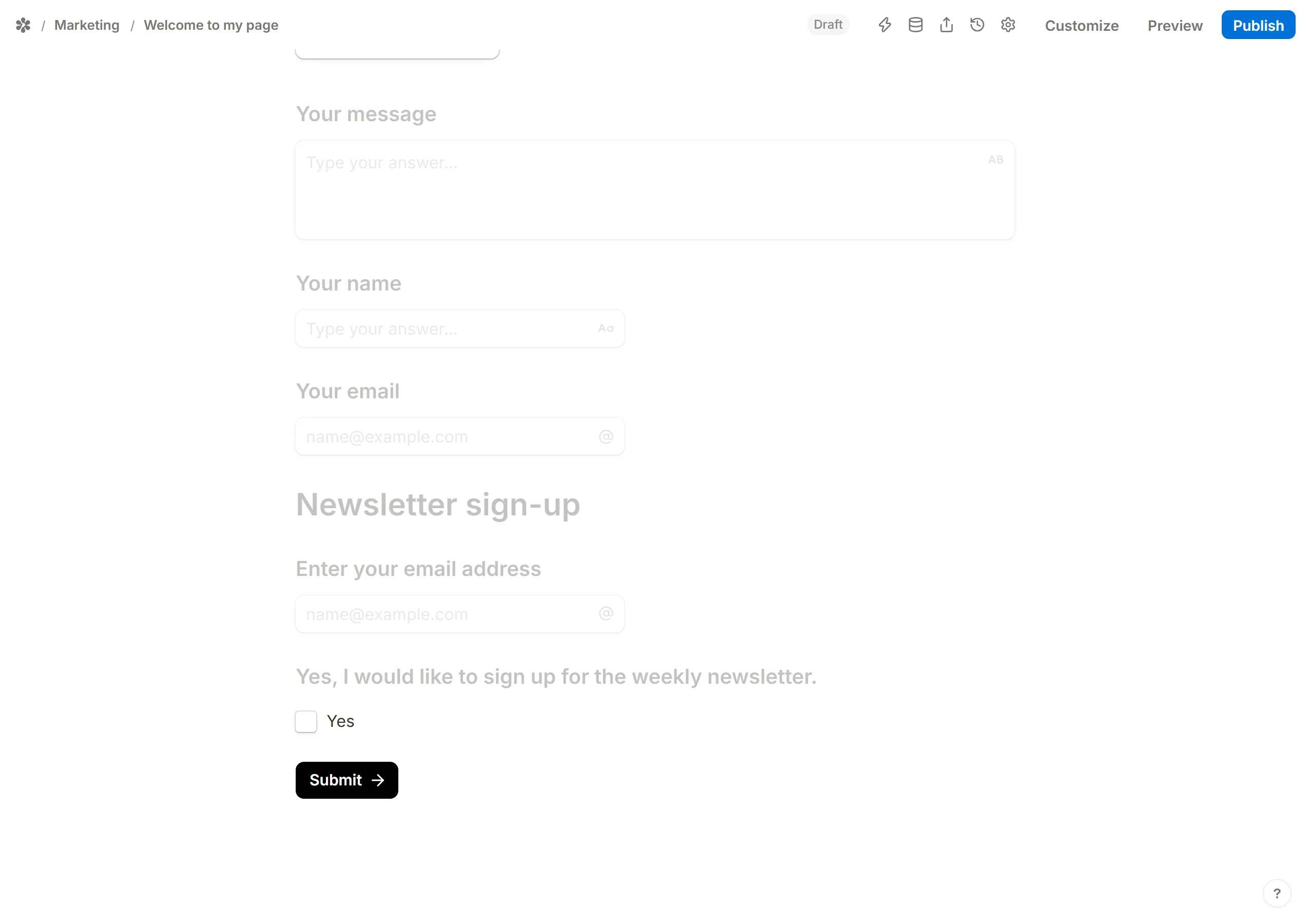
Add the calculated field
Below the hidden blocks, insert a Calculated field. It is the field the redirect will mention.
- Give it a
Field nameyou will recognise, such as "URL" - Pick
Textas the type - Leave
Initial valueempty
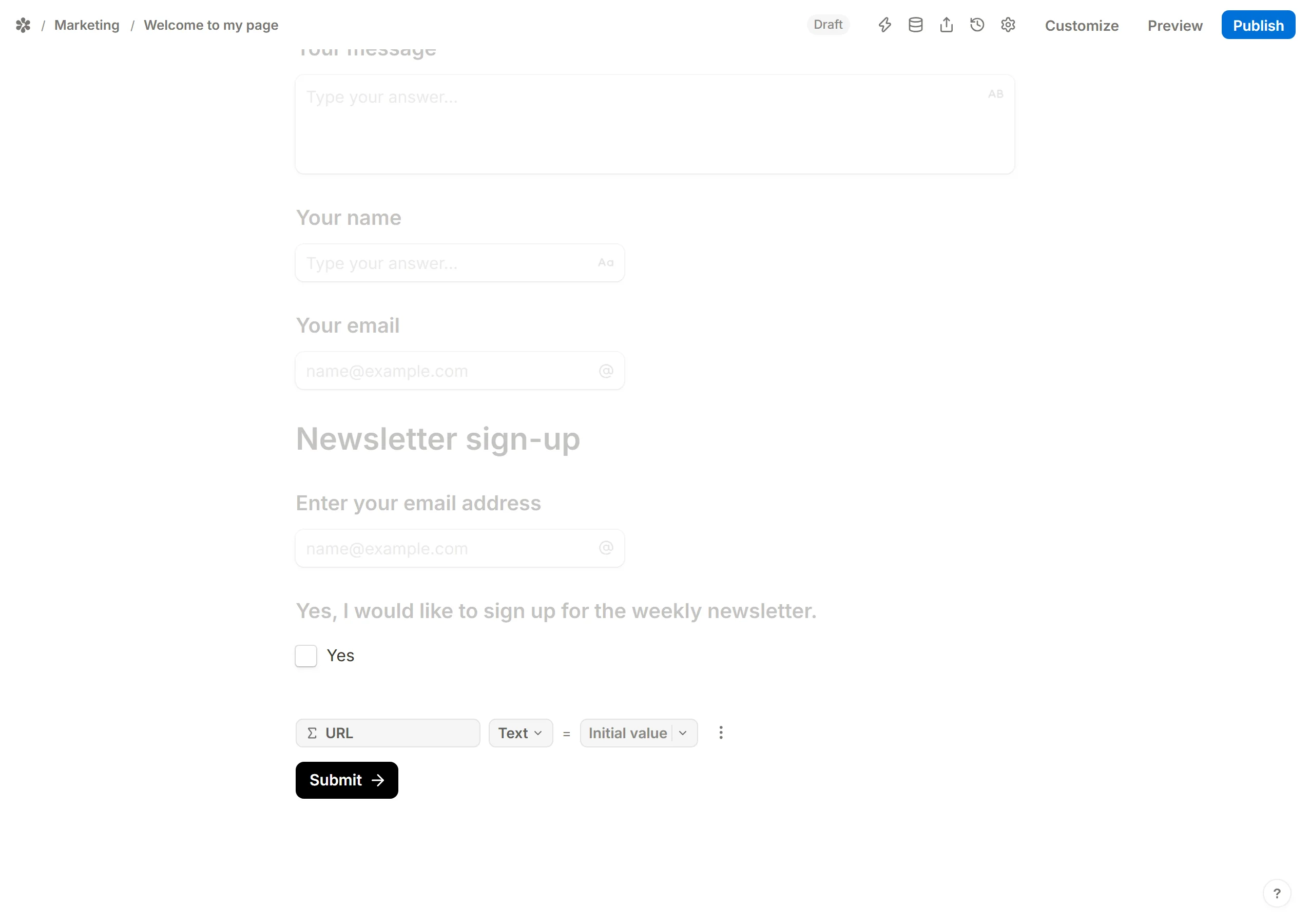
Add a logic rule per destination
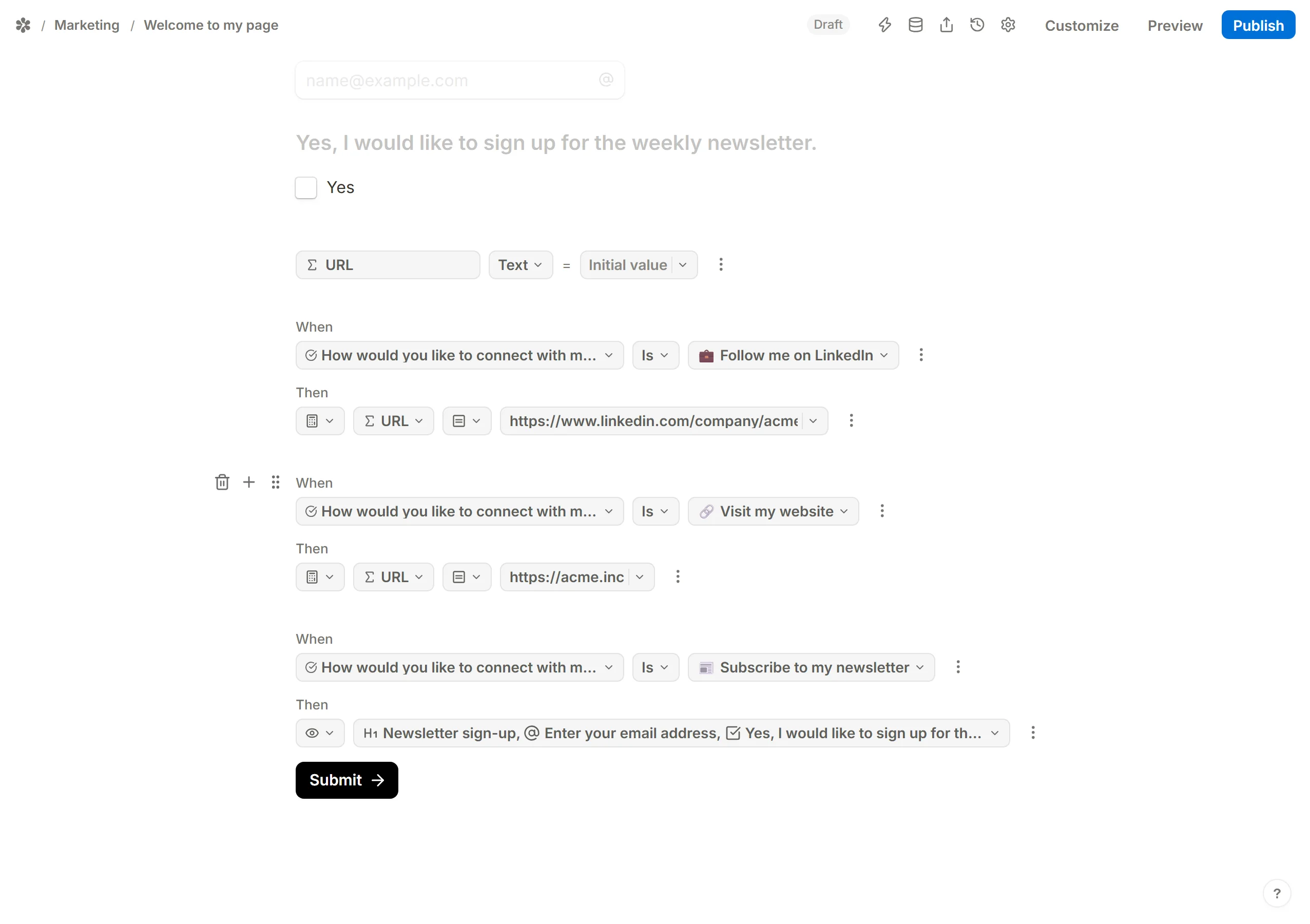
Under the calculated field, add one conditional logic block for each option that leads somewhere. For the first, "Follow me on LinkedIn":
- Insert a logic block (
/logicfinds it) - In the first dropdown, pick the question ("How would you like to connect with me?")
- In the option dropdown, pick the answer ("Follow me on LinkedIn")
- For the action, choose
Calculate, pick the "URL" field and theAssignoperation - In the value box, paste the address to send them to
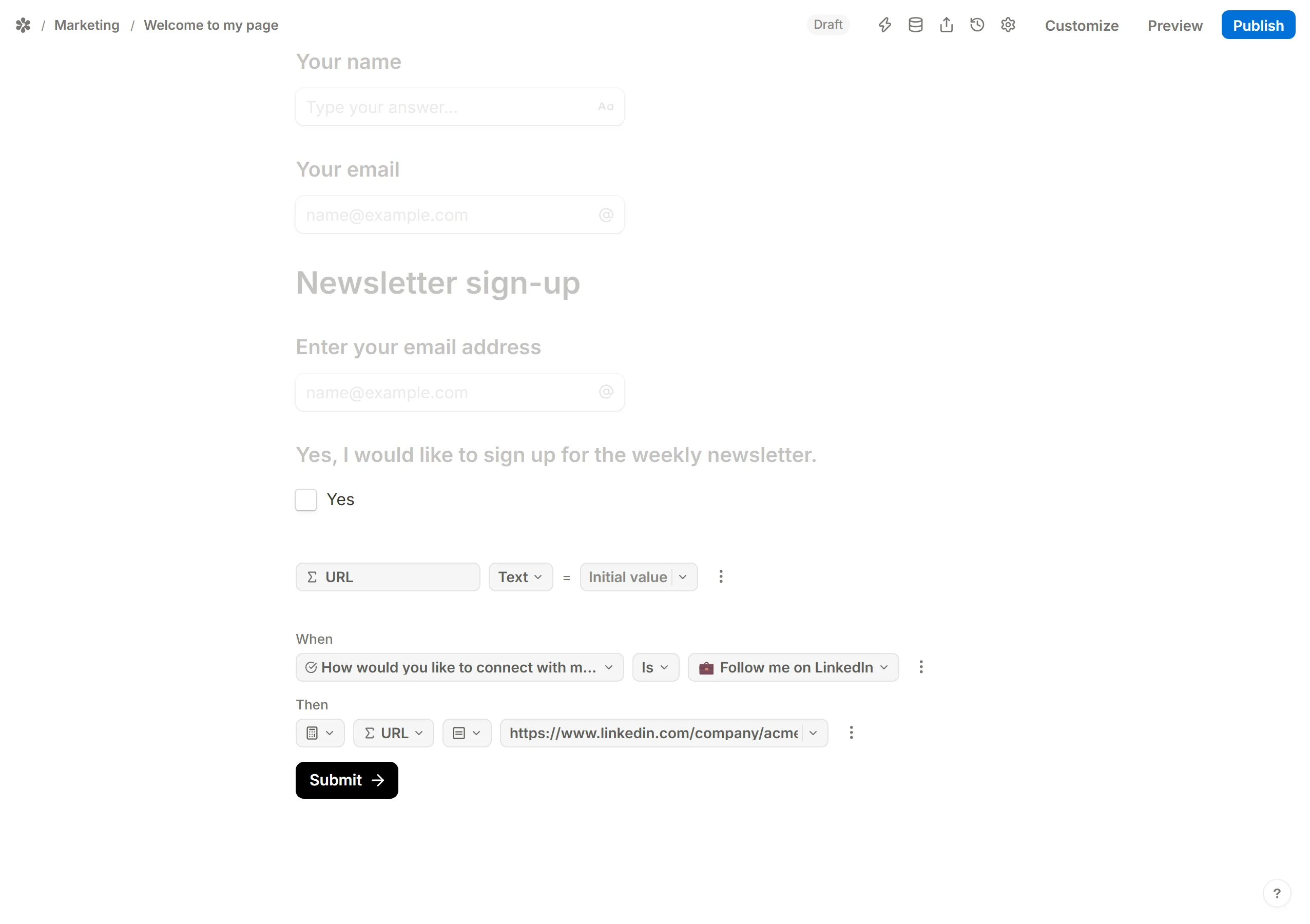
Repeat for every option that redirects. Duplicating the logic block from its menu, or copying and pasting it, is quicker than building each one; then change the option and the address. The example adds one for "Visit my website".
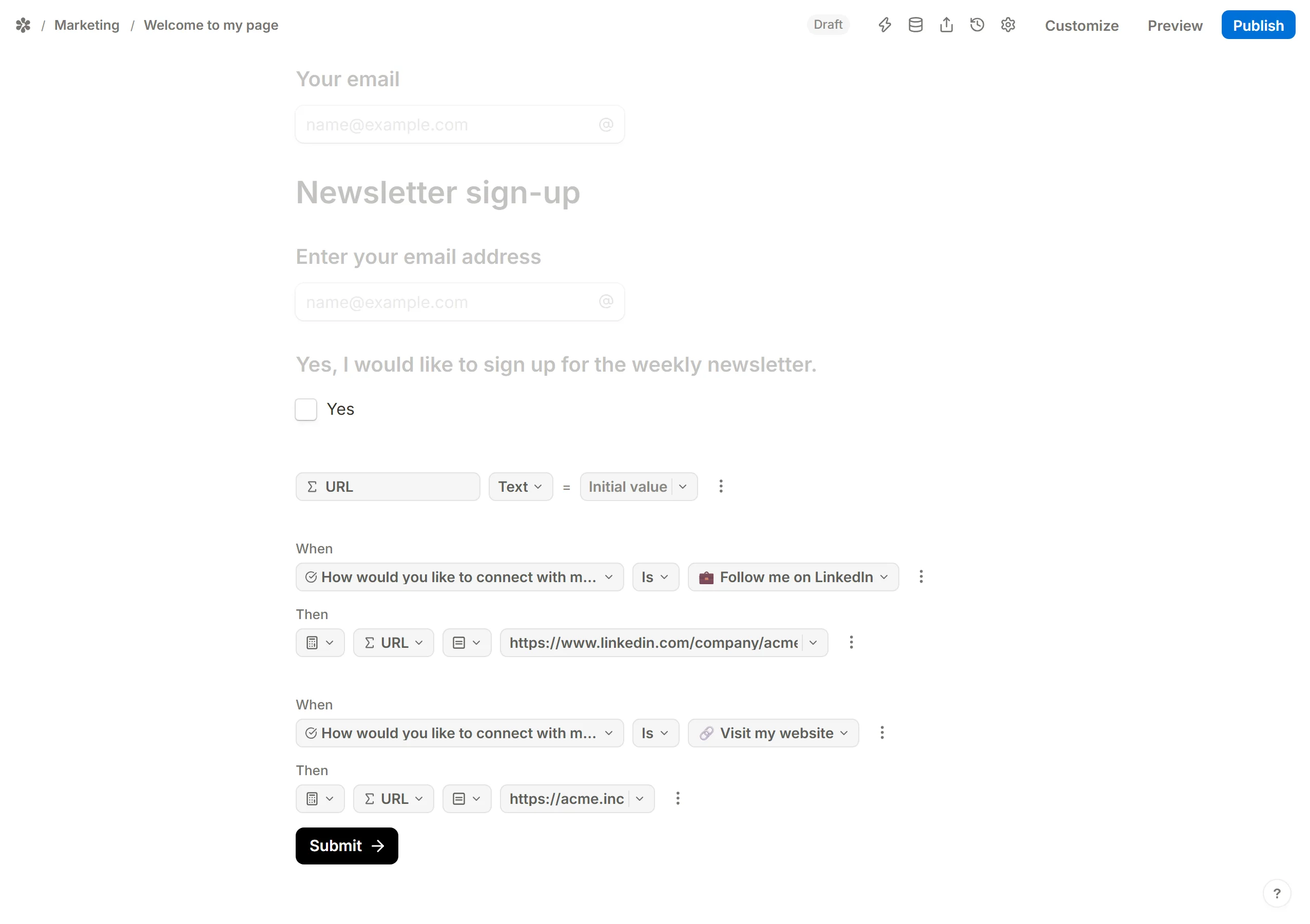
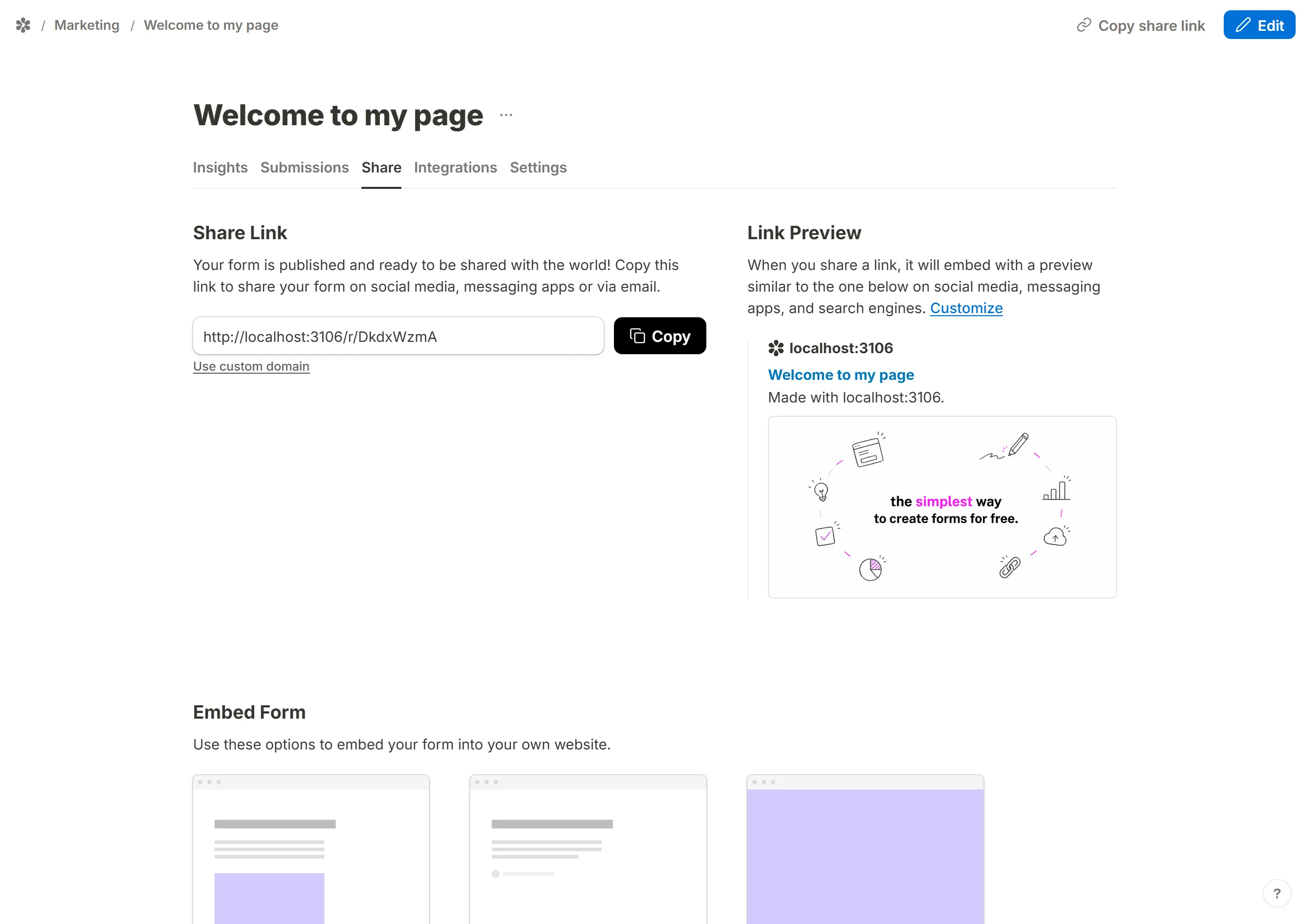
To send someone to another of your forms, the address is that form's public link, found on its Share tab once it is published. Assign it the same way.
Add a logic rule per hidden block
For the options that reveal blocks rather than redirect:
- Insert another logic block, or paste a copy
- Pick the question and the answer ("Subscribe to my newsletter")
- For the action, choose
Show blocks - In the second dropdown, tick every hidden block that option should reveal
In the example, that is the newsletter title, the email box and the consent checkbox.
Repeat for the other revealing options. The example shows the contact-form blocks when "Send a message" is chosen.
Check it in Preview
Press Preview and try each option:
- Temporarily mention the calculated field somewhere in the form with
@, so you can watch the address change as you click through the redirecting options. Remove the mention before sharing the form. - Click the revealing options and confirm their blocks appear.
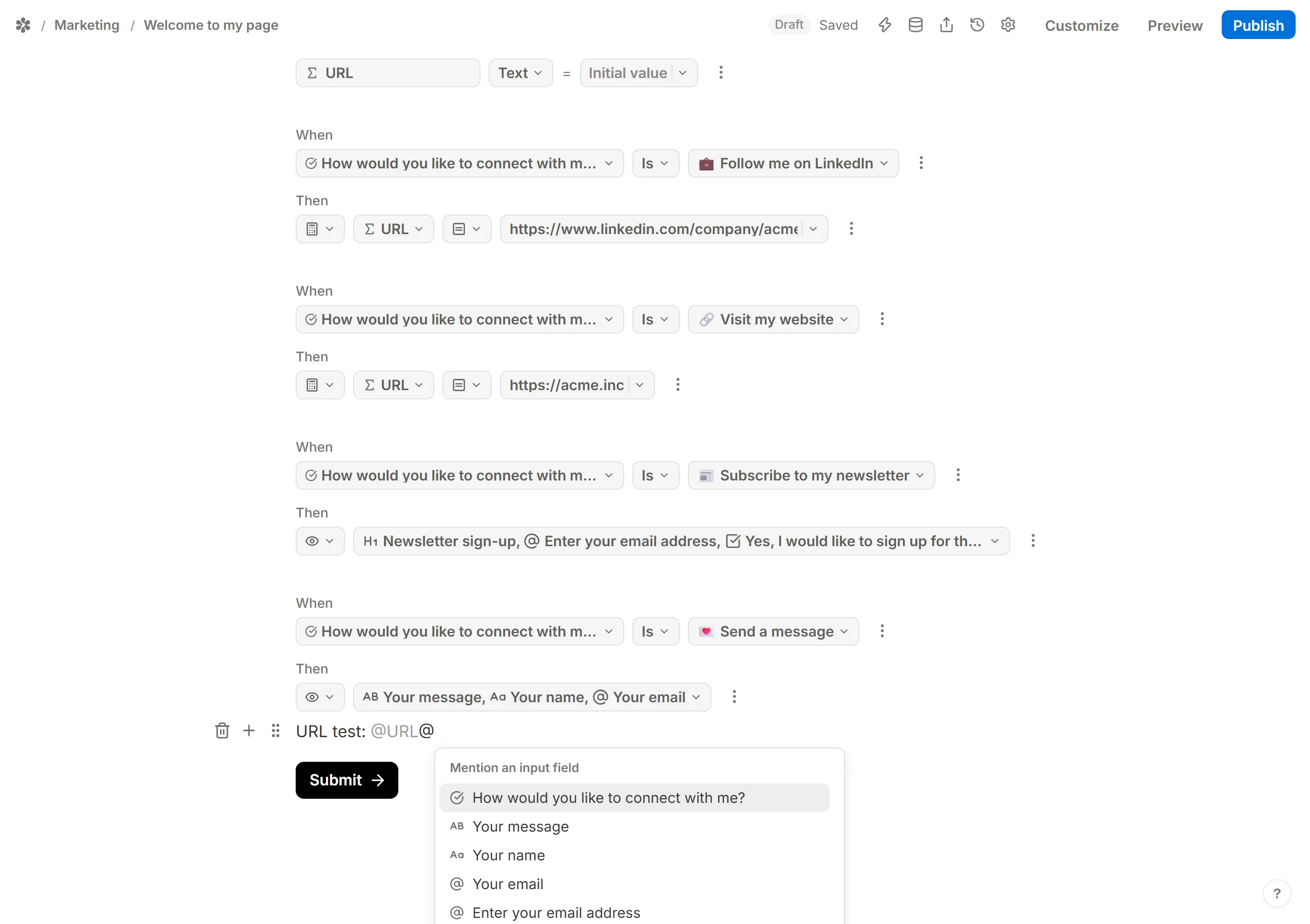
Every hidden block should appear on its option, and the mention should update on every redirecting option. When it does, publish the form.
Point the redirect at the field
The last step is the redirect itself:
- Open the form's
Settingstab - Switch on
Redirect on completion - In the
URLbox, type@and pick the calculated field ("URL") from the menu - Press
Save
The form now sends each respondent to the address their answer assigned, and shows the extra blocks to the ones who asked for them. Each answer is counted on the Insights tab like any other question, so you can see how many respondents chose each route.