Calculated fields
Add a field the form computes itself, from prices, quiz points or text, and show or send the result anywhere an answer goes.
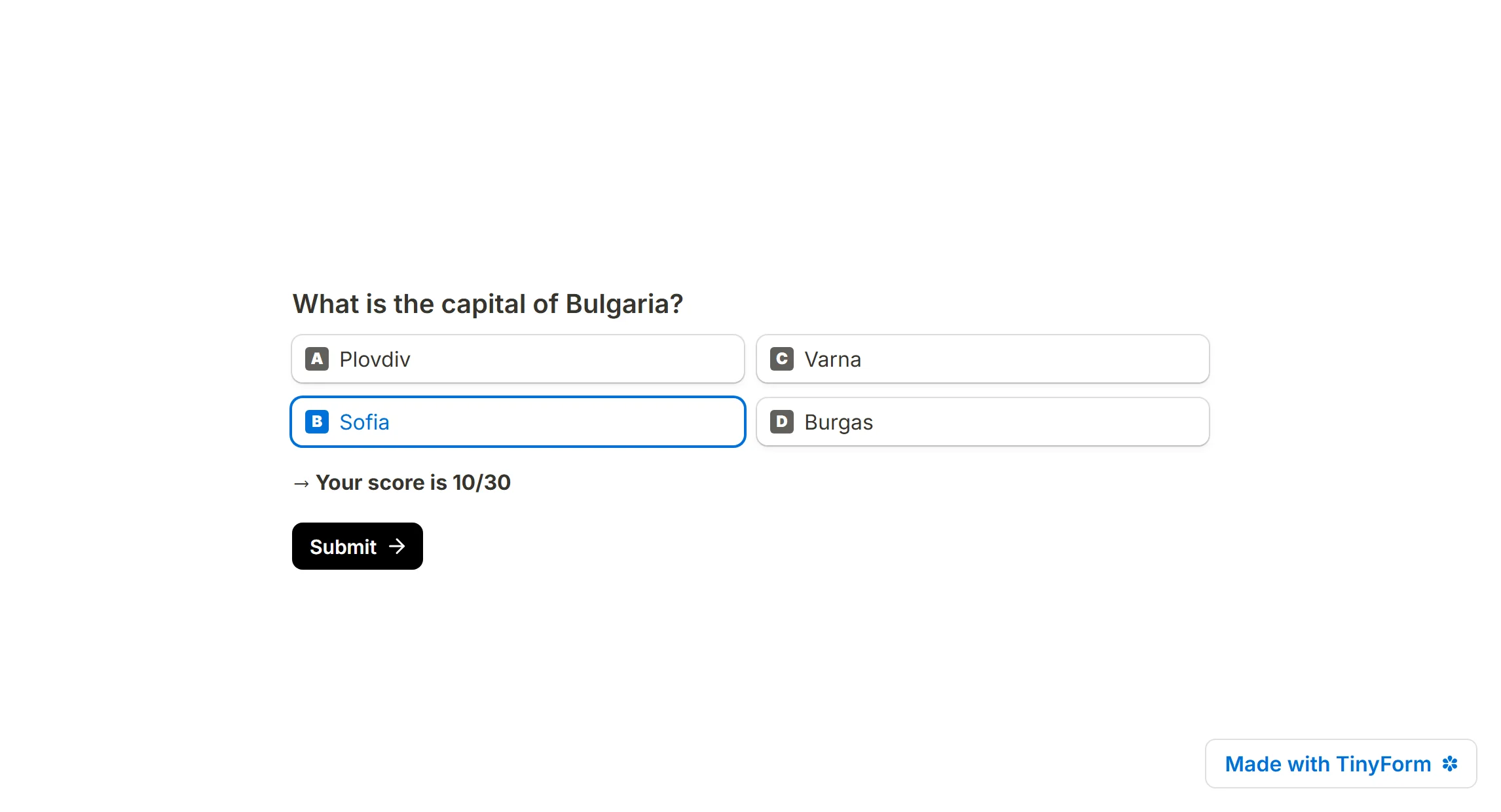
A calculated field is a value the form works out on its own while it is being filled in: a running total, a quiz score, a lead grade, a full name stitched from two boxes. It starts from an initial value, changes when a conditional-logic rule tells it to, and is stored with the submission like any other answer. Tinyform evaluates it live, so a result can be shown on the page before the respondent has pressed submit.
What people build with them
- A price calculator. The total updates as the respondent picks products, quantities and extras.
- A scored quiz. Each correct answer adds points, and the thank-you page shows the score. See How to create a free quiz.
- A personality or category quiz. Points accumulate per category and the form jumps to the matching result page. See How to create a free personality quiz.
- Lead qualification. A label such as "Hot lead" or "Nurture" is assigned from the answers and travels with the submission to whatever reads it next.
- Text joined from several boxes. First name and last name become one "Full name"; an order id gets a prefix.
- A redirect that depends on the answers. A text field holds a URL chosen by logic, and Redirect on completion mentions it.
Create a calculated field
Open the insert menu and pick Calculated field from Advanced blocks (/calculated on an empty line finds it too). It is usually easiest to keep calculated fields together near the top of the form, where you can find them.

Name it
Type aField name. This is the name you will pick from the@menu later, so make it say what the value is: "Total", "Score", "URL".Choose the result type
Select typeoffersNumberandText. A number can be added to and multiplied; a text can be assigned and joined.Set the starting point
Type anInitial value, or leave it blank. A quiz score starts at 0; a text label starts empty.
Press Add calculated field inside the block to add another one alongside it. Respondents never see this block; it exists only in the editor and in your results.
Change the value with conditional logic
A calculated field does not change on its own. A conditional logic block reads an answer and, when the condition holds, performs a Calculate action on the field. Insert one below the calculated field (/logic finds it), pick the question and the answer to test, choose Calculate, pick the field, and choose what to do to it.

The Calculate action offers six operations:
Number operations
Adda valueSubtracta valueMultiplyby a valueDivideby a value
Text operations
Assigna value. The field takes the text you give it: a status, a category name, a URL. Nobody sees it unless you mention it somewhere in the form, but it is in the submission, the CSV and any webhook payload.Formula, which for a text field is how you join pieces together (see below). To use it that way the field's type has to beText.
Formulas
Formula lets you write one expression instead of chaining several logic steps. Press Edit formula to open the editor. It has a toolbar with Add, Subtract, Multiply, Divide, Open group and Close group, and the hint Type @ to reference a field says how to pull another field in. The formula is checked as you type: a token the parser cannot place is underlined, and the message under the box says what went wrong.

What a formula can contain: numbers, text in double quotes, @ references to fields, the four operators + - * / (the editor shows multiply and divide as × and ÷), and parentheses for grouping. There are no functions and no comparisons; anything else is reported as an error rather than treated as zero.
| Use case | Formula |
|---|---|
| Add 5% tax | @price * 1.05 |
| Total for a quantity | @price * @quantity |
| Price after a discount | (@price * @quantity) - @discount |
| A discount percentage the respondent chose | @price * ((100 - @discount) / 100) |
| A fixed 20% off | @price * ((100 - 20) / 100) |
| A quiz score | @score_q1 + @score_q2 + @score_q3 |
| A link built from an answer | "https://example.com/" + @page |
| First and last name | @first_name + " " + @last_name |
| A prefixed reference | "ORD-" + @order_id |
| An address on one line | @street + ", " + @city + ", " + @country |
| A certificate line | @first_name + " " + @last_name + " has completed " + @course_name |
Tips:
- Reference a field with
@and the autocomplete; do not type its name by hand. - Type a bare number or a quoted text only for something the form does not collect.
- Use parentheses to control the order of operations.
- Put literal text inside double quotes, as in
"https://example.com/" + @page.
Use the result
A calculated field is stored under its own name, so it is a column on the Submissions tab, a column in the CSV export, and a Calculated fields row on Insights (drawn as "name = value"). Beyond that, the result can be shown to the respondent or handed on.
Show it in the form
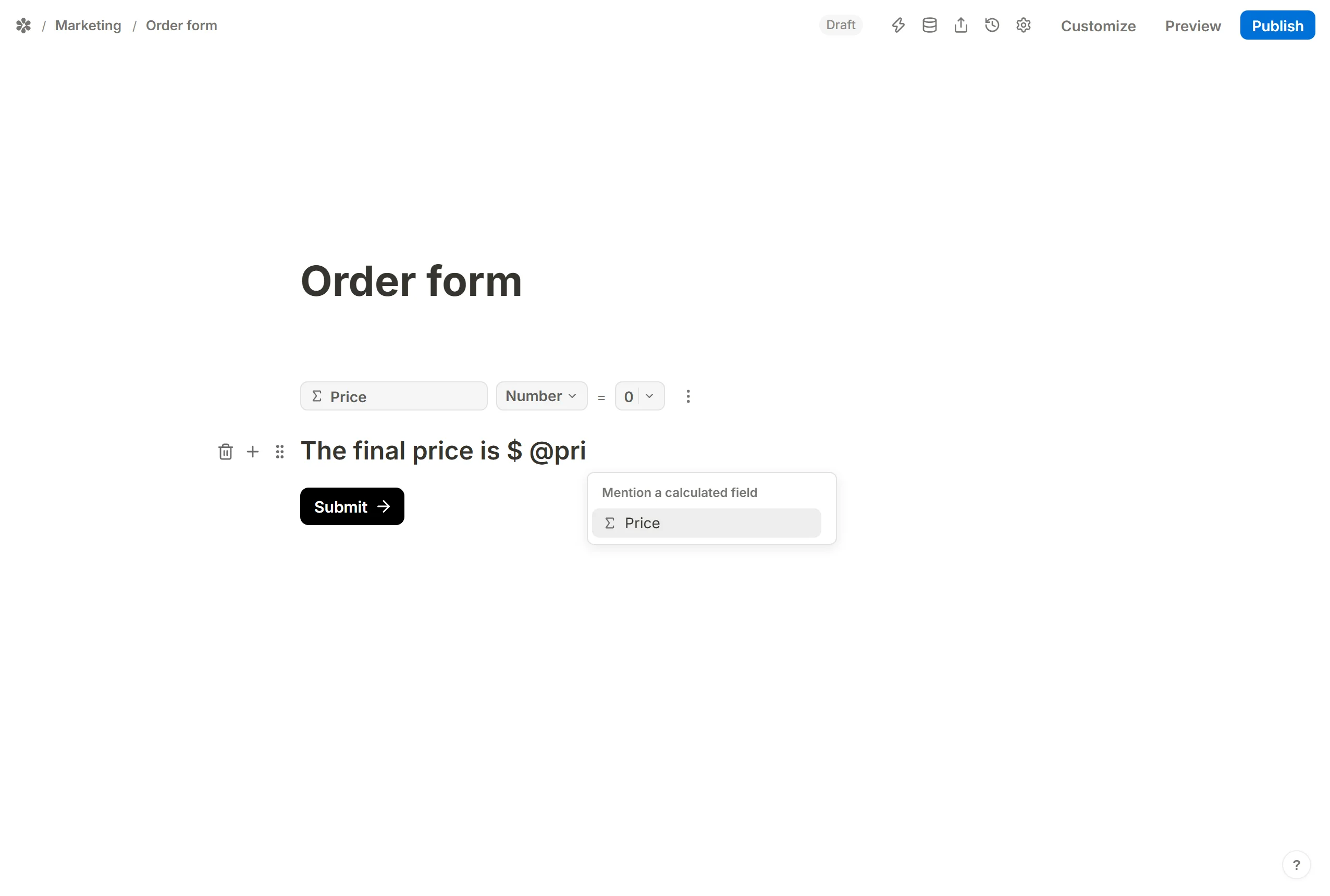
Type @ in any text and pick the field under Mention a calculated field. That is how a final price, a score or a quiz result appears on the page, and it updates as the answers change. For a currency, type the symbol directly before the mention.
Redirect to different pages
To send respondents to different addresses depending on what they answered, keep a Text calculated field, let one logic rule per answer Assign a URL into it, and mention the field in Redirect on completion on the Settings tab. Redirect on completion walks through the whole setup, including hidden blocks that ask for more before the respondent leaves.

Put it in an email
Both email composers on the Settings tab accept @ mentions, so a calculated field can appear in the subject or body of the owner's notification and the respondent's confirmation. See Dynamic email notifications.
Frequently asked questions
Can I build a calculator with this?
Yes. A calculated field plus conditional logic is a price calculator, a quiz counter or a lead scorer, depending on what the rules add up. Nothing about it is paid.
What is the difference between the number operations and a formula?
Add, Subtract, Multiply and Divide change the field one step at a time, one logic rule each. A Formula is a single expression such as (@price * @quantity) - @discount that does the whole calculation in one rule.
Do respondents see calculated fields?
No. The block and the logic blocks exist only in the editor. A respondent sees a value only where you have mentioned the field with @.
How do I show the result on the thank-you page?
Type @ on the thank-you page and pick the field. The respondent sees the final value after submitting.
My field always shows its initial value
Almost always the rule that should change it never fired. Check that the logic block's condition matches an answer that was actually given, that the Calculate action points at the right field, and that the formula has no error under it. Then test on the published form or in Preview rather than reading the canvas, which shows the initial value and nothing else.
The form jumps to the wrong page
Logic blocks are evaluated in the order they sit in the document. If a rule that jumps to another page comes before a rule that calculates, the calculation on that page may never run. Put every Calculate rule above the Jump to page rules on the same page.