How to create a fillable PDF for free
Skip the PDF editor: build the form online, collect the answers, and download each response as a finished PDF from the Submissions tab.
A fillable PDF is a document with live fields in it, text boxes, tick boxes, dropdowns and a signature line, so somebody can complete it on a screen instead of printing it and posting it back. Making one usually means a paid PDF editor, or a free one that mangles the layout the moment you touch it. There is a shorter road: build the form in Tinyform, send a link, and let each response come back to you as a PDF you did not have to lay out.
How fillable PDFs are usually made
Each of the usual routes trades something away.
A desktop PDF editor can turn any document into a fillable one, with every field type and a signature line. The cost is the licence, which is hard to justify for a single form.
A word processor will export a nicely laid out PDF, but a flat one. There are no fields in it, so the person on the other end prints it, writes on it, and scans it back.
Free online PDF editors can drop basic fields onto an existing file. They cover the simple cases and stop there: the formatting drifts between tools, the field types are limited, there is no logic, and nothing collects the answers for you.
What all three have in common is that you end up with a file rather than a system. Somebody fills the PDF in, emails it back, and you copy the answers into a spreadsheet by hand. Past a handful of respondents that stops being workable.
The other way round: build a form, get PDFs out
Instead of making a document fillable, reverse the order. Publish an online form, share its link, and let the answers arrive already stored, and printable as a PDF whenever you need one.
Build the form
Open a new form at/forms/<id>/editand add the fields you need: short and long text, dropdowns, checkboxes, dates, file uploads, and aSignatureblock where a signature belongs. The editor works like a document, so the questions read the way the paper version did.Share it
Publish, then send the link from theSharetab or embed the form on your site. It fills in on any device with a browser, and nobody needs a PDF reader.Collect the answers
Every response lands in the form'sSubmissionstab as a row, with each question as a column. Nothing to retype and no inbox full of attachments.Download any response as a PDF
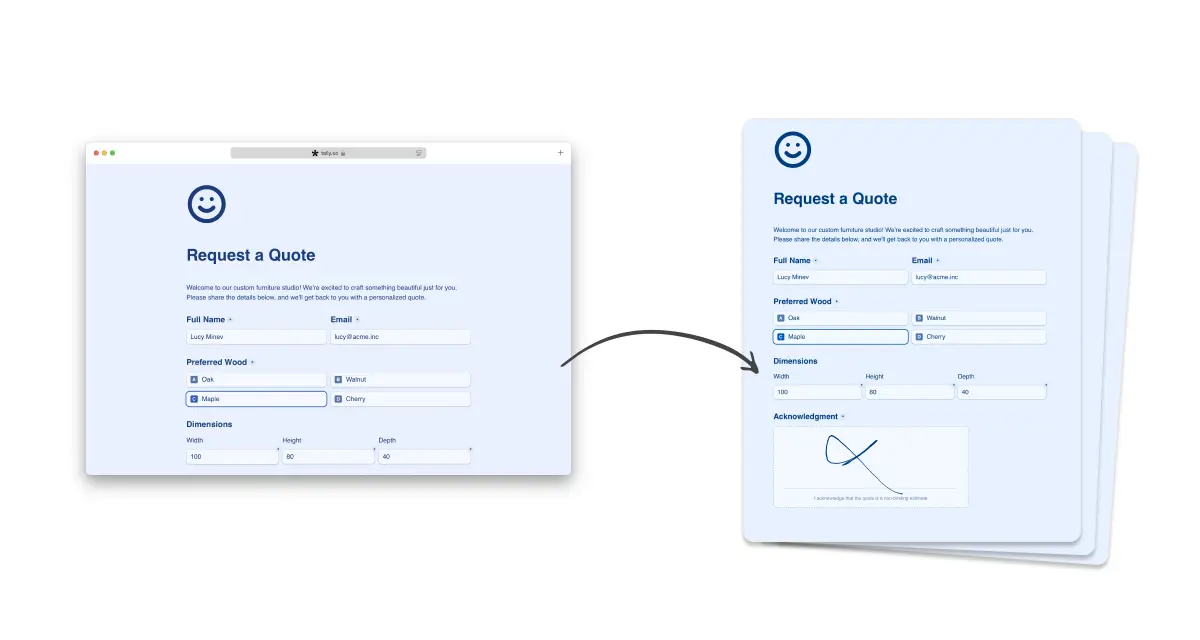
Hover a row in the Submissions table and clickDownload PDF. The sheet is drawn through the same renderer as the published page, on the form's own background and in its own theme, so it looks like your form and not like a printout of a database.
This covers what a fillable PDF does, and a good deal it does not:
- A PDF per response. Any submission can be downloaded as a finished document from the Submissions table.
- Automatic collection. Responses are stored and organised as they arrive; there is no manual step between the respondent and your records.
- Conditional logic. Show or hide questions based on earlier answers, so the form stays short and the PDF only carries what applied.
- Your design. Customize the form with your colours, font and logo, and the PDF inherits them.
- Signatures. Add an electronic signature block and the drawn signature is printed into the PDF, which is what a waiver, a consent form or a simple agreement needs.
- Answer piping. Mention earlier answers in the text of later pages, so the finished document reads like a letter addressed to that person rather than a list of questions.
- File uploads. A file upload block collects attachments alongside the answers.
- Email notifications. Get a mail for every submission, or send the respondent a confirmation of their own.
- The PDF in the mail. Turn on
Attach PDF with answersunder either email row inSettingsand the same document rides along with the notification, so every submission arrives in your inbox ready to forward. - Webhooks. Send each response to your own system through a webhook as it comes in.
When a fillable PDF is still the right tool
There are a few cases where the document has to stay a document: you need something people can complete with no internet connection, you are working from an existing template whose layout is fixed (a government or legal form, for example), or the recipient specifically has to receive and return a .pdf file.
A form is the better choice when you are collecting from more than a handful of people, want logic or signatures, want the answers stored without any copying, or need each response as a clean record for your files. If you are starting from a blank page rather than an existing template, the form is faster to make and easier to live with.
Frequently asked questions
What is a fillable PDF?
A PDF with interactive fields in it, text boxes, tick boxes, dropdowns and a signature line, so it can be completed on a computer or a phone without printing.
How do I create a fillable PDF for free?
Build the form in Tinyform, share the link, and download each response from the Submissions table with Download PDF. Nothing in that path needs a PDF editor.
Can I create a fillable PDF in a word processor?
You can design the layout there and export it as a PDF, but the fields will not be interactive. Recipients have to print it and fill it in by hand. For live fields you need either a PDF editor or an online form.
Can I include signatures in my PDF?
Yes. If the form has an electronic signature block, the signature the respondent drew is printed into the downloaded PDF.
Can I get the PDF without opening the Submissions tab?
Yes. Turn on Attach PDF with answers in the email notification settings and the PDF is attached to the notification for every submission, to you, to the respondent, or both.
Do I need a PDF editor at all?
Not for this. A PDF editor is one way to add fields to an existing file. If what you actually need is the answers, and a document for the record, the form route gets you both without one.