Multi-select
Let respondents pick several answers from a searchable list drawn as tags, with a minimum and maximum, colours, a default and randomized order.
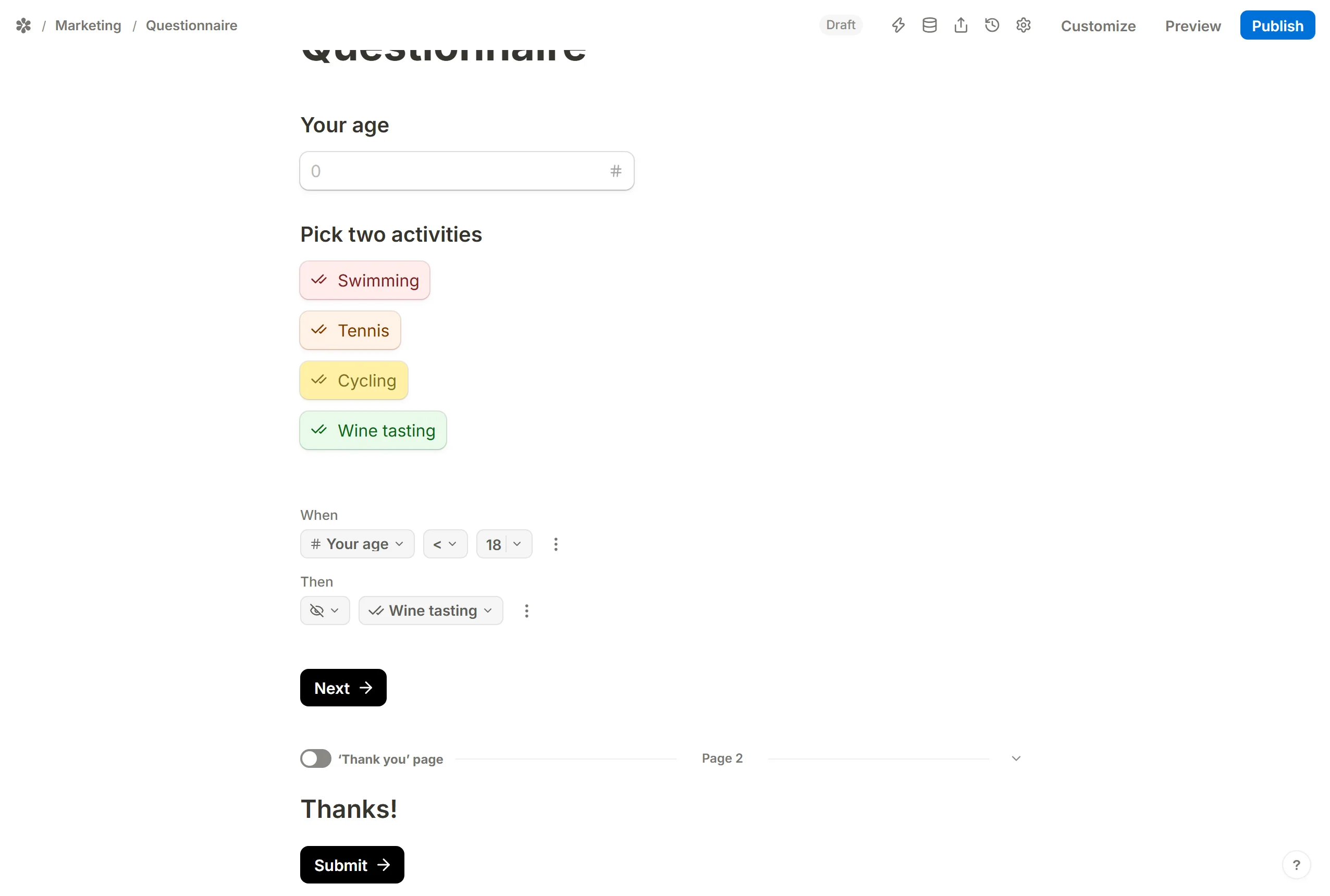
A Multi-select question is a dropdown that accepts more than one answer. Each pick becomes a small coloured tag in the box, and the list stays open for the next one. It exists beside Checkboxes on purpose: both store a list of picks, but Checkboxes lay every option out on the page, while Multi-select keeps a long list folded until it is needed. A question like "Which services do you offer?" with thirty possible answers is the case for it.
How it works

Open the insert menu with / and choose Multi-select. Type the question, then the options one per row: Enter starts the next, Backspace on an empty row removes it.
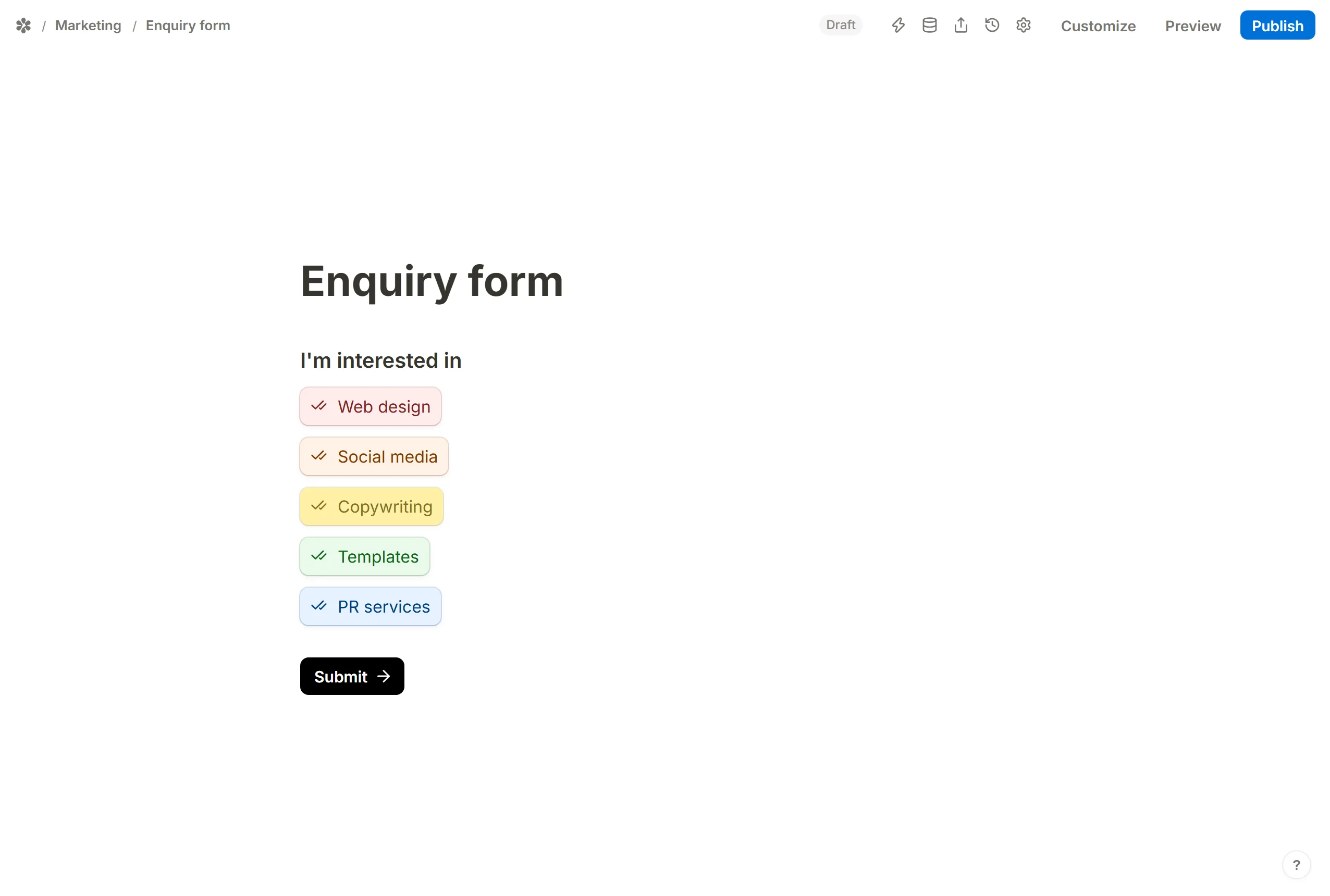
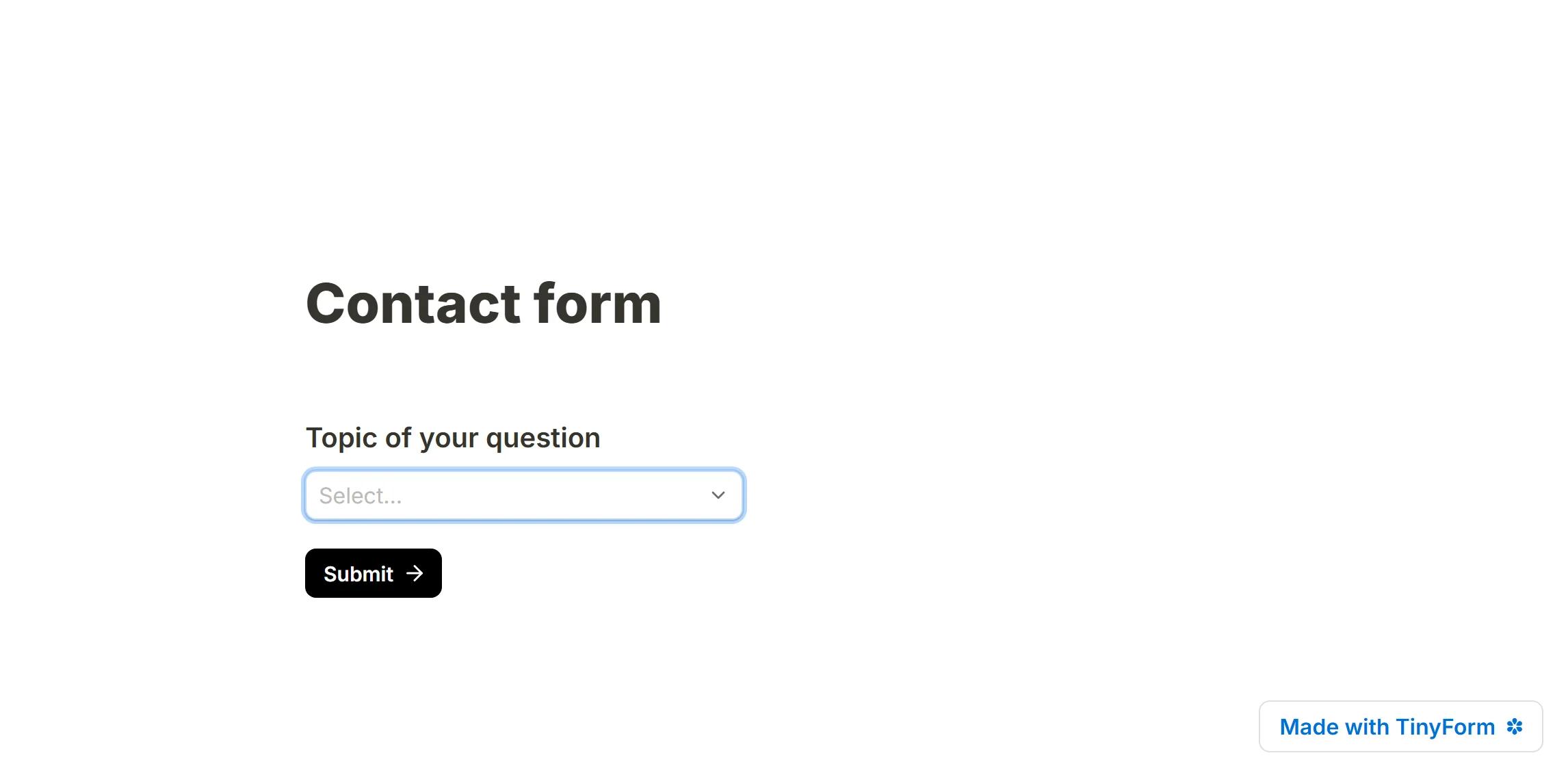
On the published page the respondent opens the list, types to narrow it, and clicks as many rows as apply. Every pick is drawn as a tag in the box; clicking a chosen row again removes it.
Multi-select settings
Open the block's settings from the handle at its left edge. These are the rows a Multi-select carries.
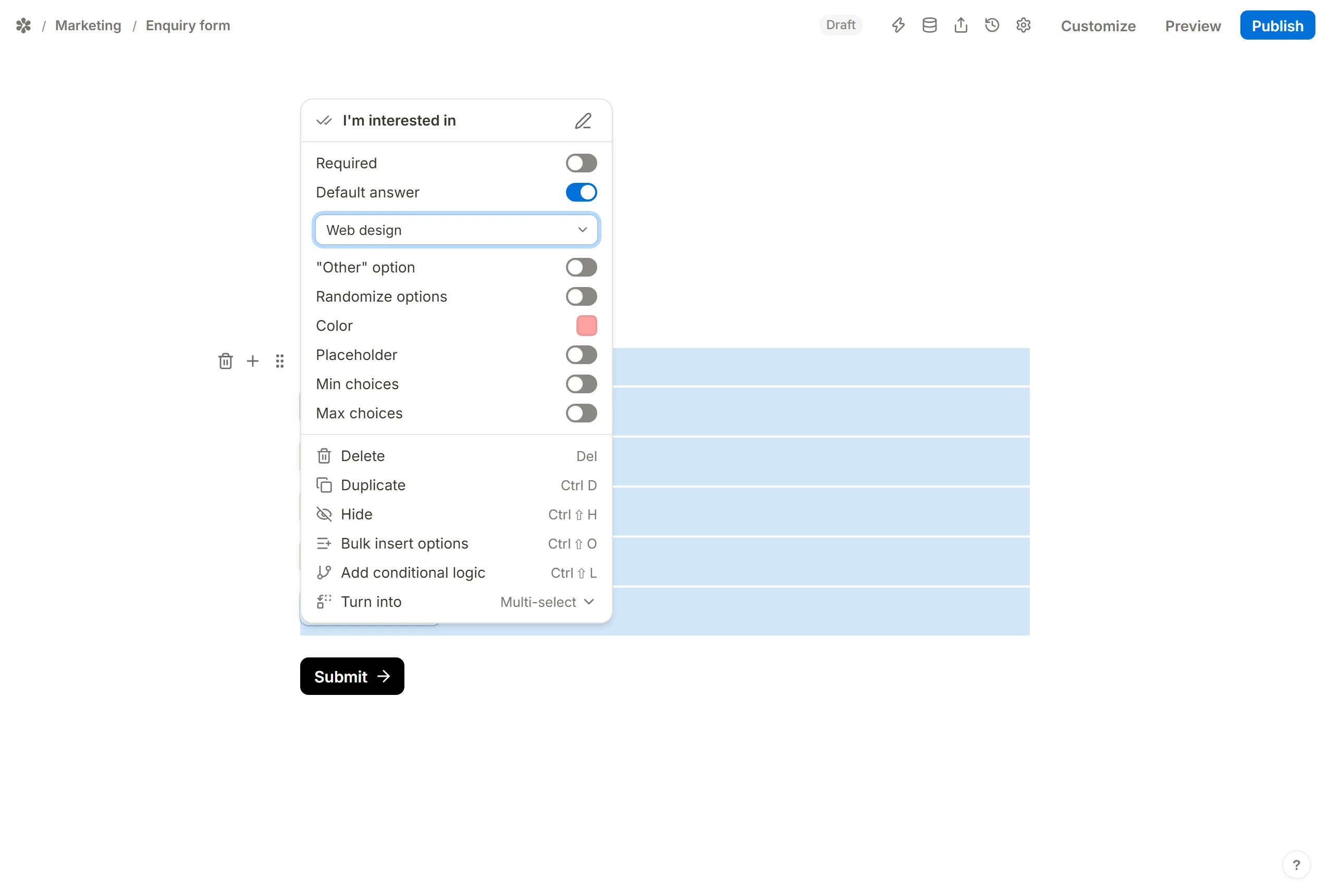
Add a default answer
Default answer opens the form with one or more options already chosen. Pick them from the block's own list rather than typing them, so a renamed option cannot leave a default that matches nothing. A default can also follow another field, a hidden field or a calculated field. See Pre-populate form fields.
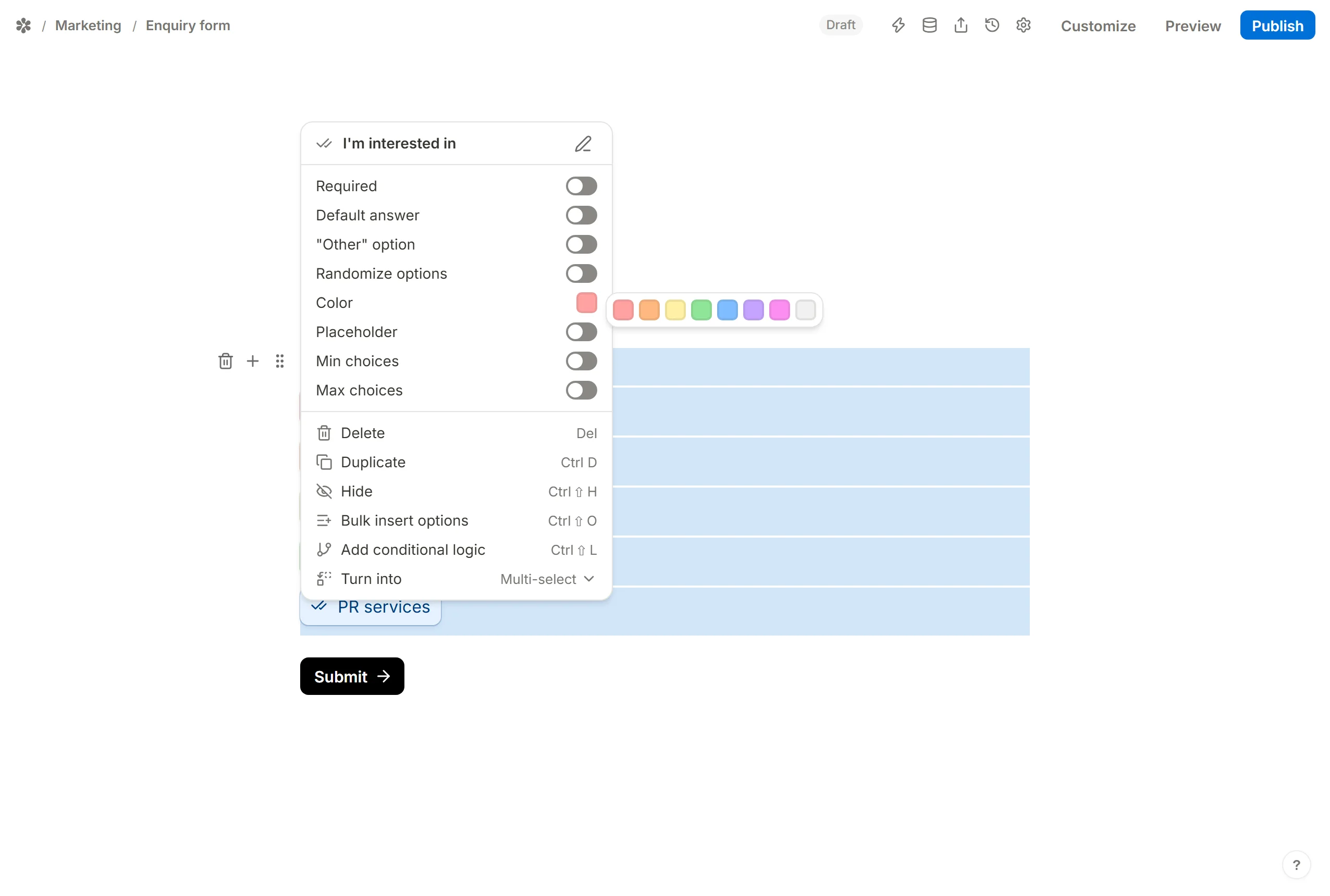
Color
Every option carries a colour, and the tags in the box wear it. Color-code options on the block turns the colouring on for the whole list; each option's own Color row picks its shade from a fixed set (Red through Grey), so two options can share one colour or stand apart.
Randomize options
Randomize options shuffles the list for each respondent, so an answer is not picked for sitting first. Lock options in place on a single option keeps it where you put it while the rest move. See Randomize answer options.
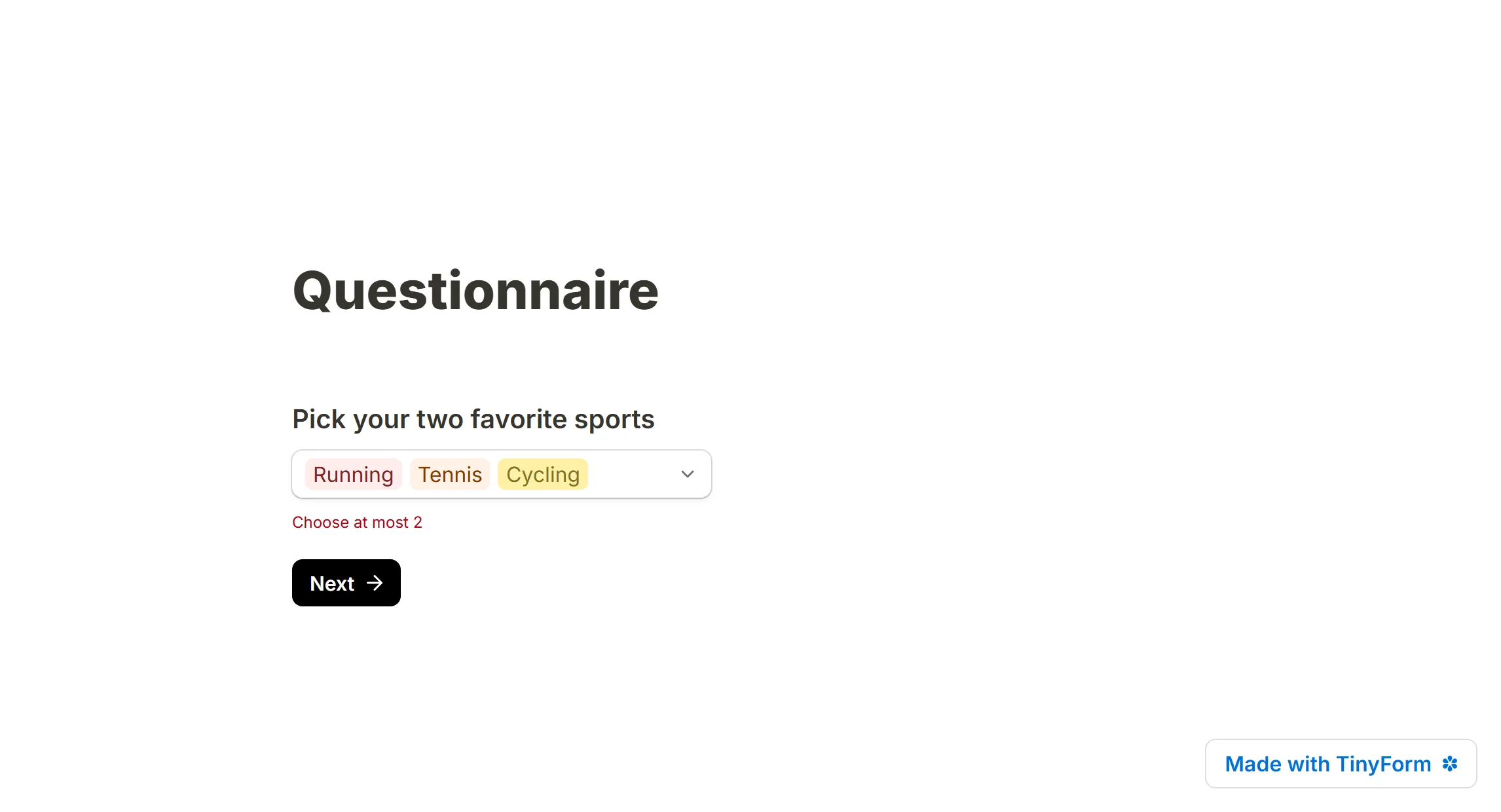
Min. and max. choices
Min choices and Max choices bound how many tags a respondent may leave in the box. A respondent under the minimum sees "Choose at least" and the number when they press Next or Submit; one over the maximum sees "Choose at most". Neither stops them picking; the check runs when they try to move on.
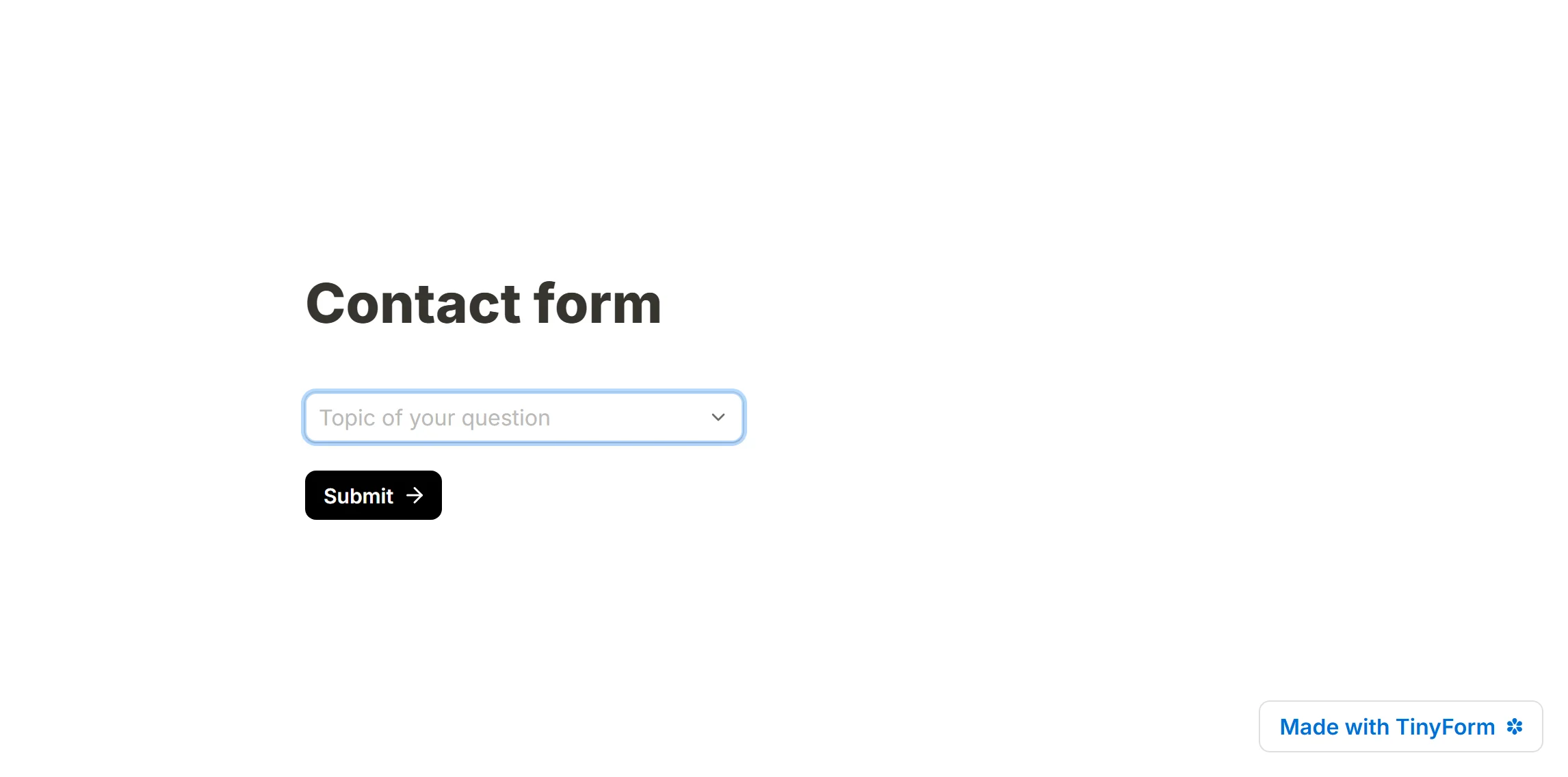
Add placeholder text
Placeholder sets the grey text inside the empty box. It can stand in for the title when the box is self-explanatory, or add a hint under a title that carries the question.
Import answer options
A long list is pasted rather than typed: choose Bulk insert options from the block menu (or press Ctrl+Shift+O), paste one option per line, and press Insert options. See Bulk insert option lists.
An "Other" option
"Other" option adds a final row that opens a text box, so a respondent whose answer is not on the list can still give it. It is stored beside the tags as their own words.
Conditional logic

A rule can hide a single option, not only the whole block. In the target picker under Hide blocks, expand the Multi-select question and tick the one option to remove. A tasting event might hide "Wine tasting" for anyone who said they are under 18, while the rest of the list stays as it is. See Conditional logic.